


Your CSV track list could be an export pulled from Spotify before canceling a subscription, a list copied over from Apple Music, or a spreadsheet of favorites someone has kept updated by hand for years. But the CSV file of songs and an empty YouTube Music account don't connect on their own. There's no drag-and-drop, no upload button in the settings menu, nothing.
This guide shows you how to import a CSV playlist into YouTube Music so it appears in your library, fully playable.
Can You Import a CSV File to YouTube Music Directly?
Open the YouTube Music app or the web player and look for an import option, and you won't find one. There's no upload button anywhere in the settings for adding a file of songs.
That leaves two ways to get a CSV's worth of songs into your library: type each one into the search bar by hand, or hand the file to a tool that does the matching for you. For a playlist of five or ten songs, typing them in yourself isn't a big deal. Past that, it starts costing real time, and it's easy to lose track of which songs you've already added or accidentally skip one.
What Should a CSV File Look Like Before You Upload It to YouTube Music?
A CSV file that imports cleanly has one song per row, with columns for at least the title and artist:
Title alone gets you a long way, but it's Artist that does most of the work in narrowing down the right match. ISRC, if your source export includes it, is the one field that removes guesswork entirely, since it points to one exact recording rather than a song title that might exist as a studio cut, a remix, and a live version all at once. Album is the least important of the four; it mostly helps when a track has been re-released under the same name on a different record.
A row that looks like Anti-Hero, Taylor Swift will match correctly almost every time. A row with just Anti-Hero and nothing else might still work, since it's a well-known song, but it's the kind of bare-title row that causes problems once you get into less famous tracks or artists who've covered each other's songs.
How to Import a CSV File into YouTube Music
To import CSV file to YouTube Music, you're relying on a tool that sits between the spreadsheet and the streaming service, doing the lookup work that neither side handles on its own.
PlaylistGo is the desktop app used for the walkthrough below. Point it at your CSV, and it checks each row against YouTube Music's catalog using title, artist, album, and ISRC together rather than title alone, then builds the playlist once you confirm the matches. Beyond CSV, it also reads M3U, XSPF, and JSON files, and covers 10 music services total, so the same install works whether you're importing into YouTube Music, Spotify, or somewhere else entirely.
PlaylistGo: Import CSV Playlists into YouTube Music Try It Free
Upload your CSV, match songs automatically, and create your YouTube Music playlist in minutes.
Prepare Your CSV File
A quick check before uploading saves you a re-upload later. Two things matter most:
- One song per row, with a header row on top. A loose list of titles with no header confuses the column detection.
- UTF-8 encoding. Track titles with accents, Japanese characters, or other non-Latin text get garbled if the file is saved in a different encoding.
If your spreadsheet app exported the file in a different format, re-save it as CSV UTF-8 rather than plain CSV. Duplicate rows aren't a dealbreaker either way, since PlaylistGo filters them out during the import step rather than requiring you to clean the file first.
Upload Your CSV File to PlaylistGo
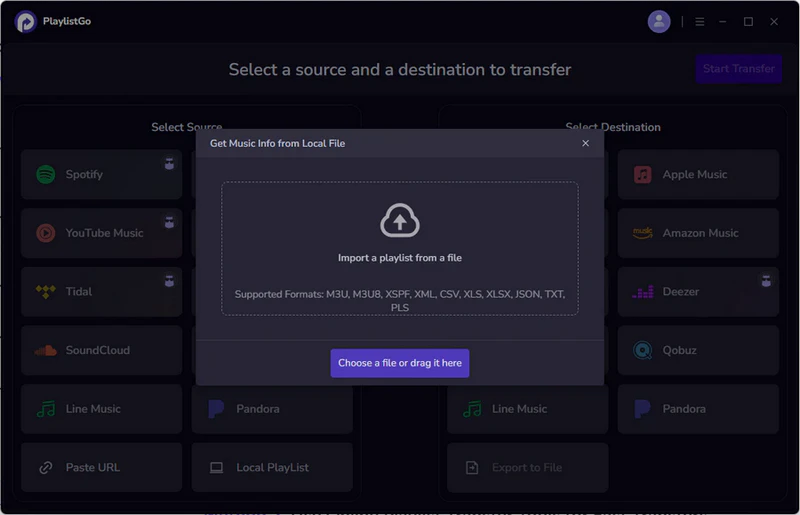
Open PlaylistGo and select Local Playlist as the source platform, then browse and select your CSV file from your local drive. PlaylistGo will read the file and display a preview of all detected tracks before doing anything to your YouTube Music account.
Select YouTube Music as Your Destination
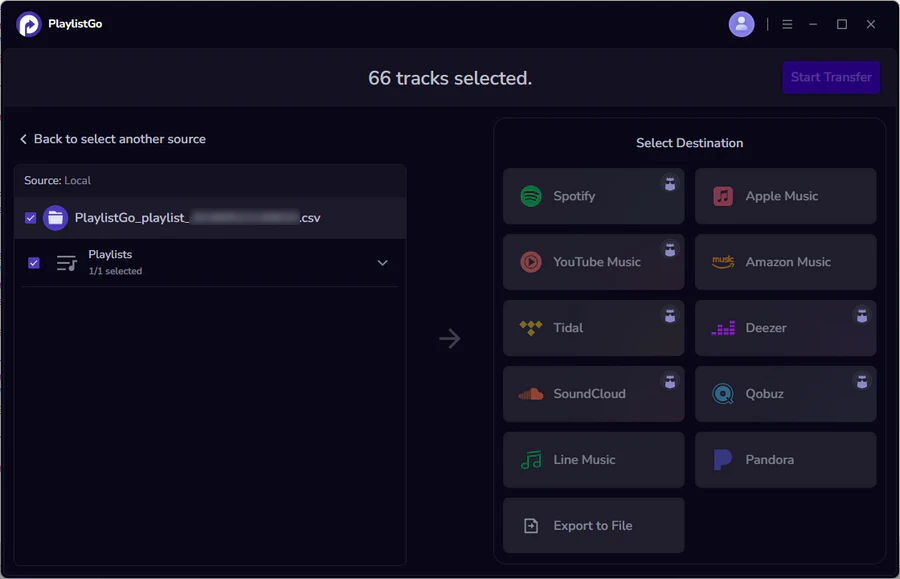
Select YouTube Music in the destination platform options and sign in with your Google account. PlaylistGo will search YouTube Music's catalog and show you a preview of matched and missing tracks. Review the list before confirming, and if any tracks are missing, check the title spelling or add the artist name in your CSV and re-upload.
Create Your YouTube Music Playlist
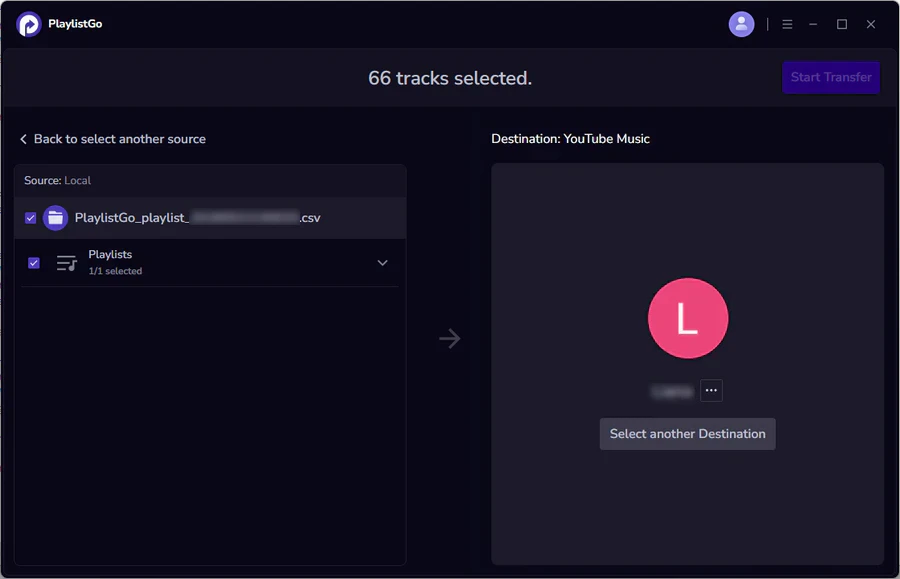
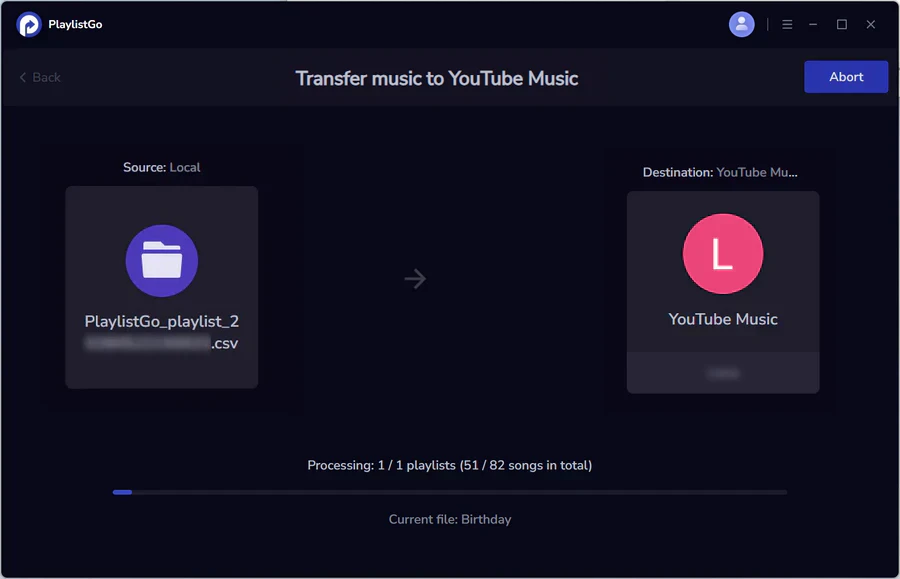
Once you're satisfied with the match results, click Start Transfer to confirm. PlaylistGo will create the playlist directly in your YouTube Music account. The playlist appears in your library immediately and syncs across all your devices.
CSV Import vs Manual Playlist Creation in YouTube Music
For a handful of songs, searching and adding tracks one by one in the YouTube Music app works fine. Once a playlist grows past a few dozen tracks, the manual approach starts to break down.
| Feature | CSV Import | Manual Creation |
|---|---|---|
| Speed | Minutes, regardless of playlist size | Scales with the number of songs |
| Accuracy | High, with ISRC and metadata matching | Depends on how carefully you search |
| Large Playlists | Handles thousands of tracks | Impractical past a few dozen songs |
| Review Before Adding | Preview matches before confirming | Songs added one at a time, no batch preview |
When Your CSV Transfer to YouTube Music Goes Wrong
Not every line in your CSV file will find a perfect song match right away. Instead of troubleshooting each error one by one, it's simpler to narrow down the root cause. Issues usually fall into three categories: problems with the CSV file itself, incomplete song identifying details, or limitations unique to YouTube Music's music library.
When the CSV File Itself Won't Import
If PlaylistGo can't open the CSV at all, it's almost never a song-matching issue, it's a formatting one. Three things account for most of these: spreadsheets saved with semicolons instead of commas (typical for non-US region exports), non-UTF-8 encoding that messes up special or foreign characters, and simply renaming an .xlsx file to .csv without proper export. Just re-export the sheet via your spreadsheet tool's official export option instead of manually changing the filename, and nearly all these errors will disappear.
Songs YouTube Music Can't Match From Title Alone
If a CSV entry only has a track title and no artist name, PlaylistGo can't pick a clear matching track because multiple songs share that title. Rather than guessing wrong, the row gets flagged so you can review it. Simply add the artist to only these flagged lines, reupload the smaller batch, and nearly all such mismatches will be resolved without reprocessing your entire file.
Wrong Matches and Regional Gaps in YouTube Music's Catalog
YouTube Music's catalog is from two overlapping sources: regular YouTube videos and its own licensed audio library. A song can exist as a fan-uploaded video, an official music video, and a standalone audio track all at once. This explains why song matching works differently here compared to services with one unified music database. An ISRC code in your CSV eliminates all this confusion, as it targets the official licensed recording instead of depending on random top search uploads.
Regional licensing is another less common yet impactful factor. A track may be accessible in YouTube Music for certain regions but unavailable elsewhere, regardless of your CSV file's content. If missing imports all belong to the same artist or label instead of appearing randomly, regional restrictions are almost certainly the cause.
Why Use PlaylistGo for CSV to YouTube Music
The main advantage is the matching: PlaylistGo weighs title, artist, album, and ISRC together instead of just grabbing the first search result, so version mix-ups are rarer, and you get to review matches before anything's added. A few other points worth knowing:
- It reads CSV, Excel, M3U, and JSON with no pre-conversion required.
- There's no playlist size limit, so you won't need to split large music libraries into separate batches.
- Everything runs locally on your computer rather than through a server, so your playlist data doesn't leave your machine.
- PlaylistGo lets you transfer songs across 10 streaming platforms — if you later want to shift the playlist to Spotify or Apple Music, you won't need a separate tool.
How to Import CSV Playlists to Spotify?
Learn how to easily import CSV playlists to Spotify with this step-by-step guide.
Frequently Asked Questions
Getting Your CSV Playlist Into YouTube Music
YouTube Music doesn't natively support external playlist imports. Still, importing a CSV playlist to YouTube Music only takes around five minutes with PlaylistGo. Just fill in track titles and artist names, quickly review any mismatches flagged by the tool, and your finished playlist will appear in your account instantly.

PlaylistGo – Best Desktop Transfer Tool
The fastest and most reliable way to move entire Spotify library to Apple Music, YouTube Music, TIDAL, etc. 100% offline • No Cloud Required • 99.2% success rate


 Language ▴