


Losing your Apple Music playlists is more common than most people expect. Switching devices, canceling your subscription, or changing regions can all wipe out years of carefully built playlists.
This guide covers how to backup your Apple Music library, with four practical methods depending on whether you need to save your playlists, your actual music files, or both.
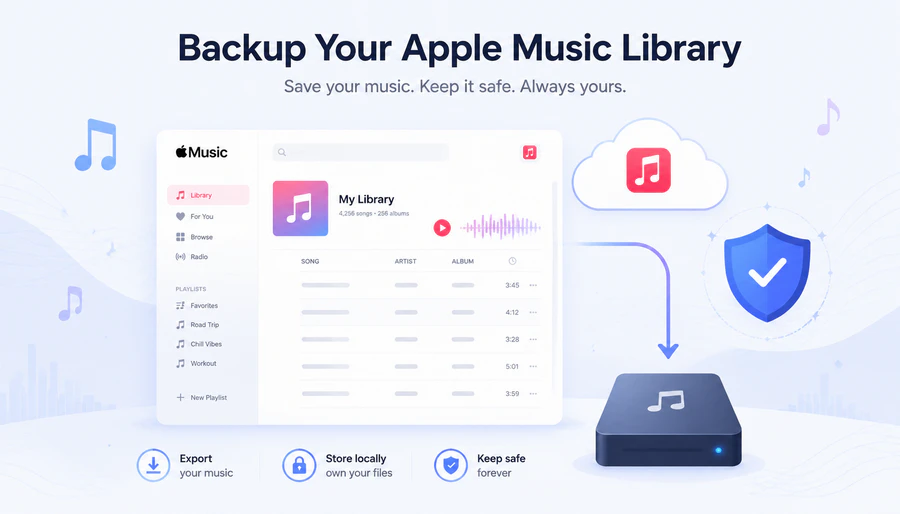
Apple Music Sync vs. Backup: What's the Difference?
iCloud Music Library keeps your Apple Music playlists synced across iPhone, iPad and Mac. That's convenient, but it isn't a backup. All your playlists are linked to your Apple ID and an active subscription. If you cancel your Apple Music plan, you'll lose access to all synced tracks and playlists, even though they're still connected to your account.
A real backup lets you store your playlists completely separate from Apple's services. You can restore them or transfer them to any other platform anytime you want.
There are two types of music backups you might need:
- Playlist structure. Your playlist names, track order, artist and album metadata.
- Actual audio files. The music itself, saved as playable files on your computer.
Most backup methods only cover one of these two options. Knowing which one you need will save you time before you pick a tool.
Method 1: Backup Apple Music Playlists with PlaylistGo
Best for: Users who want an accurate auto-backup covering their entire Apple Music library, not just one playlist at a time.
If you want a proper backup and skip all the manual steps, PlaylistGo is made exactly for this. It cross-references track titles, artists, albums, ISRC codes, and audio fingerprints to match songs precisely. It achieves a 99.2% match rate, so you'll never accidentally lose any of your tracks.
You can export your entire library to your computer in 10 different formats, including CSV, M3U, JSON, and XLSX, or transfer it straight to another platform as a safety copy. PlaylistGo handles large libraries well, from a few thousand tracks up to well over 100,000. Everything runs locally on the desktop app for Windows or Mac, no cloud upload, no password storage.
PlaylistGo: Backup & Restore Apple Music Playlists Locally Try It Free
Export your Apple Music playlists to CSV, M3U, JSON and 7 other formats. Restore them anytime.
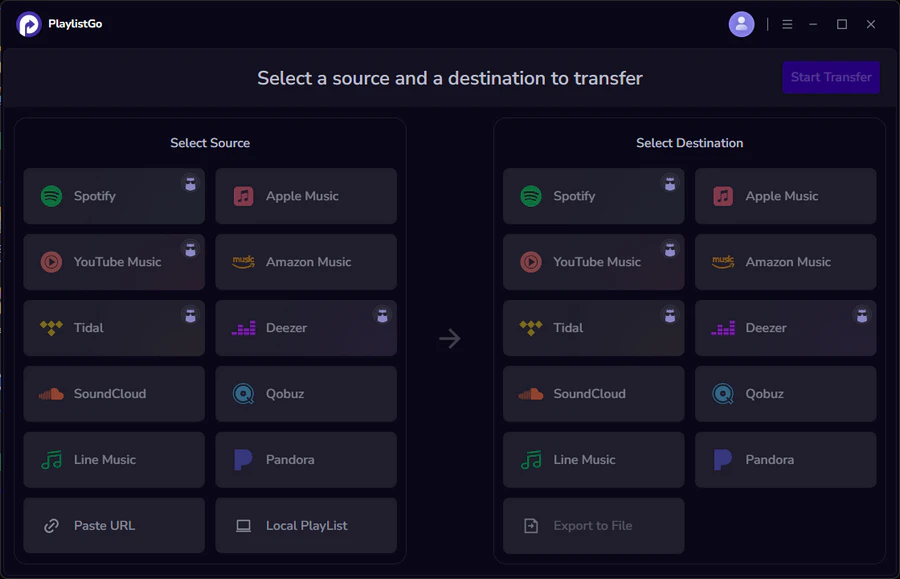
Steps to back up your Apple Music library with PlaylistGo:
Connect Your Apple Music Account
Download and launch PlaylistGo. Select Apple Music as your source platform and log in. PlaylistGo will load your full library — playlists, liked songs, and saved albums.
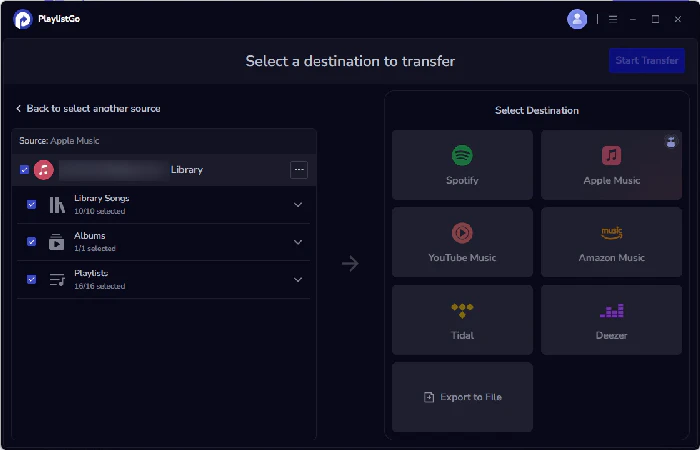
Select Export to File → Choose a Format
In the destination area, select "Export to File", then choose a format such as CSV, M3U, or JSON. CSV is the most practical choice for most users since it opens directly in Excel or Google Sheets.
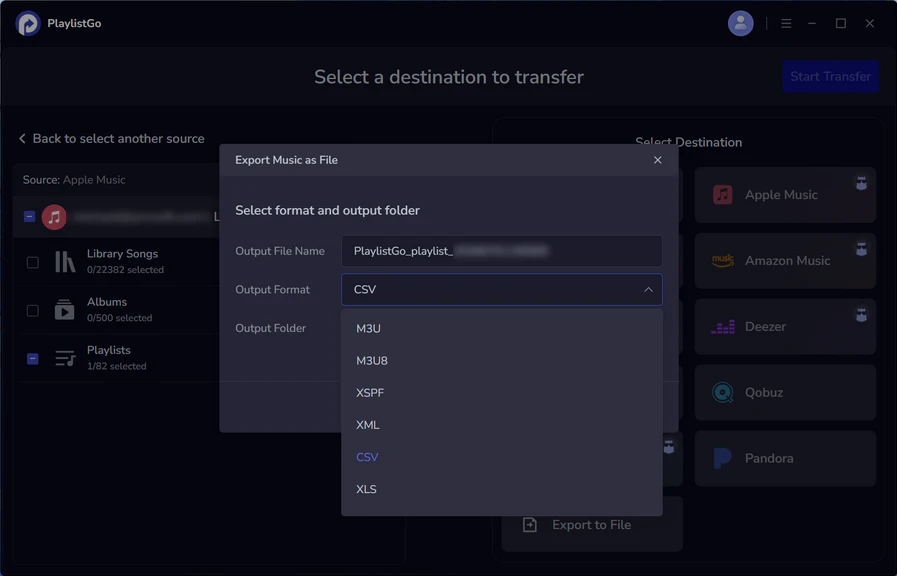
Start Transfer and Save the File
Click Start Transfer. PlaylistGo compiles all track metadata into the chosen format and saves it to your computer. Any unmatched tracks are listed clearly so nothing gets lost without your knowledge.
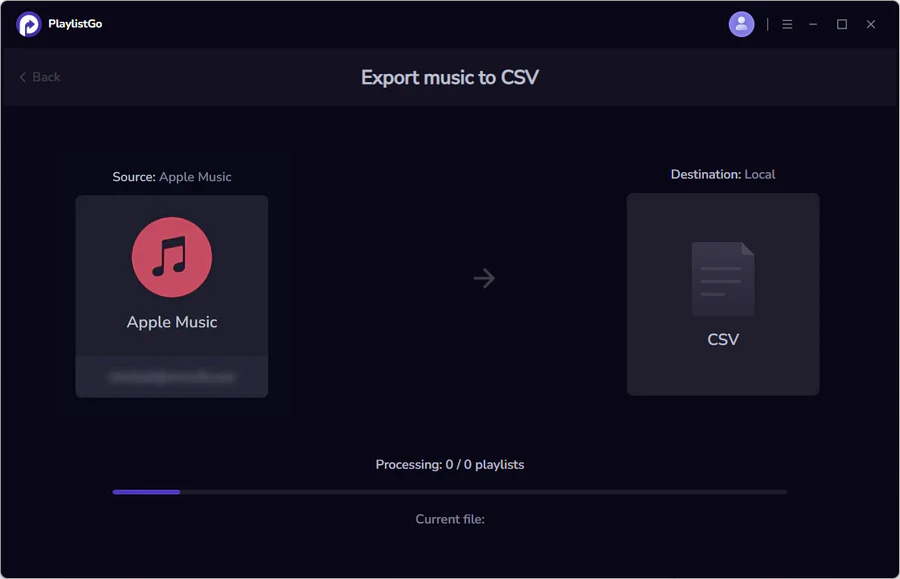
Now you can safely save a portable copy of all your Apple Music playlists, even if you cancel your subscription or switch streaming platforms later.
If prefer to move your Apple Music library straight to another streaming service instead, just choose that platform as the destination in Step 2 — the process works the same way. See our guide on transferring Apple Music to Spotify for that workflow in detail.
Method 2: Export Apple Music Library Manually (iTunes/Finder)
Best for: A quick, one-time export without installing extra software.
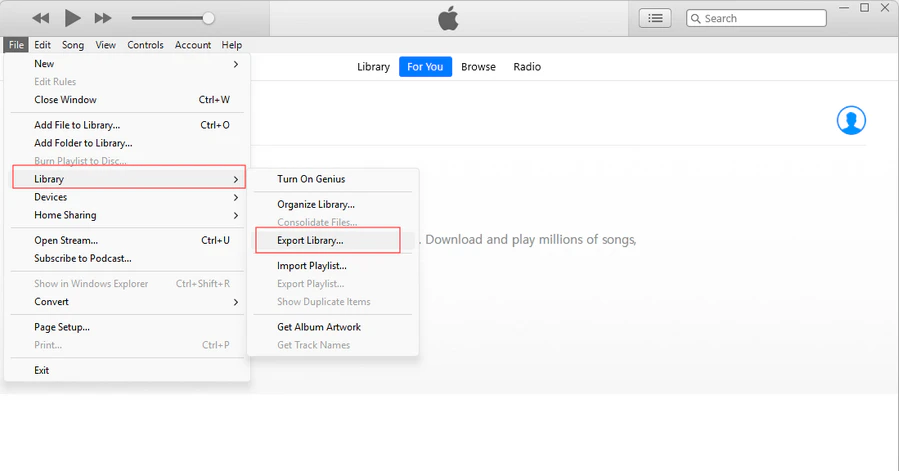
On a Mac, open the Music app and go to File > Library > Export Playlist, then save it as an XML file. On Windows, do the same from iTunes. This preserves playlist names and track metadata in a format you can store locally.
This works, but it has real limits. You have to export playlists one by one manually unless you write custom scripts for it. Large libraries take a long time to export properly, and there's no built-in way to verify that everything transferred correctly.
Method 3: Backup Apple Music Audio Files for Offline Access
Best for: Users who need the actual music files saved locally, not just the playlist structure.
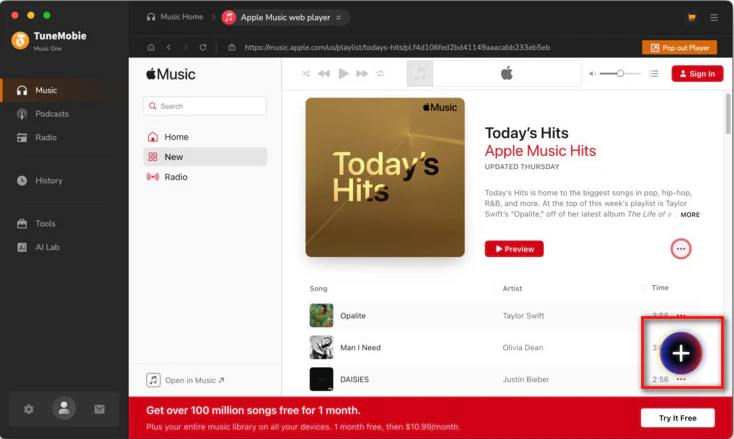
If what you need is the audio files themselves saved locally, that requires a different type of tool — TuneMobie Apple Music Converter is one option for this. It converts Apple Music tracks to formats like MP3 and FLAC while keeping ID3 tags intact, which works well if your goal is a local audio archive rather than a playlist backup.
This is a different use case from Method 2. If you just need your playlists and library structure preserved, PlaylistGo covers that. If you specifically want the audio files themselves saved to your hard drive, this is the route.
Method 4: Backup Your Apple Music Library with Time Machine
Best for: Protecting your Mac's local files, not your Apple Music playlists specifically.
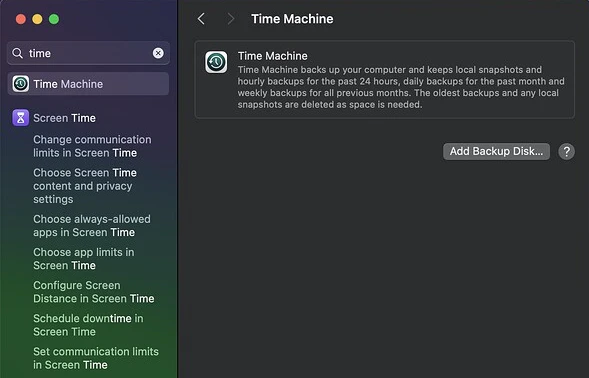
Time Machine and external drive backups protect the files stored on your Mac itself, like photos, documents, and anything saved locally. If your hard drive fails or your laptop is lost, this is what gets your computer back. See Apple's official Time Machine guide for setup steps.
But your Apple Music playlists aren't stored locally on your Mac — they're tied to your Apple account on Apple's servers. Time Machine can't back these playlists up at all. If you cancel your subscription or run into account troubles, your Apple Music playlists could disappear, even with a full Mac backup. Think of Method 4 as safeguarding your device, and Method 2 as securing your music library.
How to Restore Your Apple Music Backup
If you exported your playlists as local files through PlaylistGo, you can import them back into Apple Music or any other supported platform whenever you need to. The same matching process runs in reverse, so track order and metadata carry over.
- Open PlaylistGo and select Local Playlist as the source
- Upload your backup file (CSV, M3U, JSON, XML, or another supported format)
- Choose Apple Music as the destination platform
- Review matched tracks in the pre-transfer preview
- Click Start Transfer to recreate the playlist in your Apple Music library
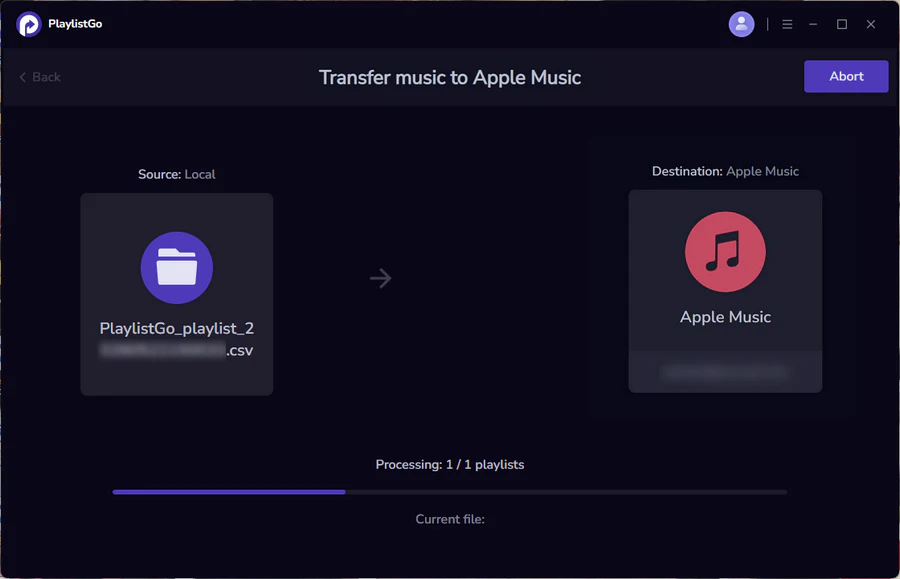
A few things to expect during restore:
- Catalog differences may cause a track to go unmatched.
- Certain songs won't be available in your country's Apple Music library due to regional licensing differences.
- Small inconsistencies in track or album names can result in wrong matches or incorrect track versions.
FAQ: Backing Up Apple Music Library
Conclusion
Apple Music's sync features keep your devices consistent, but they don't protect you from a canceled subscription, an account issue, or a platform switch. A real backup means exporting your playlist data to a local file or another service you control.
For a complete, accurate backup of your entire Apple Music library, PlaylistGo handles the matching, the formats, and the restore process in one tool.
🔥 Might Like: Still deciding between platforms? See our comparison of Spotify vs Apple Music before you migrate or back up your library.

PlaylistGo – Best Desktop Transfer Tool
The fastest and most reliable way to move entire Spotify library to Apple Music, YouTube Music, TIDAL, etc. 100% offline • No Cloud Required • 99.2% success rate


 Language ▴