


Transferring your Spotify playlists to Apple Music can be tricky because there’s no official one-click import. The good news is that you can move playlists by matching songs across catalogs — and modern tools make it fast.
If you want the most reliable step-by-step method, jump to the recommended desktop tutorial here: Part 2 (Desktop). After that, we’ll compare 5 popular tools (desktop, online, and iPhone/iOS) with clear pros and cons so you can choose what fits your library size and workflow.

YouTube Video: Transfer Spotify to Apple Music in 2026
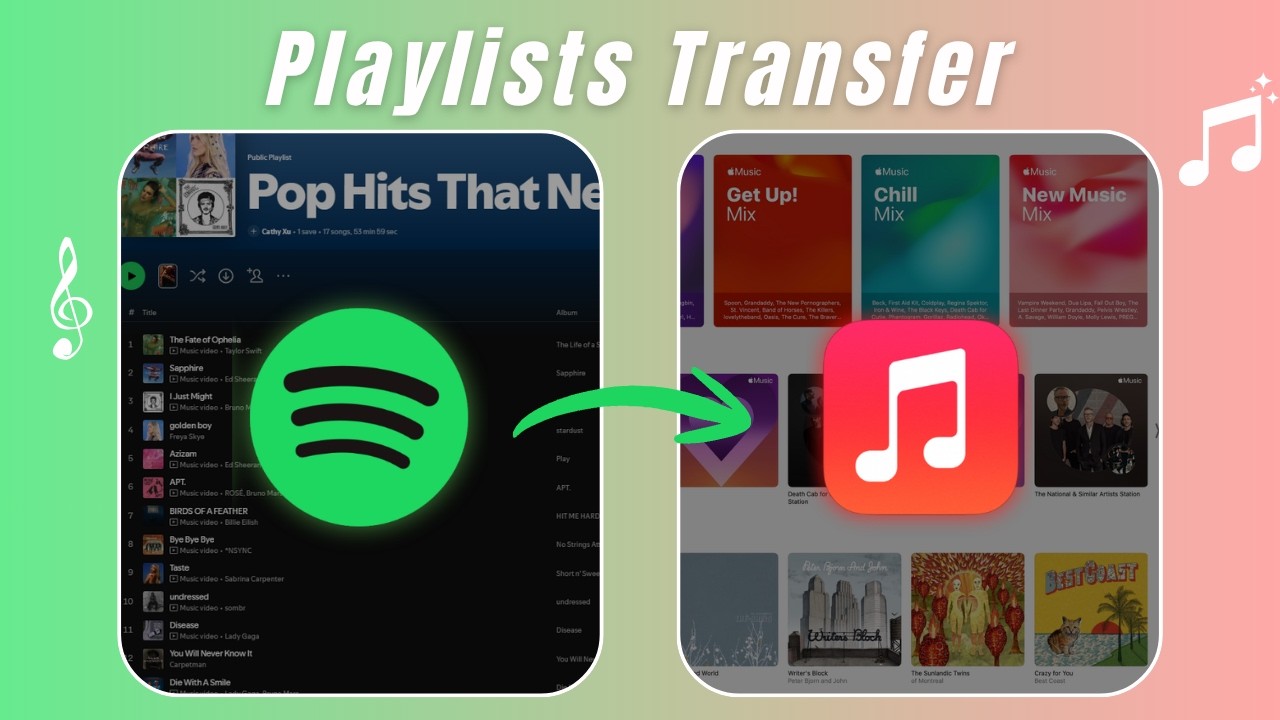
Is Apple Music Worth Switching to from Spotify?
- Lossless & Dolby Atmos audio: Apple Music includes lossless FLAC and spatial audio at no extra cost
- iPhone & Mac ecosystem: native integration with Siri, CarPlay, HomePod, and Apple Watch
- Apple One bundle: combine Apple Music with iCloud, TV+, and Arcade in one subscription
- Local file sync: upload your own music files and access them alongside your streaming library
Choose the Best Transfer Method (30-Second Guide)
If you want the fastest way to pick the right method, use this:
- Large library or many playlists: Use a desktop tool for stability and batch processing → Method 1 (Desktop)
- Small playlists or free-first: Use an online tool like TuneMyMusic or Soundiiz → Method 2 (Online)
- iPhone/iPad only: Use an iOS app like SongShift or Playlisty → Method 3 (iOS)
Best Desktop Tool for Spotify to Apple Music Transfer (Recommended)
If you have a large music library or want the most reliable transfer with higher matching accuracy, a desktop application is usually the best choice.
PlaylistGo - Secure Transfer Tool for Spotify to Apple Music
Best for: Users with multiple playlists or large music libraries who want a stable transfer and local processing on a professional desktop app.
PlaylistGo is a desktop playlist transfer tool built for full library migration. It matches tracks using ISRC codes alongside title, artist, and album metadata, achieving a 99.2% match rate between Spotify and Apple Music.
In addition to cross-platform transfers, PlaylistGo supports importing playlists from local files or playlist URLs, and exporting streaming playlists to local files for backup and migration, including M3U, CSV, XML, and XLSX. Because it runs locally on your machine, your Spotify and Apple Music credentials are never uploaded to a third-party server.
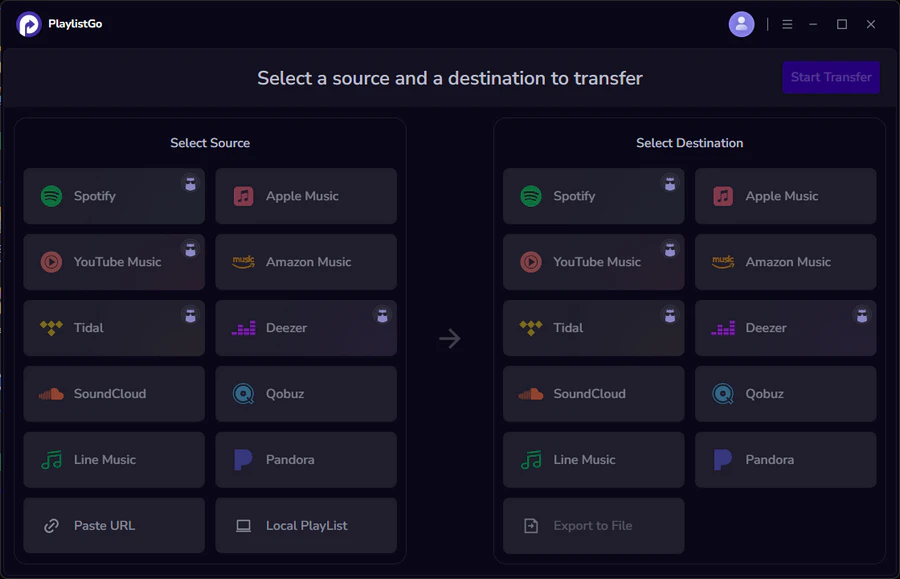
PlaylistGo: Transfer Playlists Across Platforms Try It Free
Move playlists between Spotify, Apple Music, YouTube Music and more in just a few clicks.
| Item | Details |
|---|---|
| Compatible with | Windows, macOS |
| Supported Platforms | Spotify, Apple Music, Amazon Music, YouTube Music, TIDAL, Deezer, and more |
| Transfer Objects | Liked songs, albums, playlists, full music library, local playlists, playlist URLs |
| Import & Export | Local files in M3U, M3U8, XSPF, XML, CSV, XLS, XLSX, JSON, TXT |
| Transfer Accuracy | Up to 99.2% matching accuracy |
| Transfer Speed | Fast and stable |
| Security | Safe and reliable. All transfers run locally |
Tutorial: How to Transfer Spotify Playlists to Apple Music with PlaylistGo
Most transfers finish within 3–10 minutes for libraries under 1,000 tracks. Libraries of 5,000–10,000+ tracks typically take 15–30 minutes, depending on API response times from both platforms. PlaylistGo handles large transfers automatically with batch processing and retry logic.
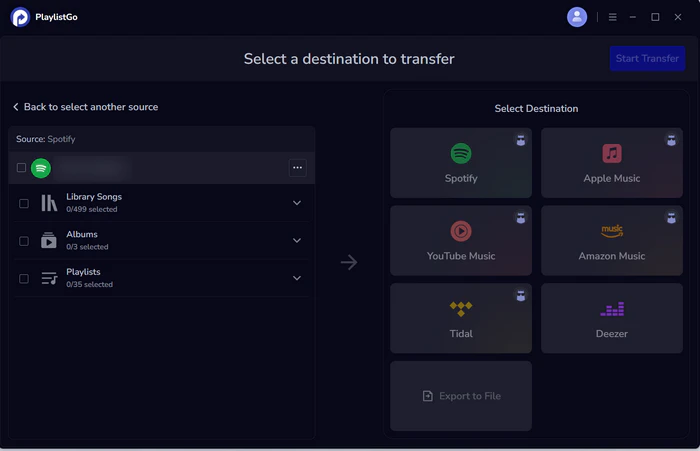
Connect Your Spotify Account
Install and launch PlaylistGo on your computer. Select Spotify as your source platform and log in. PlaylistGo will load your full library — playlists, Liked Songs, and saved albums. Only read permissions are requested — PlaylistGo cannot modify your Spotify library.
Connect Your Apple Music Account
Select Apple Music as the destination and log in through Apple's official authorization flow. Your password is never stored in the app. Write access is required so PlaylistGo can create playlists and save tracks to your Apple Music library.
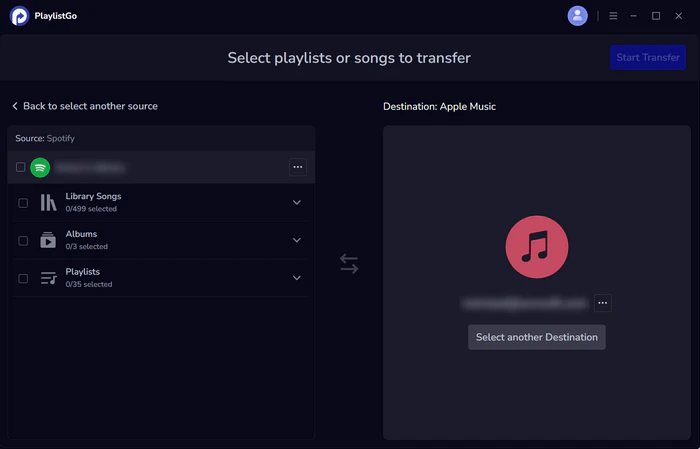
Select Playlists and Start Transfer
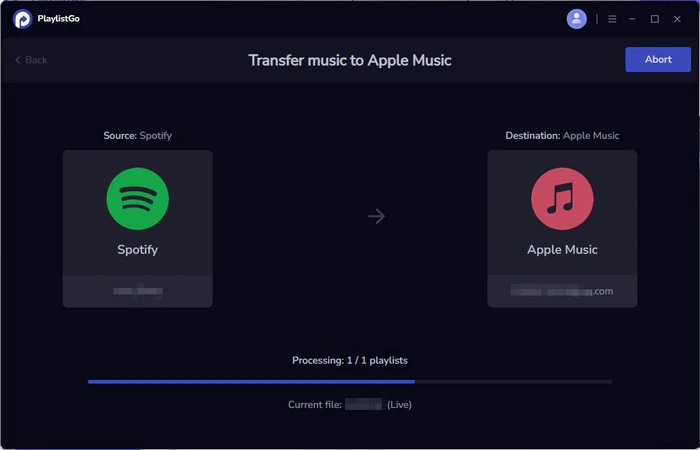
Choose which playlists, Liked Songs, or saved albums to move. You can transfer everything at once or select individual playlists. Click Start Transfer. PlaylistGo matches tracks in batches using ISRC codes and metadata, showing progress in real time. Anything that doesn't match is flagged in a transfer report for review — not silently dropped.
Online Tools for Spotify to Apple Music Transfer
Online tools like TuneMyMusic and Soundiiz are easy to use for smaller transfers. Because they run in a browser, large libraries can run into slower speeds, session timeouts, or mismatched tracks. For a few playlists, they can still be a convenient option.
TuneMyMusic
Best for: Users who want to transfer a small playlist quickly and don't mind manually checking results.
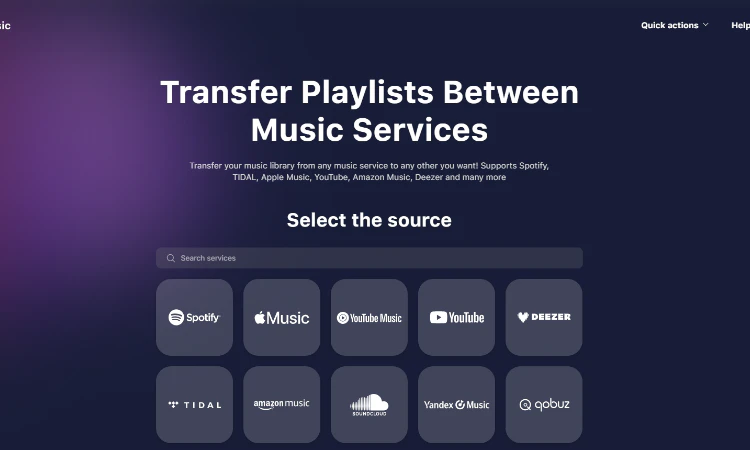
TuneMyMusic is an online tool for transferring playlists and songs between services. It supports Spotify, Apple Music, YouTube Music, TIDAL, Amazon Music, Deezer, and more.
TuneMyMusic offers both a free version and a premium subscription. The free version allows transfers of up to 500 tracks, while the premium plan unlocks unlimited transfers and syncing. It does not offer a lifetime plan.
Pros
- Easy to use in the browser — no installation required
- Auto-sync available (paid)
- Supports many services
Cons
- Large transfers can be unstable or incomplete
- No lifetime or one-time payment plan
Soundiiz
Best for: Users who prefer a web-based tool and only need to transfer a few playlists.
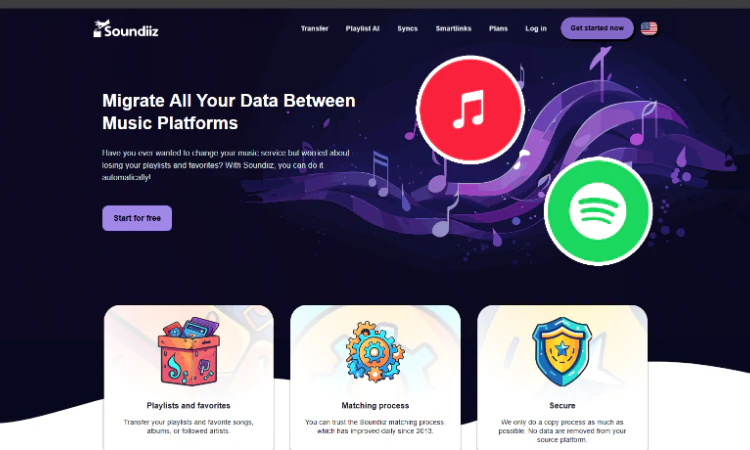
Soundiiz is a web-based transfer tool that supports 40+ platforms, including Spotify, Apple Music, YouTube Music, Tidal, Deezer, Amazon Music, and SoundCloud.
Soundiiz offers a free version with limitations (typically one playlist at a time). Premium unlocks larger transfers and syncing via subscription.
Pros
- Supports many music platforms
- User-friendly interface
Cons
- Free version has transfer limits
- Mismatched or missing tracks can happen
- Browser-based workflow may not be ideal for large libraries
iPhone Apps for Spotify to Apple Music Transfer
If you prefer to transfer playlists on your iPhone or iPad (without a computer), iOS apps can help. They are convenient for quick, on-the-go transfers, but may be slower or less stable for large libraries compared to desktop tools. Here are two popular options: SongShift and Playlisty.
SongShift (iOS)
Best for: iPhone/iPad users who transfer a few playlists and are OK with doing transfers one at a time.
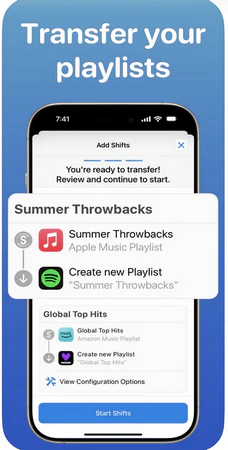
SongShift is designed for iOS devices. It can move playlists (and sometimes albums/songs depending on the service) between streaming platforms. The free version supports basic transfers, while Pro unlocks batch features and faster matching.
Pros
- Free tier available for small transfers
- Easy to use on iPhone/iPad
Cons
- Some playlist types may not transfer smoothly in some cases
- Large transfers may fail or require retries
Playlisty (iOS & Mac)
Best for: Apple ecosystem users who prefer a one-time purchase option and need import features (local files / links).
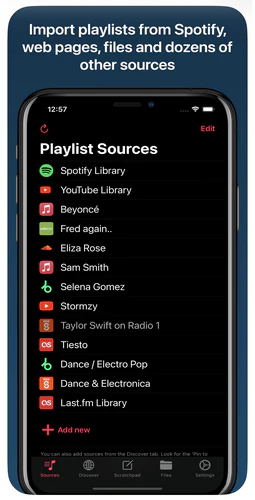
Playlisty supports iPhone, iPad, and Mac, but does not support Android or Windows. It can import playlists from Spotify (and other sources) into Apple Music, and it supports formats such as CSV, M3U, and iTunes XML. The free version limits each playlist, while Pro unlocks unlimited imports.
Pros
- One-time purchase option available
- Supports importing from some local file formats
Cons
- Primarily focused on importing into Apple Music (not two-way transfer)
- Apple-only ecosystem
2026 Best Playlist Transfer Tools: Which One Actually Works? (Tested)
| Feature | PlaylistGo | TuneMyMusic | Soundiiz | SongShift | Playlisty |
|---|---|---|---|---|---|
| Success Rate | 99.2% | ~85% | ~80% | ~82% | ~80% |
| Platform | Windows & macOS | Web | Web | iOS only | iOS only |
| Local File Import | M3U, M3U8, XSPF, XML, CSV, XLS, XLSX, JSON, and TXT. | TXT, CSV, M3U, M3U8, PLS, WPL, XSPF and XML | M3U, CSV, XML, TXT | No | CSV, M3U, iTunes XML |
| Large Playlists (10k+ tracks) |
Very stable | Sometimes unstable |
Often crashes | May timeout | Unstable |
| Local Processing | ✅ | ❌ | ❌ | ❌ | ❌ |
| Best For | Large libraries One-time payment option |
Quick small transfers |
Most services | iPhone users | Apple ecosystem |
How We Tested These Tools
Each tool was tested across three library sizes: 500, 5,000, and 15,000 tracks, transferring from Spotify to Apple Music specifically. We measured match rate, version accuracy (explicit/clean, live/studio, remastered/original), timeout stability on large libraries, and metadata preservation.
How to Transfer Apple Music to Spotify Easily
Learn how to transfer Apple Music playlists to Spotify on the computer, how to transfer music from Apple Music to Spotify on iPhone, how to transfer Apple Music playlists to Spotify online.

Why Some Spotify Songs Don't Transfer to Apple Music
Even with a reliable transfer tool, a small percentage of tracks may not appear in Apple Music after transfer. Understanding why helps you fix issues faster.
Regional licensing restrictions
A song available on Spotify in your country may not be licensed for Apple Music in the same region. This is the most common reason for missing tracks and cannot be fixed by any transfer tool.
Explicit vs. clean version mismatch
If your Apple Music account has explicit content disabled, tracks matched to the explicit version may not appear in your playlist after transfer. Check your Apple Music content settings before starting. Tools that use ISRC-based matching like PlaylistGo reduce this problem by targeting the exact version, but Apple Music's own restrictions still apply.
Remastered or alternate edition matched instead of original
Apple Music carries multiple editions of many albums — original, remastered, deluxe, and live versions. Tools that match by title and artist name alone can land on the wrong edition. If version accuracy matters for your library, see our guide on how to fix matching errors in music transfers.
Live vs. studio version confusion
Tracks listed without a clear "Live" tag on Spotify may be matched to a studio version on Apple Music, or vice versa. Spot-checking a few tracks after transfer is always worth doing, especially for artists with large live catalogs.
Track not in Apple Music's catalog
Some independent or self-distributed releases are on Spotify but not Apple Music. These will appear as unmatched in the transfer report and need to be handled manually.
What Transfers from Spotify to Apple Music
| Data Type | Transfers? | Notes |
|---|---|---|
| Spotify Playlists | ✅ | Including playlist name and track order |
| Spotify Liked Songs | ✅ | Transferred as a playlist or to your Apple Music library |
| Spotify Saved Albums | ✅ | Supported by PlaylistGo |
| Spotify Followed Artists | Partial | Depends on tool and platform API support |
| Spotify Play Counts & History | ❌ | Platform-specific data, cannot be transferred |
| Spotify Podcasts | ❌ | Podcast catalogs are separate between platforms |
| Spotify Downloaded Offline Files | ❌ | DRM-protected, cannot be moved directly |
| Spotify Discover Weekly / Daily Mixes | ❌ | Algorithmically generated, cannot be recreated |
| Spotify Collaborative Playlists | Partial | Track content transfers; collaborative feature does not carry over |
| Spotify Local Files | Partial | PlaylistGo can import local playlist files (M3U, CSV, XML) directly into Apple Music. See our Spotify to CSV export guide for how to prepare your local files first. |
FAQs about Transferring Spotify Playlists to Apple Music
Best Way to Transfer Spotify Playlists to Apple Music in 2026
If you only need to move one or two small playlists once in a while, the free tiers of TuneMyMusic or Soundiiz may be enough. But if you have a bigger library and want a more stable workflow, a desktop method is usually the most reliable.
- 99.2% match rate, higher than browser-based tools
- No session timeouts or progress loss on large libraries
- ISRC matching reduces wrong versions and missing tracks
- Full transfer report so you know exactly what transferred
For most users switching a full Spotify library, PlaylistGo is the recommended method to try first in 2026.

PlaylistGo – Best Desktop Transfer Tool
The fastest and most reliable way to move entire Spotify library to Apple Music, YouTube Music, TIDAL, etc. 100% offline • No Cloud Required • 99.2% success rate




 Language ▴