


Want to transfer your Liked Songs to another Spotify account without losing tracks? Whether you're switching regions, joining a Family Plan, recovering from a locked account, or simply starting fresh, moving thousands of saved Spotify songs manually can take hours, and it's easy to lose tracks along the way.
This guide covers every working method to transfer Spotify Liked Songs safely, including manual playlist conversion, browser-based transfer tools, and automated desktop tools like PlaylistGo.
Can You Transfer Liked Songs Between Spotify Accounts?
Spotify has no built-in export feature or official migration tool for Liked Songs. Your library is treated as a private collection, and it can't be shared like a regular playlist or moved with one click. When you create a new Spotify account, there's also no "Import from existing account" option anywhere in the settings.
That said, it is absolutely possible to transfer them. The process just requires a workaround, either manual or tool-assisted. The main approaches are:
What You Can Transfer from Spotify
| Data Type | Supported |
|---|---|
| Liked Songs | ✅ |
| Playlists | ✅ |
| Saved Albums | ✅ |
| Followed Artists | ❌ |
| Listening History | ❌ |
| Wrapped Stats | ❌ |
| Discover Weekly / Daily Mix | ❌ |
Listening history and Wrapped data are locked to the original account and cannot be moved by any tool. Discover Weekly rebuilds on the new account after a few weeks of active listening.
Method 1. Best Way to Transfer Spotify Liked Songs to Another Account
Desktop tools run directly on your PC instead of in browsers. This matters since they avoid browser timeouts and speed limits, so they deliver far better performance for large music libraries.
PlaylistGo is a desktop tool built specifically for large-scale music migration. Most similar tools were designed for short playlists — PlaylistGo focuses on full library transfers, with batch processing, a 99.2% match rate, and automatic retry for tracks that fail on the first pass.
PlaylistGo matches tracks using metadata beyond just title and artist — including album name, track duration, and release year — so even re-uploaded or slightly renamed songs are matched to the correct version.
PlaylistGo: Transfer Spotify Liked Songs to Another Account Try It Free
Move your entire Liked Songs library to a new Spotify account — songs land in Liked Songs, not just a playlist, with no tracks silently dropped.
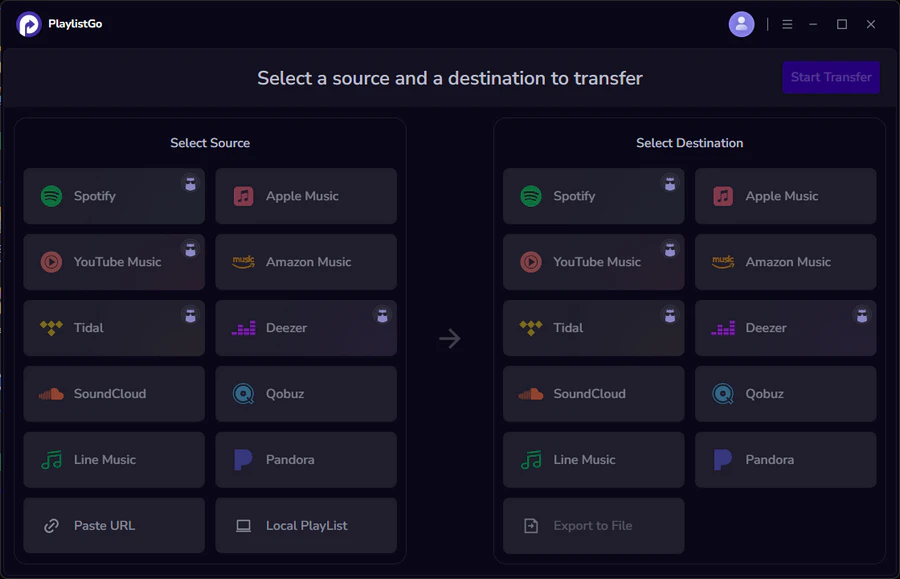
| Item | Details |
|---|---|
| Compatible with | Windows, macOS |
| Supported Platforms | Spotify, Apple Music, Amazon Music, YouTube Music, TIDAL, Deezer, and more |
| Transfer Objects | Liked songs, albums, playlists, full music library, local playlists, playlist URLs |
| Import & Export | Local files in M3U, M3U8, XSPF, XML, CSV, XLS, XLSX, JSON, TXT |
| Transfer Accuracy | Up to 99.2% matching accuracy |
| Transfer Speed | Fast and stable |
| Security | Safe and reliable. All transfers run locally |
Tutorial: How to Transfer Spotify Liked Songs to Another Account
Choose Source Platform (Old Spotify Account)
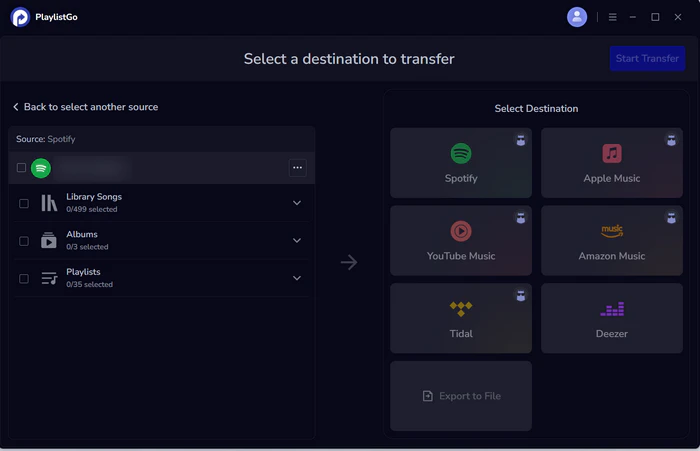
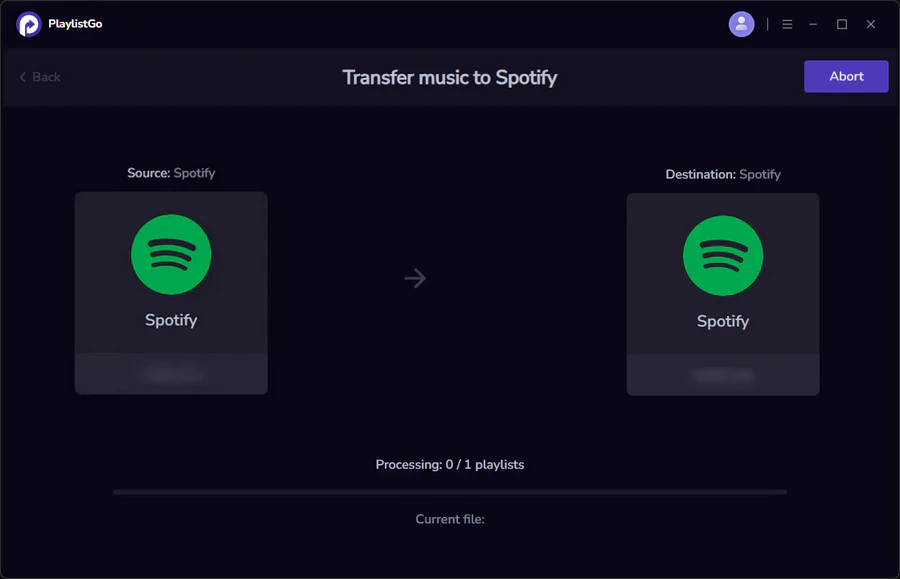
Install and launch PlaylistGo on your computer. On the main interface, select Spotify as your source platform and log in to your old Spotify account. PlaylistGo will load your full library — playlists, Liked Songs, and saved albums.
Connect Your New Spotify Account
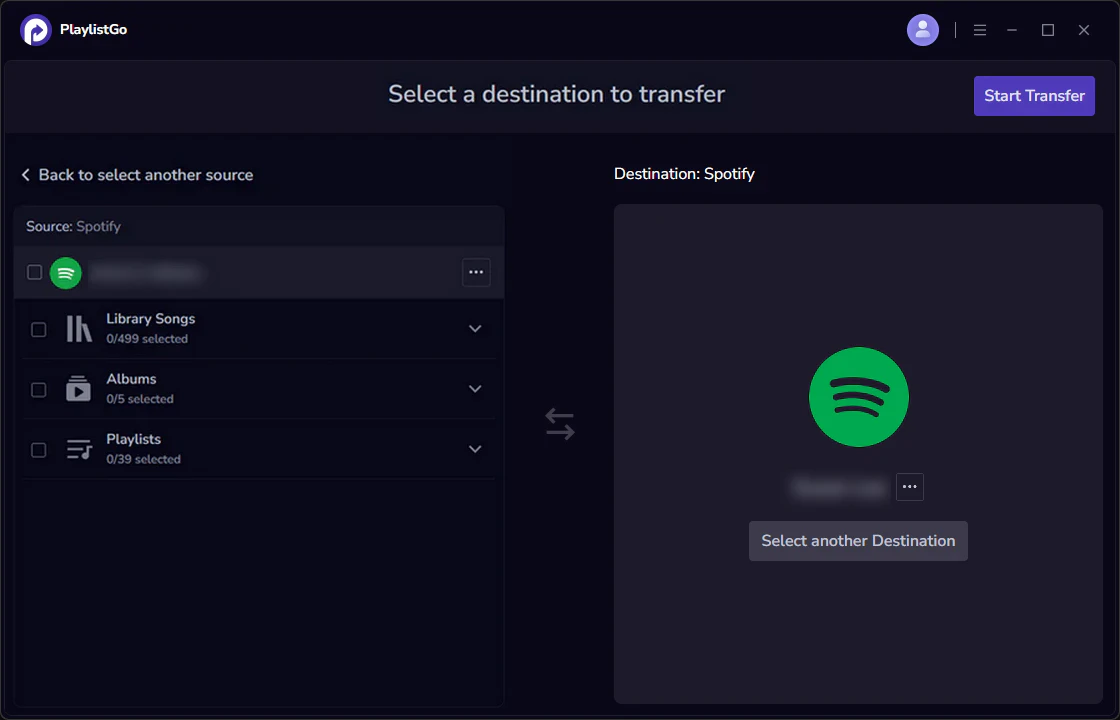
Select Spotify as the destination platform and log in to your new account. PlaylistGo uses Spotify's standard OAuth authorization flow — your password is never stored in the app.
Select Liked Songs and Start Transfer
Select Liked Songs — or include playlists and saved albums if you want to move your full library. Click Start Transfer. PlaylistGo will match tracks in batches and show progress in real time. Any tracks that fail to match are flagged for review, not silently dropped.
Method 2. Transfer Spotify Liked Songs Manually (Free, No Tools)
Best for: Libraries under 300 songs, or users who only need to move playlists and don't need to keep Liked Songs marks.
Spotify doesn't offer a way to directly export your Liked Songs, but there's a workaround that doesn't require any third-party tools. You can convert your entire Liked Songs library into a regular playlist, make it public, then access it from your new account and re-save the tracks. It's completely free and works within Spotify's native desktop app.
The catch is that songs saved this way land in a playlist — not back in your Liked Songs. If you want them properly hearted on the new account, you'd need to go through each track manually. For a small library this is manageable, but for anything over a few hundred songs it quickly becomes impractical.
How to Manually Transfer Spotify Liked Songs to Another Account:
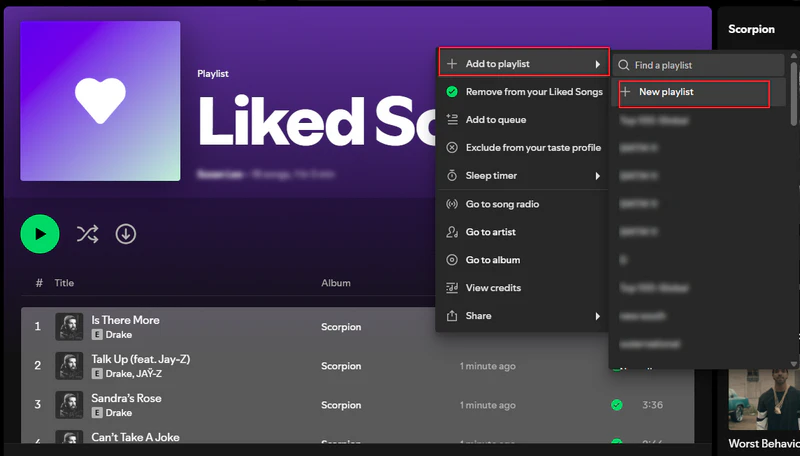
- Open the Spotify desktop app and go to your Liked Songs
- Press Ctrl+A (Windows) or Cmd+A (Mac) to select all tracks
- Right-click → Add to playlist → New playlist
- Name the playlist and set it to Public
- Log into your new Spotify account, search for your old username, and open the playlist
- Save all tracks to your library
Limitations
- Songs land in a playlist, not in your Liked Songs — you'd need to re-heart each track individually
- Spotify has no export function, so there's no file to download and re-import
- Large libraries take hours with no progress indicator
- Missing tracks are common and easy to overlook
- Song order can break during migration
Method 3. Online Playlist Transfer Tools for Spotify
Best for: Libraries under 500 songs, occasional one-off transfers.
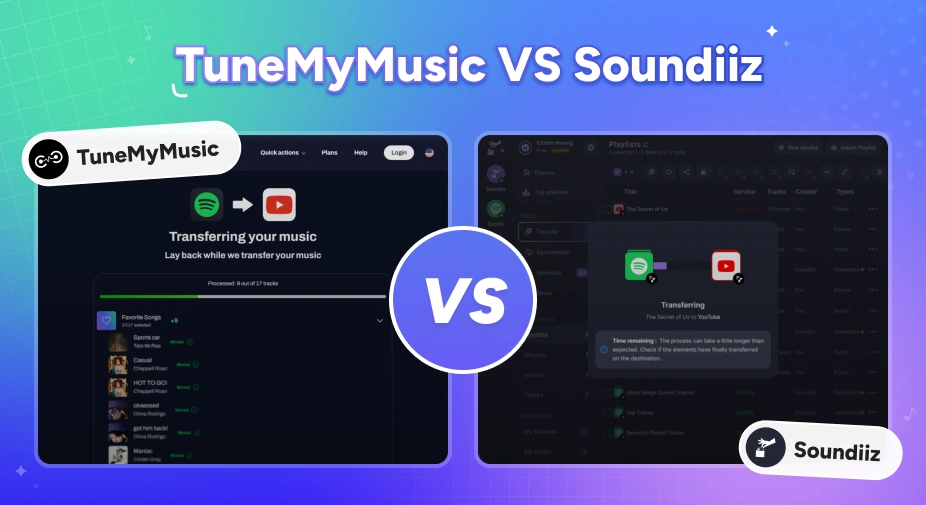
Browser-based tools like TuneMyMusic and Soundiiz were among the first solutions built for moving music between streaming accounts. You connect both Spotify accounts through a web interface, select what you want to move, and the tool handles the matching and transfer in the background. No installation needed, and most offer a free tier to get started.
They work well enough for small libraries and one-off transfers. The problem is that browser-based tools are restricted when running lengthy background tasks. For larger libraries, sessions time out, speed limits apply, and failed tracks often disappear silently rather than being flagged for retry. If you have a few hundred songs, these tools are a reasonable free option. If you have thousands, expect incomplete results.
How to Transfer Spotify Liked Songs Using TuneMyMusic
- Go to TuneMyMusic.com and click "Let's Start"
- Select Spotify as the source platform and log in to your old account
- Choose Liked Songs or the playlists you want to transfer
- Select Spotify as the destination platform and log in to your new account
- Click Start Transfer and wait for the process to complete
Limitations
- Free tiers typically cap at 500 songs
- Browser tabs time out on long transfers
- Browser speed limits will slow down tasks running in the background
- Most tools don't retry failed tracks, so songs just get dropped silently
- Not reliable for libraries of 1,000+ songs
TuneMyMusic vs Soundiiz: Which Playlist Transfer Tool Is Better in 2026?
Moving music platforms? Compare TuneMyMusic vs Soundiiz — speed, accuracy, pricing, and which playlist transfer tool wins in 2026.
PlaylistGo vs. Browser-Based Tools:
| Feature | PlaylistGo | Browser-Based Tools |
|---|---|---|
| Handles 10,000+ songs | ✅ | Limited |
| Background processing | ✅ | ❌ |
| Session timeout issues | ❌ | Common |
| Local desktop app | ✅ | ❌ |
| Retry failed tracks | ✅ | Partial |
If you're moving beyond Spotify entirely, PlaylistGo also supports cross-platform transfers — including Spotify to Apple Music and Spotify to YouTube Music.
Common Problems When Moving Spotify Liked Songs
Some Spotify Liked Songs Are Missing After Transfer
Most missing tracks come down to one of two reasons, and neither can be fixed by the transfer tool itself:
- Regional licensing — a track available in one country may not be licensed in another. If you're switching to an account in a different region, some songs simply don't exist there. No tool can fix this.
- Removed tracks — artists occasionally pull music from Spotify entirely. If a song was removed between when you saved it and when you ran the transfer, it won't appear in any tool's results.
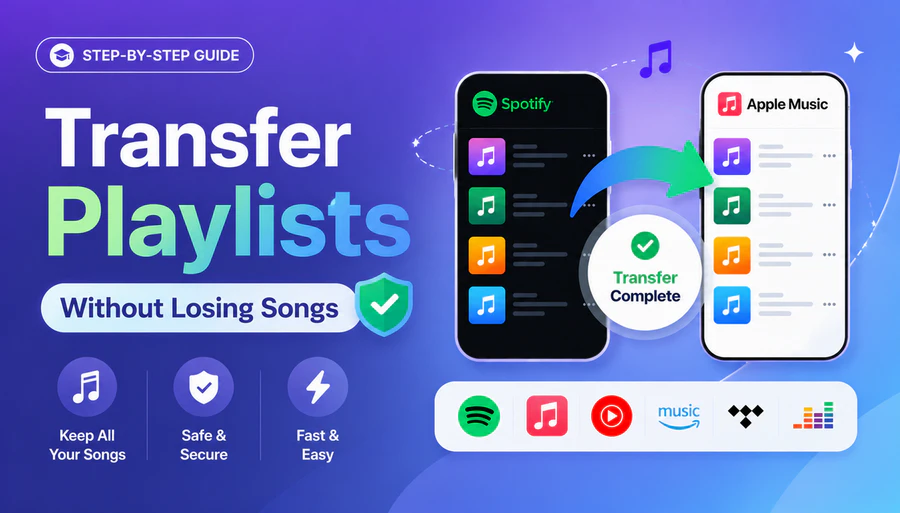
How to Transfer Playlists Without Losing Songs
Losing songs during a playlist transfer? Here's why it happens and the safest way to move your full library without missing a single track.
Wrong Song Versions Matched When Transferring Spotify Library
This happens when a song exists in multiple versions — live recordings, remastered editions, explicit vs. clean, or karaoke covers with similar metadata. Basic tools match by title and artist name only. PlaylistGo uses additional metadata fields to improve version accuracy. If you notice mismatches, sort your new Liked Songs by date added and scan the most recent entries.
Spotify Liked Songs Transfer Is Taking Too Long
Browser tools run in browser tabs, so they easily face session expiry, background speed limits and connection issues. Transferring 3,000 songs takes hours, and you usually have to restart if it breaks off. Desktop tools like PlaylistGo keep stable connections and resume progress after interruptions.
Spotify Login Keeps Failing
If your Spotify authorization keeps dropping mid-transfer, it's usually one of the following:
- The session token expired mid-transfer
- VPN interfering with Spotify's region checks
- Insufficient permissions to access your playlists or liked songs
You only need half a minute to log in again on PlaylistGo, and your transfer progress won't get lost. If you're on a VPN, disable it for the duration of the transfer.
FAQs about Transferring Spotify Liked Songs
Conclusion
Spotify gives you no official way to move your Liked Songs to a new account. Manual methods work for small libraries but break down quickly at scale. Browser-based tools are fine for light use but unreliable for large transfers.
If you have a substantial Liked Songs library and want the transfer done accurately — with a clear record of what moved and what didn't — PlaylistGo is the most dependable option available.

PlaylistGo – Best Desktop Transfer Tool
The fastest and most reliable way to move entire Spotify library to Apple Music, YouTube Music, TIDAL, etc. 100% offline • No Cloud Required • 99.2% success rate



 Language ▴