


Quick-Fix Checklist for Matching Errors
If you're dealing with matching errors right now, work through this list:
- Export your original playlist as CSV so you have a reference copy
- Check if your transfer tool provides an unmatched songs report
- Spot-check 20–30 random tracks on the destination platform
- Manually replace wrong versions directly on the destination platform
- For a high error rate, re-run the transfer with a higher-accuracy tool like PlaylistGo
You move your playlist from Spotify to Apple Music. Everything looks fine — the song count matches, the playlist name is there. Then you hit play. The first song is a live recording. The third one is a cover by someone you've never heard of. Track seven is just gone. And none of this showed up as an error.
Matching errors are one of the most frustrating parts of switching music platforms — not because they're hard to fix, but because most tools don't tell you they happened. This guide covers why it happens, and how to fix matching errors in music transfer. If you want to skip straight to the prevention method, jump to Part 3.
Part 1. What Are Matching Errors in Music Transfers?
A matching error happens when a transfer tool can't find the exact song on the destination platform — so it either skips it or substitutes something close. "Close" is the problem. Here's what that looks like in practice:
- Wrong version matched: your original studio recording gets replaced with a live version, a remaster, or an acoustic take. The song title looks right, but it doesn't sound like what you had.
- Wrong album version: the correct song by the correct artist, but pulled from a different album release. A track from a deluxe edition ends up replaced by the standard version, or a soundtrack recording gets matched to a greatest hits compilation instead.
- Completely wrong song: a different artist with the same song title, or the same artist but a completely different track.
- Explicit vs. clean mix-up: the explicit version gets swapped for the clean edit, or vice versa.
- Song skipped entirely: the destination platform doesn't have it, so the tool quietly drops it and moves on without telling you.
- Non-English track mismatch: Japanese and Korean song titles, special characters, or emoji in track names cause recognition failures more often than you'd expect.
Any of these errors can show up after a transfer, and most tools won't flag them unless you go looking.
How to Transfer Playlists Without Losing Songs (2026 Guide)
Losing songs during a playlist transfer? Here's why it happens and the safest way to move your full library without missing a single track.
Part 2. How to Find All the Matching Errors in Your Transferred Playlist
Before you can fix anything, you need to know what went wrong.
Check Your Playlist Transfer Report for Unmatched Songs
Most web-based transfer tools like Soundiiz, TuneMyMusic, and FreeYourMusic provide transfer reports or unmatched song summaries, though the level of detail varies between platforms. If yours does, start there — it gives you a clear list to work from instead of guessing.
Manually Spot-Check Your Transferred Playlist
If you don't want to go through the whole list, pick 20–30 random songs from the transferred playlist and play them. Focus on tracks you know well, non-English songs, and anything with a common title. Wrong-version errors tend to cluster in these categories.
Export and Compare Your Playlists to Spot Transfer Errors
Export your original playlist and the transferred version as CSV files, then open them side by side in a spreadsheet. Look for missing rows, title differences, or artist mismatches. This is slower but thorough, and it catches wrong-version errors that a basic unmatched report might miss.
How to Export Spotify to CSV File?
Learn to export Spotify playlists to CSV for easy backup, sharing, or transfer with this straightforward guide.
Part 3. How to Fix Matching Errors after a Transfer
Many users notice higher mismatch rates when using basic title-only matching tools, especially on large playlists or non-English music libraries. If the error rate is high — more than 10% of your playlist — fixing songs one by one will take longer than just running the transfer again with a better tool.
PlaylistGo is a tool with a pre-transfer review screen shows you every matched result before the transfer runs. You can see exactly which version of each song was selected, spot anything that looks wrong, and correct it on the spot. Nothing gets locked in until you confirm.
Instead of matching on song title alone, it cross-references artist name, album, track duration, and ISRC code to find the right version. The result is a 99.2% match rate across major platform pairs — significantly higher than tools that rely on metadata alone. The songs that can't be matched are flagged in a separate report — they're never quietly dropped.
PlaylistGo: Transfer Playlists Across Platforms Try It Free
Move playlists between Spotify, Apple Music, YouTube Music and more in just a few clicks.
| Item | Details |
|---|---|
| Compatible with | Windows, macOS |
| Supported Platforms | Spotify, Apple Music, Amazon Music, YouTube Music, TIDAL, Deezer, and more |
| Transfer Objects | Liked songs, albums, playlists, full music library, local playlists, playlist URLs |
| Import & Export | Local files in M3U, M3U8, XSPF, XML, CSV, XLS, XLSX, JSON, TXT |
| Transfer Accuracy | Up to 99.2% matching accuracy |
| Transfer Speed | Fast and stable |
| Security | Safe and reliable. All transfers run locally |
Tutorial: How to Transfer Spotify Playlist to Apple Music with PlaylistGo
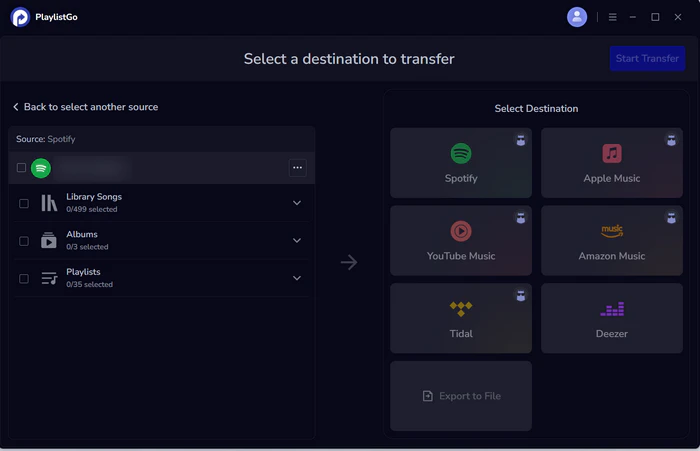
Choose Source Platform (Spotify)
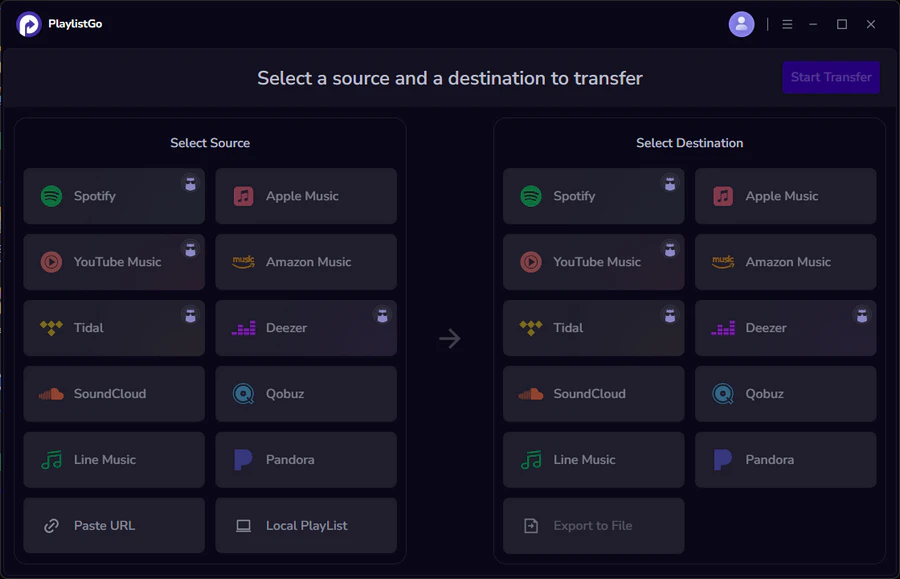
Install and launch PlaylistGo on your computer. On the main interface, select Spotify as your source platform and log in to your account. PlaylistGo will load your Spotify library (playlists, liked songs, and albums).
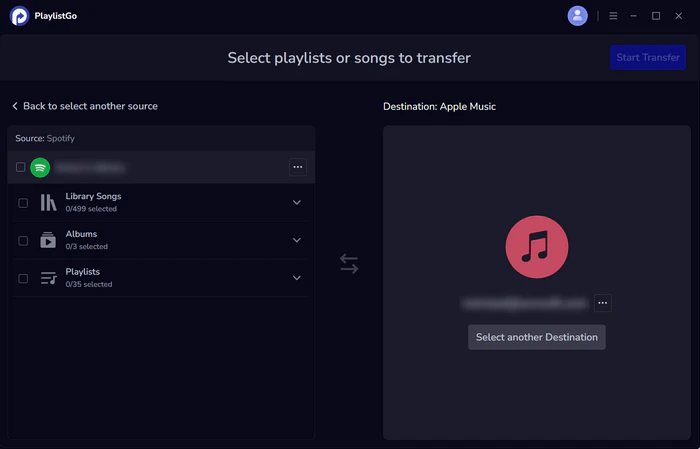
Choose Destination Platform (Apple Music)
Select Apple Music as your destination platform and authorize the connection. PlaylistGo uses a standard authorization flow, so your password is not stored in the program.
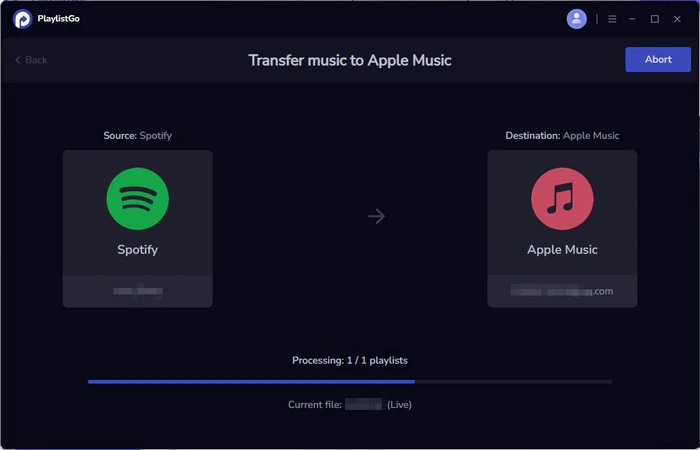
Start the Transfer Process
Select the playlists or songs you want to transfer, then click Start Transfer. PlaylistGo will match tracks across catalogs and show progress in real time.
Part 4. Which Platforms Have the Most Matching Problems?
Some platform combinations produce more errors than others, mostly due to catalog differences and how each service handles metadata.
| Platform | Common Matching Issues |
|---|---|
| Spotify | Remix and live version confusion |
| Apple Music | Regional licensing restrictions |
| YouTube Music | Unofficial uploads mixed with official versions |
| Deezer | Smaller catalog, more unmatched tracks |
| TIDAL | Niche genre and metadata gaps |
YouTube Music is particularly prone to wrong-version errors because its catalog mixes official releases with user-uploaded content, and the metadata on uploaded tracks is often inconsistent.
FAQs about Matching Errors in Music Transfer
Conclusion
Matching errors happen because most transfer tools take a shortcut. They match on song title and move on, without checking whether they actually found the right version.
If you want to check exactly how your songs will be matched, PlaylistGo shows you the results before any transfer starts — this is what the pre-transfer review offers.

PlaylistGo – Best Desktop Transfer Tool
The fastest and most reliable way to move entire Spotify library to Apple Music, YouTube Music, TIDAL, etc. 100% offline • No Cloud Required • 99.2% success rate



 Language ▴