


- You have 1,000+ songs to move between platforms
- Your transfer keeps timing out or stopping halfway
- You're getting wrong track versions or missing songs
- You want to move your full music library in one session
You may decide to switch music platforms because the platform raises its prices or a better alternative app comes along. Yet you will run into a tricky problem: how to move your Spotify playlists to another platform quickly and accurately.
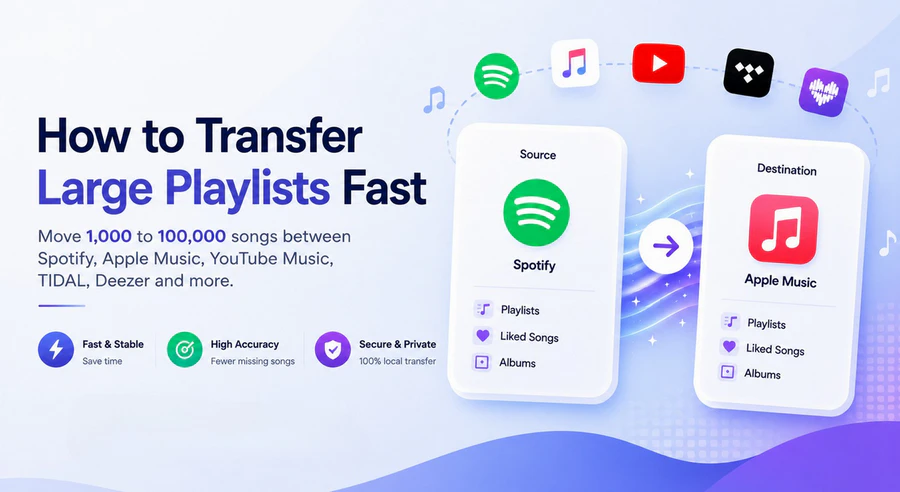
Small playlists are easy to handle. Dozens of tools can transfer 50 tracks in seconds. But large Spotify playlists — those with 500, 1,000 or even 10,000 songs — are a totally different challenge. This guide focuses on how to transfer large playlists fast with reliable results. If you only need the quickest solution, skip straight to Part 1.
Quick Comparison
| Feature | Desktop tool (PlaylistGo) | Web tools (TuneMyMusic, Soundiiz) | CSV import/export |
|---|---|---|---|
| Transfer Speed | ✅ Stable for 100k+ songs | Unreliable at scale | Slow & error-prone |
| Match accuracy | 99.2% | ~90% | Depends on metadata |
| Processing type | Local desktop | Cloud server | Manual/local |
| Batch transfer | ✅ | ✅ | ❌ |
Which Method Should You Use?
| Playlist Size | Recommended Method | Why |
|---|---|---|
| Under 200 songs | CSV import/export | Simple backup or one-off transfer, no account needed |
| Under 500 songs | Web tools (TuneMyMusic, Soundiiz) | Fast, no install needed |
| 500 – 5,000 songs | Desktop tool (PlaylistGo) | Avoids timeouts, higher accuracy |
| 5,000 – 100,000 songs | Desktop tool (PlaylistGo) | Stable local processing, batch transfer, no connection drops |
YouTube Video: Transfer Large Playlists Fast in 2026
Method 1. Best Way to Transfer Large Spotify Playlists Fast
If you have a large Spotify or Apple Music playlist and cannot afford to lose a single track, desktop playlist transfer tools are a better choice.
PlaylistGo is a desktop tool made for reliable, accurate playlist transfers. It supports 10 platforms including Spotify, Apple Music, YouTube Music and SoundCloud. Because it runs locally on your Windows or Mac, there's no server connection to drop — large libraries transfer more reliably without the timeout issues common in web-based tools. PlaylistGo also supports batch selection, so you can move multiple playlists at once instead of running transfers one by one.
It cross-references song title, artist name, album, track duration, and ISRC code to reach a 99.2% match rate. For large libraries where wrong versions are more common, that accuracy makes a noticeable difference.
PlaylistGo: Transfer Playlists Across Platforms Try It Free
Move playlists between Spotify, Apple Music, YouTube Music and more in just a few clicks.
| Item | Details |
|---|---|
| Compatible with | Windows, macOS |
| Supported Platforms | Spotify, Apple Music, Amazon Music, YouTube Music, TIDAL, Deezer, and more |
| Transfer Objects | Liked songs, albums, playlists, full music library, local playlists, playlist URLs |
| Import & Export | Local files in M3U, M3U8, XSPF, XML, CSV, XLS, XLSX, JSON, TXT |
| Transfer Accuracy | Up to 99.2% matching accuracy |
| Transfer Speed | Fast and stable |
| Security | Safe and reliable. All transfers run locally |
Tutorial: How to Transfer a Large Spotify Playlist to Apple Music
Choose Source Platform (Spotify)
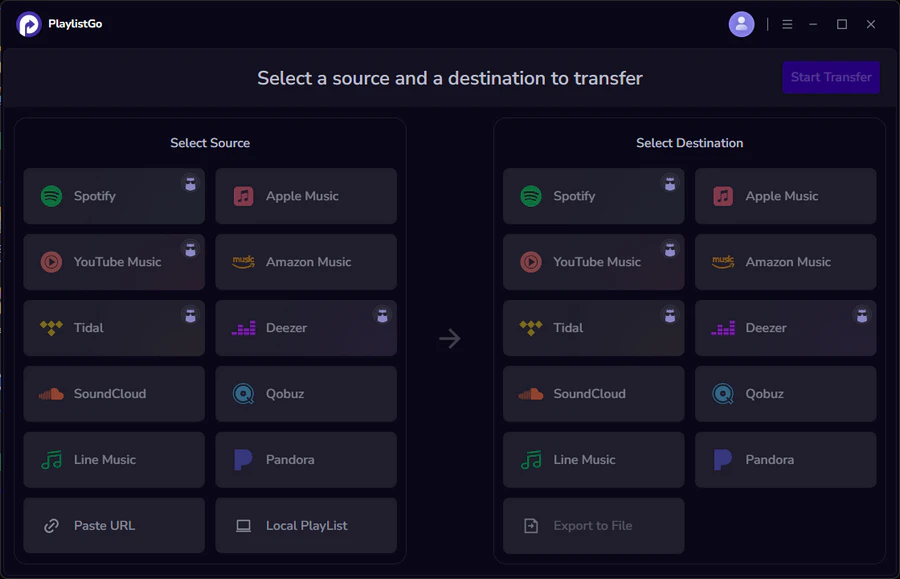
Install and launch PlaylistGo on your computer. On the main interface, select Spotify as your source platform and log in to your account. PlaylistGo will load your Spotify library (playlists, liked songs, and albums).
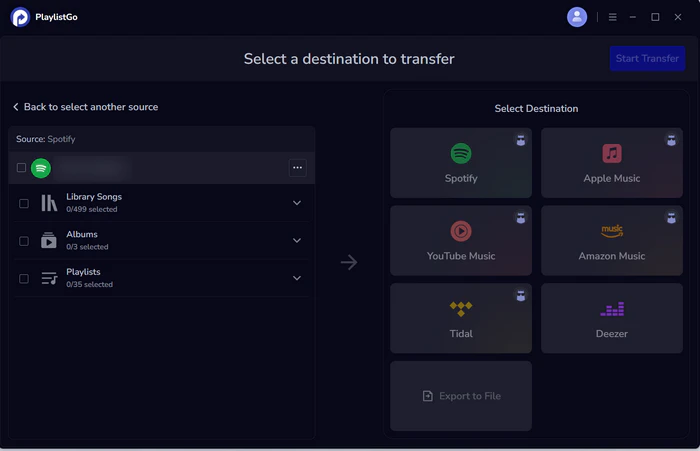
Choose Destination Platform (Apple Music)
Select Apple Music as your destination platform and authorize the connection. PlaylistGo uses a standard authorization flow, so your password is not stored in the program.
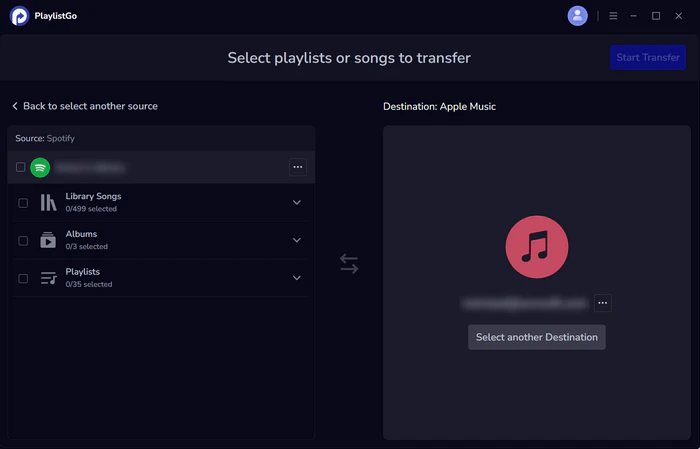
Start the Transfer Process
Select the playlists or songs you want to transfer, then click Start Transfer. PlaylistGo will match tracks across catalogs and show progress in real time.
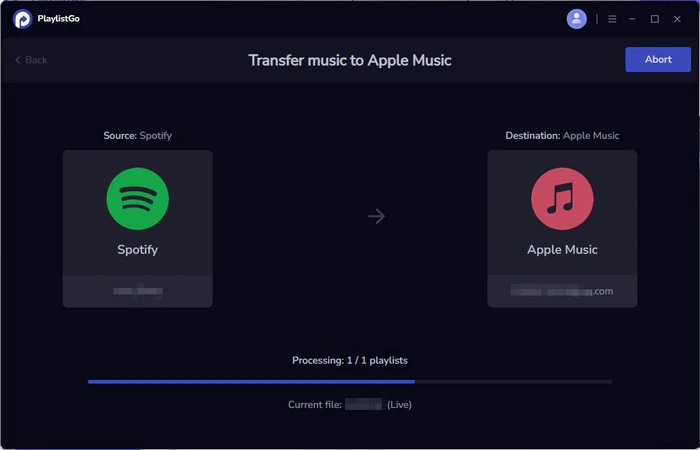
Method 2. Transfer Large Playlists Using CSV or M3U Files
Some platforms let you export your playlist as a CSV or M3U file — a plain list of track titles, artists, and albums. You can then import CSV file into a transfer tool, which reads the data and matches each track to the destination platform's catalog. No account authorization needed, and the file doubles as a readable backup.
How to transfer a large playlist using a file with PlaylistGo
- Export your playlist from the source platform as a CSV or M3U file
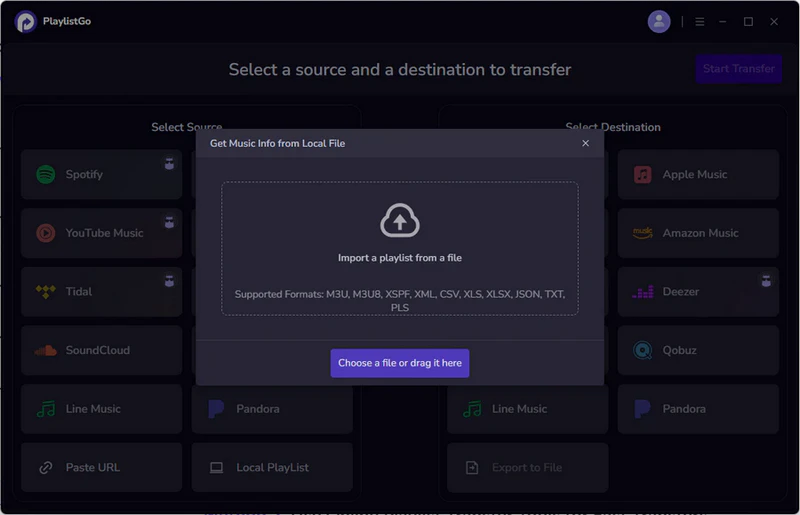
- Open PlaylistGo and select "Local Playlist"
- Upload the file. PlaylistGo supports 10 formats including CSV, M3U, XLSX, and JSON
- Select your destination platform and run the transfer
Pros
- No account login required for the source platform
- File doubles as a backup of your library
- Works with 10 different file formats in PlaylistGo
Cons
- Matching accuracy depends on data quality. Messy track names or missing artists cause failures
- Slows down for libraries over 1,000 songs
- Most platforms don't accept CSV imports directly
Back Up Your Playlist With PlaylistGo Try It Free
PlaylistGo supports 10 formats like CSV, M3U, XLSX, and JSON for direct playlist imports.
Method 3. Online Playlist Transfer Tools for Spotify & Apple Music
Tools like TuneMyMusic and Soundiiz are among the most popular options for playlist transfers. They run entirely in your browser with no installation required. You connect your accounts, select a playlist, and the transfer runs on their servers. For libraries under 500 songs, both tools are quick to get started with and work well enough for most casual transfers.
The limitations become more obvious with larger libraries. Transfers run on their servers, so a dropped connection mid-way means starting over from scratch with no way to resume. There's also no pre-transfer review, so wrong versions and missing tracks only show up after everything is done.
How to transfer a large playlist using TuneMyMusic
- Go to tunemymusic.com and log in
- Connect your source platform (e.g. Spotify) using your account
- Select the playlist you want to transfer
- Choose your destination platform and start the transfer
Pros
- No software to install, works in any browser
- Supports a wide range of platforms
- Free tiers available across most tools
Cons
- Server timeouts on large libraries, no way to resume mid-transfer
- Data is processed on their servers, not your own device
- Matching based mainly on song title, higher wrong-version risk on large libraries
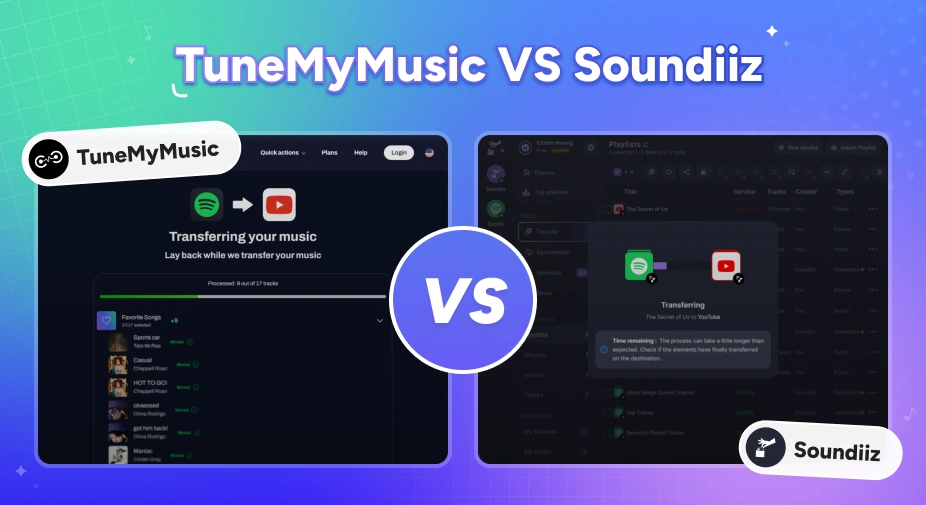
TuneMyMusic vs Soundiiz: Which Playlist Transfer Tool Is Better in 2026?
Moving music platforms? Compare TuneMyMusic vs Soundiiz — speed, accuracy, pricing, and which playlist transfer tool wins in 2026.
Expert Tips for a Cleaner, Faster Playlist Transfer
A few minutes of preparation before you start can save a lot of troubleshooting later. These apply whether you use PlaylistGo or any other tool.
Back Up Your Playlist First
Export your playlist as a CSV or M3U file first. If something goes wrong during the transfer, you'll have a clean reference copy to work from. Tools like PlaylistGo support export in 10 formats, so this step is quick.
Clean Up Duplicates and Dead Tracks
Songs that are no longer available on your current platform won't transfer to the new one either. Removing them before you start reduces the matching workload and gives you a cleaner result.
Check Your Tool's Free Tier Limit
If your library is larger than the free tier allows, decide upfront whether you're going to upgrade or split into batches. Finding out mid-transfer is more disruptive.
FAQs about Large Playlist Transfers
Conclusion
For Spotify playlists with fewer than 500 songs, transfers are easy enough. For larger collections, local desktop tools are the most practical pick. PlaylistGo stands out as one of the most reliable choices for bulk music transfers. Its transfer report also lets you clearly check which tracks were moved successfully and which failed.

PlaylistGo – Best Desktop Transfer Tool
The fastest and most reliable way to move entire Spotify library to Apple Music, YouTube Music, TIDAL, etc. 100% offline • No Cloud Required • 99.2% success rate



 Language ▴