


You open TuneMyMusic, connect your accounts, hit start, but nothing happens. Or it gets stuck halfway. Or it finishes, but the songs that came through are the wrong versions, or half your library didn't make it over.
Most of these problems have a specific cause and a straightforward fix. This guide covers the most common reasons TuneMyMusic stops working and how to resolve each one. If TuneMyMusic keeps failing and you just want a tool that works, jump straight to the last section.
In our tests, we ran TuneMyMusic across Spotify → Apple Music, Spotify → YouTube Music, and Apple Music → TIDAL transfers. The issues documented here are based on what we encountered directly.
Part 1. Why Is TuneMyMusic Not Working? Common Causes Explained
If you're seeing a specific error, use this table to identify your situation and jump to the fix:
| Common TuneMyMusic Problems | Likely Cause | Go to |
|---|---|---|
| Wrong songs or versions | Metadata mismatch | → Fix 1 |
| “Authorization failed” | Expired login token | → Fix 2 |
| Playlist not showing up | Privacy / visibility settings | → Fix 3 |
| Auto-Sync not updating | Expired connection | → Fix 4 |
| Transfer stuck at 0% | Cache, VPN, or network issue | → Fix 5 |
| Some songs are missing | Track unavailable or unmatched | → Fix 6 |
| “Platform not available” | Streaming service/API issue | → Fix 7 |
2026 TuneMyMusic Review: Is It Worth Using? A Hands-On Test
We tested TuneMyMusic across 1,000 tracks and 3 platform pairs. Here's what the transfer speed, accuracy, and sync actually look like.
Part 2. How to Fix TuneMyMusic Not Working (Step-by-Step)
Fix 1: TuneMyMusic Transferred the Wrong Songs or Versions
This is one of the most common complaints about TuneMyMusic not working correctly, and it's easy to miss until you actually start listening. The transfer looks fine, the song count is right, the titles look correct, but what you're hearing isn't what you had. A studio recording gets replaced with a live version, a remaster, or a cover by a different artist.
The root cause is that TuneMyMusic matches songs mainly on title. It doesn't consistently verify artist name, album, track duration, or recording version. When a platform has multiple versions of the same song, TuneMyMusic picks whichever one comes up first.
In our tests, wrong-version matches were most common on Spotify → Apple Music transfers, particularly for songs that have both a studio and a live release on Apple Music.
What You Can Do if TuneMyMusic Matches the Wrong Songs:
- After the transfer, spot-check 20–30 random tracks by actually playing them.
- For any wrong versions, search for the correct one directly on the destination platform and swap it out manually.
- If the mismatch rate is high, re-running the transfer with a higher-accuracy tool is faster than fixing songs one by one.
This is a structural limitation of TuneMyMusic's matching algorithm, not a settings issue. If accurate matching matters to you, especially for large or carefully curated playlists, see the last section for a more reliable approach.
Not Happy With The Accuracy? Try PlaylistGo! Try It Free
Move playlists between Spotify, Apple Music, YouTube Music and more with a 99.2% match rate.
How to Fix Matching Errors in Music Transfer
Wrong songs, live versions, or covers showing up after a playlist transfer? Here's how to fix matching errors — and how to avoid them before they happen.
Fix 2: Reconnect Spotify, Apple Music, or YouTube Music Accounts
OAuth tokens expire over time, and when they do, TuneMyMusic loses access to your streaming accounts. This usually shows up as an "Authorization failed" message or a connection that simply won't go through.
What to Do if TuneMyMusic Authorization Fails:
- Log out of TuneMyMusic completely.
- Go to your Spotify or Apple Music account settings and revoke TuneMyMusic's access under connected apps.
- Log back into TuneMyMusic and reconnect your accounts from scratch.
- If you have two-factor authentication enabled, make sure the authorization pop-up isn't being blocked by your browser or any extensions.
Fix 3: TuneMyMusic Playlist Not Showing Up After Transfer
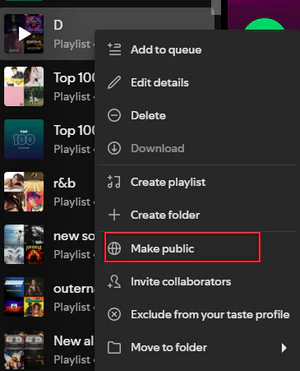
If your playlist isn't appearing in TuneMyMusic at all, the most common reason is that it's set to Private. TuneMyMusic can't read private playlists, and this setting is easy to overlook.
What You Can Do if Your Playlist Is Missing:
- Open Spotify or whichever platform you're transferring from.
- Right-click the playlist and open the privacy settings.
- Set it to Public.
- Go back to TuneMyMusic and refresh — the playlist should now appear. You can set it back to Private once the transfer is done.
Fix 4: TuneMyMusic Auto-Sync Not Working Properly
TuneMyMusic's Auto-Sync feature monitors changes to your playlist on one platform and automatically mirrors them to another, up to 20 times per day. When it stops working, it's usually one of three things: an expired authorization, a plan limitation, or a sync task that needs to be reset.
Note: Auto-Sync is a paid feature. If you're on the free plan, this function is not available. Upgrading is the only fix in that case.
How to Fix TuneMyMusic Sync Issues:
- Go to your Sync settings in TuneMyMusic and confirm the sync task is still active and hasn't been paused.
- Re-authorize both the source and destination platform accounts. Expired tokens are the most common cause of TuneMyMusic sync not working.
- If the sync task looks fine but still isn't updating, delete it and create a new one from scratch.
If Auto-Sync keeps failing after re-authorization, check whether the platform API itself is having issues — see Fix 7.
Fix 5: TuneMyMusic Transfer Stuck, Frozen, or Taking Too Long
If the progress bar stops moving or the page freezes mid-transfer, the most common causes are browser cache, extensions interfering with the connection, or an unstable network. This is one of the most frequently reported TuneMyMusic transfer failures.
What to Do if TuneMyMusic Gets Stuck:
- Clear your browser cache and cookies, then reload the page.
- Turn off any browser extensions — especially ad blockers, which sometimes block the API requests TuneMyMusic needs to run.
- Switch to a different browser: Chrome and Firefox tend to be the most stable for TuneMyMusic.
- If you're on Wi-Fi, try switching to a wired connection for large transfers.
- Disable your VPN if you're using one. VPNs can trigger regional restrictions on the platform APIs and cause TuneMyMusic transfers to stall.
Fix 6: Songs Missing After a TuneMyMusic Playlist Transfer
If the transfer finishes but songs are missing, there are two likely causes: the song doesn't exist on the destination platform in your region, or TuneMyMusic skipped it silently without flagging it. The free plan's 500-song limit can also cut a transfer short without a clear warning.
How to Recover Missing Songs After Transfer:
- Check if TuneMyMusic generated an unmatched songs report.
- Search for the missing songs directly on the destination platform to confirm whether they're available at all.
- If your playlist has more than 500 songs and you're on the free plan, the transfer stopped at 500 — split the rest into a second batch.
- If songs are missing without explanation and the platform does carry them, try re-running the transfer in smaller batches of 300–400 songs. For a more permanent solution, see the alternative below that provides a full unmatched songs report instead of silent skips.
How to Transfer Playlists Without Losing Songs
Losing songs during a playlist transfer? Here's why it happens and the safest way to move your full library without missing a single track.
Fix 7: TuneMyMusic API Error or Service Outage
Sometimes the problem isn't on your end. Streaming platforms occasionally update or temporarily restrict their APIs, which can break third-party tools like TuneMyMusic. TuneMyMusic's own servers also go down from time to time.
Is TuneMyMusic Down Right Now?
Before spending time troubleshooting your own setup, it's worth confirming whether TuneMyMusic itself is having a wider outage. The fastest way to check:
- Check Downdetector and search for TuneMyMusic to see if other users are reporting the same issue.
- Check whether the affected streaming platform (Spotify, Apple Music, etc.) has its own status page. The issue may be on their end, not TuneMyMusic's.
- Wait 30–60 minutes and try again. API issues are usually temporary and resolve without any action needed.
- If the problem persists beyond a few hours, contact TuneMyMusic support through their official website and include a screenshot of the error message. Mention which platform pair you were transferring between.
If TuneMyMusic is down and you need to complete the transfer now, see the alternative tool section below. It runs locally and doesn't depend on TuneMyMusic's server availability.
Part 3. Best Alternative if TuneMyMusic Keeps Failing
If you've worked through the steps above and TuneMyMusic is still failing, or if it works but the match quality is consistently poor, the issue is likely the tool itself rather than your setup.
TuneMyMusic is a browser-based tool, which comes with some built-in limitations that no amount of troubleshooting can fully solve:
- Large library transfers depend on a continuous server connection. Timeouts become more likely as your playlist gets bigger, and splitting into batches is a workaround, not a real fix
- Matching relies mainly on song title, which leads to wrong-version errors that only show up after the transfer is done
- Your playlist data is processed on TuneMyMusic's servers, not locally on your device — which carries a privacy risk if anything goes wrong on their end
For users who run into these limitations regularly, switching tools is more efficient than continuing to troubleshoot.
Try PlaylistGo for More Reliable Playlist Transfers
PlaylistGo is a desktop playlist transfer tool that addresses most of the issues above. It runs locally on your Windows or Mac — there's no server connection to drop. Large libraries transfer without timeout risk, no matter how many songs you have.
Before anything moves, you get a full review screen showing every matched result, so wrong versions get caught and corrected before they land in your library. Songs that can't be matched are listed in a separate report rather than silently dropped, so you always know exactly what transferred and what didn't.
On the accuracy side, PlaylistGo uses multi-point matching across song title, artist, album, duration, and ISRC code — reaching a 99.2% match rate across our tests, compared to around 90% for TuneMyMusic.
PlaylistGo: The TuneMyMusic Alternative That Actually Works Try It Free
No server timeouts, no silent skips — transfer your full library with a 99.2% match rate and review every result before it goes through.
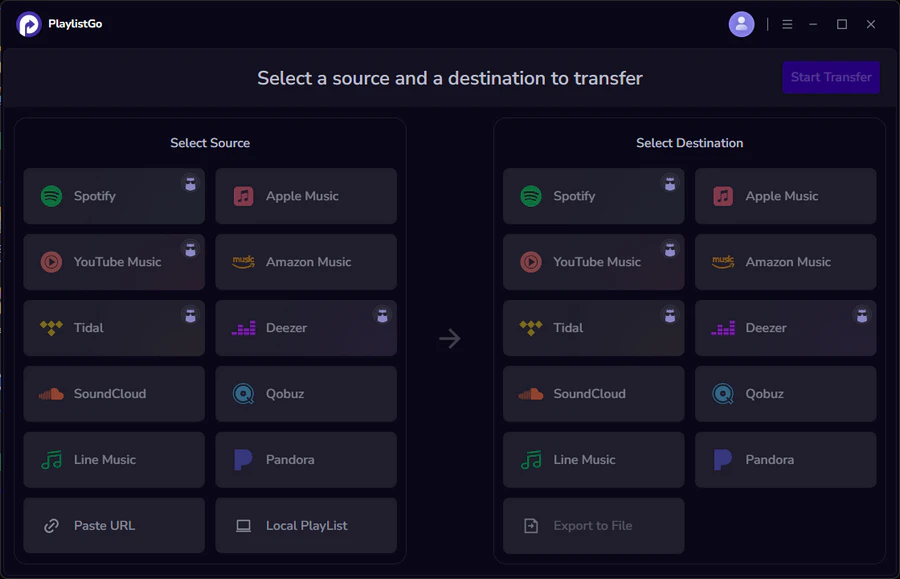
| Item | Details |
|---|---|
| Compatible with | Windows, macOS |
| Supported Platforms | Spotify, Apple Music, Amazon Music, YouTube Music, TIDAL, Deezer, and more |
| Transfer Objects | Liked songs, albums, playlists, full music library, local playlists, playlist URLs |
| Import & Export | Local files in M3U, M3U8, XSPF, XML, CSV, XLS, XLSX, JSON, TXT |
| Transfer Accuracy | Up to 99.2% matching accuracy |
| Transfer Speed | Fast and stable |
| Security | Safe and reliable. All transfers run locally |
Tutorial: How to Transfer Spotify Playlist to Apple Music with PlaylistGo
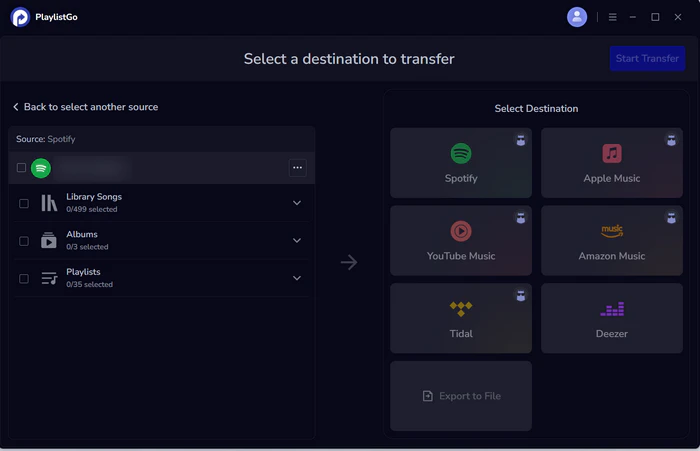
Choose Source Platform (Spotify)
Install and launch PlaylistGo on your computer. On the main interface, select Spotify as your source platform and log in to your account. PlaylistGo will load your Spotify library (playlists, liked songs, and albums).
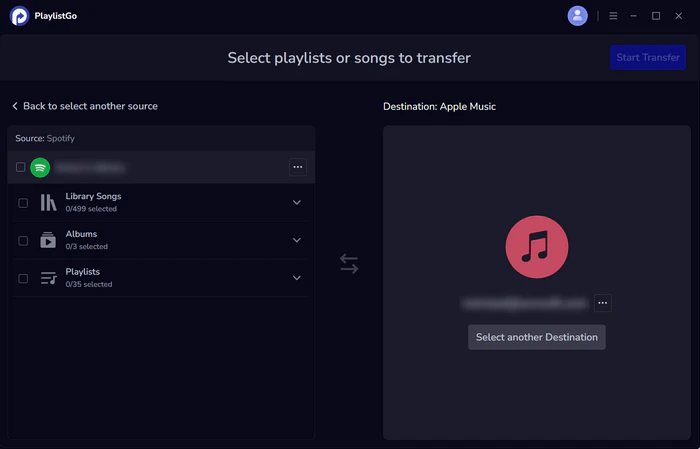
Choose Destination Platform (Apple Music)
Select Apple Music as your destination platform and authorize the connection. PlaylistGo uses a standard authorization flow, so your password is not stored in the program.
Start the Transfer Process
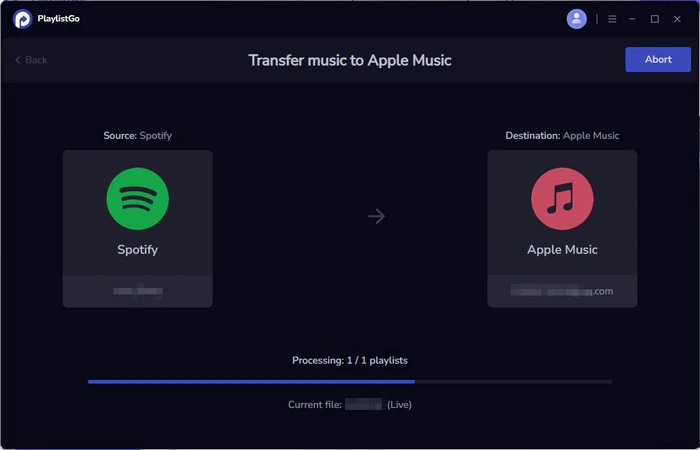
Select the playlists or songs you want to transfer, then click Start Transfer. PlaylistGo will match tracks across catalogs and show progress in real time.
Transfer Your Spotify Playlists to Apple Music
Transfer your Spotify playlists to Apple Music in minutes. No manual work, no lost songs. Try PlaylistGo free today.

FAQs about TuneMyMusic Not Working
Conclusion
Most TuneMyMusic issues come down to one of a few things: an expired authorization, a browser problem, a plan limitation, or the tool hitting its structural limits with large libraries. The fixes in this guide will resolve most of them.
If TuneMyMusic keeps failing after trying these steps, or if the match quality isn't good enough for what you need, that's usually a sign the tool isn't the right fit for your library size or use case. If your library is large or matching accuracy matters to you, PlaylistGo is worth trying — it's built specifically for both.

PlaylistGo – Best Desktop Transfer Tool
The fastest and most reliable way to move entire Spotify library to Apple Music, YouTube Music, TIDAL, etc. 100% offline • No Cloud Required • 99.2% success rate



 Language ▴