


XML playlist files are everywhere: iTunes exports them, Rekordbox uses them, VLC saves playlists in XML format. But Spotify can't do anything with an XML file. There's no import button, no drag-and-drop.
This guide covers what's inside an XML playlist file, how to import XML playlists to Spotify with a third-party tool, and how to fix common issues like missing songs or wrong track versions.
What Is an XML Playlist File?
XML is a text file format used to store and organize data with labeled tags. If you save a playlist from a media player as an XML file, all your song metadata will be neatly arranged inside layers of these tags, typically including song title, artist name, album, track duration, and file path.
Here is what a typical XML playlist entry looks like:
                <track>

                  <title>Bohemian Rhapsody</title>

                  <artist>Queen</artist>

                  <album>A Night at the Opera</album>

                  <duration>354</duration>

                  <location>file:///Music/Queen/Bohemian_Rhapsody.mp3</location>

                </track>
The most common sources of XML playlist files are iTunes (which exports your full library as an iTunes Library.xml file), Rekordbox (used by DJs to manage track collections), and VLC or Windows Media Player. Each app structures its XML slightly differently, but the core data — song title, artist, album — is present in all of them.
Spotify cannot read any of these files. Its app and web player have no import function for local files of any format. To get the songs from an iTunes XML export or any other XML playlist into Spotify, you need a tool that parses the XML, extracts the track metadata, and searches Spotify's catalog for matches.
How to Import XML Playlists to Spotify?
The main issue when moving songs from an XML file to Spotify is metadata matching. Your XML file lists track titles, artist names, and album info in tagged text, and Spotify needs someone to look all of that up in its catalog and build the playlist for you.
PlaylistGo does exactly this, running entirely on your desktop with no cloud upload. It reads the XML file, and searches Spotify for each track using title, artist, album, and ISRC codes. Beyond XML, PlaylistGo reads 9 other local file formats (M3U, CSV, XSPF, JSON, and more) and connects to 10+ streaming platforms including Apple Music, YouTube Music, and TIDAL.
PlaylistGo: Import XML Playlists to Spotify Try It Free
Import your XML file, match songs automatically, and create your Spotify playlist in minutes.
Import Your XML File
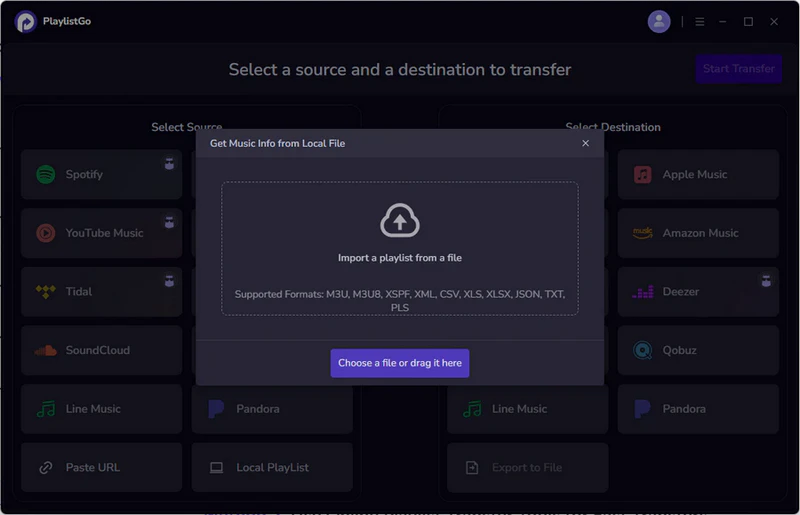
Download PlaylistGo and install it on your computer. Select Local Playlist as the source platform, then browse and select your XML playlist file from your local drive.
Select Spotify as the Destination
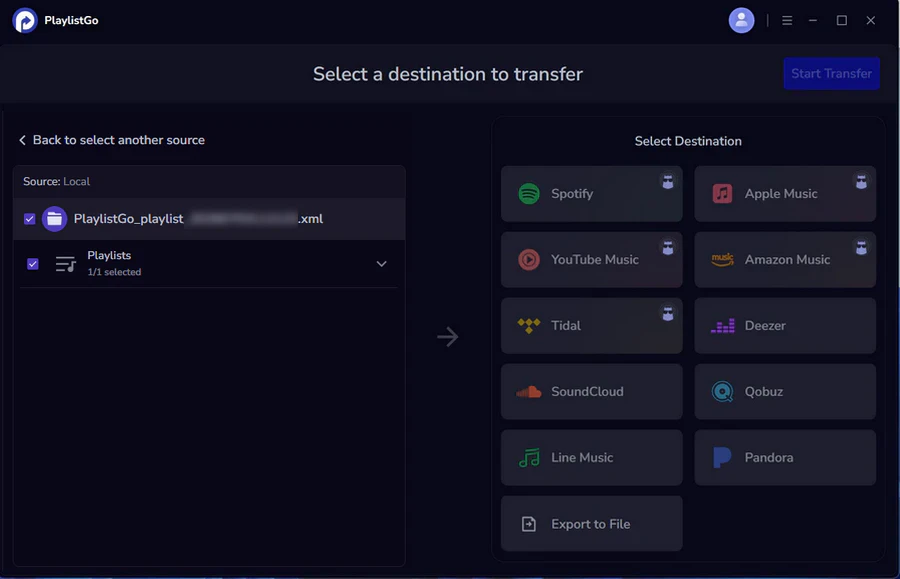
Choose Spotify in the destination platform options and log in to your Spotify account. PlaylistGo uses OAuth authentication, so your Spotify password is never stored locally. PlaylistGo will search Spotify's catalog and show you a preview of matched tracks before confirming.
Start the Transfer
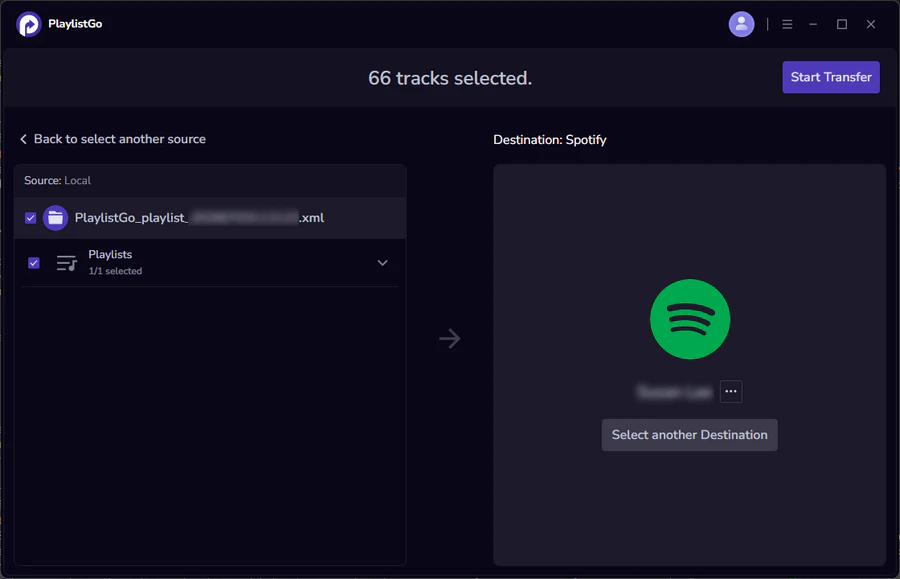
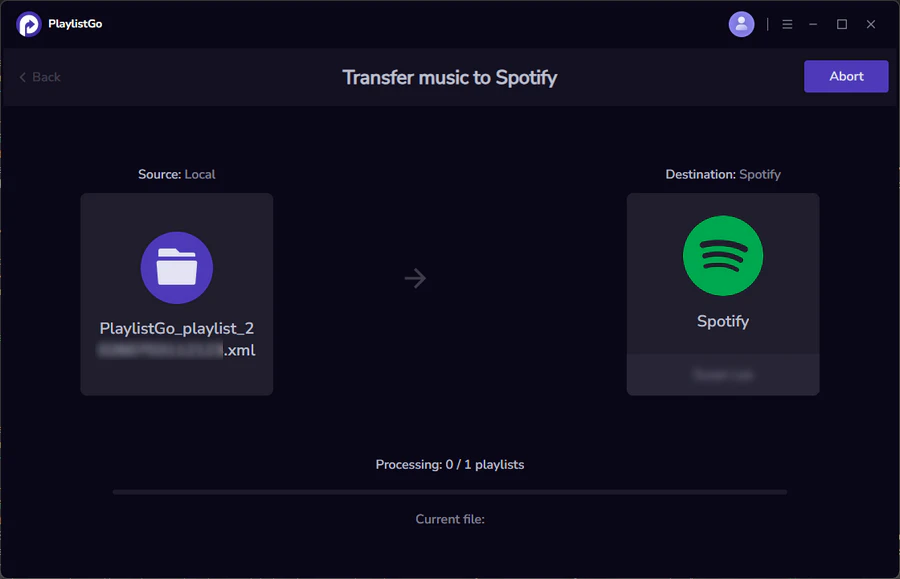
Click Start Transfer. PlaylistGo matches each track in your XML file against Spotify's catalog using a combination of track title, artist name, album name, and ISRC code. Matched songs are added to a new Spotify playlist automatically. The playlist will appear in your Spotify library immediately and sync across all your devices.
Tips for Better XML to Spotify Matching
The more complete your XML metadata is, the higher the match rate will be. Here are a few things that help:
- Keep all metadata saved in the original file. PlaylistGo matches tracks using title, artist, and album together. If your XML file only contains song titles without artist or album info, matching accuracy drops significantly.
- Use original exports rather than re-saved copies. Some text editors may mess up or rearrange XML tags when you open and save an XML file. If you need to inspect the file, open it in a code editor or view it in a browser instead of editing it in a word processor.
- Don't manually rename tags. If you swap tags like
<artist>to<performer>or rearrange how the tags are layered, PlaylistGo won't be able to read your file properly. - ISRC codes improve accuracy when available. Some XML exports include ISRC for each track. This is a unique identifier tied to a specific recording, so when it is present, PlaylistGo can match the exact version of a song rather than guessing between a studio cut, a live recording, or a remaster.
Common XML to Spotify Import Problems and Fixes
Even with a well-structured XML file, some issues can come up during the import process. Here is what causes them and how to fix them.
XML Playlist File Won't Load in PlaylistGo
This error almost always comes from something wrong with how the file is built. Here are the most frequent reasons:
- Wrong text encoding: The file doesn't use UTF-8, so special symbols inside it can't be read by PlaylistGo.
- Broken XML labels: You forgot to add closing tags like
</track>or</playlist>. If the file was exported from iTunes, make sure you used File > Library > Export Library for a properly formatted XML. - Fake file type: Verify the file extension is actually
.xml, not.txtor.html.
Some XML Tracks Are Not Available on Spotify
Not every song exists in Spotify's catalog. Tracks from independent artists, region-locked releases, or songs that have been removed from Spotify will not have a match. PlaylistGo lists all unmatched tracks after the transfer, so you can search for them manually or find alternative versions. If you're working with a very large XML export, see our guide on transferring playlists without losing songs.
Metadata mismatches are another common cause. If the artist name in your XML is spelled differently from how it appears on Spotify (for example, "The Weeknd" vs "Weeknd"), the match will fail even though the song is available. Check the unmatched list for obvious spelling differences.
Wrong Song Version Matched After XML Import
Spotify often has multiple versions of the same song: the original studio recording, a remastered edition, a live version, and a deluxe album cut. If your XML does not include the album name or ISRC code, PlaylistGo may match a different version than the one you intended. Including album metadata in your XML file reduces this problem significantly.
XML Playlist Order Not Preserved in Spotify
XML files store tracks in a specific sequence, and PlaylistGo reads them in that order. If your playlist appears out of order after the transfer, the issue is usually in the source file itself. Open the XML in a text editor and verify that the tracks are listed in the order you expect. Some media players sort by artist or album when exporting rather than preserving your custom order.
Frequently Asked Questions
iTunes Library.xml file exported by Apple Music or iTunes has all the track metadata PlaylistGo needs — song title, artist, album, and track ID. Open PlaylistGo, select the XML file as your source, choose Spotify as the destination, and the app will match your iTunes library against Spotify's catalog automatically.
Conclusion
Getting an XML playlist into Spotify comes down to three things: a clean XML export from your media player, a tool that can read it and match the tracks, and a quick review of anything that didn't land. PlaylistGo takes care of all the tedious work automatically — reading the XML data, matching songs, and building your Spotify playlist. The whole process only takes a few minutes, instead of spending hours searching for every song one by one.

PlaylistGo – Best Desktop Transfer Tool
The fastest and most reliable way to move entire Spotify library to Apple Music, YouTube Music, TIDAL, etc. 100% offline • No Cloud Required • 99.2% success rate


 Language ▴