


Apple Music has no built-in option to import M3U files, whether you're on Windows, Mac, or iPhone. Getting your M3U playlist into Apple Music requires a third-party tool that reads the file, matches each track against the Apple Music catalog, and creates the playlist in your account.
This guide walks you through how to import an M3U playlist to Apple Music, and what to do when some songs don't make it across.
What Is an M3U File and Why Won't Apple Music Open It?
M3U is a plain-text playlist format used by media players like VLC, Winamp, and Foobar2000 to save track lists as local file paths or streaming URLs.
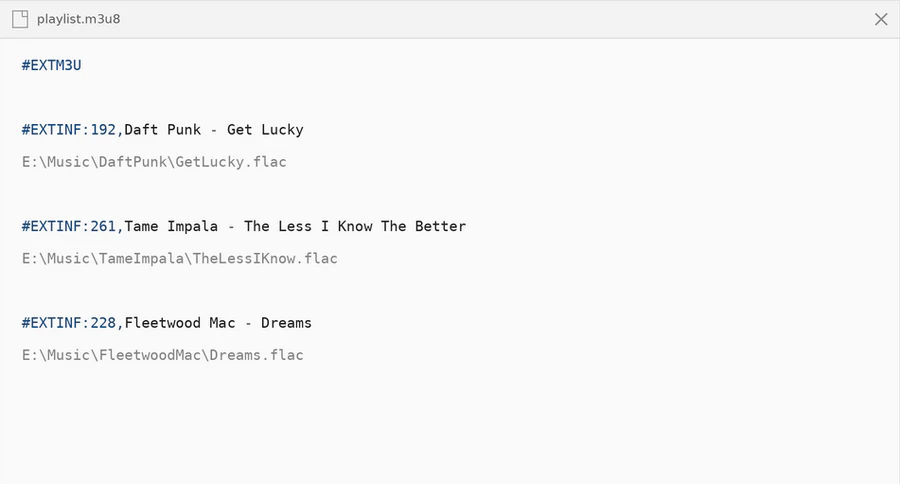
#EXTINF:192, Daft Punk - Get Lucky
E:\Music\DaftPunk\GetLucky.flac
#EXTINF:261, Tame Impala - The Less I Know The Better
E:\Music\TameImpala\TheLessIKnow.flac
#EXTINF:228, Fleetwood Mac - Dreams
E:\Music\FleetwoodMac\Dreams.flac
Unlike these players, Apple Music is a streaming service, so it doesn't read local file paths or understand the M3U format at all. To import your M3U playlist into Apple Music, each track in the file has to be looked up individually in the Apple Music catalog and recreated there.
If you don't already have an M3U file and want to create one from your Spotify library first, see how to export Spotify playlists to M3U.
M3U vs M3U8: Which Format Works with Apple Music?
If you're not sure whether your file is .m3u or .m3u8, it doesn't matter for this purpose. Both work the same way when importing to Apple Music. The only difference between them is character encoding:
| M3U | M3U8 | |
|---|---|---|
| Encoding | ASCII | UTF-8 |
| Non-Latin characters | May display as garbled text | Fully supported |
| Best for | English-only libraries | Libraries with CJK, Arabic, accented characters |
If your playlist includes artists or song titles with non-English characters, your media player may have saved it as M3U8. Either format works for importing to Apple Music, and the process is identical regardless of which one you have.
How to Import M3U to Apple Music
PlaylistGo is the tool used in this guide — a desktop app for Windows and Mac built specifically for moving playlists between streaming platforms. Point it at your M3U file and it takes over from there: finding each track on Apple Music, checking title, artist, album, and ISRC data to confirm the match, and assembling the playlist in your library automatically. The steps below walk through exactly what that looks like.
PlaylistGo: Import M3U Playlists into Apple Music Try It Free
Load your M3U file, match songs automatically, and create your Apple Music playlist in minutes.
Check Your M3U File Before You Start
Before importing, open your M3U file in a text editor and check that each track has an #EXTINF line with the song title and artist name — this is what PlaylistGo uses to match tracks. If the tags are missing or incomplete, match quality will drop. For non-Latin track names (Chinese, Japanese, Korean, Arabic), make sure you're using an .m3u8 file to avoid character corruption.
Import Your M3U File
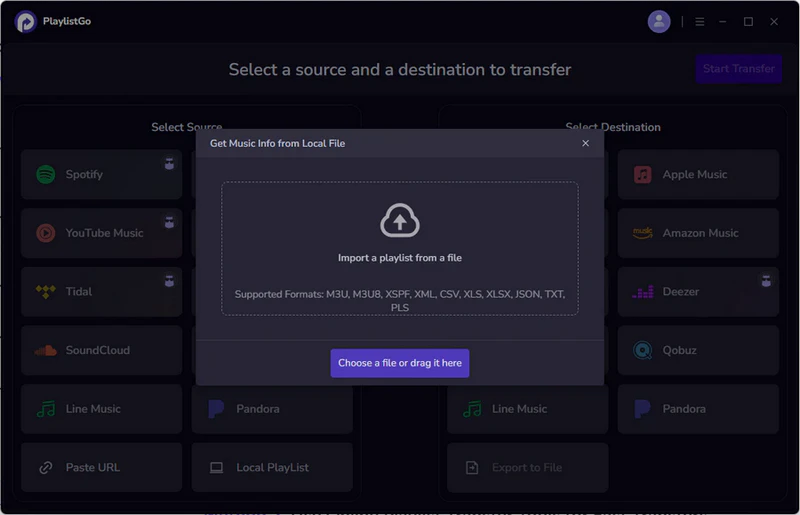
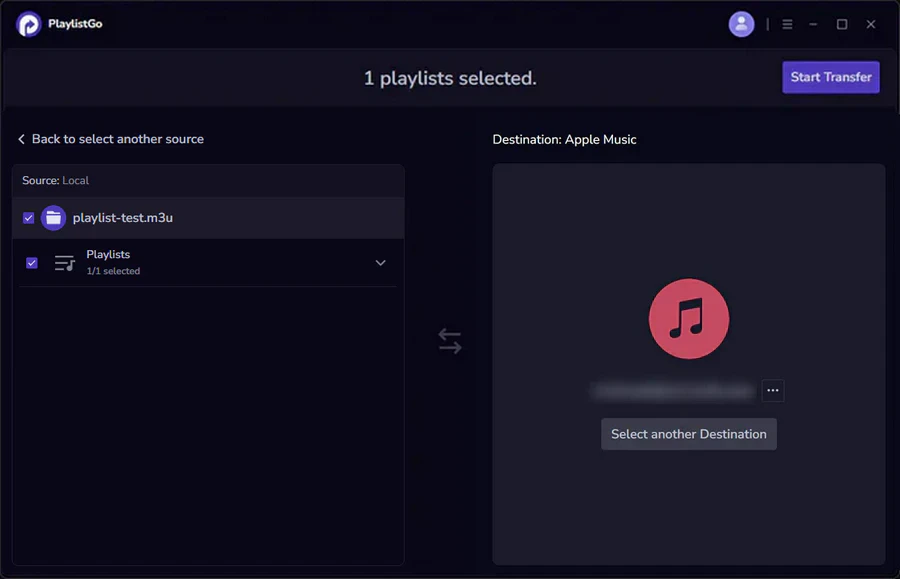
Open PlaylistGo and set Local Playlist as the source. Browse to your .m3u or .m3u8 file and select it. PlaylistGo will parse the file and give you a full track list to review.
Select Apple Music as Your Destination
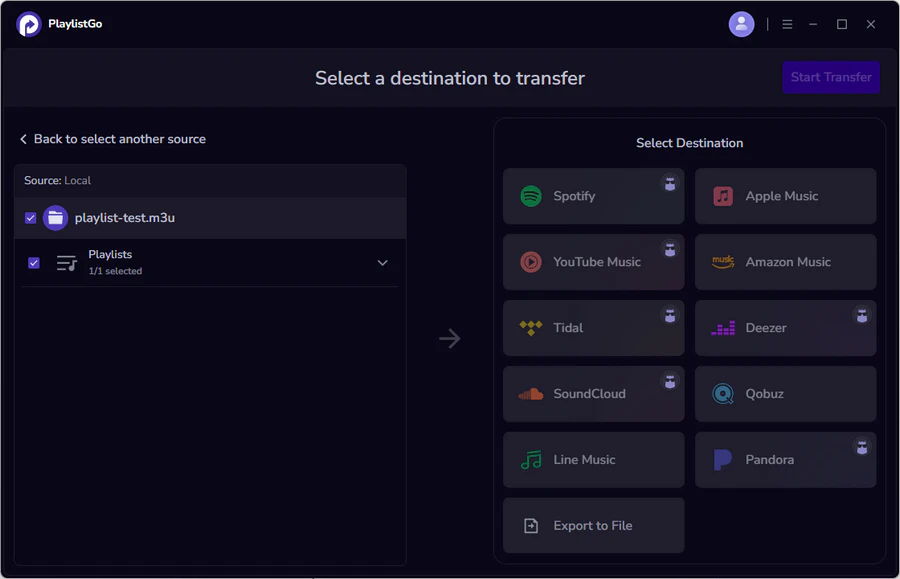
Choose Apple Music as the destination and sign in to your account. PlaylistGo connects via Apple's official authentication so no credentials are stored.
PlaylistGo will then search the Apple Music catalog and show you a preview of matched and unmatched tracks. Matched tracks are shown with a confidence indicator. You can review the results and manually correct any mismatches before proceeding.
Create Your Apple Music Playlist
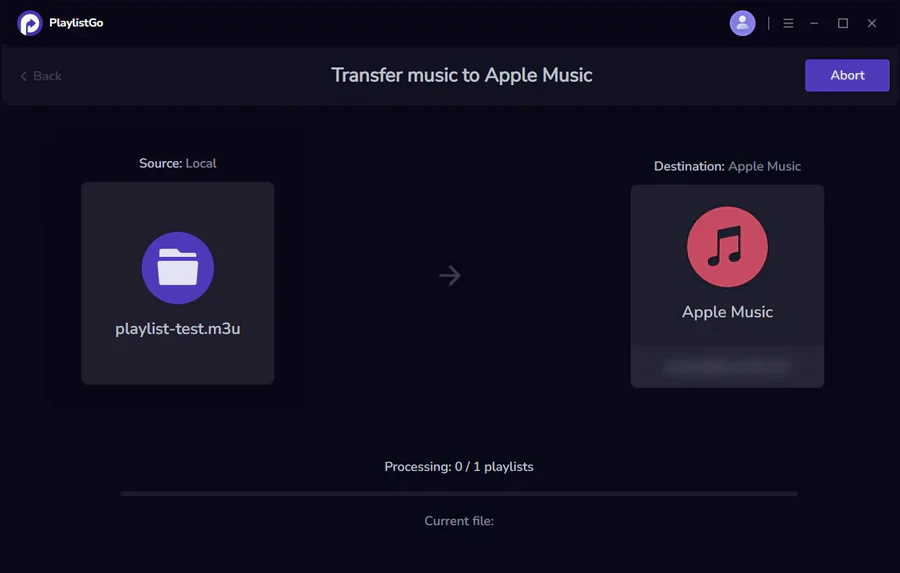
Once you're satisfied with the match results, click Start Transfer to confirm. PlaylistGo will create the playlist directly in your Apple Music library with tracks in the same order as your M3U file. The playlist will appear in your Apple Music library immediately and sync across all your Apple devices.
Why Some M3U Tracks Don't Import to Apple Music
Not every track in an M3U file has an exact match in the Apple Music catalog. Here are the most common reasons a song comes back unmatched:
Track Not Available in Your Region on Apple Music
Apple Music's catalog is region-locked to your Apple ID. A track available in one country may not exist in another, so if a song in your M3U file isn't licensed for your region, it won't appear in the catalog and can't be matched.
Song Removed from Apple Music
Artists and labels sometimes take their music off streaming platforms. If a track existed in your local library but is no longer on Apple Music, there's no catalog entry to match it against. This is more likely to happen with older indie albums or niche releases than with mainstream titles.
Live or Bootleg Recordings Not on Apple Music
Local libraries often include live recordings, remixes, or bootlegs that were never officially released. Apple Music only carries licensed content, so these tracks either won't match or will return the studio version instead.
Poor M3U Metadata Reduces Match Accuracy
Match accuracy depends on the quality of your M3U file's EXTINF tags. Misspelled artist names, titles with extra text like "(Live)" or "(Remaster)", or missing EXTINF lines altogether will all reduce match accuracy. A quick cleanup in any text editor before importing goes a long way. If mismatches still show up after the transfer, see how to fix matching errors for more targeted fixes.
M3U vs CSV for Apple Music
Both M3U and CSV can be imported into Apple Music via PlaylistGo. Here's how they compare:
| M3U | CSV | |
|---|---|---|
| Stores | File paths or URLs | Track metadata (title, artist, album) |
| Common in | Media players, IPTV software | Spreadsheet apps, data exports |
| Editable | Requires a text editor | Easy to edit in Excel or Google Sheets |
| Includes local files | Yes | No |
| Better for | Exporting from local players | Curating or correcting track lists manually |
If your playlist data is in a spreadsheet rather than an M3U file, see how to import a CSV playlist to Apple Music. And if your source is Spotify rather than a local file, you can export Spotify to CSV first.
Frequently Asked Questions about Importing M3U to Apple Music
- Music copyright restrictions stop this track from showing up in your region;
- Missing or faulty
#EXTINFtags stop the tool from matching songs; - Unofficial audio like live clips or bootleg recordings are never uploaded to Apple Music.
#EXTINF tags alongside each file path to identify the track, then finds the matching version on Apple Music. If the tags are missing, it falls back to reading the filename. Songs unavailable on Apple Music cannot be matched.
Conclusion
Apple Music can't open M3U files on its own, but PlaylistGo closes that gap in a few clicks: import the file, sign in to Apple Music, review the matches, and confirm. The playlist shows up in your Apple Music library exactly as it was, track order included.
For larger libraries, see our guide on transferring playlists without losing songs.

PlaylistGo – Best Desktop Transfer Tool
The fastest and most reliable way to move entire Spotify library to Apple Music, YouTube Music, TIDAL, etc. 100% offline • No Cloud Required • 99.2% success rate


 Language ▴