


Apple Music doesn't offer a built-in "export to CSV" feature. To export Apple Music playlists or your entire library as a CSV file, you'll need a dedicated export tool. CSV file creates a simple, portable copy stored right on your computer, so a full backup of your Apple Music library stays safe even if you run into account issues, songs get removed, or you decide to switch services.
This guide walks through how to export Apple Music playlists to a CSV file in three simple steps, and also covers how to complete a full Apple Music library export when you need more than just a single playlist.
If you're coming from Spotify instead, we also have a guide on exporting Spotify playlists to CSV.
Part 1: Can You Export Apple Music to CSV Files Directly?
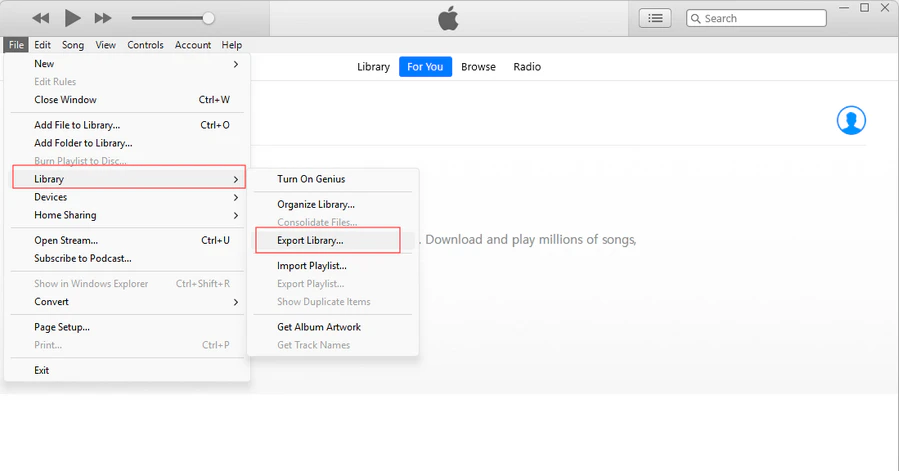
The closest built-in solution is available in Apple's Music app on Mac and iTunes on Windows: under File > Library > Export Playlist, where you can export playlist data as an XML file or a text file.
However, this is not a true CSV export. The text version is tab-delimited rather than comma-separated like a standard CSV file, and it does not let you choose custom fields or define your own columns. If you want to move your Apple Music library, create backups, or analyze playlists, CSV is often the most convenient format.
Part 2: How to Export Apple Music Playlists to CSV Files?
The simplest way to get a clean, complete CSV file of your Apple Music playlists is to use a dedicated export tool built for this. PlaylistGo connects to your Apple Music library with your permission and turns your playlists into a clean, properly formatted CSV file.
It directly accesses your Apple Music playlists, keeps the song order and all track info exactly the same, and exports a CSV file that you can open immediately.
PlaylistGo supports more export options than just CSV for your Apple Music library. You can directly transfer your Apple Music collection to other music services such as Spotify, YouTube Music, and TIDAL, or export local files as XLSX, XML, M3U, M3U8, PLS, XSPF, JSON, or TXT — work perfectly if you don't actually need a spreadsheet.
Turn Your Apple Music Playlists into a CSV File Try It Free
One click gets your Apple Music playlists into a CSV file — or straight into Spotify, YouTube Music, and other streaming apps.
Continue below for the complete step-by-step walkthrough.
Step-by-step Tutorial: Export Apple Music to CSV
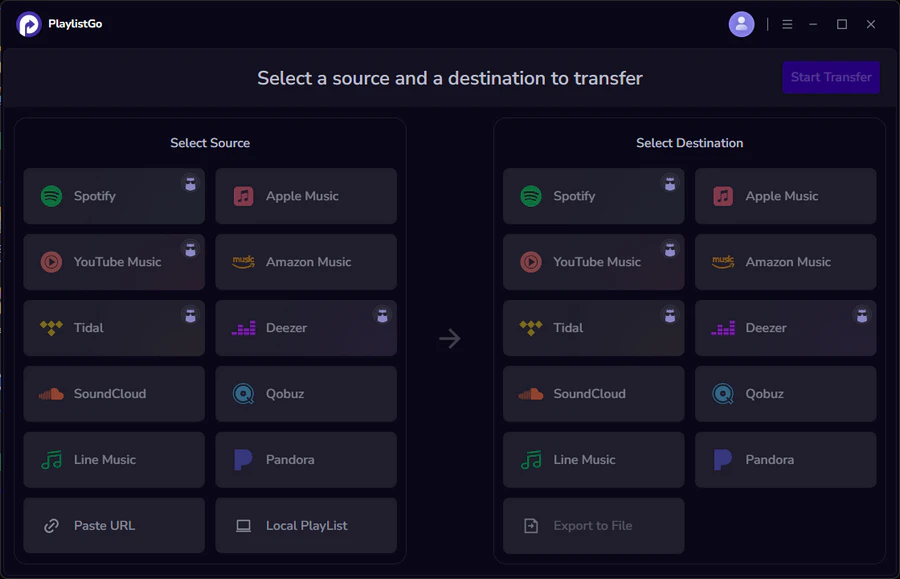
Choose Apple Music as Source Platform
Launch PlaylistGo, and select Apple Music as your source platform. Sign in with your Apple ID. PlaylistGo will load your playlists and library so you can pick exactly what to export.
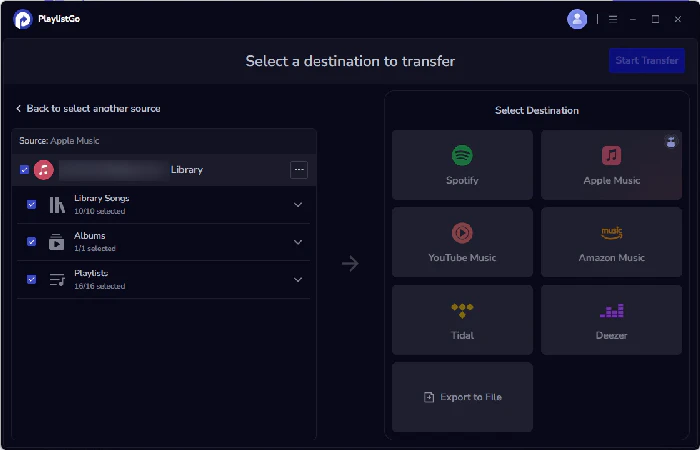
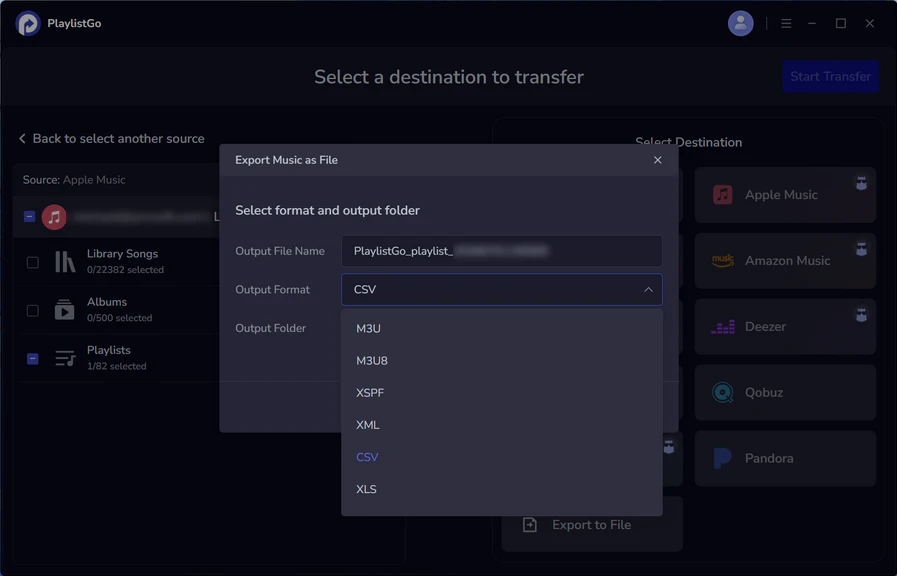
Select Your Destination: Export to File
Set the destination to "Export to File" and pick CSV as the output format. You can rename the file and choose where it saves before continuing.
Start Exporting Apple Music to CSV
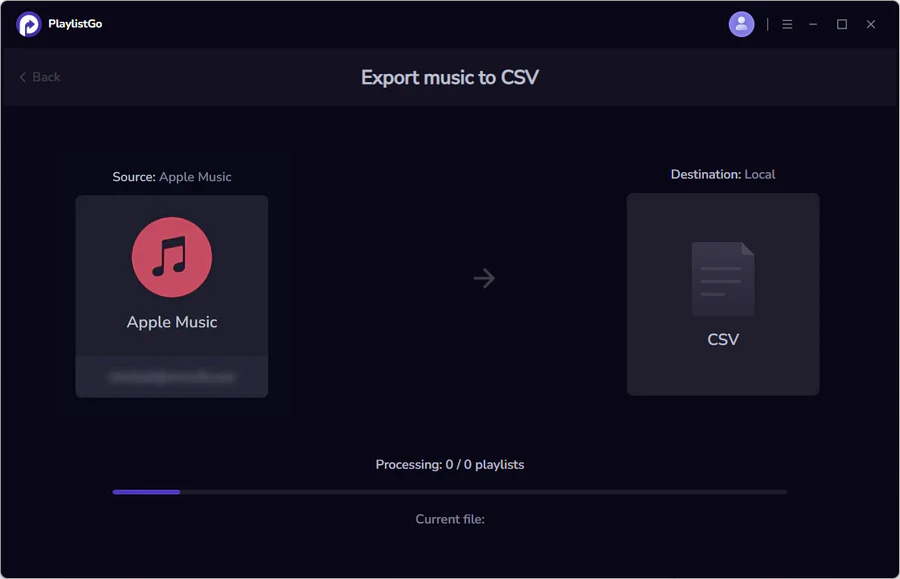
Hit Start Transfer. PlaylistGo builds the CSV from your track data and drops it in the folder you picked — from there it's ready to open in Excel, Sheets, or wherever you need it.
What's Included in the Exported CSV File?
PlaylistGo doesn't just export a simple list of song names. It keeps the metadata that actually makes the file useful for backup or reference. Here's an example of what a row looks like:
| Song Title | Artist | Album | Duration | Playlist Name |
|---|---|---|---|---|
| Blinding Lights | The Weeknd | After Hours | 3:20 | Workout Mix |
| As It Was | Harry Styles | Harry's House | 2:47 | Workout Mix |
| Flowers | Miley Cyrus | Endless Summer Vacation | 3:20 | Workout Mix |
Other Apple Music Export Formats Available
CSV isn't your only choice. PlaylistGo can export your Apple Music playlists as Excel (XLSX), XML, M3U and more file formats, depending on how you plan to use them:
| Format | Best For |
|---|---|
| CSV | Spreadsheet editing & backup |
| XLSX | Managing large libraries in Excel |
| XML | Advanced library management |
| M3U / M3U8 | Music players |
| JSON | Developers & data processing |
Part 3: What Can You Do with Your Exported Apple Music CSV Playlists?
A CSV of your Apple Music playlist is a simple text file, so you can open it easily with Excel, Google Sheets, Numbers, or any basic text editor.
A CSV Backup That Doesn't Depend on Apple
Your Apple Music playlists can get lost to account issues, removed tracks, or an accidental deletion, and Apple Music often can't restore them. Backing up your Apple Music library locally keeps your song list safe, no matter what happens to your Apple Music account.
Editing Your Apple Music Library in a Spreadsheet
Apple Music isn't built for bulk playlist edits. Once your tracks are exported to a CSV file, you can easily sort by artist, remove duplicates, and add custom columns for ratings and notes — way faster than manually rearranging songs inside the app.
Move CSV File to a Different Streaming Service
The CSV file neatly stores your songs and artist info, so it works perfectly for moving playlists to other music services. PlaylistGo can import CSV file to Spotify, YouTube Music and other supported platforms. You can also easily share the file with anyone, even if they don't use Apple Music.
Part 4: Apple Music to CSV FAQs
Conclusion
With PlaylistGo, transferring your Apple Music library into a proper CSV file takes just a few clicks. Whether you're backing up years of curated playlists, cleaning them up in a spreadsheet, or getting ready to move to another platform, exporting to CSV is the simplest way to put that data back in your hands.

PlaylistGo – Best Desktop Transfer Tool
The fastest and most reliable way to move entire Spotify library to Apple Music, YouTube Music, TIDAL, etc. 100% offline • No Cloud Required • 99.2% success rate


 Language ▴