


If you've exported a playlist from Apple Music, YouTube Music, or an older music manager like iTunes or MusicBee, you may have ended up with a CSV file and no straightforward way to get it into Spotify.
Spotify doesn't offer a native CSV import feature, so you'll need a third-party tool that can read your file. This guide walks through how to import a CSV playlist into Spotify automatically for the best match results.
What CSV Format Works Best for Spotify?
Spotify currently has no built-in option to upload or import a CSV file. This is partly a technical limitation. Matching a text-based track list with Spotify’s library of 100+ million songs is non-trivial. Song titles aren't unique identifiers, metadata varies between platforms, and regional availability further complicates the matching process.
Most import tools expect a simple two-column format:
For better results, including more metadata significantly improves match accuracy:
| Field | Required | Notes |
|---|---|---|
| Title | Yes | Use the official song title |
| Artist | Recommended | Significantly improves match accuracy |
| Album | Optional | Helps distinguish between versions |
| ISRC | Optional | Most accurate, avoids version conflicts |
If your CSV only has song titles with no artist column, you will see more mismatched or missing songs, especially for common song names used by multiple artists. Title and Artist are enough for most imports, and Album and ISRC help when a song has multiple versions on Spotify.
How to Import a CSV File into Spotify
Since Spotify has no native import feature, you'll also need a third-party tool to handle the actual transfer.
PlaylistGo is a desktop app for Windows and Mac that reads your CSV file, matches each track against Spotify's catalog using title, artist, album, and ISRC data, and creates the playlist directly in your account. It supports imports from CSV, M3U, XSPF, JSON, and other local file formats, and works with 10 music services including Spotify, Apple Music and YouTube Music. The steps below use PlaylistGo to complete the import.
PlaylistGo: Import CSV Playlists into Spotify Try It Free
Upload your CSV, match songs automatically, and create your Spotify playlist in minutes.
Prepare Your CSV File
Open your CSV in any text editor or spreadsheet app and check the following before uploading:
- The first row contains column headers (Title, Artist)
- Each song is on its own row
- The file is saved in UTF-8 encoding — this prevents character errors with non-Latin titles
- There are no duplicate rows
Remove any extra columns your export tool may have added. If you're working from an Excel file, go to File → Save As → CSV UTF-8 before uploading.
Upload Your CSV File to PlaylistGo
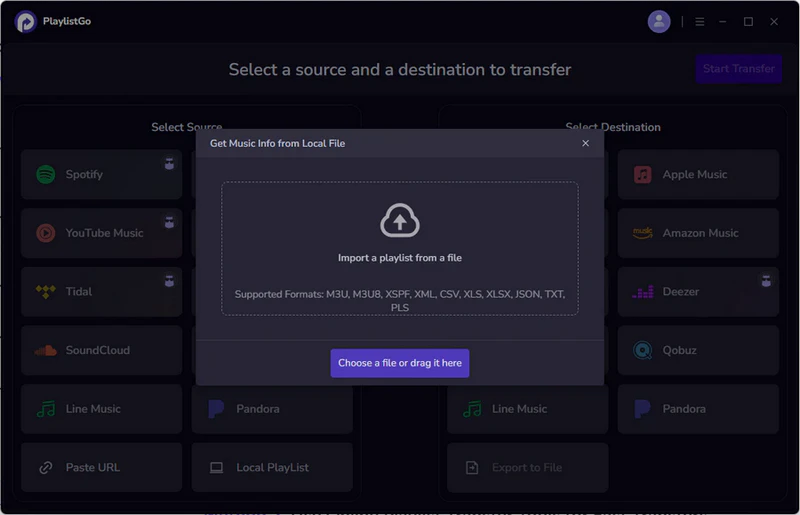
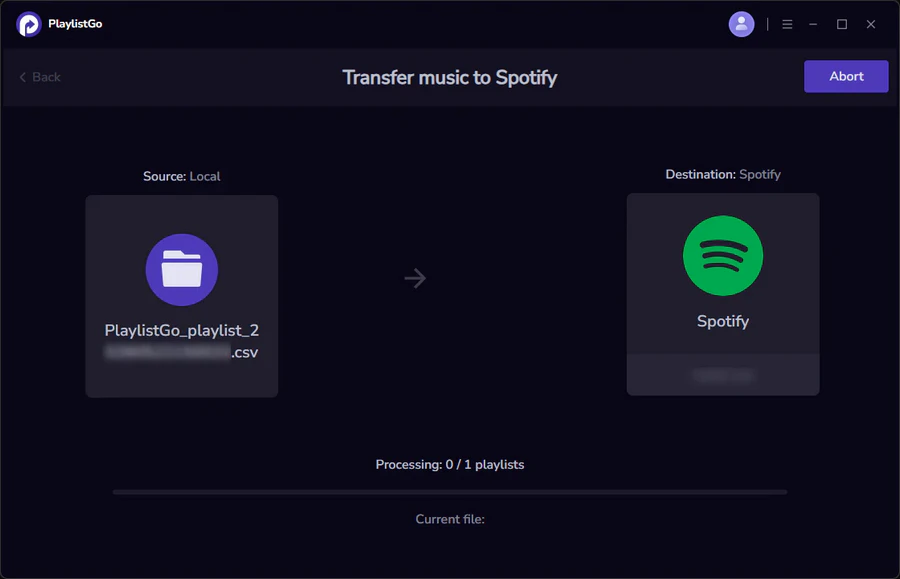
Open PlaylistGo and select Local Playlist as the source platform, then browse and select your CSV file from your local drive. PlaylistGo will read the file and display a preview of all detected tracks before doing anything to your Spotify account.
Select Spotify as Your Destination
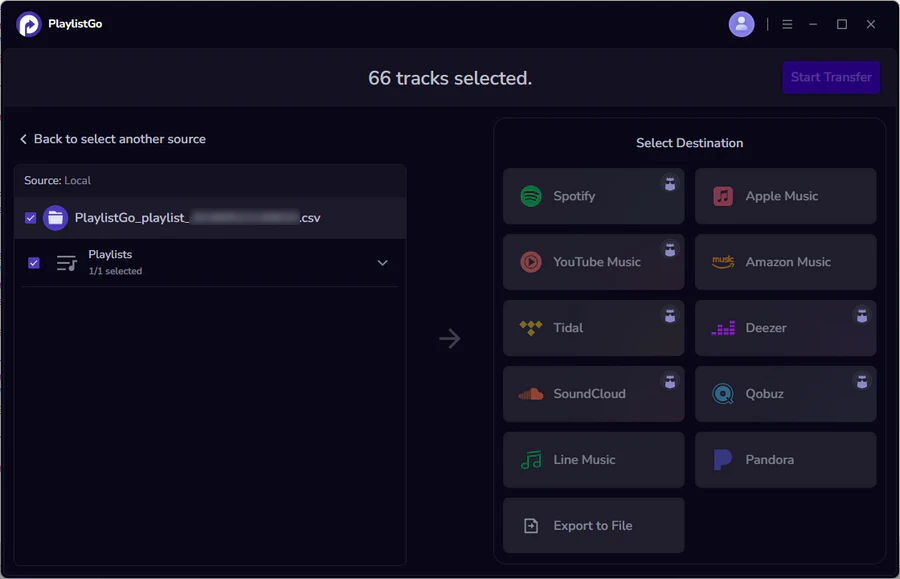
Select Spotify in the destination platform options and log in to your Spotify account. PlaylistGo will search Spotify's catalog and show you a preview of matched and missing tracks. Review the list before confirming, and if any tracks are missing, check the title spelling or add the artist name in your CSV and re-upload.
Create Your Spotify Playlist
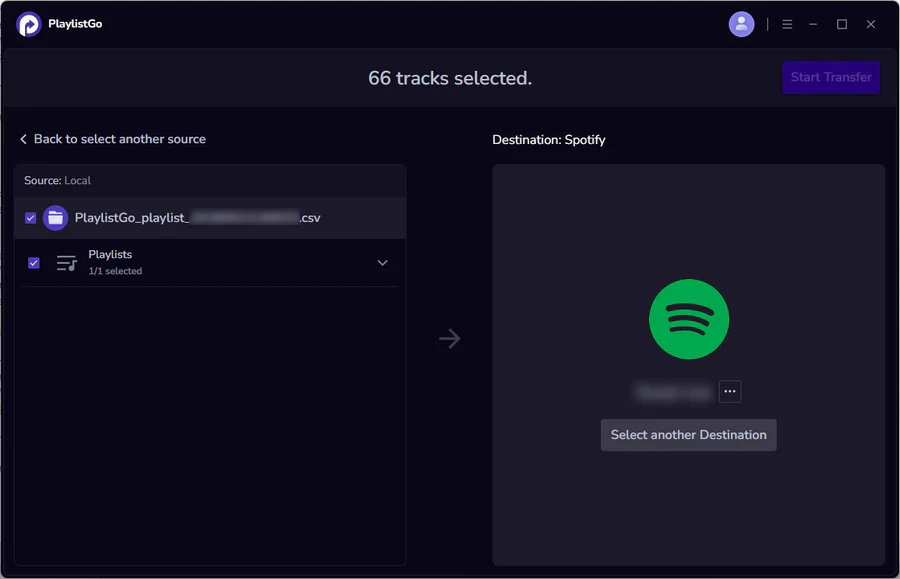
Once you're satisfied with the match results, click Start Transfer to confirm. PlaylistGo will create the playlist directly in your Spotify account. Large playlists typically complete in under a minute. The playlist will appear in your Spotify library immediately and sync across all your devices.
Why Some Songs Are Missing After Import
Even with a well-formatted CSV, some tracks may not transfer cleanly. Here's what causes it and how to fix it.
Songs Not Found
The most common cause is missing artist information. If your CSV only has song titles, tracks with common names — like "Creep," "Closer," or "Stay" — may return the wrong result or none at all. Adding an Artist column resolves most of these cases.
Regional restrictions can also block matches. Some tracks are available on Spotify in certain countries only. If you're seeing a pattern of missing songs from a specific label or artist, this is likely the cause rather than a formatting issue in your CSV.
Wrong Song Matched
Spotify's catalog contains multiple versions of many songs, like album cuts, singles, live recordings, remixes, and remastered editions. Without an ISRC code in your CSV, the tool has to choose based on title and artist alone. You might get a remaster when you wanted the original, or a studio recording when you wanted the live version.
If version accuracy matters, export your source playlist with ISRC codes included where your source platform supports it. Check this guide on how to export a playlist to CSV for reference.
CSV Upload Failed
If the file isn't being read correctly at all, check the following:
- The delimiter is a comma, not a semicolon or tab.
- The file extension is
.csv, not.xlsxor.txt. - UTF-8 encoding is selected when saving.
If you built the CSV manually in Excel, make sure you exported via File → Save As → CSV UTF-8 rather than saving as .xlsx and renaming the extension.
Why Use PlaylistGo for CSV to Spotify
- Large playlist support. PlaylistGo handles playlists of any size without splitting or session limits.
- 99.2% song matching rate. Tracks are matched using title, artist, album, and ISRC, not just song name alone.
- Preview before import. You see every match result before the playlist is created, so you can correct errors in advance.
- Local backup. Your CSV file stays on your machine. PlaylistGo doesn't store your playlist data on external servers.
- Cross-platform support. PlaylistGo supports 10 music platforms including Spotify, Apple Music, YouTube Music, and more. If you later want to move the same playlist to another platform, you don't need a different tool.
How to Import CSV Playlists to Apple Music?
Learn how to easily import CSV playlists to Apple Music with this step-by-step guide.
Frequently Asked Questions
YouTube Video: How to Import CSV File to Spotify in 2026

Conclusion
Spotify doesn't support CSV imports natively, but the process is straightforward with the right tool. Format your file with at least Title and Artist columns, save it in UTF-8 encoding, upload it to PlaylistGo, review the match results, and your playlist will be live in Spotify within minutes.

PlaylistGo – Best Desktop Transfer Tool
The fastest and most reliable way to move entire Spotify library to Apple Music, YouTube Music, TIDAL, etc. 100% offline • No Cloud Required • 99.2% success rate


 Language ▴