


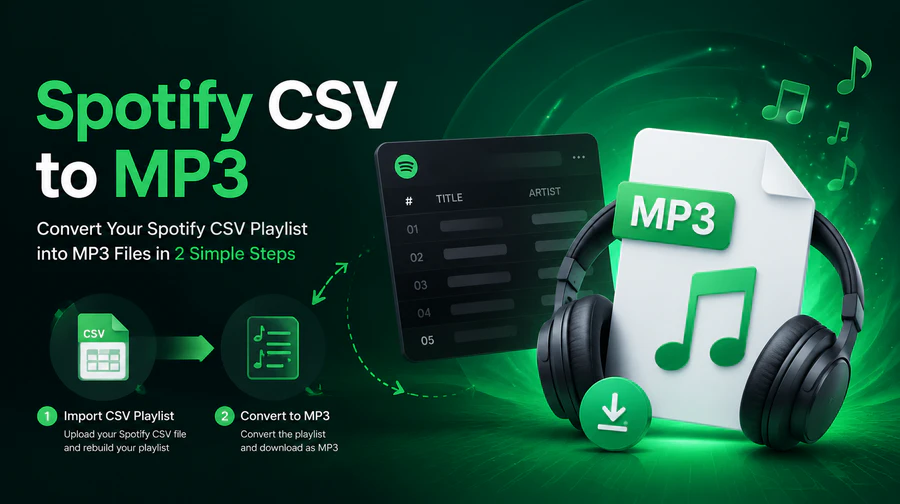
If you've exported a Spotify playlist as a CSV file, you might expect to open it and find your songs ready to play. That's not how it works. A Spotify CSV is a spreadsheet of song data — track names, artists, album info — not an audio file. There's no direct way to "convert" it into MP3s, because there's no audio inside it to convert.
What actually works is a two-step process: use a Spotify CSV converter to rebuild the file into a playable playlist, then run that playlist through a Spotify to MP3 converter to get real audio files. This guide covers both steps, from your original CSV playlist to finished MP3 downloads.
What Is a Spotify CSV File?
When you export a Spotify playlist to CSV, you get a spreadsheet where each row is a track and each column is a piece of metadata. A typical row looks something like this:
| # | Track Title | Artist | Album |
|---|---|---|---|
| 1 | Levitating | Dua Lipa | Future Nostalgia |
| 2 | As It Was | Harry Styles | Harry's House |
| 3 | Flowers | Miley Cyrus | Endless Summer Vacation |
That's genuinely all a CSV export gives you — plain text listing the songs in your playlist. Some exports include extra columns like a Spotify URI or ISRC code, but the file is still the same thing: a list, not a recording. Open it in Notepad or Excel and every column will be text you can read, never audio you can hear.
Therefore, a regular music player can't play any sound directly from it, because a CSV file does not contain the actual audio data required for playback.
Can I Convert a Spotify CSV to MP3 Directly?
No. A CSV is text — song titles, artist names, maybe an album or two — and MP3 is an audio format. Converting something into MP3 always starts from a sound source: a track that's actually playing, or a file that already holds audio data. A CSV has neither. There's nothing in it to decode, encode, or compress into a music file, no matter which "converter" claims otherwise.
So to get MP3 files, you need to complete two separate steps: first, turn the CSV back into a playable playlist, not just a spreadsheet, then record or convert the actual audio playback and save them as MP3s.
The 2-Step Workflow: From CSV to Playable Playlist to MP3
Converting a Spotify CSV to MP3 files requires two separate tools, since each solves half the problem. In short: Use a playlist transfer tool to import the CSV and recreate a playable streaming playlist, then run a music converter to save the tracks from that playlist as MP3 files on your computer. Here's the full path:
Step 1: Rebuild Your Spotify Playlist from CSV with PlaylistGo
PlaylistGo is a playlist transfer tool that reads your CSV file, matches each row's track title and artist (plus album or ISRC where those columns exist) against Spotify's catalog, and rebuilds a fully playable playlist directly in your Spotify account — no manual re-adding of songs required.
This method works way better than manually adding songs one by one. PlaylistGo can handle huge music libraries with 10,000+ songs all at once, and it won't freeze or time out like simple web tools often do.
PlaylistGo: Rebuild a Playlist from Your CSV Try It Free
Upload your CSV, match songs automatically, and get a playable playlist in minutes.
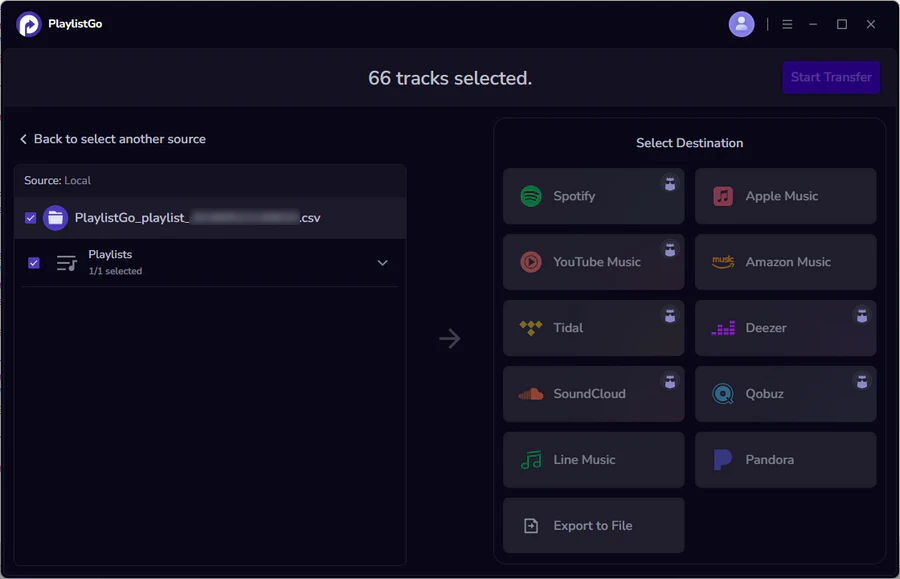
Point PlaylistGo at Your CSV File
In PlaylistGo, set Local Playlist as the source and browse to your CSV. It loads the file and lays out a preview of every track it found.
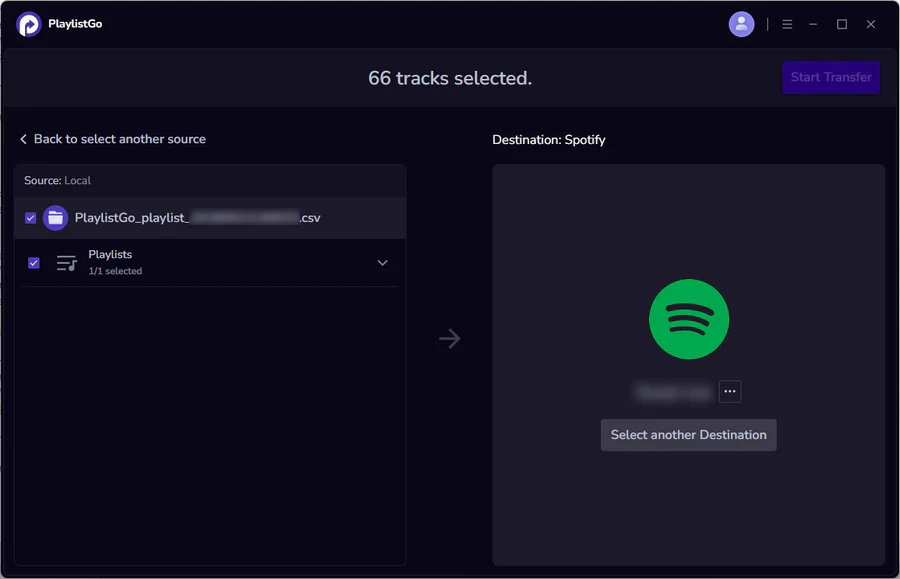
Choose Spotify as the Destination
Pick Spotify as the destination and sign in. PlaylistGo checks each track's title, artist, album, and ISRC (when available) against Spotify's catalog rather than relying on the title alone, then hands you a preview of what matched and what didn't.
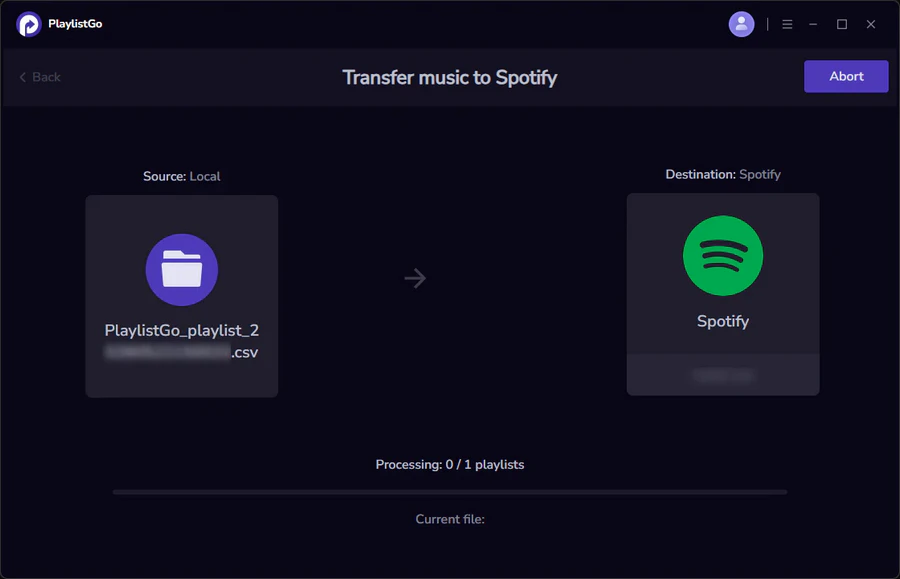
Confirm and Rebuild the Playlist
Happy with the preview? Click Start Transfer. PlaylistGo builds the playlist in your account in the original order and under the original name, and flags anything unmatched instead of quietly skipping it. From here, it's a normal playable playlist — ready for the conversion step below.
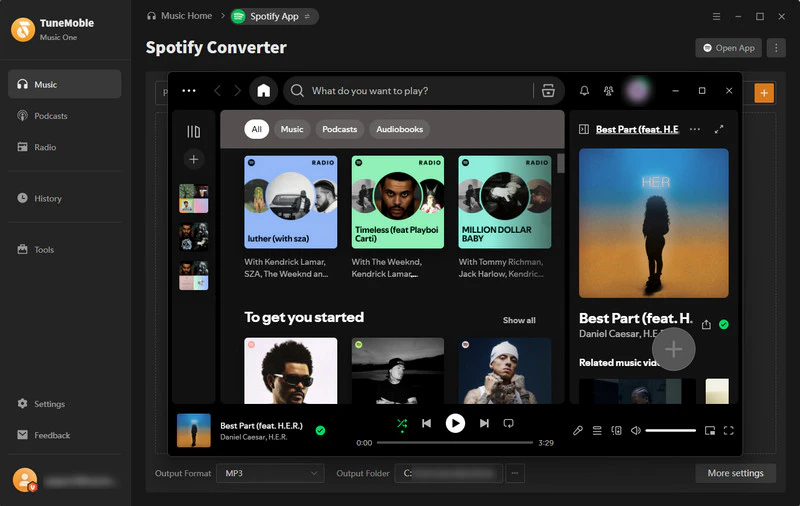
Step 2: Convert the Playlist to MP3 with TuneMobie
A rebuilt playlist solves playback, but it only exists inside the streaming app, saved as a regular file on your device. To make real MP3 files from it, you need a different type of tool — one built to convert streaming audio into files you can keep.
TuneMobie Spotify Music Converter is a solid option for this step: it helps you save playable Spotify playlists into MP3, FLAC, or other common audio formats for personal offline use, converts entire Spotify playlists in one batch instead of song by song, and keeps ID3 tags like track name, artist, and album art intact. Once converted, you can play these songs offline without an internet connection.
Here's how it works:
- Open TuneMobie Spotify Music Converter and sign in to the Spotify account.
- Locate the playlist and add it to TuneMobie's conversion queue.
- Set the output format to MP3 and choose a save location on your computer.
- Start the conversion. TuneMobie processes the tracks in the queue and saves finished MP3 files to the folder you picked.
A quick note on usage: the tool is meant for converting music you already have legitimate access to, for personal backup or offline listening, not for redistributing copyrighted content.
Common Issues When Converting a Spotify CSV to MP3
Some Songs Can't Be Matched
This usually happens with typos in the original CSV, or songs that have been removed or renamed on the platform. Double-check the artist and title spelling in your CSV, and manually search for any tracks PlaylistGo flags as unmatched.
Spotify CSV Upload Failed
If PlaylistGo isn't reading the file at all, it's almost always a formatting issue. Check that the delimiter is a comma rather than a semicolon or tab, and confirm the file extension is actually .csv and not .xlsx or .txt. If you created the CSV manually in Excel, exporting through File → Save As → CSV UTF-8 avoids most of these problems.
Songs Unavailable Due to Region Restrictions
If you recreate the playlist in a different country from where it was originally made, some songs will show as unavailable. This is caused by the music platform's regional copyright limits, not the tool itself.
If MP3 files aren't strictly necessary and you just want a portable backup of your playlist, exporting it to M3U format is a simpler option — most media players and devices can read M3U directly, without a separate audio conversion step.
Frequently Asked Questions
Conclusion
A Spotify CSV file is a list of songs, not a sound file, so there's no way to convert it directly into MP3s. The reliable path is to first rebuild the playlist with PlaylistGo, matching each track accurately using metadata like ISRC codes, and then convert that playable playlist into MP3 files using a dedicated tool like TuneMobie.

PlaylistGo – Best Desktop Transfer Tool
The fastest and most reliable way to move entire Spotify library to Apple Music, YouTube Music, TIDAL, etc. 100% offline • No Cloud Required • 99.2% success rate


 Language ▴