



Spotify doesn't offer a built-in option to save your playlists as local files. If your account gets suspended, a playlist gets deleted, or you simply want an offline record of your music library, use a third-party tool to back up your Spotify playlists beforehand.
This guide covers how to backup Spotify playlists to local files in multiple formats, and how to restore them when needed.
🔥 Might Like: How to Import CSV Playlist to Spotify? >> Explore
YouTube Video: Backup Spotify Playlist to a Local File
Why Backup a Spotify Playlist?
Spotify playlists are stored in the cloud, so they can easily get lost due to unexpected issues. Here's why keeping a local backup matters:
- Prevent Spotify playlist loss. Your accounts can be suspended without warning. Shared playlists can be edited or deleted by others. A single accidental tap can wipe a playlist you've spent years building. Save a local copy, and your music stays safe no matter what.
- Keep an offline record. You may want a permanent archive of your listening history — a snapshot of what you were listening to at a given point in time.
- Transfer to another music service. If you're planning to move to Apple Music, YouTube Music, or any other platform, a local backup is the first step. You can use the exported file to recreate your playlists without starting from scratch.
- Back up Spotify Liked Songs and saved albums. Your Liked Songs and saved albums are just as easy to lose, and just as hard to rebuild from memory.
- Build a personal music archive. A structured local file of your full library is useful for sorting, filtering, and referencing your music outside of any streaming platform.
If your goal is a direct platform transfer rather than a local backup, this guide covers that separately.
What Does a Spotify Playlist Backup Actually Save?
Before backing up, it's worth knowing what a Spotify playlist backup actually contains.
| Data | Included |
|---|---|
| Song Title | ✅ |
| Artist | ✅ |
| Album | ✅ |
| Spotify URL | ✅ |
| Duration | Depends on tool |
| Audio File | ❌ |
Backing up a Spotify playlist saves playlist metadata only — song titles, artists, albums, and track identifiers. It does not download the audio files themselves. If you're looking to download music locally, that's a different process entirely.
PlaylistGo: Backup & Restore Spotify Playlists Locally Try It Free
Export your Spotify playlists to CSV, TXT, JSON and 10 other formats. Restore them anytime.
Method 1: Backup Spotify Playlist to CSV
Best for: Users who want a readable, sortable backup that opens directly in Excel or Google Sheets.
CSV is the most practical format for most users. The exported file opens directly in Excel or Google Sheets, making it easy to sort, filter, and reference your playlist data. Each row is one track — clean, readable, and easy to share.
Here's what the output looks like when you open it in Excel:
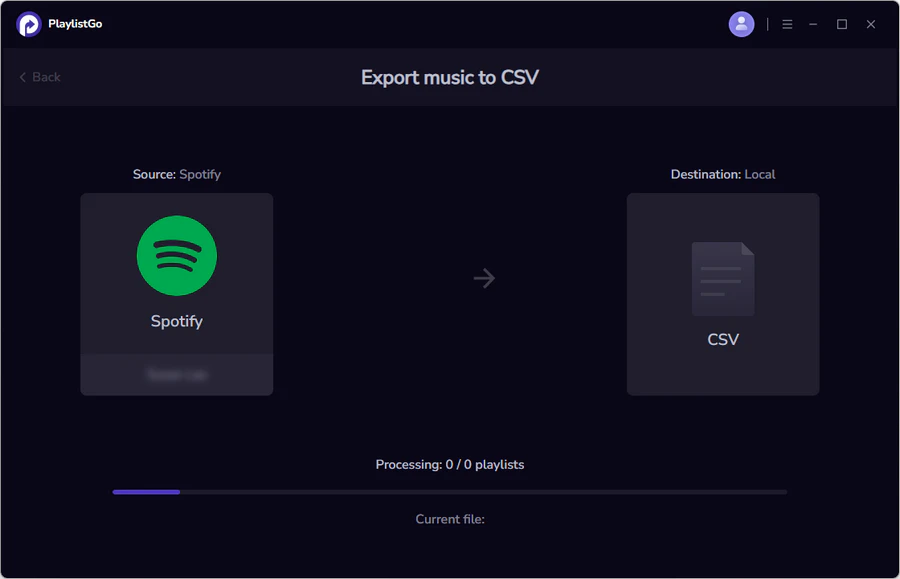
Steps to export a Spotify playlist to CSV using PlaylistGo:
Connect Your Spotify Account
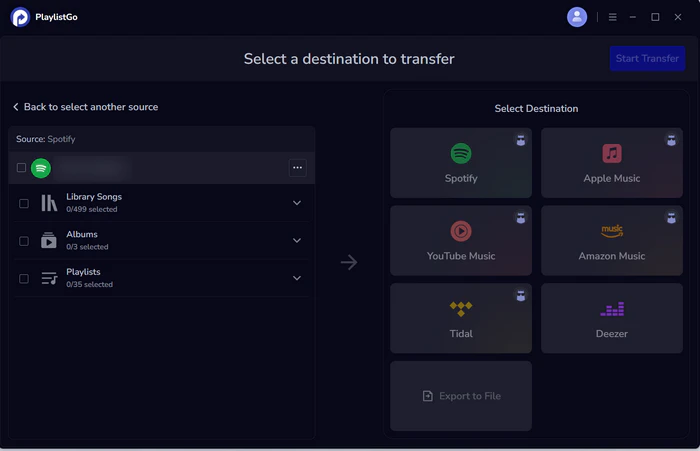
Download and launch PlaylistGo. Select Spotify as your source platform and log in. PlaylistGo will load your full library — playlists, Liked Songs, and saved albums.
Select Export to File → CSV
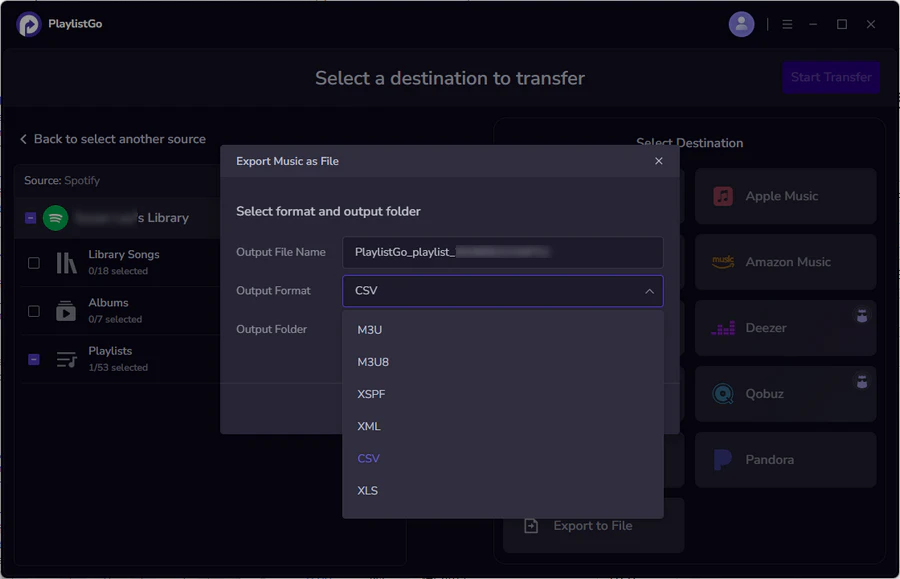
In the destination area, select "Export to File", then choose CSV from the format options. You can also customize the output filename and save location.
Start Transfer and Save the File
Click Start Transfer. PlaylistGo compiles all track metadata into a structured CSV file and saves it to your chosen location. Once complete, open it in Excel, Google Sheets, or any spreadsheet app.
Method 2: Export Spotify Playlist as M3U
Best for: Playing your Spotify playlist in VLC, Kodi, Plex, or any local media player. Also works with Hi-Fi streamers and network audio devices that support M3U input.
M3U is the standard playlist format for local media players. VLC, Winamp, Kodi, Plex, and most Hi-Fi streaming devices read it natively. If you want your Spotify playlist to work outside of any streaming service, M3U is the format to use.
The output looks like this:
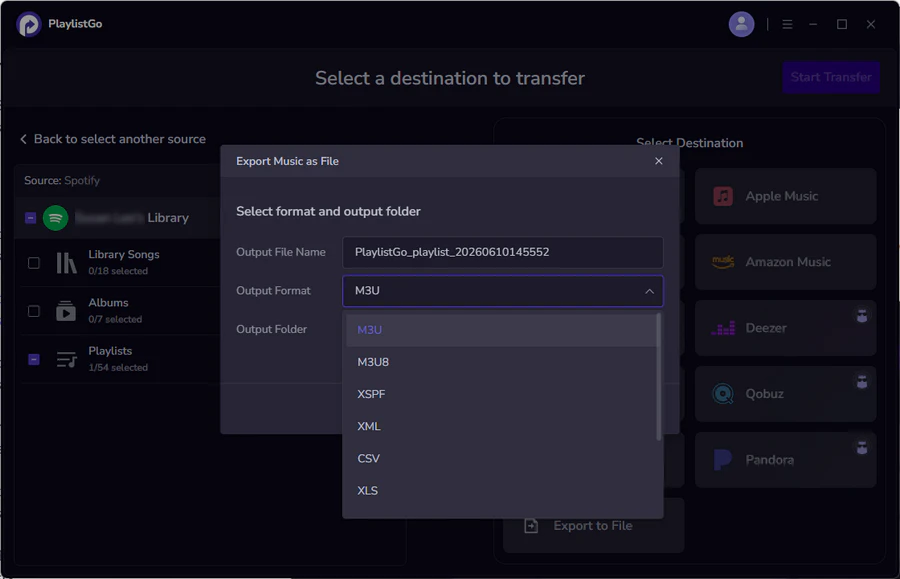
The steps are the same as CSV. Just choose M3U (or M3U8 for UTF-8 encoding) as the output format:
- Open PlaylistGo and connect your Spotify account
- Select Export to File as the destination
- Choose M3U or M3U8 as the output format
- Click Start Transfer to save the file to your computer
Each track entry includes the duration and artist/title in the #EXTINF header line, followed by the file reference. PlaylistGo also supports M3U8 (the UTF-8 variant), which handles non-Latin characters correctly. It's useful if your playlist includes tracks with accented or non-English names.
Method 3: Export Spotify Playlist as JSON
Best for: Developers, data analysis, automation workflows, or self-hosted music library tools.
JSON is the preferred format for developers and music library automation. The output is structured and machine-readable, which is compatible with data analysis tools, custom scripts, and third-party integrations.
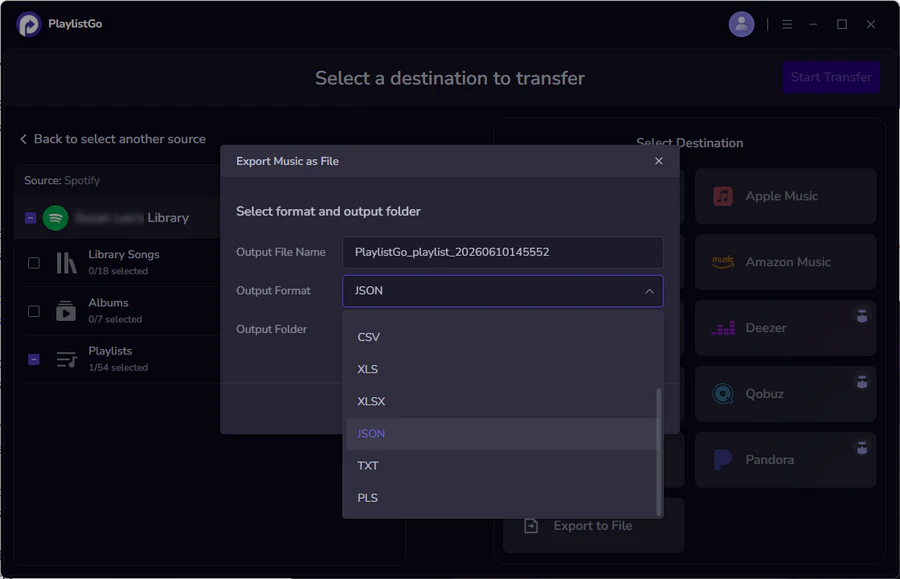
The steps are the same as CSV. Just choose JSON as the output format:
- Open PlaylistGo and connect your Spotify account
- Select Export to File as the destination
- Choose JSON as the output format
- Click Start Transfer to save the file to your computer
JSON exports are useful for feeding playlist data into scripts, building personal dashboards, or importing into tools that accept JSON as input.
Best File Format for Spotify Playlist Backup
Beyond CSV, TXT, and JSON, PlaylistGo supports export to M3U, M3U8, PLS, XSPF, XML, XLS, and XLSX — 10 formats in total. The process is always the same: select your playlist, click Export to File, choose the format.
| Format | Best For |
|---|---|
| CSV | Most users — opens in Excel, easy to read and filter |
| M3U / M3U8 | Media player compatibility (VLC, Kodi, Plex, hi-fi streamers) |
| JSON | Developers, automation, data analysis |
| XLS / XLSX | Excel users who want native spreadsheet format |
| TXT | Quick, lightweight backup — easy to share or print |
| XSPF / XML | Music app integrations, structured data |
For most Spotify users backing up playlists for the first time, CSV is the right choice. It's readable, compatible with nearly every spreadsheet tool, and retains the most useful metadata. If you've already exported a CSV and want to bring it back in, see our guide on importing CSV playlists to Spotify.
How to Restore a Spotify Playlist from a Backup File
PlaylistGo handles both directions — export and import — using the same supported formats. If you've lost a playlist or want to recreate it, you can restore it directly from your backup file without manually searching for each track.
- Open PlaylistGo and connect your Spotify account
- Select Local Playlist
- Upload your backup file (CSV, TXT, JSON, M3U, XSPF, XML, or XLSX)
- Choose Spotify as the destination platform
- Review matched tracks in the pre-transfer preview
- Click Start Transfer to recreate the playlist in your Spotify library
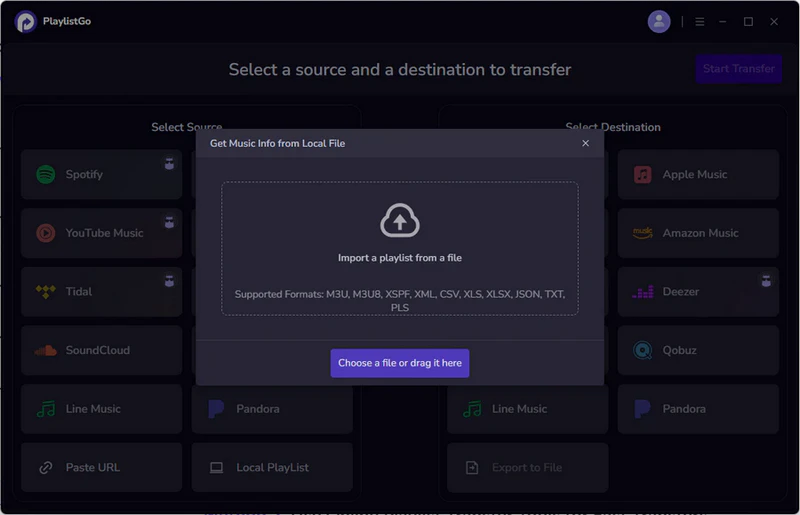
PlaylistGo matches each track in your file against Spotify's library and recreates the playlist automatically. The backup-and-restore workflow is fully contained within one tool. No manual track searching required. To import into Apple Music instead, see How to Import CSV to Apple Music →
Export Spotify → local file → Import back to Spotify. The same tool handles both directions, in all 10 supported formats.
FAQ: Backing Up Spotify Playlists
Conclusion
Spotify doesn't protect your playlists from accidental deletion, account issues, or platform changes. Exporting your playlists to a local file gives you a permanent, portable record of your music.
CSV is the most versatile format for most users, M3U works for media player and Hi-Fi device compatibility, and JSON suits developers and data workflows. PlaylistGo supports all 10 export formats and handles restoration as well, making it a complete solution for Spotify playlist backup and recovery.

PlaylistGo – Best Desktop Transfer Tool
The fastest and most reliable way to move entire Spotify library to Apple Music, YouTube Music, TIDAL, etc. 100% offline • No Cloud Required • 99.2% success rate


 Language ▴