


You spent years building the perfect playlist. Then you switch platforms — and half of it doesn't make it over. Songs missing, wrong versions added, or the transfer just stops halfway through with no explanation.
This guide covers how to transfer playlists without losing songs — what causes it, how to prevent it, and which tools actually get it right. If you just want the safest method to transfer playlists without reading through the whole thing, jump straight to Part 3.
YouTube Video: How to Transfer Playlists Without Losing Songs
Part 1. Why Songs Go Missing During Playlist Transfers
Before picking a tool or method, it helps to understand why songs disappear in the first place. There are four main reasons:
- Songs missing entirely: the destination platform doesn't carry that track due to licensing or regional restrictions — no tool can transfer what isn't there.
- Wrong versions added: you get a live recording, remaster, or cover instead of the original. The playlist looks fine, but it doesn't sound right.
- Partial transfers: browser-based tools can time out mid-way on large libraries. Everything after the cutoff gets dropped without warning.
- Silent skips: some tools show a "done" screen and never mention the songs that didn't make it. You only find out when something's missing.
The result is a playlist that looks fine on the surface — right name, roughly the right number of songs — but doesn’t sound like what you built. Knowing which of these four issues went wrong is the first step to fixing it.
Part 2. Prepare Your Playlist Before Transfer to Avoid Losing Songs
A few minutes of preparation before you start can make a real difference in how cleanly your playlist transfers.
Test With a Small Playlist
Before running your full 2,000-song library, try a 20-song playlist on the same platform pair. If there are matching issues, you'll catch them early without risking your main collection.
Back Up Your Current Playlist
Export your playlists as a CSV or M3U file so you have a reference copy regardless of what happens during transfer. Tools like PlaylistGo support playlist export in 10 formats — M3U, M3U8, PLS, XSPF, XML, CSV, XLS, XLSX, JSON, and TXT — so you can choose whichever works best for your needs.
M3U and M3U8 are the most widely used for local media players and home servers. CSV and XLSX are ideal if you want to open your playlist in Excel and review or edit the track lists. JSON and XML are more useful for developers or anyone moving data between apps. TXT is the simplest option — just a plain list of song names you can read or edit in any text editor.
Part 3. Methods to Transfer Playlists Without Losing Songs
There are two main approaches to moving playlists between platforms: web-based tools and desktop tools. Which one you choose makes a big difference — especially when your library is large or the playlist matters to you.
Desktop Playlist Transfer Tools — Built for Accuracy
PlaylistGo is a desktop playlist transfer tool built around accuracy. It cross-references song title, artist, album, and track duration to reach a 99.2% match rate across major platform pairs. The most useful feature is pre-transfer review. Before anything moves, you see every matched result and can correct mismatches on the spot. You know exactly what transferred and what didn't.
Since it runs locally on your computer, large libraries aren't a problem. There's no server connection to drop, and no timeout risk mid-transfer.
PlaylistGo: Transfer Playlists Across Platforms Try It Free
Move playlists between Spotify, Apple Music, YouTube Music and more in just a few clicks.
| Item | Details |
|---|---|
| Compatible with | Windows, macOS |
| Supported Platforms | Spotify, Apple Music, Amazon Music, YouTube Music, TIDAL, Deezer, and more |
| Transfer Objects | Liked songs, albums, playlists, full music library, local playlists, playlist URLs |
| Import & Export | Local files in M3U, M3U8, XSPF, XML, CSV, XLS, XLSX, JSON, TXT |
| Transfer Accuracy | Up to 99.2% matching accuracy |
| Transfer Speed | Fast and stable |
| Security | Safe and reliable. All transfers run locally |
Tutorial: How to Transfer Spotify Playlist to Apple Music with PlaylistGo
Choose Source Platform (Spotify)
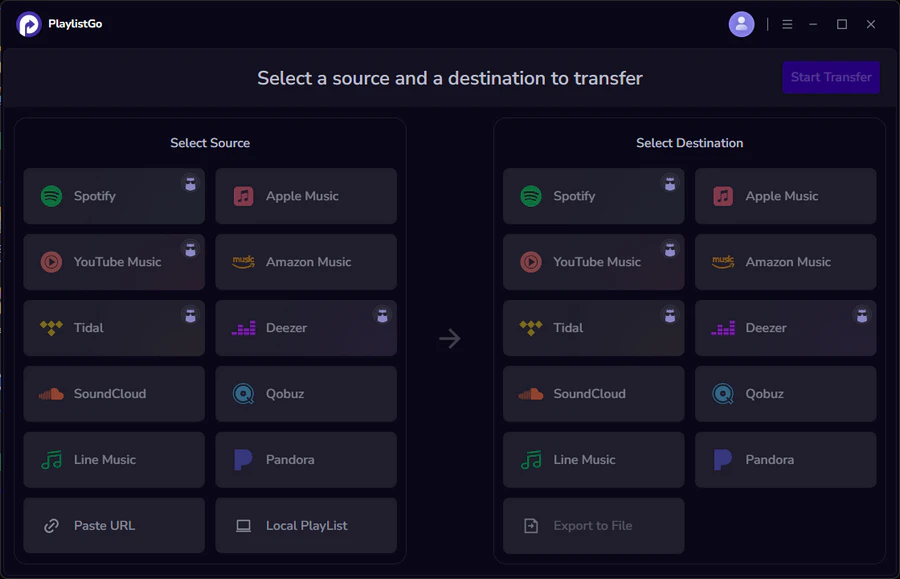
Install and launch PlaylistGo on your computer. On the main interface, select Spotify as your source platform and log in to your account. PlaylistGo will load your Spotify library (playlists, liked songs, and albums).
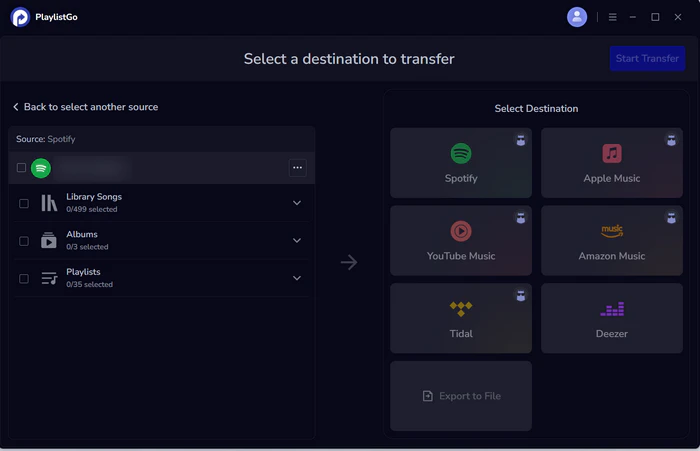
Choose Destination Platform (Apple Music)
Select Apple Music as your destination platform and authorize the connection. PlaylistGo uses a standard authorization flow, so your password is not stored in the program.
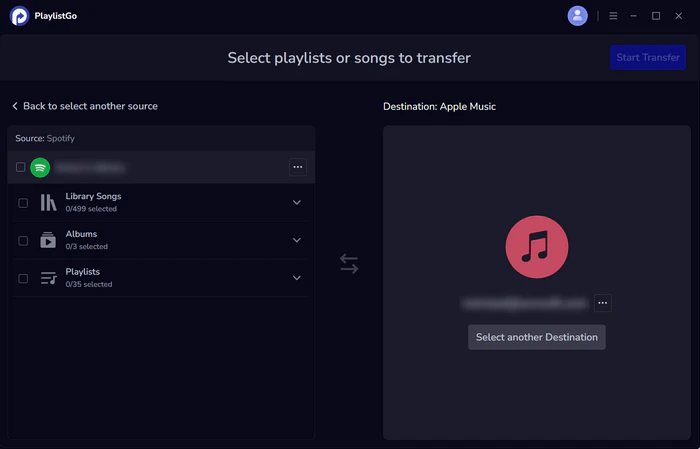
Start the Transfer Process
Select the playlists or songs you want to transfer, then click Start Transfer. PlaylistGo will match tracks across catalogs and show progress in real time.
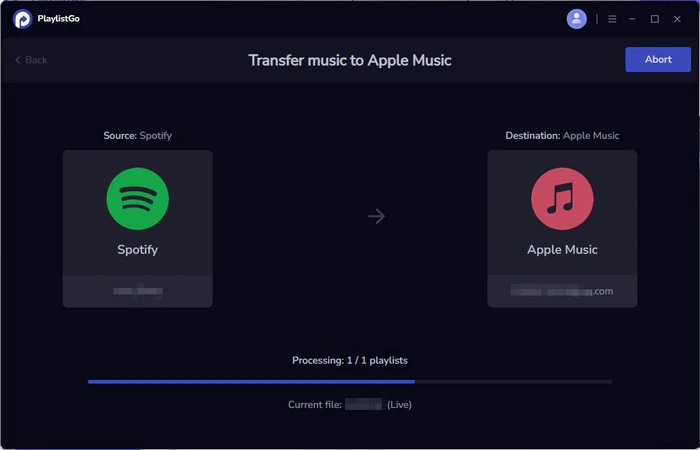
Web-Based Playlist Transfer Tools — Fast to Start, Risky for Large Libraries
Web-Based Tools like TuneMyMusic and Soundiiz are convenient for small transfers. They run in your browser with no installation required. For small playlists under 300 songs, they're a quick and convenient option that works well enough for most casual users.
The problems start with larger libraries. Web-based tools run on external servers, not your local device. That means large libraries frequently time out mid-process, and you can't restart the transfer from where it failed.
Most web-based tools also skip the review step entirely. You can't check which songs were mismatched or skipped until the transfer finishes. For a 50-song playlist, that's manageable. For a library you've spent years building, you only find out about errors after everything is done.
Pros
- No software to download — works on any device with a browser
- Free tiers available
- Simple interface, easy to get started in under a minute
- Supports a wide range of platforms
Cons
- Server timeouts can cut transfers short on large libraries
- Matching relies mainly on song title, which leads to wrong-version errors
- Limited export formats — most web-based tools only offer basic CSV export
- Your data goes through their servers — your streaming accounts could be at risk
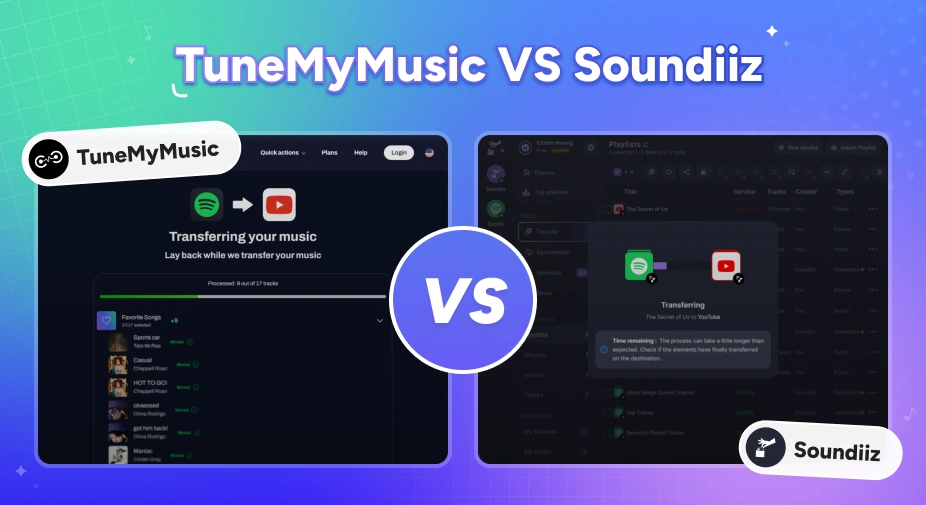
TuneMyMusic vs Soundiiz: Which Playlist Transfer Tool Is Better in 2026?
Moving music platforms? Compare TuneMyMusic vs Soundiiz — speed, accuracy, pricing, and which playlist transfer tool wins in 2026.
How TuneMyMusic, Soundiiz, and FreeYourMusic Compare on Song Loss
| Feature | TuneMyMusic | Soundiiz | FreeYourMusic | PlaylistGo |
|---|---|---|---|---|
| Platform | Web only | Web only | Desktop + Mobile | Desktop (Win/Mac) |
| Matching Accuracy | ~90% | ~85–90% | ~90–95% | ~99.2% |
| Pre-transfer Review | ❌ | ❌ | Partial | ✅ |
| Large Library Support | Limited | Limited | Moderate | ✅ |
| Local File Export | CSV, TXT | CSV only | CSV, XLSX | M3U, M3U8, PLS, XSPF, XML, CSV, XLS, XLSX, JSON, TXT |
| Local Processing | ❌ | ❌ | Partial | ✅ |
| Lifetime Plan | ❌ | ❌ | ✅ (€199.99) | ✅ ($49.95) |
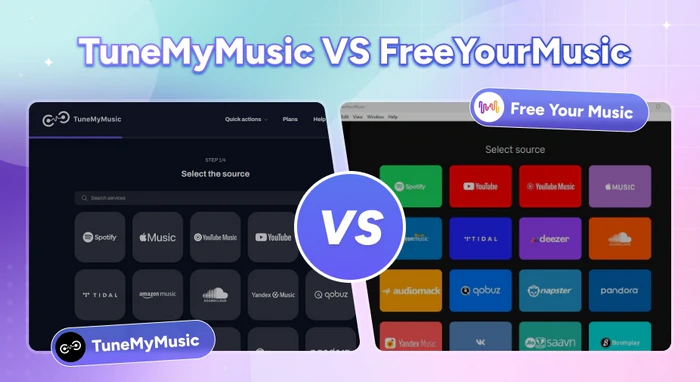
TuneMyMusic vs FreeYourMusic: Which Playlist Transfer Tool Is Better in 2026?
Comparing TuneMyMusic and FreeYourMusic on pricing, sync speed, and accuracy to help you pick the right playlist transfer tool for your needs.
Part 4. What to Do If Songs Are Already Missing
If you've already run a transfer and noticed gaps, here's how to approach it.
First, check whether your transfer tool produced an unmatched report. If it did, that list tells you exactly which songs didn't make it. If it didn't, you'll need to compare your original playlist against the transferred one manually — exporting both as CSV files makes this comparison much faster.
Next, search for the missing songs directly on the destination platform. Some tracks exist there but under a different version name or slightly different metadata than what the transfer tool was looking for.
If the mismatch rate was high, consider re-running the transfer with a more accurate tool. PlaylistGo's pre-transfer review lets you catch and fix mismatches before they land in your library.
FAQs about Transferring Playlist Without Losing Songs
Final Verdict
Losing songs during a playlist transfer usually comes down to one thing: the wrong tool for the job. Web-based tools work fine for small playlists, but for anything larger or more carefully built, the risks add up quickly.
If your library matters to you, it's worth using a tool that shows you what's being matched before anything moves — not after. Preview your transfer results first with PlaylistGo, so you never have to guess if your library will come through intact.

PlaylistGo – Best Desktop Transfer Tool
The fastest and most reliable way to move entire Spotify library to Apple Music, YouTube Music, TIDAL, etc. 100% offline • No Cloud Required • 99.2% success rate



 Language ▴