



Many Spotify users end up having two separate accounts. You might've accidentally created a second profile, switched between free and Premium, or left a Spotify Family plan. The frustrating part is that Spotify doesn't give you a built-in "merge accounts" option. But that doesn't mean you're stuck.
To merge two Spotify accounts, you need to transfer your playlists, Liked Songs, and saved albums from one account to the other. This guide covers what you can and can't combine, and the best ways to put all your music in one account.
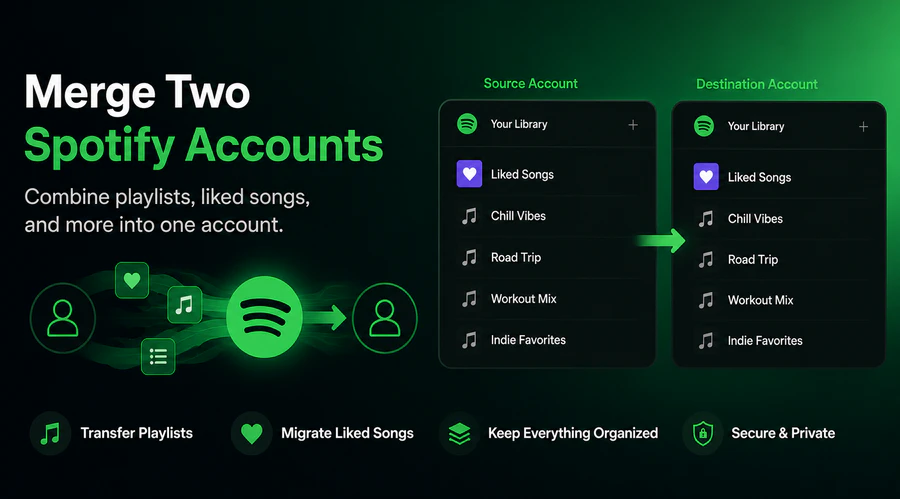
Can Spotify Support Merge Accounts?
Not officially. Spotify does not offer a built-in account merge feature. You can't combine two accounts into one, and Spotify support is unable to do it for you on the backend either.
While you cannot combine two Spotify accounts into a single profile, you can move playlists and saved songs from one account to another. Here's a clear breakdown of what's transferable and what isn't:
| Data | Can It Be Transferred? |
|---|---|
| Playlists | ✅ Yes |
| Liked Songs | ✅ Yes (with tools) |
| Saved Albums | ✅ Yes (with tools) |
| Followers / Following | ❌ No |
| Listening History | ❌ No |
| Spotify Wrapped Stats | ❌ No |
| Premium Subscription | ❌ No |
How to Combine Two Spotify Accounts
There are two main approaches: doing it manually at no cost, or using a tool to handle it automatically. The right choice depends on how much music you have.
Method 1: Manually Copy Playlists (Free, No Tools Needed)
Best for: Libraries with fewer than 300 songs and only a handful of playlists.
This approach works entirely within Spotify's native desktop app. The idea is to make your playlists public on your old account, then access and save them from your new account. Here's how:
- Log in to your old Spotify account on the desktop app.
- Right-click any playlist you want to keep and select Make Public.
- For Liked Songs: press Ctrl+A (Windows) or Cmd+A (Mac) to select all tracks, then right-click → Add to Playlist → New Playlist. Make that playlist public too.
- Log out and sign in to your new Spotify account.
- Search for your old Spotify username to locate the old account's public playlists.
- Open each playlist and click Add to Your Library, or copy the songs into a new playlist on your new account.
Limitations
- Tedious and time-consuming for libraries larger than a few hundred songs
- Liked Songs don't transfer as Liked Songs — they end up in a playlist, not your saved library
- Every playlist has to be handled individually with no bulk selection across multiple playlists
- Missing tracks are easy to overlook with no progress record
If you have 5 playlists and a couple hundred tracks, this is perfectly manageable. For 20+ playlists or thousands of songs, Method 2 is a much better use of your time.
Method 2: Use PlaylistGo to Merge Spotify Accounts (Recommended)
Best for: Large music libraries with lots of playlists, or anyone who wants Liked Songs transferred with heart status preserved.
PlaylistGo is a desktop app designed specifically for transferring music libraries between streaming accounts, including direct Spotify-to-Spotify transfers. It handles the process automatically — no need to make playlists public, search for old usernames, or manually copy anything.
PlaylistGo: Merge Your Spotify AccountsTry It Free
Move playlists and Liked Songs from your old Spotify account to your new one — playlist order preserved, duplicates handled, no tracks silently dropped.
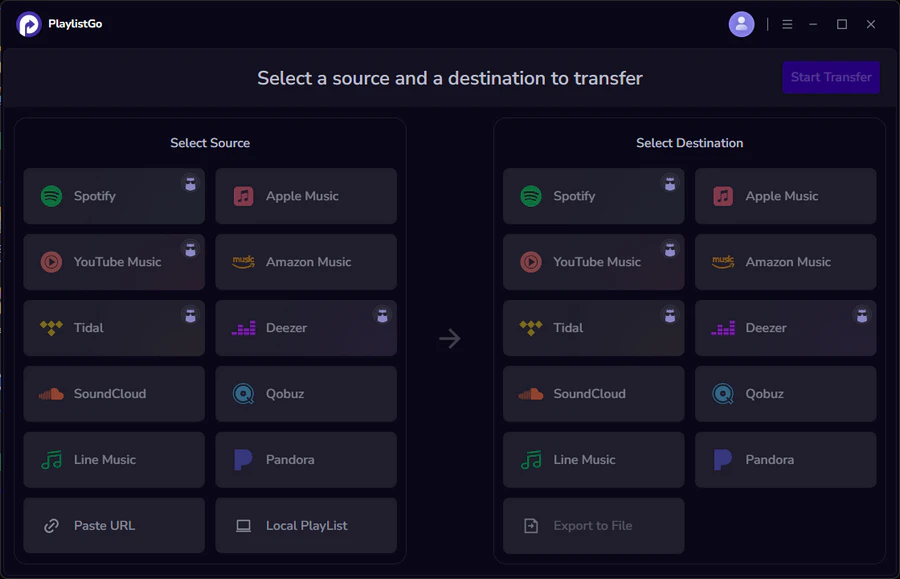
Why PlaylistGo stands out for this use case:
- Transfers playlists, Liked Songs, and saved albums in a single session
- Handles libraries with 100,000+ songs without session timeouts
- Runs entirely on your computer — your data never touches a third-party server
- Song matching rate up to 99.2%, including rare tracks and local files
- Preserves playlist order and skips duplicate tracks automatically
- Also supports cross-platform transfers: Spotify → Apple Music, YouTube Music, TIDAL, Deezer, and more
How to Merge Spotify Accounts With PlaylistGo — Step by Step
Connect Your Old Spotify Account
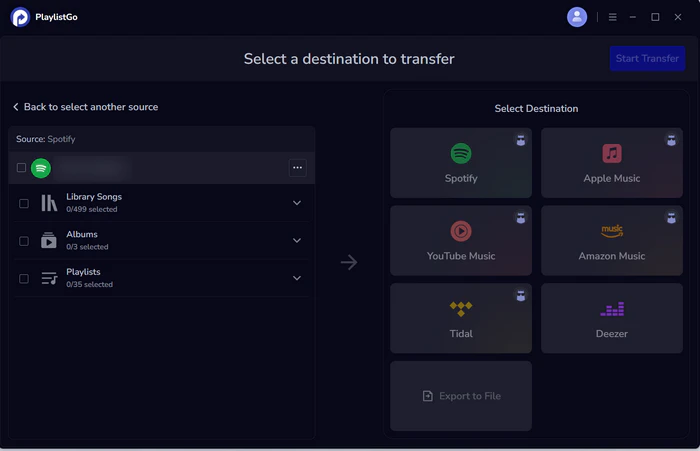
Launch PlaylistGo and you'll land on the main transfer interface. Select Spotify as the source platform and log in to the account you want to move music from. PlaylistGo will load your full library — all playlists, Liked Songs, and saved albums.
Connect Your New Spotify Account
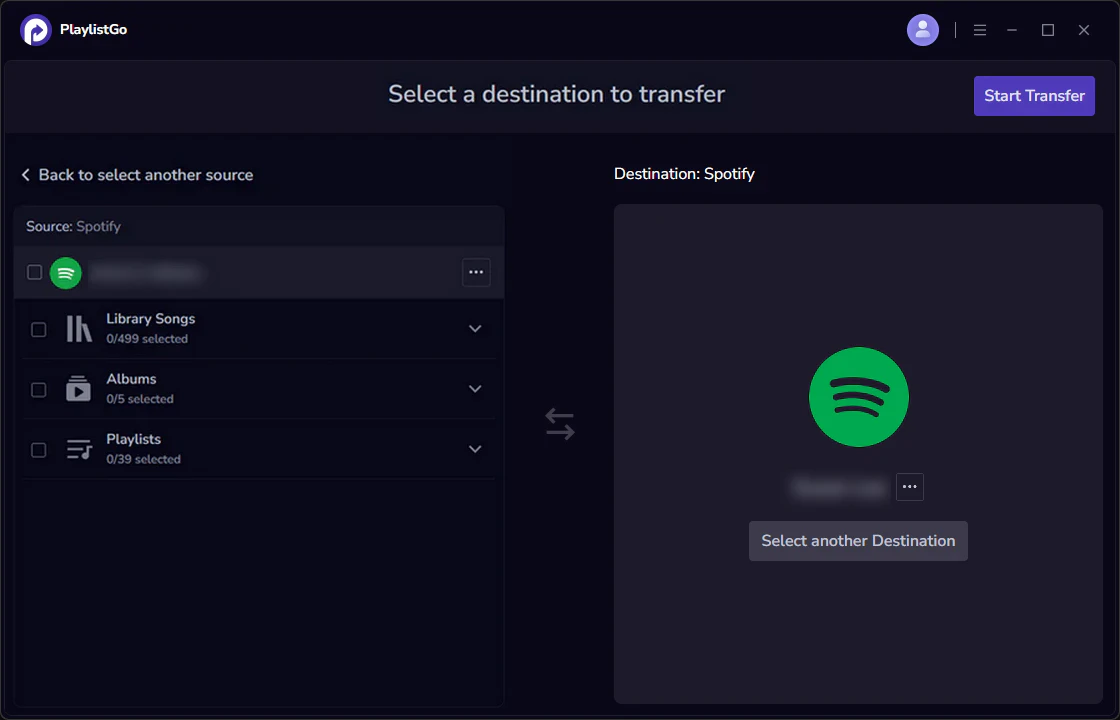
Select Spotify again as the destination platform and log in to the account you want to keep. PlaylistGo uses Spotify's standard OAuth authorization so your password is never stored in the program.
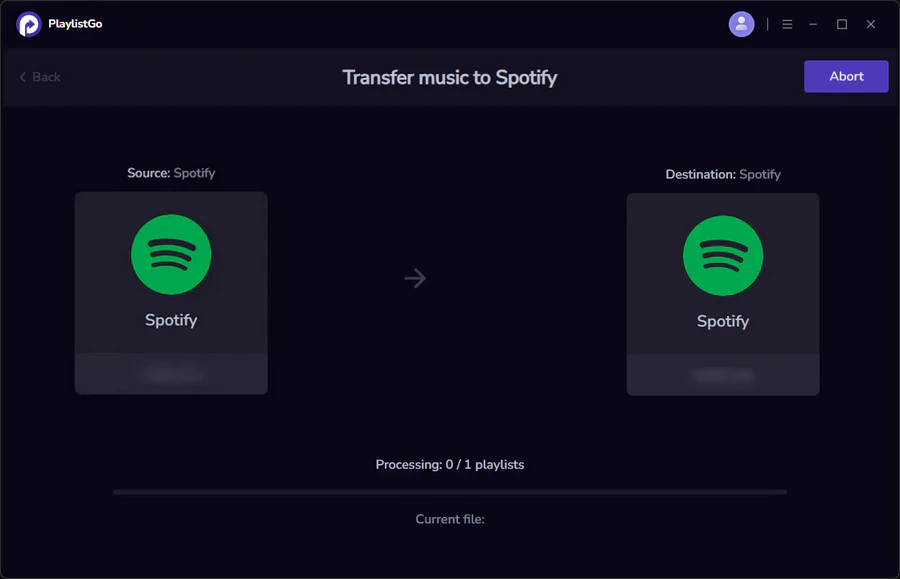
Start the Transfer
Choose from individual playlists, Liked Songs, saved albums, or your entire library in one go. You can select everything at once or pick specific playlists if you only want to move part of your collection. Click Start Transfer. PlaylistGo processes tracks in batches and shows real-time progress throughout. A library of around 1,000 songs across 20 playlists typically completes in under 10 minutes.
If you want to move your music to other streaming platforms instead, PlaylistGo also handles cross-platform transfers in the same workflow. See our guide on how to transfer Spotify to Apple Music.
FAQs About Merging Spotify Accounts
Conclusion
Spotify lacks an official way to merge accounts, yet you can fully transfer playlists and Liked Songs to combine your music library into a single profile. Manual free transfer works for small collections. For bigger libraries, PlaylistGo automates the entire transfer process. Simply connect both Spotify accounts, select content to migrate, and begin transferring.

PlaylistGo – Best Desktop Transfer Tool
The fastest and most reliable way to move entire Spotify library to Apple Music, YouTube Music, TIDAL, etc. 100% offline • No Cloud Required • 99.2% success rate



 Language ▴