


Apple Music playlists, Favorite Songs, and saved albums are all tied to your Apple ID. If you need to transfer your Apple Music library to another account, whether you're switching to a new Apple ID, changing regions, or separating from a family plan, your library doesn't follow you automatically.
This guide covers every practical method to transfer Apple Music playlists to a new account, including what each option can and can't move across.
Why Your Apple Music Playlists Don't Transfer Automatically?
Apple Music locks all your music to one account by default. Every playlist, favorite track and saved album is linked to your Apple ID via iCloud Music Library. Log into a new Apple account, and you'll have an empty library with nothing carried over.
Apple does offer a tool to transfer playlists from other streaming services like Spotify or YouTube Music into Apple Music, but there's no matching feature to move music between two separate Apple Music accounts. The only workaround Apple officially suggests is sharing individual playlist links, which is slow and can't transfer your Favorite Songs or saved albums whatsoever.
How to Transfer Apple Music Playlists to Another Account?
Since Apple currently doesn't offer a way to migrate your Apple Music library between two separate Apple IDs, a third-party desktop app is the most reliable way to move your Apple Music library across accounts.
PlaylistGo is built specifically for this kind of transfer. It connects to both Apple IDs directly, and moves your Apple Music playlists, Favorite Songs, and saved albums in one pass. If you need to transfer a large playlist fast, PlaylistGo handles it without browser loading failures or song count limits. Your credentials are handled securely and your music data is processed locally on your device.
PlaylistGo: Transfer Apple Music Playlists to Another Account Try It Free
Move playlists, Favorite Songs, and saved albums from one Apple ID to another.
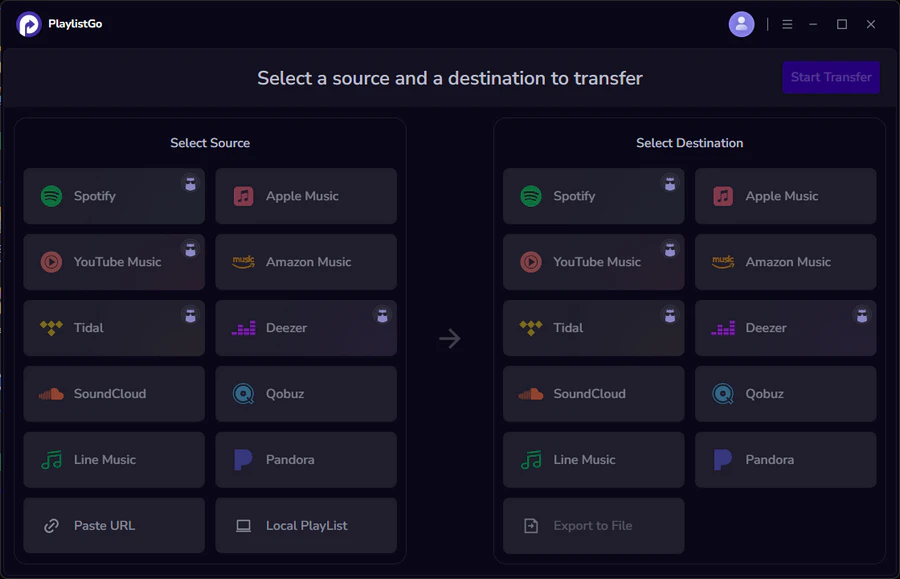
Tutorial: How to Transfer Apple Music Playlists to Another Account
Connect Your Old Apple Music Account
Install and launch PlaylistGo on your computer. Select Apple Music as the source platform and sign in with the Apple ID you're migrating from. PlaylistGo will load your full library — playlists, Favorite Songs, and saved albums.
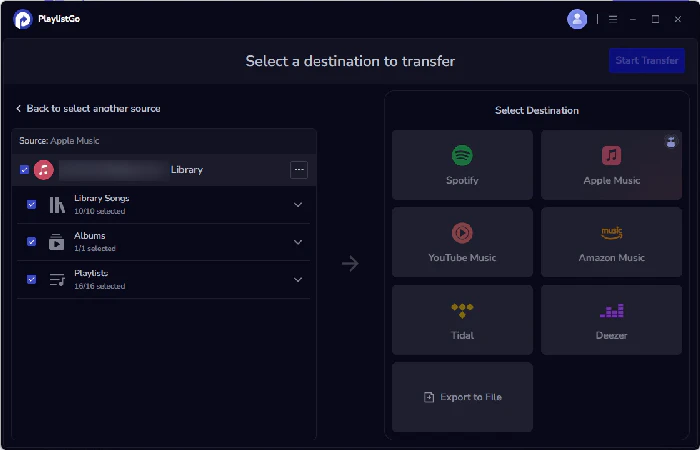
Select What to Transfer
Choose the playlists you want to move. You can select individual playlists, your Favorite Songs, or everything at once. Playlist names and track order are carried over as-is.
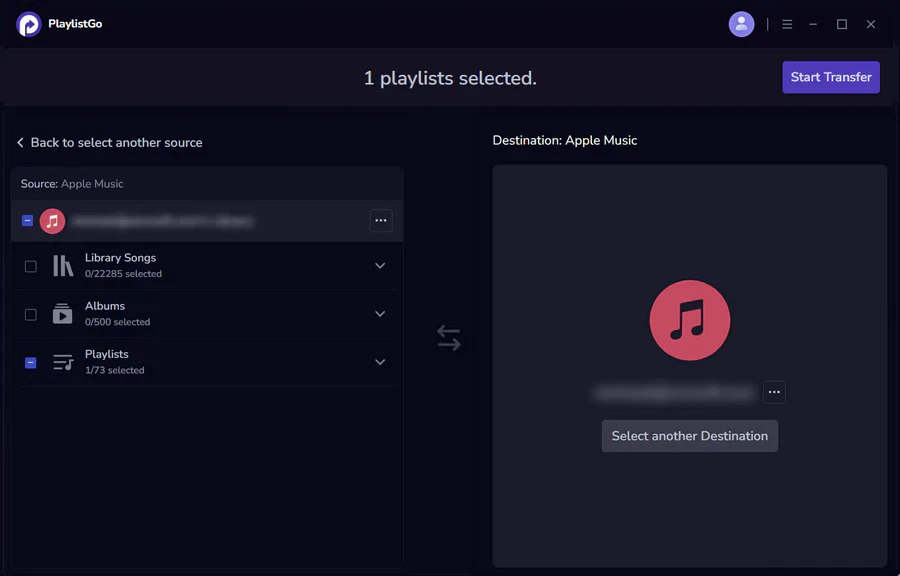
Connect Your New Account and Start the Transfer
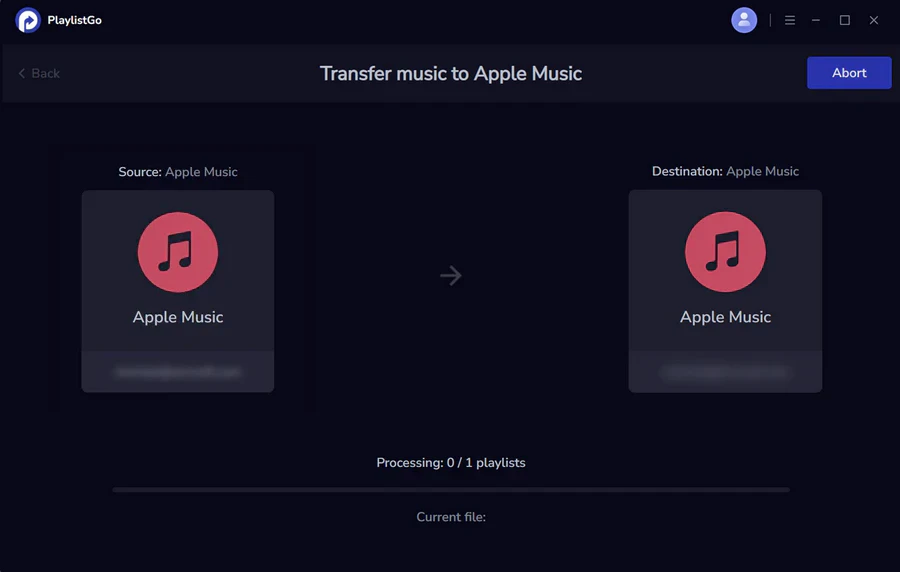
Select your new Apple ID as the destination and sign in. Once you confirm the selection and hit Start Transfer, PlaylistGo matches each track against the Apple Music catalog on the new account and adds them to your library.
You can also use PlaylistGo to transfer Apple Music to Spotify if you're switching platforms entirely.
Manual Ways to Transfer Apple Music Playlists to Another Account
If you only need to move one or two Apple Music playlists and don't mind doing it by hand, there are two built-in options. But both have significant limitations compared to PlaylistGo. Neither can transfer your Favorite Songs or saved albums, and neither handles large libraries well.
Export and Import Apple Music Playlists via iTunes (Windows)
Best for: Windows users who need to move a single playlist and already have iTunes installed.
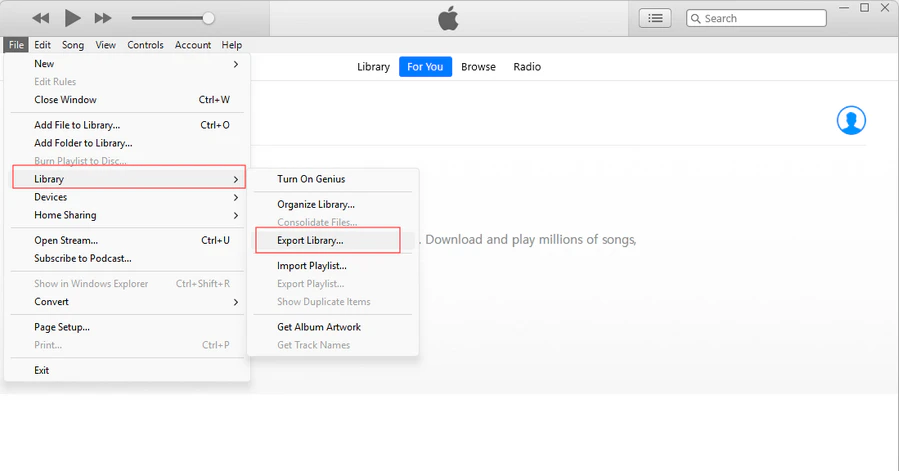
iTunes lets you export a playlist as an XML or TXT file, then import that file to another account. But it only copies the playlist layout. Any tracks that aren't available in the new account's catalog will be skipped.
- Open iTunes on Windows and sign in with your old Apple ID.
- Click on the playlist you want to export.
- Go to File → Library → Export Playlist and save it as an XML or TXT file.
- Sign out and sign in with your new Apple ID.
- Go to File → Library → Import Playlist and select the exported file.
Limitations
- Only copies playlists. It can't move your Favorite Songs or saved albums.
- Tracks unavailable in the new account's region will be skipped silently.
- You have to export playlists one by one — no batch export.
- Not available on macOS. Apple replaced iTunes with the Music app starting from macOS Catalina.
Share Apple Music Playlist Link to Another Account
Best for: Moving a single playlist quickly without any software.
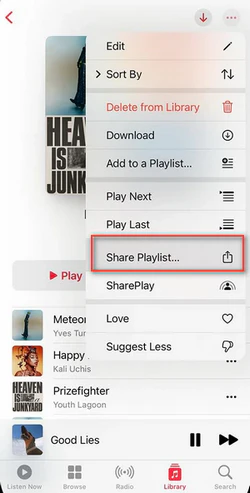
Apple Music lets you share a playlist as a link, which you can open on the new account and save to the library. It's the simplest option, but it only works for individual playlists and has no support for Favorite Songs.
- On your old account, open the playlist in the Apple Music app.
- Click the three-dot menu and select Share Playlist.
- Copy the link.
- Sign into your new Apple ID and open the link.
- Save the playlist to your library.
Limitations
- Favorite Songs cannot be transferred this way.
- One playlist at a time — no way to share your entire library at once.
- The saved playlist is a copy, so it won't stay in sync if you update the original.
What Gets Transferred When You Move Apple Music to Another Account
Before you start, it helps to know what each method actually moves. iTunes purchases are a separate category — they're tied to the Apple ID that bought them and can't be transferred to another account by any method.
| Content | PlaylistGo | iTunes Export | Share Link |
|---|---|---|---|
| Playlists | ✅ | ✅ | ✅ |
| Favorite Songs | ✅ | ❌ | ❌ |
| Song Order | ✅ | ✅ | ✅ |
| Playlist Names | ✅ | ✅ | ✅ |
| Saved Albums | ✅ | ❌ | ❌ |
| iTunes Purchases | ❌ | ❌ | ❌ |
iTunes purchases are locked to the original Apple ID that bought them. There is no tool that can move purchased tracks between Apple accounts. If you have a large purchased library, the practical approach is to keep access to the old account rather than trying to transfer the purchases. It's also worth taking the time to back up your Apple Music library before making any account changes.
Frequently Asked Questions About Apple Music Account Transfer
Conclusion
Apple gives you no official path for moving your library between accounts. The manual workarounds only copy your playlists — Favorite Songs and saved albums don't make it across. If you've got lots of playlists or want to move your full collection, PlaylistGo runs the transfer locally and handles the whole migration in one pass.

PlaylistGo – Best Desktop Transfer Tool
The fastest and most reliable way to move entire Spotify library to Apple Music, YouTube Music, TIDAL, etc. 100% offline • No Cloud Required • 99.2% success rate



 Language ▴