



Leaving someone else's Spotify Family Plan usually comes with one immediate worry: what happens to my Spotify playlists, liked songs, and years of curated music?
Here's the part most people get wrong: your saved songs on Spotify won't get deleted right after you quit a family plan. To keep your Spotify music after leaving a family plan, you either stay on the same account, or transfer your Spotify playlists and Liked Songs to a brand-new account instead. Spotify has no built-in way to move your library between accounts, so you may need a transfer tool to finish the transfer.
Can You Keep Spotify Music After Leaving Family Plan?
Short Answer: Yes. Leaving a Spotify Family Plan does not delete your playlists, Liked Songs, or saved albums. Your music stays connected to your Spotify account — you only need to transfer it if you move to a different Spotify account.
When you leave a Spotify Family Plan, your account simply changes from Premium to Spotify Free. Your personal music library remains safe, but some Premium features and Family Plan benefits will no longer be available.
| Spotify Content / Feature | What Happens After Leaving Family Plan? |
|---|---|
| Spotify Playlists | ✅ Kept |
| Spotify Liked Songs | ✅ Kept |
| Spotify Saved Albums & Artists | ✅ Kept |
| Spotify Premium Subscription | ❌ Downgraded to Spotify Free |
| Spotify Offline Downloads | ❌ Removed |
| Spotify Ads | ❌ Ads return |
| Spotify Mobile Playback Features | ❌ Limited on-demand playback |
| Spotify Family Plan Shared Features | ⚠️ Lose access to family members' features and playlists |
In short, leaving a Spotify Family Plan does not erase your music library. Your playlists, Liked Songs, and saved music stay with your account — the main change is losing Premium benefits.
Note that if you're the Spotify Family Plan admin, canceling the plan will remove Premium access for all other members. Regardless of whether you're a regular member or the plan admin, your personal Spotify library will never be deleted.
Option 1: Keep Using the Same Spotify Account
If you're simply leaving someone else's family plan and starting your own Individual or Duo subscription under the same account you already use, nothing needs to be moved. Your Spotify playlists, liked songs, and saved albums are all still there the moment your new subscription kicks in.
Option 2: Move to a New Spotify Account
This is when it gets a bit complicated. You may end up here for a few common reasons: the family plan account belongs to someone else, you want to switch to a different email, or you're merging two separate Spotify accounts into one. Unfortunately, none of your saved music will transfer automatically in these cases. You'll have to move everything over manually or use a transfer tool to get it done.
How to Transfer Spotify Liked Songs & Playlists to a New Account
Method 1. Use PlaylistGo to Transfer Your Spotify Music
Best for: Large Spotify libraries, hundreds of Liked Songs, or anyone who wants the transfer done in one pass instead of track by track.
If you have a handful of Spotify playlists to move, a transfer tool saves the manual work. PlaylistGo connects to both your old and new Spotify accounts and moves your playlists and Liked Songs over in one pass.
Your liked songs will land back in the official Liked Songs on your new Spotify account, not just dumped into a regular playlist. It also keeps your original Spotify playlist names and the exact order of every song unchanged. This makes a huge difference for larger libraries — most ways of copying songs by hand stop working properly once you have more than a few hundred tracks.
PlaylistGo: Transfer Spotify Music to a New Account Try It Free
Move your playlists and Liked Songs to a new Spotify account — songs land in Liked Songs, not just a playlist, with no tracks silently dropped.
Tutorial: How to Transfer Spotify Music to a New Account with PlaylistGo
Connect Your Old Spotify Account as the Source
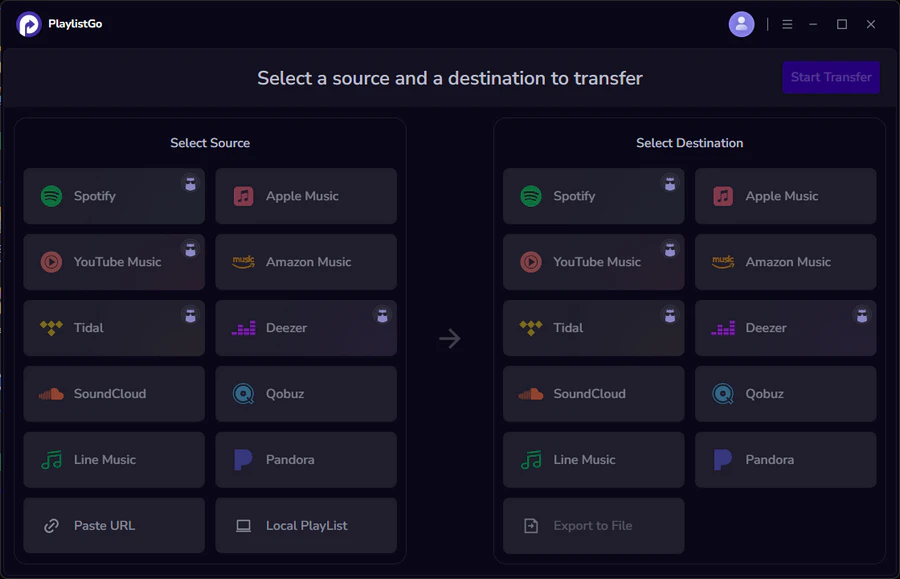
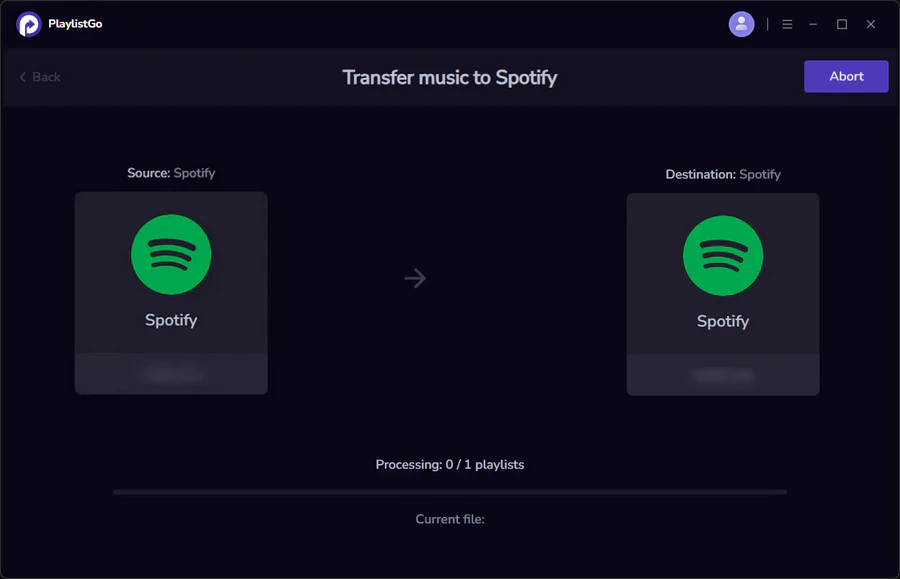
Install and open PlaylistGo, then select Spotify as your source platform and log in to your old Spotify account. PlaylistGo will load your full library — playlists, Liked Songs, and saved albums.
Connect Your New Spotify Account as the Destination
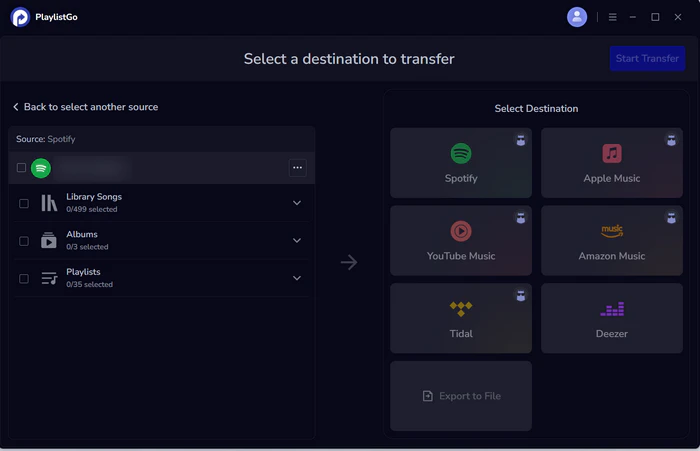
Select Spotify as the destination platform and log in to your new account. PlaylistGo uses Spotify's standard OAuth authorization flow — your password is never stored in the app.
Select Your Music and Start the Transfer
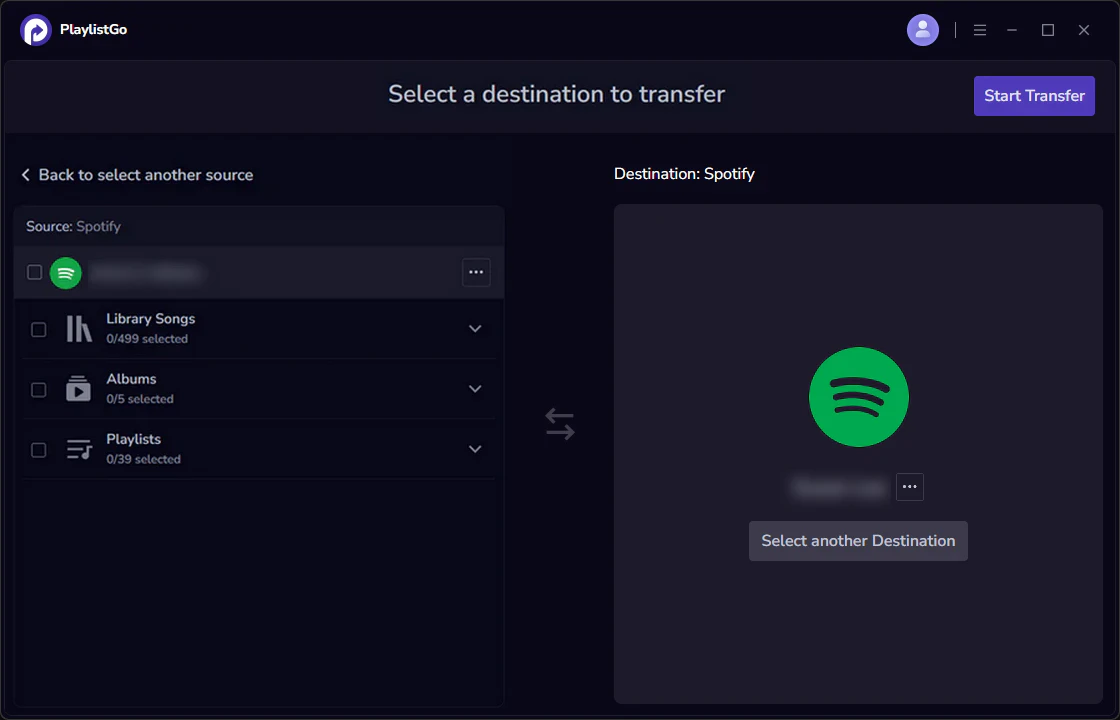
Select the playlists and Liked Songs you want to move, then click Start Transfer. PlaylistGo matches tracks in batches and shows progress in real time.
Method 2: Manually Copy Your Spotify Playlists
Best for: A small number of Spotify playlists with a few dozen songs each.
Spotify's desktop app lets you make a playlist public and pull it up from any other account. The tradeoff is that everything has to be done by hand, one playlist and one track at a time, so it only makes sense if you're not moving much. Here's the general process:
- Set your playlists to "public" in your old account.
- Log into your new account and search for your old profile.
- Open each playlist and save it to your new library.
- For Liked Songs, select all tracks, add them to a new playlist first, then save that playlist on the new account. Note that Spotify doesn't let you copy Liked Songs directly.
Limitations
- Liked Songs land in a regular playlist, not back in Liked Songs
- Becomes a real time sink for a library with hundreds of liked songs or a dozen playlists built up over years
- Easy to miss songs or accidentally duplicate them along the way
What Spotify Content Can Be Transferred?
| Content | Can Be Transferred? |
|---|---|
| Spotify Playlists | ✅ Yes |
| Spotify Liked Songs | ✅ Yes |
| Spotify Saved Albums | ✅ Yes |
| Spotify Followed Artists | Depends on method used |
| Spotify Listening History | ❌ No |
| Spotify Wrapped data | ❌ No |
How to Transfer Spotify Liked Songs to Another Account
Learn how to transfer Spotify Liked Songs to another account. Covers manual methods, online tools, and PlaylistGo for large libraries.
Should You Create a New Spotify Account After Leaving Family Plan?
It's worth pausing on this before doing any transfer work, since it's not always necessary.
You probably don't need a Spotify new account if:
- You're just leaving the family plan and starting Premium on the same account
- Your current account has the correct email and no ownership issues
- You don't have a specific reason to separate your music history from someone else's
You probably do need a Spotify new account if:
- The account technically belongs to another family member and was never really under your control
- You want to switch to a different email or region
- You're merging multiple accounts into one you actually manage
Checklist Before You Leave the Spotify Family Plan
- Confirm which playlists you created yourself and which ones other family members shared with you
- Decide whether you're staying on the same account or moving to a new one
- If moving accounts, transfer your playlists and Liked Songs before the old account loses Premium access
- Keep a backup copy of your Spotify playlists as a file export if you want extra peace of mind
FAQs about Keeping Spotify Music After Leaving a Family Plan
Conclusion
You won't lose any music just by leaving a Spotify Family Plan. All your Spotify playlists, liked tracks and saved albums remain intact if you keep using your original account. The real decision is whether you're staying on that account or starting fresh on a new one.
If you're moving to a new account, manual copying works for a handful of playlists, but it falls apart once you're dealing with hundreds of liked songs or a library built up over years. PlaylistGo can complete the entire transfer in one go, including your playlists, song order and all liked songs, so you're not left rebuilding your library from scratch.

PlaylistGo – Best Desktop Transfer Tool
The fastest and most reliable way to move entire Spotify library to Apple Music, YouTube Music, TIDAL, etc. 100% offline • No Cloud Required • 99.2% success rate



 Language ▴