



To make a collaborative playlist on Spotify, open any playlist you own, tap the three-dot menu at the top, select "Invite collaborators", and share the generated link with friends — anyone who opens that link within 7 days can then add, remove, and reorder tracks in the playlist. You don't need Spotify Premium to create or join one, and the feature works the same way on iPhone and Android, though it isn't available through the Spotify web player.
This guide walks through the exact steps on mobile and desktop, what collaborators can and can't do once they've joined, how to fix the most common errors, and how to back up your Spotify playlist so you have a preserved copy if collaborators add, delete or reorder tracks.

What Is a Collaborative Playlist on Spotify?
A Spotify collaborative playlist is a shared playlist that lets multiple people add, remove, and reorder tracks, while only the original creator can change the playlist's title, description, or cover image. You stay the owner of any Spotify playlist you turn collaborative, but everyone you invite gets full editing rights over the songs inside it. This is different from simply sharing a Spotify playlist link for others to listen to — a standard shared playlist gives view-only access, while a collaborative playlist gives edit access.
A collaborative playlist can be shared with other people through an invite link. Keep in mind that anyone who receives a valid collaboration invite can potentially join, so only share the invite link with people you trust.
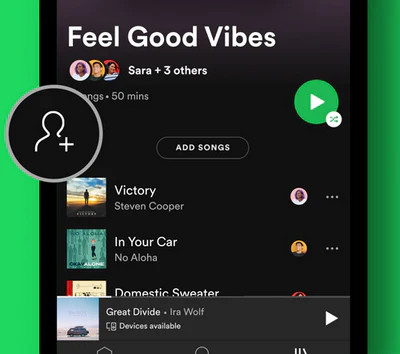
How to Make a Collaborative Playlist on Spotify (Step by Step)
Turning a Spotify playlist collaborative now happens through an "Invite collaborators" link rather than a simple on/off toggle. If you've seen older tutorials that mention a "Make Collaborative" switch, that's the previous version of the feature. Here's the current process:
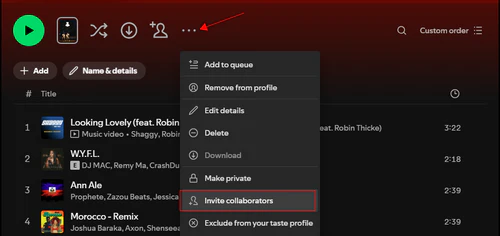
Make a Spotify Collaborative Playlist on Desktop
- Open Spotify and go to the playlist you want to share (or create a new one).
- Click the three-dot menu (⋯) at the top of the playlist.
- Select Invite collaborators. Spotify generates a link automatically and copies it to your clipboard.
- Share the link with your friends via a chat, email, or social app.
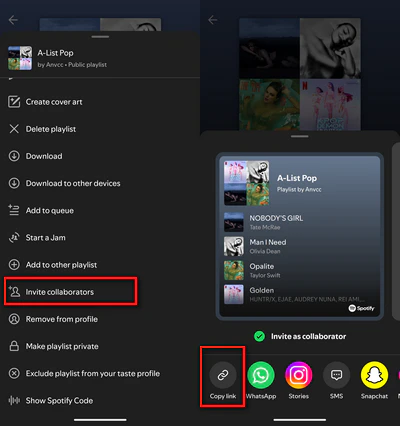
Make a Spotify Collaborative Playlist on iPhone & Android
- Open the playlist in the Spotify app.
- Tap the three-dot menu (⋯) at the top of the playlist screen.
- Tap Invite collaborators. This generates a link valid for 7 days.
- Share the link directly to a messaging or social app, or copy it to send manually.
Note that this feature currently works on the mobile and desktop apps but not through the Spotify web player in a browser.
Every invite works through a shareable link rather than a direct, name-based invitation. When you tap "Invite collaborators", Spotify creates a unique link that stays valid for 7 days. Anyone who opens that link before it expires can join as a collaborator and start adding songs immediately.
If a link expires before someone gets the chance to use it, just repeat the steps above to generate a new one.
Building a Group Playlist? Keep a Copy of It Try It Free
PlaylistGo can export a finished Spotify playlist to CSV, XLSX, or M3U, or move it to another streaming service while keeping the song order intact.
How to Join a Spotify Collaborative Playlist (As a Collaborator)
If a friend sent you an invite link, simply open it. The link will open the playlist directly in the Spotify app, or prompt you to open the app if you're viewing it in a browser. Once the link opens, you're automatically added as a collaborator — there's no separate "Accept" button to tap.
- Open the invite link you received. Spotify opens the playlist and adds you as a collaborator automatically.
- To keep the playlist in your library, tap the + (plus) icon near the top. After it's saved, the icon turns into a green checkmark.
- To add a song, open the collaborative playlist and tap the + Add button, then search for tracks or choose from the suggested songs. Songs already in the playlist show a green checkmark.
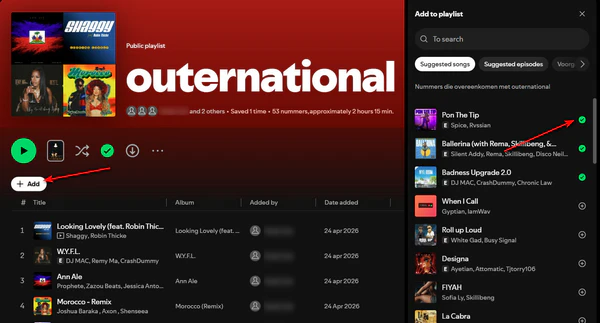
You can do all of this without a Premium subscription. A free Spotify account is enough to add, remove, and reorder tracks in a playlist you've been invited to.
Spotify Collaborative Playlist Not Working? Here's the Fix
A few issues come up often enough that they're worth addressing directly:
"Invite collaborators" option is missing
You can only make a playlist collaborative if you're the owner. If you're viewing someone else's playlist, you won't see this option. Ask the owner to send you an invite link instead.
The invite link says it's expired
Links expire 7 days after they're generated, regardless of whether anyone has used them yet. Ask the playlist owner to create and send a new link.
A friend can't add songs after joining
As the playlist owner, make sure you shared the collaboration invite link instead of the regular playlist link, since the regular one only gives view-only access. Ask your friend to confirm they opened that invite link and got added as a collaborator. Also confirm they're using an updated version of the Spotify app.
Collaborative playlists don't work in a web browser
This feature is currently limited to the desktop and mobile apps. Use one of those instead of open.spotify.com.
How to Remove or Manage Collaborators on a Spotify Playlist
As the playlist owner, you can remove a collaborator at any time. When you open the options for someone, Spotify shows two choices:
- Remove as collaborator: This only takes away their permission to edit. They won't be able to add, delete or reorder songs anymore, but they can still view and play the public playlist.
- Remove from playlist: Removes the user entirely from the playlist. They lose all access and can no longer view or open the playlist.
Here's how to do it:
- Open your collaborative playlist and locate the profile pictures listed under the playlist name.
- Click the profile pictures listed under the playlist title. This opens the collaborator list.
- Click the arrow next to the person's name, then choose either Remove as collaborator or Remove from playlist.
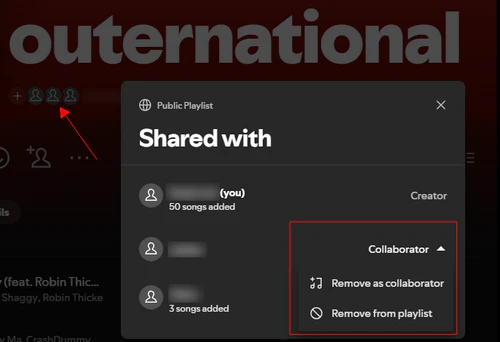
Removing someone stops them from editing the playlist going forward, but it doesn't undo changes they already made.
What Collaborators Can and Can't Do
Collaborators can
- Add songs to the playlist
- Remove any track from the playlist
- Reorder tracks
- See who added which song
Only the owner can
- Change the playlist title
- Change the description or cover image
- Remove a collaborator
- Delete the playlist entirely
How to Back Up or Transfer a Spotify Collaborative Playlist
Once a collaborative playlist has grown to a few hundred songs built by a whole group of people, it's worth keeping a copy outside Spotify — especially since anyone with an old invite link could technically still make changes, and a group project like this represents real time and effort from everyone involved.
PlaylistGo is a desktop backup tool for Spotify playlists. It exports full playlist track lists to CSV, XLSX, and M3U files to save your music library locally. It can also move the entire Spotify playlist over to another streaming service such as Apple Music or YouTube Music while keeping the song order intact. That gives you a saved snapshot of the playlist as it stands, separate from whatever happens to it inside Spotify afterward.
Keep a Backup of Your Collaborative Playlist Try It Free
PlaylistGo runs locally on your computer — no cloud upload — and can export or transfer your Spotify playlist in a few clicks.
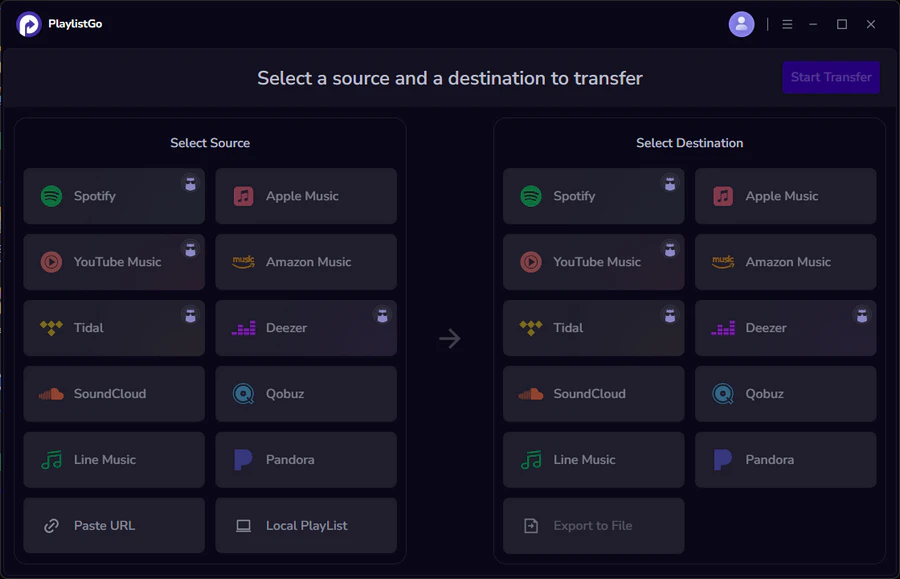
Tutorial: How to Export a Spotify Collaborative Playlist with PlaylistGo
Choose Spotify as the Source Platform
Install and launch PlaylistGo on your computer. On the main interface, select Spotify as your source platform and log in to your account. PlaylistGo will load your Spotify library, including the collaborative playlist you want to back up.
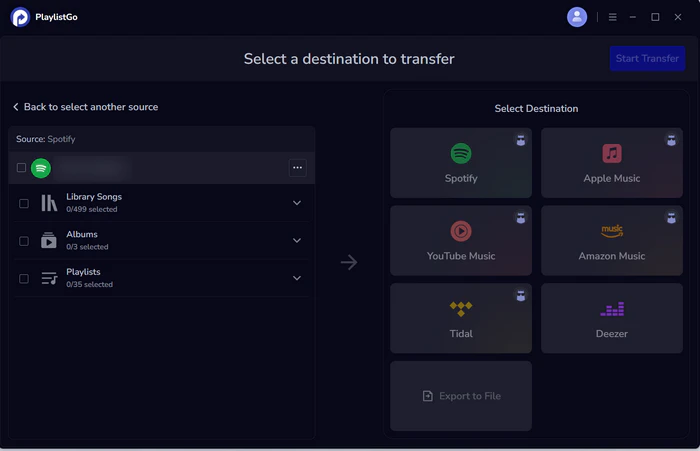
Choose a Local File Format or Another Platform
Select a local export format such as CSV, XLSX, or M3U to save the playlist as a file, or choose another streaming service like Apple Music or YouTube Music as the destination if you want a working copy elsewhere.
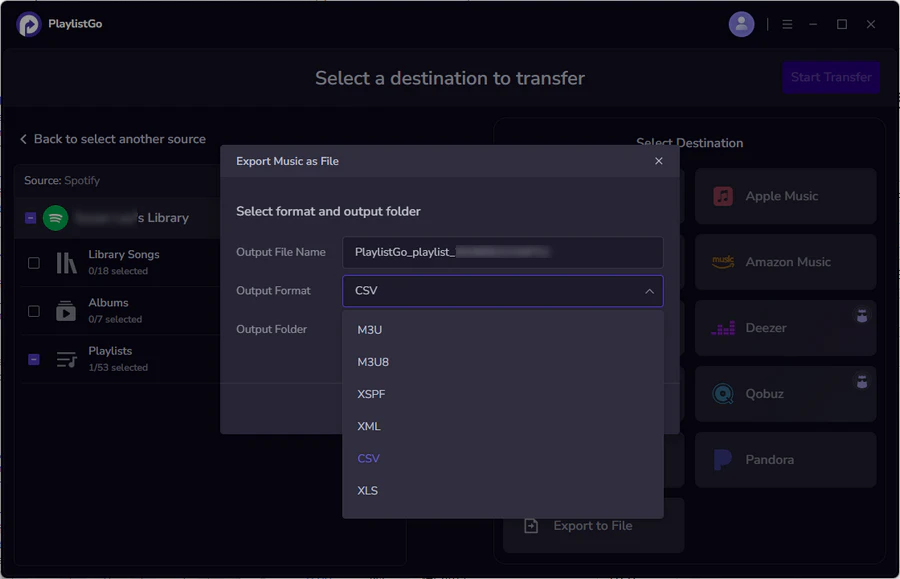
Start the Export
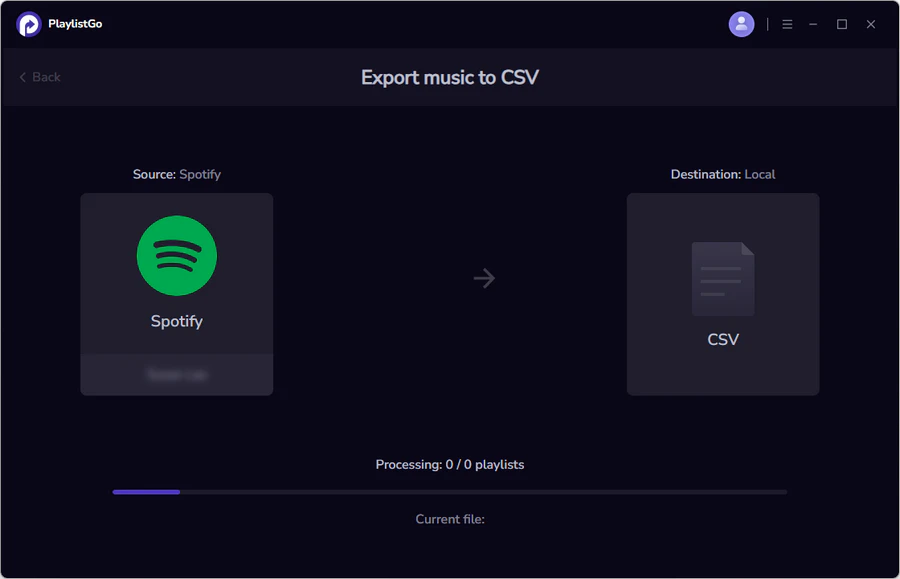
Select the collaborative playlist you want to back up, then click Start Transfer. PlaylistGo matches and saves every track, and shows progress in real time.
Collaborative Playlist vs. Spotify Jam vs. Spotify Blend
Spotify has three features that all involve listening or building playlists with other people, and it's easy to mix them up:
| Feature | What It's For | How Songs Get Added |
|---|---|---|
| Collaborative Playlist | Building a shared track list together over time | Anyone invited manually adds, removes, or reorders songs whenever they want |
| Spotify Jam | Listening together in real time, in the same room or remotely | The group controls one shared playback queue during a live session |
| Spotify Blend | A playlist that reflects everyone's combined taste | Generated automatically from listening habits, not manually curated |
A collaborative playlist is the right pick if your group wants to build and keep a lasting track list. Jam is for listening together right now. Blend is for a playlist you don't have to build at all.
FAQs About Collaborative Playlists on Spotify
Conclusion
Making a collaborative playlist on Spotify is straightforward: open the playlist, tap Invite collaborators, and share the link. Anyone who opens it within 7 days is automatically added as a collaborator and can start editing right away. Only the owner can rename, change the cover, or remove people.
Once the playlist has grown into something worth keeping, it's smart to save a copy outside Spotify. PlaylistGo can export the finished collaborative playlist to a local file or move it to another streaming service in a few clicks, so the group's work doesn't depend on one invite link staying valid forever.

PlaylistGo – Best Desktop Transfer Tool
The fastest and most reliable way to move entire Spotify library to Apple Music, YouTube Music, TIDAL, etc. 100% offline • No Cloud Required • 99.2% success rate



 Language ▴