



You cannot import an M3U file into YouTube Music directly, because YouTube Music has no import button for playlist files in the app or in the web player. An M3U playlist does get into YouTube Music, though — you hand the file to a converter that reads its track list, matches each song against YouTube Music's catalog, and creates the playlist in your account.
This guide covers the four-step M3U to YouTube Music import, the file checks worth doing first, and how to fix the matches that land on the wrong version.
Can You Import an M3U File to YouTube Music Directly
No. YouTube Music has no M3U import, and there is no hidden option to turn it on. If you have an .m3u or .m3u8 file, YouTube Music will not read it, and renaming the file to .txt or .csv makes no difference. So the viable solution points to a third-party converter rather than a menu.
Uploading is the feature people mistake for importing. Only audio files from your computer can be added to the Uploads section in your library and played alongside catalog music. What it does not do is read playlist files. There is no field where an M3U track list can be pasted. If you upload 300 MP3s, you get 300 songs in Uploads — not one playlist of 300 songs.
What Your M3U File Needs Before You Import
An M3U file is plain text, and it is worth opening yours in a text editor before importing. A well-formed file looks like this:
#EXTINF:214,Arctic Monkeys - R U Mine?
D:\Music\ArcticMonkeys\RUMine.mp3
#EXTINF:253,The Strokes - Last Nite
D:\Music\TheStrokes\LastNite.mp3
#EXTINF:187,Radiohead - Creep
D:\Music\Radiohead\Creep.mp3
The #EXTINF line typically contains the track duration and a display name. Depending on how the playlist was exported, that name may include the artist and title together.
If the file lacks useful track names, export the playlist again with track metadata where supported, or edit the entries to include clear song titles and artist names. That single step does more for match rate than any setting inside the converter.
M3U8 is the same format saved in UTF-8. If your library includes Japanese, Korean, Chinese, Cyrillic or Arabic titles, use M3U8 — a plain M3U saved in a legacy encoding will turn those characters into garbage, and garbled titles match nothing. If your library is entirely Latin-script, either works.
If your list lives in a spreadsheet rather than a player, the process is the same in principle and the file requirements differ — see how to import a CSV playlist to YouTube Music.
How to Import an M3U Playlist to YouTube Music
PlaylistGo is a desktop app for Windows and Mac that reads an M3U or M3U8 file, matches every track against YouTube Music's catalog using the title, artist and album information in the file, and creates the playlist directly in your account. It also imports from CSV, XLSX and JSON, and there is no playlist size limit, so a 40-track list and a 4,000-track library go through the same way.
Everything runs locally on your computer, so the M3U file itself is never uploaded to a server. The four steps below use PlaylistGo to complete the import, and the same flow works in reverse if you later move the playlist to Spotify or Apple Music.
PlaylistGo: Import M3U Playlists into YouTube Music Try It Free
Load your M3U file, review the matches, and create your YouTube Music playlist in minutes.
Check Your M3U File
Open the .m3u or .m3u8 in a text editor and confirm two things before importing:
- The
#EXTINFlines are there and readable — a title and an artist for every track - Non-Latin titles are not garbled — if they look like
?????oré, the encoding is wrong
If the tags are missing or the characters are broken, re-save the file as M3U8 / UTF-8, or re-export it from the player that created it with metadata enabled. Fixing this here is what keeps the unmatched list short later.
Load the M3U into PlaylistGo
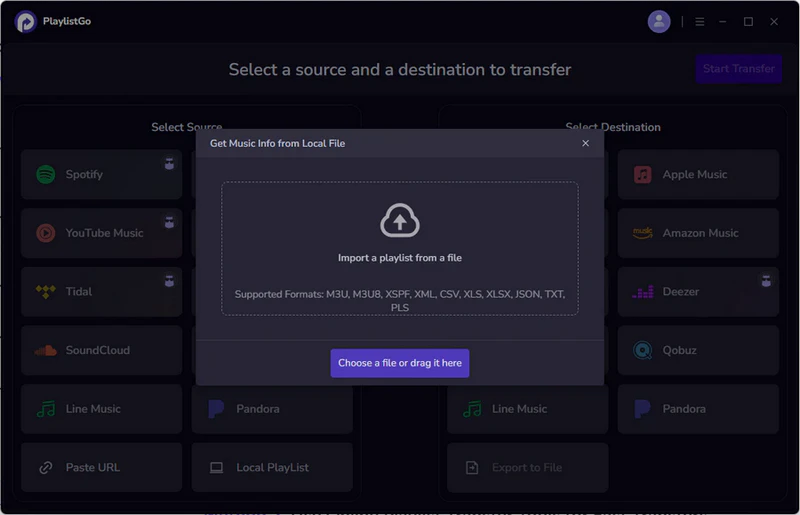
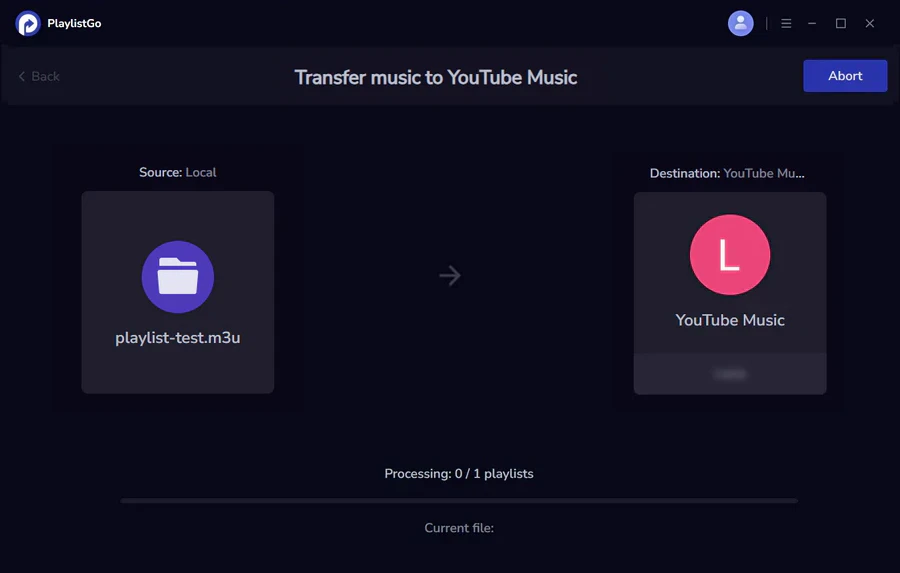
Open PlaylistGo and select Local Playlist as the source platform, then browse and select your M3U or M3U8 file from your local drive. PlaylistGo parses the track list and shows every detected entry before it touches your account, so a parsing problem shows up here rather than halfway through a transfer.
Choose YouTube Music and Review the Matches
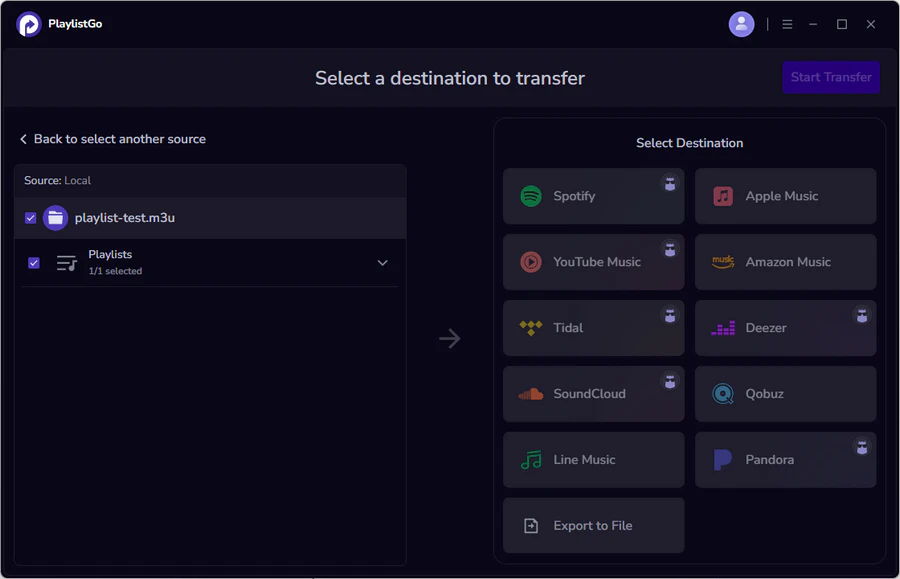
Select YouTube Music as the destination and sign in through Google's own OAuth screen. PlaylistGo never sees or stores your password.
Create the Playlist and Verify the Order
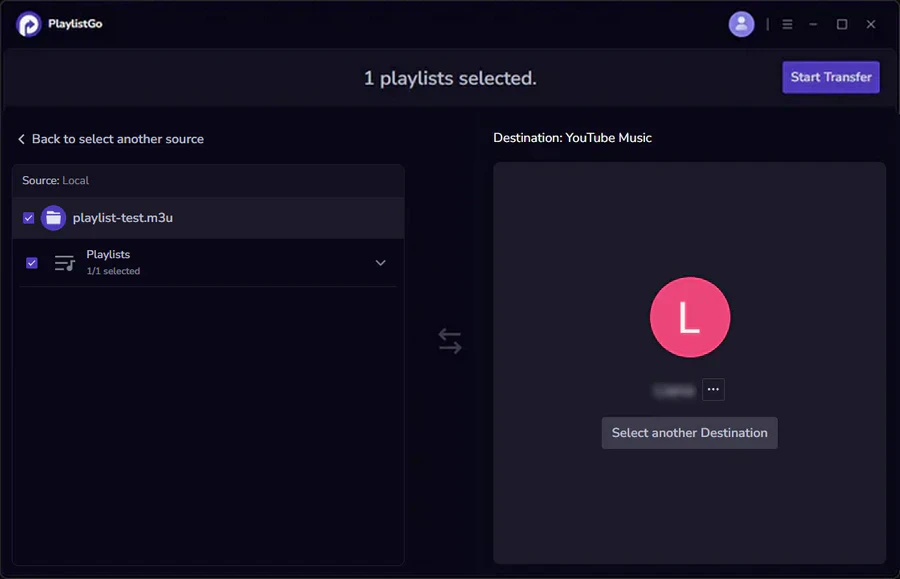
Start the transfer. PlaylistGo writes the playlist to your YouTube Music account in the same order as the M3U file, and it appears in your library on every device signed into that account.
M3U Files From Desktop Players to YouTube Music
Most M3U files were created by a media player, and each player exports slightly different metadata.
VLC to YouTube Music
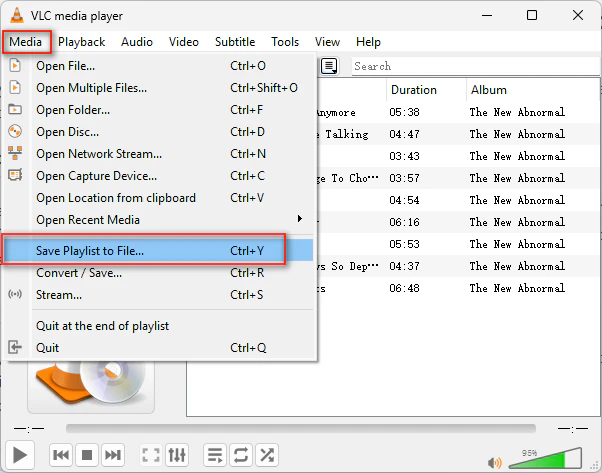
In VLC, open the playlist and go to Media > Save Playlist to File, then choose M3U or M3U8. VLC writes #EXTINF tags with the title and duration it read from your files, so a properly tagged library exports cleanly. Files that were never tagged — common with downloaded compilations — export with filenames as titles.
Foobar2000 M3U Playlist
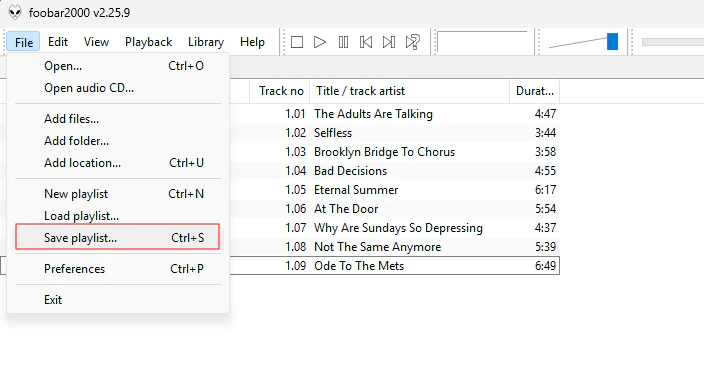
Foobar2000 gives the best results of the group. Use File > Save Playlist and pick M3U8; its exports carry full #EXTINF metadata and preserve order exactly. If your library was maintained in Foobar2000, expect a high match rate on the first pass.
MusicBee to YouTube Music
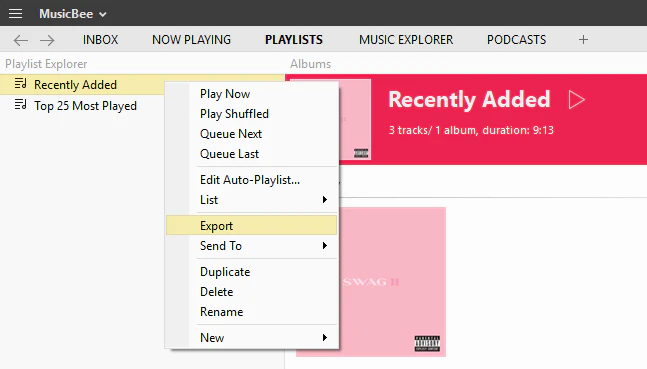
MusicBee stores playlists internally in its own format, so you need an explicit export: right-click the playlist in the left panel, choose Export, and select M3U or M3U8. MusicBee's exports include artist and title tags, so accuracy is generally good.
Winamp M3U Files
In Winamp's playlist window, click Manage playlist and choose Save playlist. Older Winamp versions are the usual source of tagless M3U files — they saved paths and little else — which is why Winamp playlists often import with more unmatched tracks than the same library exported from a modern player.
Kodi M3U Playlists
Kodi keeps music playlists in its userdata folder, under playlists/music/. Copy the .m3u file out of that folder to your desktop, then import it. Kodi's exports carry track titles and artist names, and they usually survive the round trip well.
Old Google Play Music M3U Files
Google Play Music's desktop Music Manager could read an .m3u file and rebuild the playlist inside your library. YouTube Music never inherited it. If you still have the M3U files you once fed to Music Manager, they are perfectly usable today; the file format has not changed, only the service that reads it.
M3U to YouTube Music Not Working? 4 Fixes
Most failed imports fall into one of four patterns, and each has a specific cause.
The M3U File Loads but No Tracks Appear in YouTube Music
The file parsed to zero entries. Nine times out of ten it is encoding: a file saved as ANSI or UTF-16 rather than UTF-8, or an .m3u8 that was actually renamed from something else. Re-save it as UTF-8 and reload. If it still parses to nothing, open it in a text editor — an M3U that begins with an HTML tag is a web page that was saved with the wrong extension, not a playlist.
Tracks Missing After the M3U to YouTube Music Import
Two different causes, distinguished by pattern. If the missing tracks cluster around one artist, one label or one region, it is a licensing gap and there is nothing to fix. If they are scattered, check spelling in the #EXTINF lines, then check whether the song exists on YouTube Music at all — some independent and self-released music never made it into the catalog.
Playlist Order Scrambled or Duplicated
Order problems usually come from the source file rather than the converter: a playlist that was sorted by title before export, or one assembled from several smaller lists. Duplicates come from the file having the same track twice, which most tools filter silently but some do not. Fix both in the file, not after the import.
Songs Match to the Wrong YouTube Music Version (MV, Live, Cover)
The matcher found something with the right title and artist, but it was a music video, a live recording, an acoustic take or a cover. This is the single most common quality problem specific to YouTube Music.
Standard M3U files do not guarantee separate fields for album names, ISRCs, or MusicBrainz IDs. Matching therefore often relies on the available track title, artist information, and duration. Incomplete or ambiguous metadata can make it harder to distinguish studio recordings from live versions, remixes, and covers. Also, two identical track lists can return different matches, for example when exported from fully tagged Foobar2000 versus an old Winamp setup that only saves raw file paths.
| Matching factor | Impact on accuracy | Why it matters more on YouTube Music |
|---|---|---|
| Song title | High | Required for any match at all |
| Artist name | High | Separates the official track from covers and uploads |
| Album | Medium | Narrows re-releases and compilations |
| ISRC | Highest | Rarely present in M3U files |
| Duration | Medium | Catches live, extended and remix mismatches |
PlaylistGo: Catch the Wrong Matches Before You Import Try It Free
Every M3U track is matched against YouTube Music's catalog first, so you can swap a music video or a live take for the studio version before the playlist is written.
More patterns, including cross-service matching failures, are covered in how to fix matching errors in a music transfer.
FAQ About M3U to YouTube Music
Conclusion
YouTube Music does not import M3U files, and no setting in the app changes that. PlaylistGo handles it: it reads your track list, matches each song against YouTube Music's two catalogs, and shows you the results before anything is written to your account.

PlaylistGo – Best Desktop Transfer Tool
The fastest and most reliable way to move entire YouTube Music library to Spotify, Apple Music, TIDAL, etc. 100% offline • No Cloud Required • 99.2% success rate


 Language ▴