


YouTube Music does not have a built-in "Export to CSV" button. You can use Google Takeout to export YouTube Music data as CSV, or use a third-party tool to create a playlist-focused CSV with track details.
In this guide, you'll learn how to export YouTube Music playlists and library data to CSV, what Google Takeout includes, and how it compares with third-party music export tools.

Part 1: Can You Export YouTube Music Playlists to CSV Directly
No. YouTube Music does not offer a built-in option to export playlists directly as CSV files. There is currently no CSV export feature in either the YouTube Music app or web player, so you can't select a playlist and download it as a spreadsheet with a native option.
However, you can still export YouTube Music data using other methods. Third-party music export tools can create playlist-focused CSV files with track information, while Google Takeout provides CSV files for different types of YouTube Music data. The best option depends on whether you want an official data archive or a ready-to-use spreadsheet.
Part 2: How to Export YouTube Music to CSV with PlaylistGo
PlaylistGo is a desktop app for Windows and Mac that lets you export YouTube Music playlists, albums and liked songs to 10 file formats: M3U, M3U8, PLS, CSV, XLSX, XLS, JSON, XML, XSPF and TXT. It reads your YouTube Music library with your permission and saves the selected data locally, so you can open it in Excel, Google Sheets or another compatible app. It also supports importing CSV files into YouTube Music and other streaming platforms.
Turn Your YouTube Music Library into a CSV File Try It Free
Export YouTube Music playlists, albums and liked songs to CSV — or straight to Spotify, Apple Music and other streaming apps.
Step-by-step Tutorial: Export YouTube Music to CSV
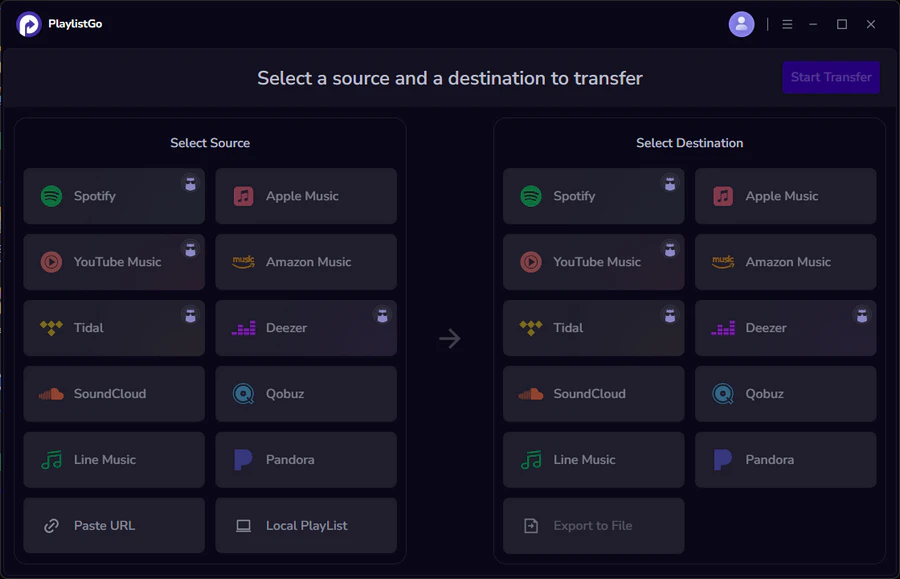
Choose YouTube Music as Source Platform
Download and launch PlaylistGo on your Windows PC or Mac. Select YouTube Music as your source platform and sign in to your account. PlaylistGo will load your YouTube Music library, including your playlists, albums and liked songs, so you can pick exactly what to export.
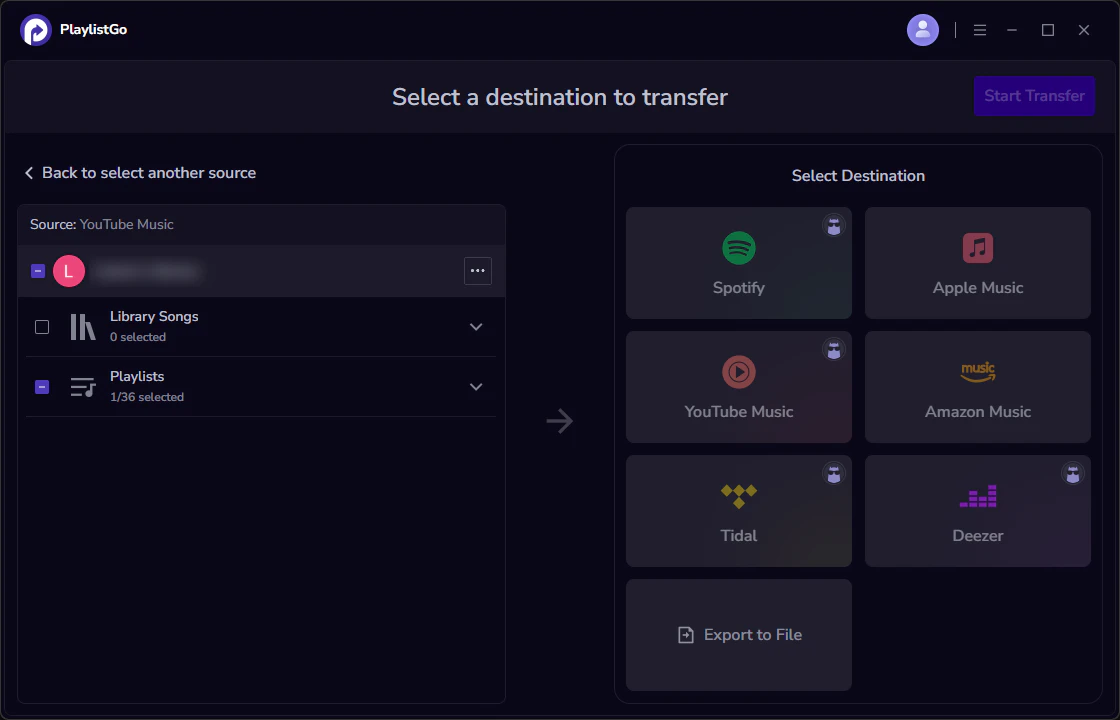
Select Your Destination: Export to File
Tick the playlists, albums or liked songs you want to export. Set the destination to "Export to File" and pick CSV as the output format. You can rename the file and choose where it is saved before continuing.
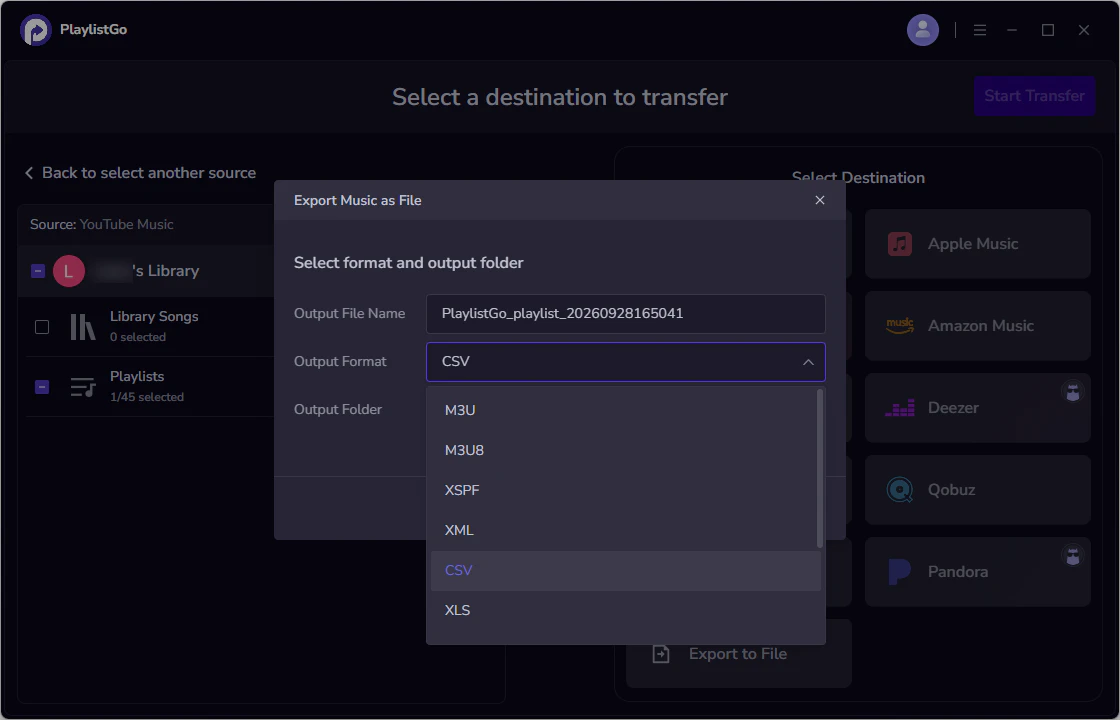
Start Exporting YouTube Music to CSV
Click Start Transfer. PlaylistGo builds the CSV from your track data and saves it to the folder you picked. From there the file is ready to open in Excel, Google Sheets or any text editor.
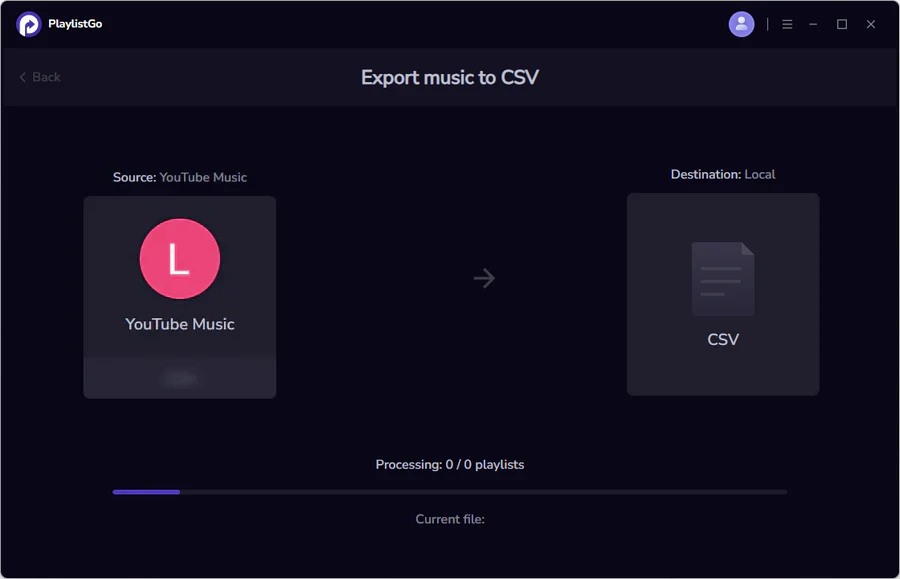
That is all it takes to export a YouTube Music playlist to CSV. PlaylistGo isn't limited to CSV. You can also export YouTube Music data to M3U, M3U8, PLS, XLS, XLSX, JSON, XML, XSPF and TXT.
What Is Inside a YouTube Music CSV Exported with PlaylistGo
A YouTube Music CSV exported with PlaylistGo has one row per track. Below is what a real export looks like when opened in a spreadsheet. The songs are from a test playlist we exported.
| A | B | C | D | E | F | |
|---|---|---|---|---|---|---|
| 1 | title | artist | album | duration | playlistName | trackId |
| 2 | drop dead | Olivia Rodrigo | you seem pretty sad for a girl so in love | 225000 | test playlist | xxxxxxxxxxx |
| 3 | DAISIES | Justin Bieber | SWAG | 177000 | test playlist | xxxxxxxxxxx |
| 4 | DtMF | Bad Bunny | DeBÍ TiRAR MáS FOToS | 238000 | test playlist | xxxxxxxxxxx |
| 5 | Man I Need | Olivia Dean | The Art of Loving | 184000 | test playlist | xxxxxxxxxxx |
duration is in milliseconds, so 184000 is about 3.1 minutes. trackId is the YouTube video ID of the song.
The same file, opened in a plain text editor, looks like this. It shows why a CSV works everywhere: it is just text, with commas separating each column.
The main columns that hold your music data are:
| Column | What it contains | Example |
|---|---|---|
title | Song title | Man I Need |
artist | Artist name | Olivia Dean |
album | Album name | The Art of Loving |
duration | Track length in milliseconds | 184000 |
albumArtist | Album artist | Olivia Dean |
playlistName | Name of the playlist the track came from | test playlist |
trackId | YouTube video ID of the track | xxxxxxxxxxx |
path | Direct link to the track on YouTube Music | music.youtube.com/watch?v=… |
thumbnail | Cover image URL | (image link) |
The file also has columns for release year, genre, composer and track number. YouTube Music does not always provide these, so they can be empty, and a few tracks, mostly singles and uploads, come through without an album name. Song titles and artist names in other languages, such as Spanish accents or Chinese characters, are kept as they appear on YouTube Music.
Part 3: What Does Google Takeout Export from YouTube Music
Google Takeout can export YouTube Music data as CSV, but the format depends on the data type. The music library songs.csv file includes the Video ID, song title, album title and artist name for songs saved to your library, while a playlist-specific CSV contains only the Video ID and playlist video creation timestamp.
| Video ID | Playlist Video Creation Timestamp |
|---|---|
| xxxxxxxxxxx | 2026-07-06T07:37:02+00:00 |
| xxxxxxxxxxx | 2026-07-06T07:37:03+00:00 |
| xxxxxxxxxxx | 2026-07-06T07:37:08+00:00 |
| xxxxxxxxxxx | 2026-07-06T07:37:09+00:00 |
| Video ID | Song Title | Album Title | Artist Name 1 |
|---|---|---|---|
| xxxxxxx | drop dead | you seem pretty… | Olivia Rodrigo |
| xxxxxxx | DAISIES | SWAG | Justin Bieber |
| xxxxxxx | DtMF | DeBÍ TiRAR MáS… | Bad Bunny |
| xxxxxxx | Man I Need | The Art of Loving | Olivia Dean |
How to Export YouTube Music Playlists with Google Takeout
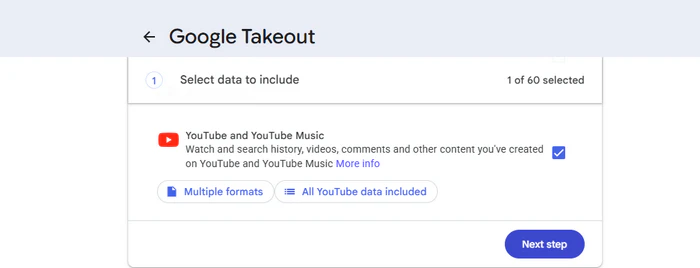
- Go to Google Takeout and select YouTube and YouTube Music.
- Click All YouTube data included, choose Deselect all, then tick playlists. Tick music (library and uploads) as well if you also want your library.
- Click Next step, choose Send download link via email (or Drive, Dropbox or Box), set the frequency to Export once, and keep the .zip file type.
- Click Create export and wait for Google's email. Depending on how much data your account holds, this can take from a few minutes to a few days.
- Open the email, download the archive, unzip it and open the
.csvfile for each playlist. The download link is available for one week.
These files are useful for different purposes. The playlist file preserves the video IDs and playlist timestamps, while the music library file gives you readable song metadata. If you want a single, playlist-focused CSV that is easier to sort, edit and reuse, a dedicated export tool such as PlaylistGo provides a different format.
Google Takeout vs PlaylistGo: What's the Difference?
Google Takeout is useful for downloading a broader archive of your Google and YouTube data, while PlaylistGo is designed to directly export specific YouTube Music content to readable files. With Google Takeout, the music library songs.csv file only includes songs that are already saved to your music library. PlaylistGo can directly export playlists, albums and liked songs as track lists, making them easier to sort, edit or reuse.
| Google Takeout | PlaylistGo | |
|---|---|---|
| Playlist export | Video ID and playlist timestamp | Title, artist, album, duration, playlist name, track ID and more |
| Music library CSV | Video ID, song title, album title and artist name; only songs already saved to your music library | Playlists, albums and liked songs can be exported as track lists |
| Readable song names | ✅ Only the music library songs.csv file |
✅ |
| Other file formats | CSV files inside a ZIP archive | M3U, M3U8, PLS, CSV, XLSX, XLS, JSON, XML, XSPF, TXT |
| Where it runs | Web browser | Desktop app for Windows and Mac |
Want a CSV You Can Actually Read? Try It Free
Get song, artist, album and duration in one clean CSV. Works on Windows and Mac.
Part 4: What Can You Do with a YouTube Music CSV File
A YouTube Music CSV saves your music library info into a portable file, and there are lots of ways you can use it.
Back Up Your YouTube Music Library
A CSV keeps the titles and artists of your songs even if a track is later removed or your account changes. Keep a copy in cloud storage or on an external drive so your YouTube Music library does not depend on a single account.
Edit and Organize Your YouTube Music Playlists in Excel or Google Sheets
Open the file in Excel, Google Sheets or Numbers to sort songs by artist, remove duplicates, count tracks, or add your own notes in an extra column. This is much faster than rearranging songs one by one inside the app.
Move Your YouTube Music Playlists to Another Music Service
Because the CSV lists each song by title and artist, it works as a starting point for recreating your playlists elsewhere. PlaylistGo can import a CSV file to Spotify, Apple Music and other supported services. It can also transfer YouTube Music playlists to Spotify directly, without going through a file.
Part 5: Troubleshooting YouTube Music to CSV Exports
Why Does My YouTube Music CSV Show Strange Characters in Excel?
Excel may misread a CSV that is saved as UTF-8 without a byte order mark (BOM), which shows up as garbled letters in song titles with accents or non-English characters. If this happens, open the file through Data > Get Data > From File > From Text/CSV. In that dialog, set the file origin to 65001: Unicode (UTF-8) and click Load. Google Sheets and Numbers usually read UTF-8 correctly without extra steps.
Why Are Some Songs Missing an Album Name?
Some tracks, such as singles, remixes and user uploads, are not linked to an album on YouTube Music, so the album field stays empty. This is a limit of the source data rather than an export error.
FAQs about YouTube Music to CSV
music library songs.csv if they are already saved to your music library. PlaylistGo can directly export your liked songs, playlists and albums to CSV with details such as title, artist, album and duration.
Conclusion
YouTube Music has no built-in way to export a playlist directly to CSV. Google Takeout can export different types of YouTube Music data, including a playlist-specific CSV and a separate music library CSV. For a more readable playlist export with additional track information, you can use a dedicated tool such as PlaylistGo.
Once you have a CSV file, you can keep it as a record of your music-library information, organize it in Excel or Google Sheets, or use it for moving playlists to another service. If you want a different format instead, PlaylistGo can also export to XLSX, JSON, M3U, TXT and more.

PlaylistGo – Best Desktop Transfer Tool
The fastest and most reliable way to move entire Spotify library to Apple Music, YouTube Music, TIDAL, etc. 100% offline • No Cloud Required • 99.2% success rate


 Language ▴