


TIDAL does not offer a native CSV upload feature. If you have a playlist saved as a CSV file, you can import it to TIDAL by using a music transfer tool that reads the file, matches each track against TIDAL's catalog, and rebuilds the playlist in your account. This guide walks through how to import CSV files to TIDAL, what your CSV file needs to contain, and why some tracks don't transfer.
Can You Import a CSV File Directly to TIDAL?
No, TIDAL does not let you upload a CSV file directly on tidal.com or in the app. TIDAL's own support documentation confirms that playlist imports are handled through a third-party partner, rather than a built-in upload feature. A CSV file with song titles and artist names isn't something TIDAL can read on its own; it needs a tool in between that can look up each track in TIDAL's catalog and add the matches to a playlist.
How to Import a CSV Playlist to TIDAL
What Your CSV File Should Include
A CSV file works best for a TIDAL import when each row has enough information to uniquely identify a song. At minimum, include:
For better matching accuracy, also include an ISRC code where you have one. It's the most reliable identifier since it points to one specific recording rather than relying on text matching.
Save the file as a standard CSV file and use UTF‑8 encoding if you can. This ensures special characters in artist and song names — such as accents and non‑Latin text — show up properly instead of getting corrupted. If your spreadsheet software offers a choice of delimiter, a comma is the safest default; some tools also accept semicolon-separated files, but comma-separated is the most universally supported.
How to Import a CSV Playlist to TIDAL Using PlaylistGo
PlaylistGo is a desktop app for Windows and Mac that reads your CSV file, matches each track against TIDAL's catalog using title, artist, album, and ISRC data, and creates the playlist directly in your TIDAL account. It supports imports from local file formats including M3U, M3U8, PLS, XSPF, XML, CSV, XLS, XLSX, JSON, and TXT, and works with other major music services such as Spotify, Apple Music and YouTube Music.
PlaylistGo: Import CSV Playlists into TIDAL Try It Free
Upload your CSV, match songs automatically, and create your TIDAL playlist in minutes.
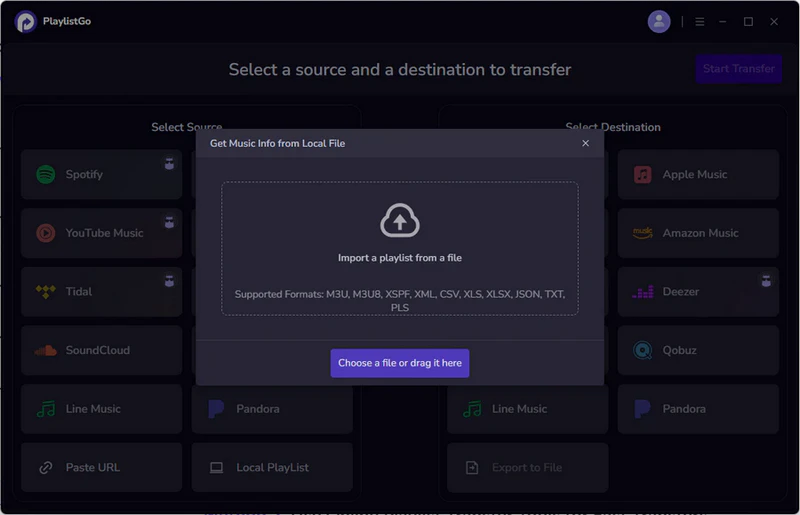
Steps to Import a CSV Playlist to TIDAL with PlaylistGo
Import Your CSV File into PlaylistGo
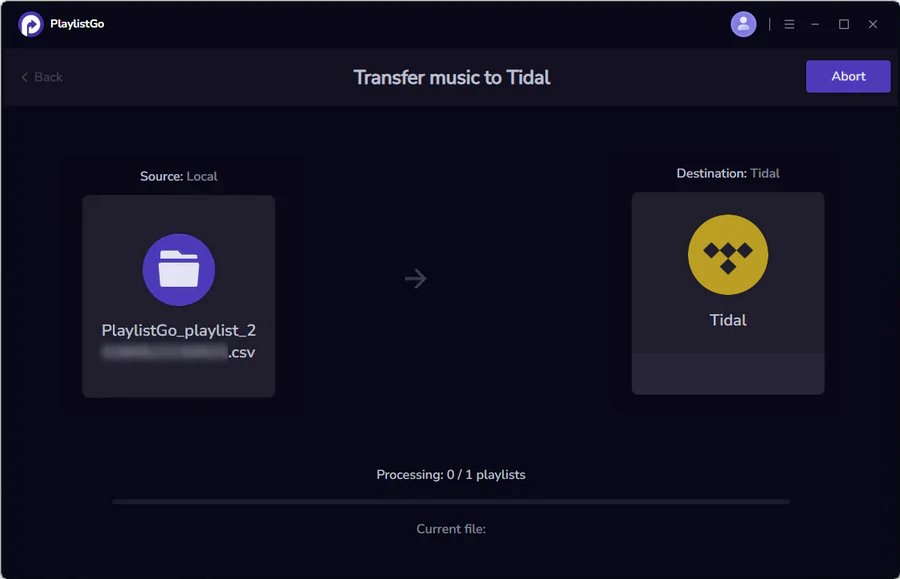
Open PlaylistGo and select Local Playlist as the source platform, then browse and select your CSV file from your local drive. PlaylistGo will read the file and display a preview of all detected tracks before doing anything to your TIDAL account.
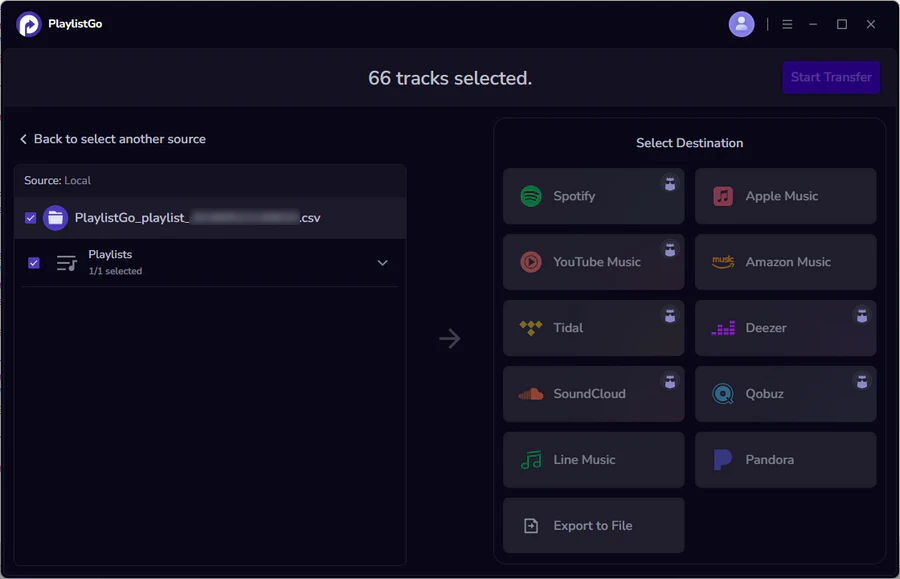
Select TIDAL as Your Destination
Select TIDAL in the destination platform options and log in to your TIDAL account. PlaylistGo will search TIDAL's catalog and show you a preview of matched and missing tracks. Review the list before confirming, and if any tracks are missing, check the title spelling or add the album name in your CSV and re-upload.
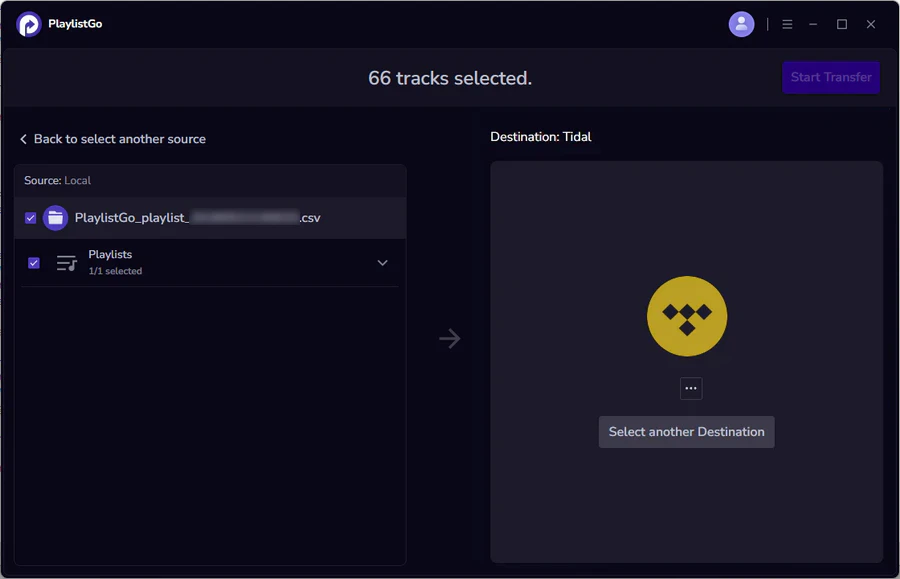
Create Your TIDAL Playlist
Once you're satisfied with the match results, click Start Transfer to confirm. PlaylistGo will create the playlist directly in your TIDAL account. The playlist will appear in your TIDAL library immediately and sync across all your devices.
Common Issues When Importing CSV to TIDAL
Even with a clean file, a CSV-to-TIDAL import doesn't always come out identical to your source list. Most mismatches come from TIDAL's track‑matching system. Here's what's behind each issue and how to fix it.
TIDAL Doesn't Have the Song in Your Region
TIDAL's catalog is limited by regional licensing, so a track available elsewhere can simply be missing from your region. This has nothing to do with your CSV — a good transfer tool will flag it as "missing" in the report rather than skipping it silently.
The CSV Identifies a Different Version of the Song
A row with just song title and artist does not specify if you want studio, live, remix or re‑recorded tracks. The tool has to guess and may pick the wrong version. Adding the album name narrows this down, and an ISRC code eliminates confusion by targeting one exact recording.
TIDAL Matches a Different Release of the Same Album
TIDAL often hosts a standard edition, a deluxe edition, and a remastered reissue side by side. If your CSV's album name doesn't exactly match how TIDAL labels one of these, your track may get attached to the wrong edition. Checking the matched album during the preview step, before confirming the transfer, catches this early.
The Import Stops or Fails to Start
Your import getting stuck is generally caused by your file or your login session, not issues with TIDAL's music library. Common triggers include missing CSV header rows, wrong file encoding (not UTF‑8), or your TIDAL login timing out while the import is running. Re-saving the file in UTF-8 and confirming you're still logged in to TIDAL fixes most of these.
Other Ways to Import CSV Playlists to TIDAL
PlaylistGo isn't the only tool that can do this. Here's a quick rundown of the other CSV-to-TIDAL options that show up when researching this topic:
TuneMyMusic
TuneMyMusic is the tool TIDAL's own support page officially recommends for playlist imports. It reads a CSV file and matches tracks using title, artist, album, and ISRC data, then builds a TIDAL playlist and gives you a downloadable report of any songs it couldn't match. The free tier covers up to 500 tracks; transferring more requires a paid plan.

Soundiiz
Soundiiz is a web-based tool that separates CSV imports into playlists, albums, artists, and tracks as distinct import types. Playlist import from CSV is available on the free plan, while importing albums, artists, or individual tracks from a file requires a premium subscription. Soundiiz also provides a downloadable example CSV file so you can see the expected format before uploading your own.
MusConv
MusConv is a downloadable desktop and mobile app that supports CSV as both a source and destination for transfers. Its free trial is limited to 25 songs before it prompts you to purchase a plan, which is a lower free threshold than the other tools listed here.
| PlaylistGo | TuneMyMusic | Soundiiz | MusConv | |
|---|---|---|---|---|
| Platform | Desktop (Windows/Mac) | Web-based | Web-based | Desktop & mobile |
| File formats | M3U, M3U8, PLS, XSPF, XML, CSV, XLS, XLSX, JSON, TXT | CSV, TXT | CSV, XLS/XLSX | CSV |
| Match data used | Title, artist, album, ISRC | Title, artist, album, ISRC | Title, artist, album | Title, artist, album |
| Large Library Support | Desktop processing; built for large libraries | Web-based | Web-based | Desktop & mobile |
Prefer Desktop Processing for Large Libraries? Try It Free
PlaylistGo handles big CSV files locally with no browser limits — free download for Windows & Mac.
Frequently Asked Questions about CSV to TIDAL
Conclusion
TIDAL doesn't support native CSV uploads, so you'll need a third-party transfer tool to turn the rows in your CSV into a TIDAL playlist. For the best results, include title and artist information, and add album names or ISRC codes when available. If your file is in Excel format, you can either upload it directly with a tool that supports XLS/XLSX or save it as CSV first. PlaylistGo provides a desktop option for importing CSV, XLS, XLSX and other local playlist files into TIDAL.
If you also have playlists saved in other local formats, the process is nearly identical. See how to import a CSV playlist to Spotify or how to import a CSV playlist to Apple Music.

PlaylistGo – Best Desktop Transfer Tool
The fastest and most reliable way to move entire Spotify library to Apple Music, YouTube Music, TIDAL, etc. 100% offline • No Cloud Required • 99.2% success rate


 Language ▴