




To recover a deleted playlist on Spotify, sign in to your account page and use the Recover playlists list. Spotify keeps deleted playlists here for 90 days, so you can restore one to your library with a single click. After those 90 days, getting your songs back becomes a separate task entirely. Keep reading for step-by-step instructions for your situation.
Which Spotify Playlist Recovery Method Fits Your Case?
Find your case in the table below, then follow the linked section. Every section starts with a quick check you can complete in under a minute.
| Your situation | What you can do |
|---|---|
| Just deleted a Spotify playlist by accident, desktop app still open | Undo it with Cmd + Z or Ctrl + Shift + Z → Part 1 |
| Deleted a Spotify playlist within the last 90 days | Restore it from the Recover playlists page → Part 2 |
| Only have a phone, with no desktop app to hand | Restore it in a mobile browser → Part 3 |
| Playlist deleted more than 90 days ago | Contact Support, or rebuild the playlist → Part 4 |
| Spotify playlist missing but never deleted | Check the account and library sync → Part 5 |
| Still have an exported backup file of that playlist | Import the file back into Spotify → Part 6 |
| Lost a Spotify playlist with no backup at all | Rebuild it from shared links and listening history → Part 7 |
| Want to back up Spotify playlists so this stops happening | Export playlists to CSV, M3U, or JSON → Part 8 |
1. How to Undo a Deleted Spotify Playlist Immediately
If the deletion happened moments ago and the desktop app is still open, a keyboard shortcut reverses it without going through the account page at all:
| Platform | Shortcut | When it works |
|---|---|---|
| Spotify for macOS | Cmd + Z | Current session, desktop app only |
| Spotify for Windows | Ctrl + Shift + Z | Current session, desktop app only |
Both shortcuts are intended for immediately undoing a deletion. If the shortcut no longer works, use Spotify's Recover playlists page from Part 2 instead.
2. How to Recover a Deleted Spotify Playlist in 4 Steps
Playlist recovery runs from the Spotify account page, not from inside the app. The list it shows contains only playlists that you created and then deleted.
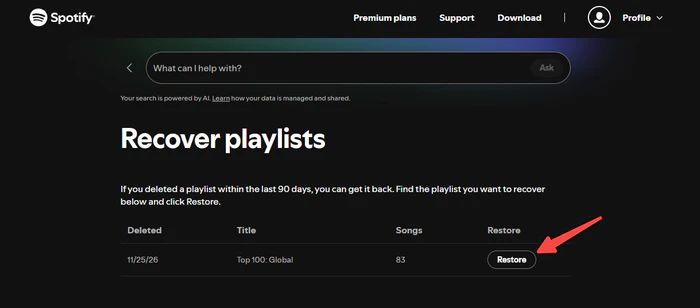
- Open the Recover playlists page. Go to spotify.com and sign in, then open your account page and click Recover playlists in the left menu, below your profile and subscription details. If you are already signed in, spotify.com/account/recover-playlists/ takes you straight to the list.
- Locate the deleted playlist. Every playlist you removed during the past 90 days is listed with its name, the date it was deleted, and the number of tracks it held.
- Click Restore. Press RESTORE on the right-hand side of the row.
- Confirm it is back in your library. A restored playlist reappears at the bottom of your playlist collection rather than in its original position. If the desktop app does not show it immediately, sign out and sign back in; the collection refreshes on login.
3. How to Restore a Deleted Spotify Playlist on Mobile
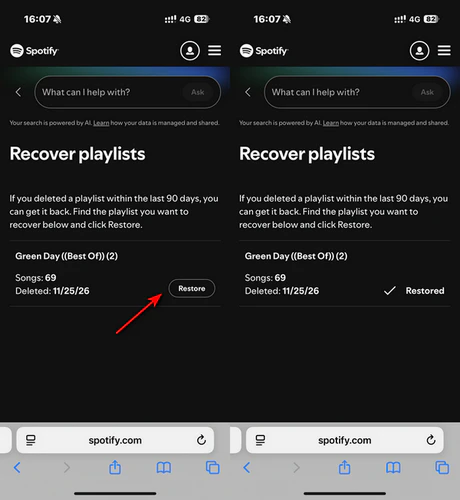
The Spotify mobile app has no Recover playlists screen, but this feature does live on the web account page, and you can access it easily via a mobile browser.
- Open a browser on your phone and go to spotify.com/account/recover-playlists/.
- Sign in with the same account you used when the playlist was deleted.
- Tap Recover playlists in the menu.
- Tap RESTORE beside the playlist, then switch back to the Spotify app and pull down to refresh your library.
4. Can You Recover Spotify Playlists After 90 Days?
Spotify's native recovery list has a strict 90-day limit. Once a playlist leaves this list, the official recovery option is gone. You cannot recover these playlists from your account, and no third-party tool can change this rule.
Contacting Spotify Support
If your playlist is no longer listed, you can contact Spotify Support and explain what happened. Head to support.spotify.com/us/article/contact-us/, select the account and playlist category, and provide details to help them find your playlist:
- The email address on the account.
- The exact playlist name, or two or three names it might have had.
- Roughly when it was deleted, and on which device.
- Any tracks or artists you remember being in it.
However, Spotify does not guarantee recovery beyond the standard 90-day window, so treat this as a last resort rather than a reliable solution.
Does a Spotify Playlist URI Still Work?
An old spotify:playlist: link or an open.spotify.com URL sometimes still opens and displays what the playlist contained. If the old link still opens, you may be able to view the playlist's tracks. However, this does not guarantee that the original playlist can be restored to your Spotify library. You can use any visible tracks as a reference when rebuilding a new playlist.
If the tracks load successfully, open the link in the desktop app, create an empty playlist, select every track with Ctrl + A (Windows) or Cmd + A (macOS), and drag them into the new one.
Have the Track List? Write It Into a New Playlist Try It Free
Save the tracks you found from the old link into a CSV, M3U or JSON file. Then import this file to make a new Spotify playlist with the same name and track order.
5. Spotify Playlist Missing (Not Deleted): What to Check
If a playlist disappears but you never deleted it, that's a separate issue — and recovery tools will not fix it. Nearly all such cases come down to four common reasons:
| What you are seeing | Likely cause | What to check |
|---|---|---|
| Playlist gone on every device | Signed in to the wrong account | Sign out, sign in with the other email; look for a second account created for a shared or family device |
| Playlist missing on one device only | Library not synced | Pull to refresh, or sign out and back in on that device |
| Playlist openable by link but absent from Your Library | Removed from library, not deleted | Open the playlist and tap the add button to follow it again |
| Playlist gone after a subscription change | Filtered view / offline-only mode | Downgrades don't delete playlists; check library filters |
Checking Whether You Are on the Right Account
The account mix-up is the most common of the four, and family plans add to the confusion. Playlists created on a parent or old account remain intact; they simply won't show up under your current login. Sign into the correct account to get them back.
Removed From Library vs Deleted
Removing a playlist from your Spotify Library is not a deletion. If a link to the playlist still opens, and the page shows a follow button rather than an error, the playlist is alive and simply needs following again. If the playlist link won't open, and it does not appear in the Recover playlists list, it has most likely been deleted.
Missing After a Subscription Change
Dropping from Premium to Free removes offline downloads and limits on-demand playback on mobile, but it does not touch your playlists, saved albums, or Liked Songs. If a playlist disappears right after a plan change, the subscription shift is just a coincidence. Check your logged-in account and library filters instead.
6. How to Rebuild a Deleted Spotify Playlist From a Backup File
If you ever exported your Spotify playlist to CSV, M3U, JSON, or XLSX, this takes a few minutes. PlaylistGo is a desktop app that imports these local file types straight into Spotify. It can also create the backups itself, exporting playlists to ten formats, including M3U, M3U8, PLS, XSPF, XML, CSV, XLS, XLSX, JSON, and TXT.
This is rebuilding, not recovery. Third-party transfer tools can only take a playlist file you exported earlier and write the playlist back into your Spotify account — they cannot restore deleted playlists from Spotify's servers.
Have an Old Export? Put the Playlist Back Try It Free
Import CSV, M3U, JSON or XLSX files straight into Spotify with track order and playlist name preserved.
Tutorial: How to Import a Backup File Back Into Spotify
Install and Launch PlaylistGo
Download PlaylistGo on Windows or macOS and open it. The main interface asks for a source and a destination, and either side can be a local file or a streaming platform.
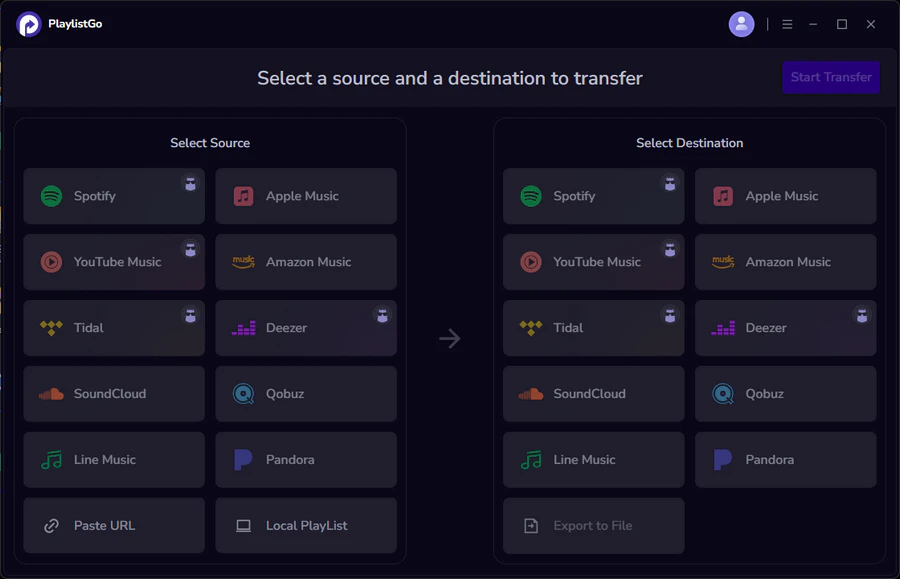
Choose Local Playlist as the Source
Select Local Playlist as the source, then click Add File and pick your exported CSV, M3U, or JSON file. The track list loads into the left panel with the playlist name and track count.
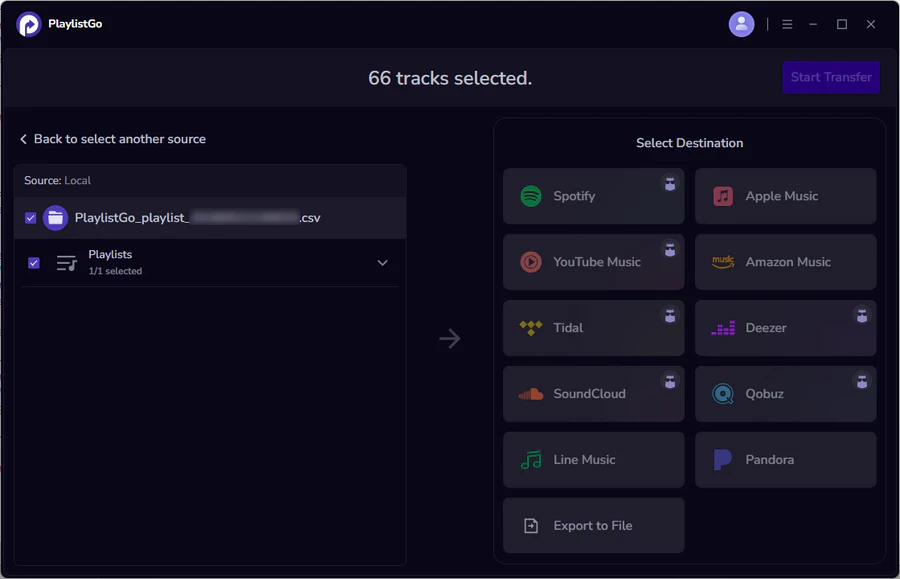
Set Spotify as the Destination
Choose Spotify as the destination and authorise the account through Spotify's standard OAuth flow. No password is stored in the app, and nothing is uploaded to a server.
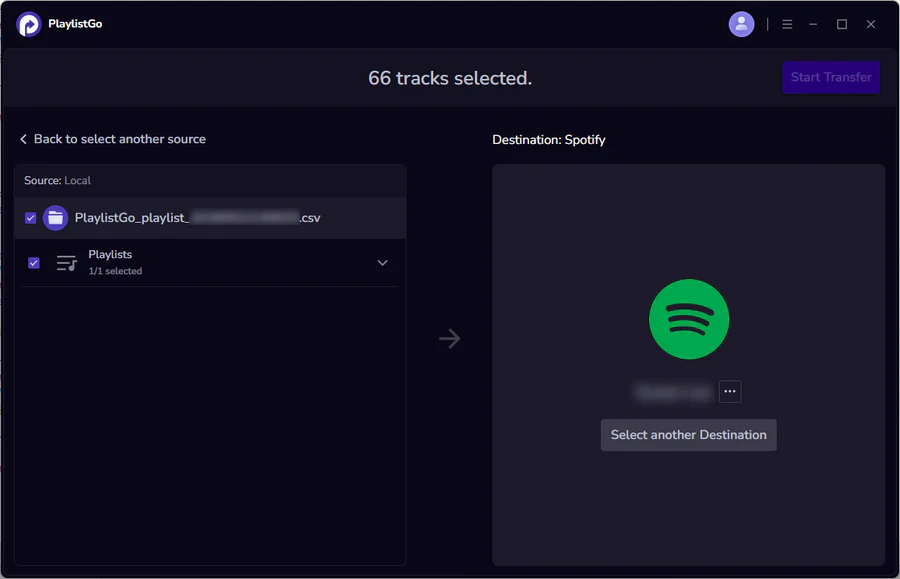
Start the Import and Check the Match Report
Select the tracks, click Start Transfer, and review the results afterwards.
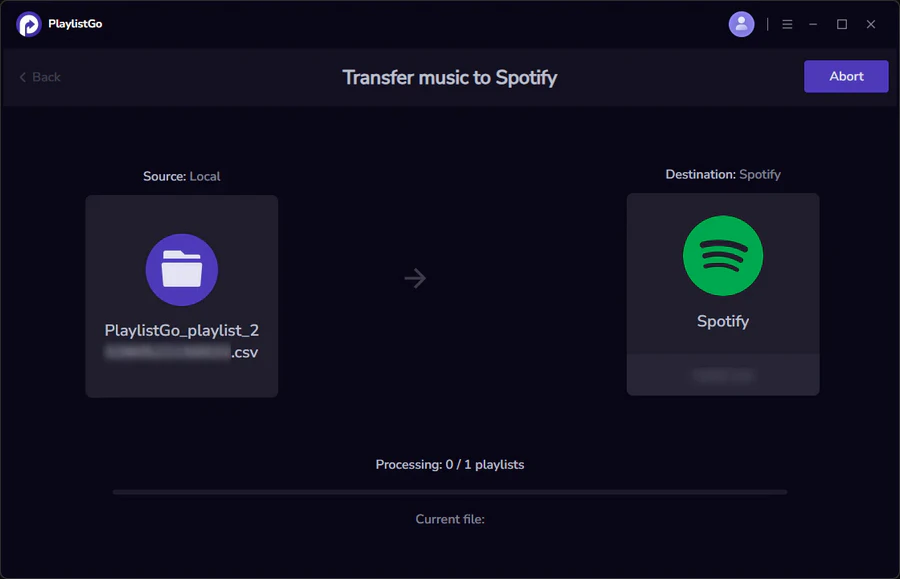
The result is a new playlist in your Spotify library matching your lost one. It will not be the original playlist — followers and old share link are lost — but you restore all tracks in one go. The whole process runs locally on your machine, so the library is never uploaded to a server.
7. How to Rebuild a Lost Spotify Playlist Without a Backup
Without a file, rebuilding depends entirely on how many traces the playlist left behind. Four sources are worth working through, roughly in order of how complete they tend to be.
Recovering Tracks From Shared Links and Messages
Anything you sent to another person is a copy you can still read. Search your messaging apps and email for open.spotify.com and for the playlist's name. If the link still resolves, the track list on the page gives you the running order to rebuild from.
Using Spotify Listening History or Last.fm Scrobbles
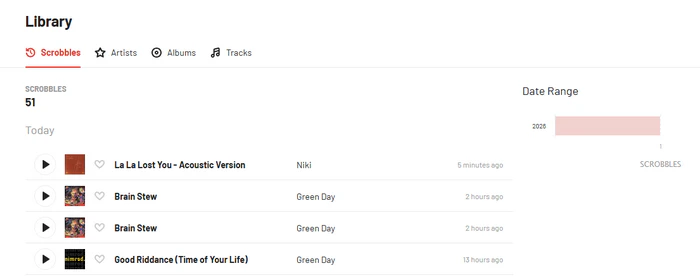
Spotify's listening history is limited but helpful. The queue and Recently Played section store your latest tracks, and frequent plays from the playlist may still show up. If you had Last.fm scrobbling enabled before losing the playlist, your listening history may help you identify tracks you played from it. Last.fm records timestamped listening activity, although it cannot guarantee a complete copy of the original playlist.
Rebuilding a Spotify Playlist Owned by Someone Else
If the playlist belonged to someone else, rebuilding it yourself is the only option, because deletion rights sit with the owner. Two things help: searching the exact name often might turn up a public copy someone saved, and if the owner restored it, the old link will work again. There's no way to recover a private playlist once its owner deletes it.
8. How to Back Up Spotify Playlists to Prevent Future Loss
To properly protect your Spotify library, save your own exported file locally and refresh it every so often.
PlaylistGo can export Spotify playlists in 10 formats, including CSV, XLSX, JSON, XML, M3U, M3U8, PLS, XSPF, and TXT. It also supports playlist transfers between major streaming services, with a 99.2% song matching rate.
Pick CSV for simple playlist backups you can quickly open, sort and edit in spreadsheets. Use M3U format to play playlists directly in almost any media player. Choose JSON to store complete metadata for scripts, though it cannot be loaded for direct playback.
Export a Local Copy Before the Next Deletion Try It Free
Ten export formats, offline by default — CSV, M3U, XLSX, JSON and more, written straight to your drive.
FAQ about Spotify Playlist Recovery
spotify.com/account/recover-playlists/ opens the same list in any mobile browser, and the restore completes as normal.
Conclusion
Spotify lets you recover a deleted playlist within 90 days. After that, the playlist is extremely difficult to restore.
The only permanent fix is keeping your own backup. With PlaylistGo, you can export the playlist as CSV, M3U or JSON, then recreate it in Spotify quickly with the original name and track order. Saving a copy on another music platform also helps — if the playlist gets deleted, you only need to sync it again instead of losing it for good.

PlaylistGo – Export, Back Up, and Rebuild Playlists
Save playlists to CSV, M3U, XLSX, JSON and six more formats, then import them back into Spotify or move them to Apple Music, YouTube Music, TIDAL, and others. 100% offline • No cloud required • 99.2% match rate



 Language ▴
