



Exporting a Spotify playlist to TXT turns your playlist's track list into a plain text file you can open, edit, print, or send to someone without needing the Spotify app at all. Since Spotify has no built-in "export to TXT" option, you can use a playlist export tool such as PlaylistGo, TuneMyMusic, or Chosic. We ran the same real playlist through several of these tools so you can see exactly what each one produces before picking one.

Can You Export a Spotify Playlist to TXT Directly from Spotify?
Spotify does not let you export a playlist directly to a TXT file from the app or the web player. There's no built-in "export" or "save as text" button anywhere in Spotify's interface. The closest native option is requesting your account data (Account > Privacy Settings > Download your data), but that returns your library information as JSON files rather than a readable TXT list, and the request can take several days to process.
The manual workaround some people use is selecting all tracks in a playlist on the Spotify desktop app, copying them (Ctrl+C / Cmd+C), and pasting them into a text editor. This only works on the desktop client, and it typically pastes Spotify track links rather than clean song titles and artist names.
What Information Does a Spotify TXT File Include?
Generally, a Spotify-to-TXT export includes, at minimum, the track title and artist name for every song in the playlist, listed in the same order as they appear in Spotify.
Beyond that baseline, coverage varies quite a bit depending on the tool:
- Album name
- Track duration
- Date added
- Spotify URI or track link — a unique identifier that can help identify or re-match the track later
- Additional metadata — such as popularity score, ISRC code, or explicit flag, which some more advanced exporters offer as optional fields
A simple export might look like this:
Song Title - Artist Name
Song Title - Artist Name
A more detailed export might look like this:
Which format you actually get comes down to the tool. Some prioritize a clean, human-readable list, while others prioritize completeness for backup or re-import purposes. The sections below show the real output of a few tools tested on the same playlist.
How to Export a Spotify Playlist to TXT
1. PlaylistGo — Spotify to TXT Exporter with 10 File Formats
PlaylistGo is a desktop app for Mac and Windows that can export Spotify playlists to 10 local file formats: M3U, M3U8, PLS, XSPF, XML, CSV, XLS, XLSX, JSON, and TXT. This makes it useful not only for creating a readable text backup, but also for moving playlist data into spreadsheets or media players. PlaylistGo can also move playlists between streaming services such as Apple Music, YouTube Music, TIDAL, and more.
PlaylistGo: Export Spotify Playlists to TXTTry It Free
Export your Spotify library to TXT and 10 file formats — including CSV, Excel, JSON, and M3U — all processed locally on your computer.
Steps to Export a Spotify Playlist to TXT with PlaylistGo
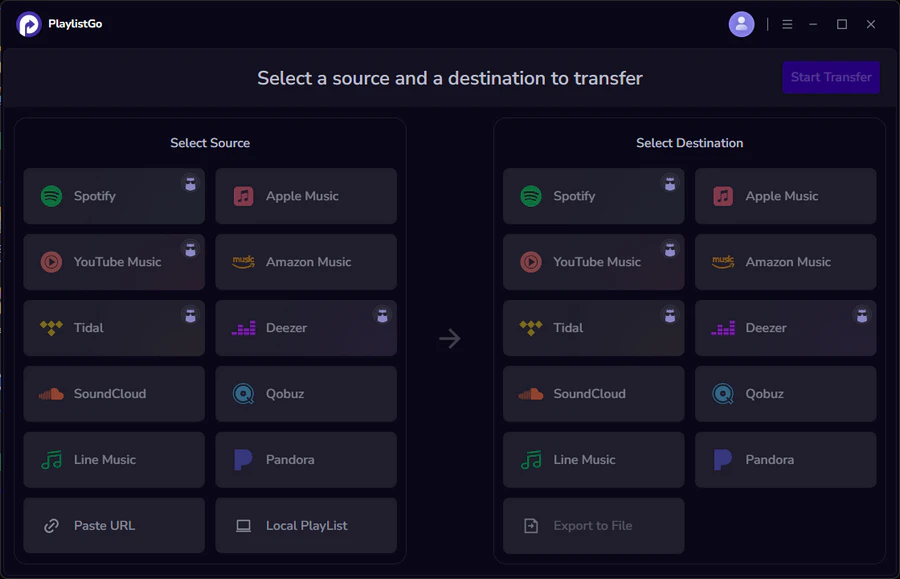
Connect Spotify and Select Playlists to Export
Open PlaylistGo and select Spotify as your source platform. Connect your Spotify account through Spotify's authorization flow, then allow the requested permissions. PlaylistGo will load your available library data, including playlists, Liked Songs, and albums.
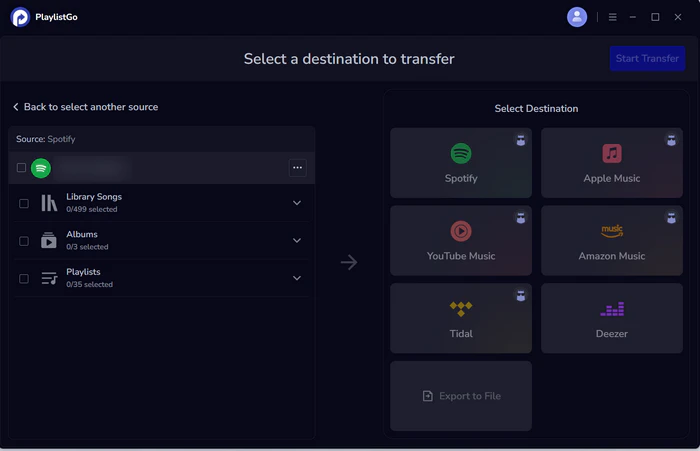
Choose TXT as the Export Format
In the destination area, select "Export to File", then choose TXT from the format options.
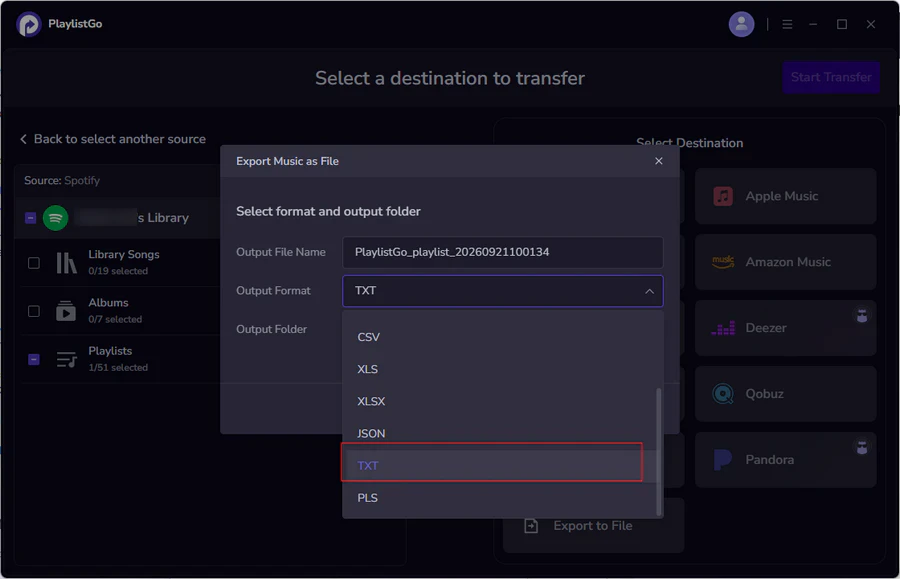
Export Spotify Playlists to TXT File
Click Start Transfer. The TXT file will be saved to your chosen location, ready to open, print, or share with anyone, Spotify account or not.
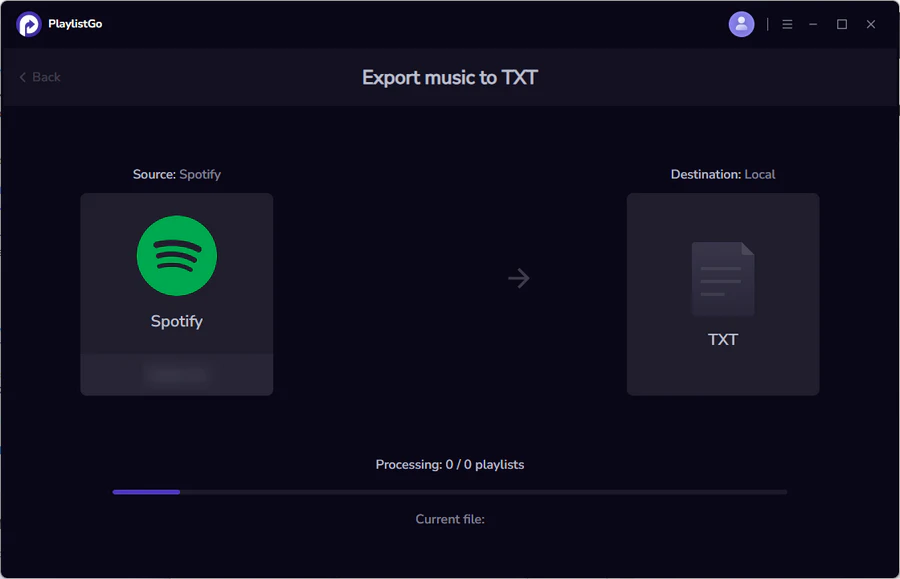
We ran this export on a real 65-song playlist to see what the output actually contains. Here's a simplified sample of the TXT structure:
In our test, the file opened with a two-line header naming the source platform and country, followed by one tab-separated row per track: track title, artist name, duration in milliseconds, album name, and Spotify track URI. The duration and URI fields provide more information than a simple "artist - title" list and can be useful for playlist backup or track matching. The trade-off is that the raw file is less immediately readable than a plain list, since the tab-separated columns may not line up neatly in a basic text editor.
2. TuneMyMusic — Web-Based Spotify to TXT Exporter
TuneMyMusic is a browser-based transfer service that supports moving playlists between dozens of streaming platforms, and it also lets you export a Spotify playlist, Liked Songs, albums or your entire library to TXT and CSV files.
To use it, you connect your Spotify account, select what you want to move, choose "Export to File" as the destination, and pick your format.
We tested it on the same playlist used above, and the output came back as a clean, minimal list:
Artist Name 2 - Track Title 2
Artist Name 3 - Track Title 3
Each line follows a simple "Artist - Track Title" format with no extra metadata, header, or track links. That keeps the file immediately readable and easy to paste into an email, a note, or a document.
3. Chosic Playlist Exporter — Free TXT Export for Public Spotify Playlists
Chosic's Playlist Exporter is a free web tool built specifically for exporting a single Spotify playlist by pasting in its public link — no Spotify account login is required for this method. It also offers a login option if you want to browse and export from your full library instead of one playlist at a time.

To use it, you paste a Spotify playlist URL into the tool, click Start, and choose whether to download the result as CSV or TXT. There's also an option to review and remove unwanted tracks before exporting.
We tested it with a public playlist link, and the TXT output matched TuneMyMusic's format almost exactly:
Artist Name 2 - Track Title 1
Artist Name 3 - Track Title 1
Like TuneMyMusic, Chosic outputs a plain "Artist - Track Title" list with no header or extra fields. Given that no login is required for a single public playlist, this is one of the fastest options if you just want a readable backup or something to paste into a message.
Comparison Table: PlaylistGo vs TuneMyMusic vs Chosic
| PlaylistGo | TuneMyMusic | Chosic Playlist Exporter | |
|---|---|---|---|
| Output file formats | M3U, M3U8, PLS, XSPF, XML, CSV, XLS, XLSX, JSON, TXT | TXT, CSV | TXT, CSV |
| Platform | Desktop app (Mac/Windows) | Web-based | Web-based |
| TXT output format | Tab-separated: title, artist, duration, album, Spotify URI | Plain "Artist - Title" list | Plain "Artist - Title" list |
| Includes track duration | ✅ | ❌ | ❌ |
| Includes Spotify URI/link | ✅ | ❌ | ❌ |
| Best for | Users who want detailed exports or may also migrate their library | Quick full-library export without installing software | Fast, no-login export of a single public playlist |
Ready to Export with Full Track Details?Try It Free
Get title, artist, duration, album, and Spotify URI in one clean TXT file — plus 9 other formats. Processed locally on your Mac or Windows.
What Can You Do with a Spotify TXT File?
Back Up a Spotify Playlist as a TXT File
A Spotify TXT file gives you a simple local copy of your playlist's track list. You can keep it as a backup in case you accidentally delete a playlist or a track later becomes unavailable on Spotify. Unlike keeping the playlist only inside your Spotify account, a local TXT file can be stored on your computer and opened without the Spotify app.
Share a Spotify Tracklist Without Sharing Your Playlist
Exporting a Spotify playlist to TXT is also useful when you only need to share the tracklist. You can send the text file to a friend, DJ, instructor, event organizer, or someone using a different music service. Since TXT is a basic text format, the recipient can open it with a standard text editor without installing a special playlist application.
Print or Reference a Spotify Playlist Offline
A TXT export can turn a Spotify playlist into a simple reference document for situations where you do not want to keep the Spotify app open. For example, DJs, instructors, or event organizers may want a printable tracklist that shows the songs in playlist order.
Reuse Spotify Playlist Data for Another Workflow
The usefulness of a Spotify TXT file depends on what information the export contains. A basic Artist-Title list is convenient for reading and sharing, while an export that includes Spotify track URIs, album names, and durations can be more useful for track matching, playlist migration, or further processing. If you plan to sort, filter, or analyze the data, CSV or Excel may be more suitable than TXT.
Troubleshooting Spotify to TXT Export Issues
Spotify Playlist Won't Load in the TXT Export Tool
Link-based tools such as Chosic may require the playlist to be public. If a public playlist link still does not work, try opening the playlist in Spotify first and copying its current URL again.
Some Tracks Are Missing from the Spotify TXT Export
A Spotify TXT export may contain fewer tracks than the original playlist when some songs are no longer available through Spotify's catalog. Licensing changes, regional availability, removed releases, and other catalog changes can affect which tracks an export tool can retrieve.
The Exported TXT File Looks Messy or Misaligned
Not every TXT export is designed to look like a neatly formatted document. Some tools use a simple Artist-Title format, while others use tab-separated fields containing information such as title, artist, album, duration, and Spotify URI. If columns look misaligned in Notepad or another basic text editor, try opening the file in a spreadsheet application that can recognize tab-separated data.
Special Characters Look Incorrect in the TXT File
If artist names or song titles containing accents, symbols, or non-English characters appear incorrectly, the problem may be related to text encoding. Try reopening the TXT file with UTF-8 encoding enabled in your text editor. If the same problem occurs across different applications, check whether the export tool provides an encoding option or a different output format such as CSV.
TXT vs CSV: Which Format Should You Choose?
TXT and CSV serve different purposes, even though most tools offer both from the same export flow.
Choose TXT if you want a simple, human-readable list. You can open it in Notepad, paste it into a message, or print it without any setup. TXT is the better choice for sharing a tracklist casually or keeping a lightweight visual backup.
Choose CSV if you plan to open the file in a spreadsheet program like Excel or Google Sheets, sort or filter by column, or reuse the data in another tool. CSV is usually more convenient for analysis, bulk editing, or workflows that require structured columns, since it organizes data into clearly defined columns including title, artist, album, and duration.
Need More Than a Simple Tracklist?Try It Free
Export to TXT for quick sharing, or switch to CSV / Excel / JSON when you need structured data. PlaylistGo supports all of them in one click.
Frequently Asked Questions
Conclusion
Spotify doesn't offer a native way to export a playlist to TXT. The right option depends on what you need from the exported file. TuneMyMusic and Chosic produce a simple "Artist - Title" list that works well for quick sharing or reference. PlaylistGo exports additional fields such as duration, album, and Spotify URI, while also supporting nine other local file formats for users who need more detailed playlist data or want to reuse the library in another workflow.

PlaylistGo – Best Desktop Transfer Tool
The fastest and most reliable way to move entire Spotify library to Apple Music, YouTube Music, TIDAL, etc. 100% offline • No Cloud Required • 99.2% success rate


 Language ▴