Thinking about switching from Apple Music to Spotify? Good News! In 2026, there are many tools that can help you move your entire Apple Music library—including liked songs, saved albums, and custom playlists—to Spotify in just a few clicks.
In this complete guide, we'll compare Apple Music and Spotify side by side, then walk you through the best methods to transfer music from Apple Music to Spotify, using desktop software, mobile apps, and web-based tools. Whether you have 100 songs or 10,000+ tracks, we've got you covered. Let's get started!

Part 1. Apple Music vs Spotify: Which One is Better?
Apple Music and Spotify are both major music platforms, each with its own strengths and weaknesses. Apple Music offers higher audio quality, a cleaner interface, professionally curated playlists, and seamless integration with the Apple ecosystem, making it ideal for users who value superior sound and carefully curated content. Spotify, on the other hand, is compatible with a wider range of devices and provides strong personalized recommendations through “For You” playlists and user-generated playlists. Its rich social features make it perfect for users who enjoy discovering new music regularly and interacting with others.
| Category | Apple Music | Spotify |
|---|---|---|
| Supported Platforms |
iOS, Android, Windows, macOS, Web Apple TV & more (No Linux) |
iOS, Android, Windows, macOS, Linux, Web 2000+ devices |
| Music Quality |
AAC 256 kbps Lossless (ALAC) 16-bit / 44.1 kHz Hi-Res Lossless up to 24-bit / 192 kHz |
AAC (128/256 kbps) Up to 320 kbps (Ogg Vorbis) Lossless available (FLAC) |
| Offline Download | No limits clearly stated |
Up to 10,000 tracks per device Up to 5 devices |
| User Interface |
Clean design Apple ecosystem integration |
Dark theme Easy navigation & search |
| Playlist Curation |
Curated playlists Exclusive artist content |
Rich user-generated playlists More personalized “For You” playlists |
| Music Recommendation |
Improving recommendations |
Discover Weekly Release Radar DJ Feature and more |
| Library Management |
iCloud Music Library sync Upload up to 100,000 songs Metadata editing supported |
Limited local file support No wireless sync to mobile |
| Social Features |
Replay, SharePlay Collaborative playlists |
Wrapped, Blend, Jam Collaborative playlists |
| Pricing (US / Month) |
Student $5.99 Individual $10.99 / Family $16.99 |
Free / Student $5.99 Individual $11.99 / Family $19.99 |
| Best For | Lossless quality, iCloud library, Apple users | Discovery, social listening, device compatibility |
Part 2.Best Way to Transfer Large Apple Music Library to Spotify
If you have a large Apple Music library with thousands of tracks or liked songs, the most reliable way to transfer your music between streaming platforms is by using desktop software. Desktop applications offer faster transfer speeds, more accurate song matching, and better security to ensure your privacy.
PlaylistGo is a desktop music transfer application for Windows and Mac users. It is designed to help you seamlessly move your music library across major streaming platforms, including Apple Music, Spotify, YouTube Music, Amazon Music, Tidal, Deezer, and more. With PlaylistGo, you can transfer your entire music library, liked songs, saved playlists, or albums in one go!
PlaylistGo also allows you to import local music files or export them in various formats, including CSV, JSON, M3U, TXT, and more. All data is processed locally on your computer, ensuring that nothing is uploaded to external servers. Fast, secure, and effortless — manage and transfer your music library in one easy click.
Download PlaylistGo 100% Free to start
Safely download entire playlists from Spotify, YouTube, Apple Music and 50+ platforms
How to Transfer Apple Music Playlist to Spotify? [Step-by-Step]
After your subscription to Apple Music cancels, any songs or playlists created in the Apple Music will no longer be available.Please make sure you have valid Apple Music subscription before transferring the songs or playlists.
Download PlaylistGo on Your Computer
Download and install PlaylistGo on your laptop. Launch the program to enter the main interface.
PlaylistGo supports importing music from Spotify, Apple Music, YouTube Music, Amazon Music, Tidal, Deezer, Playlist URLs, and local music files on your computer.
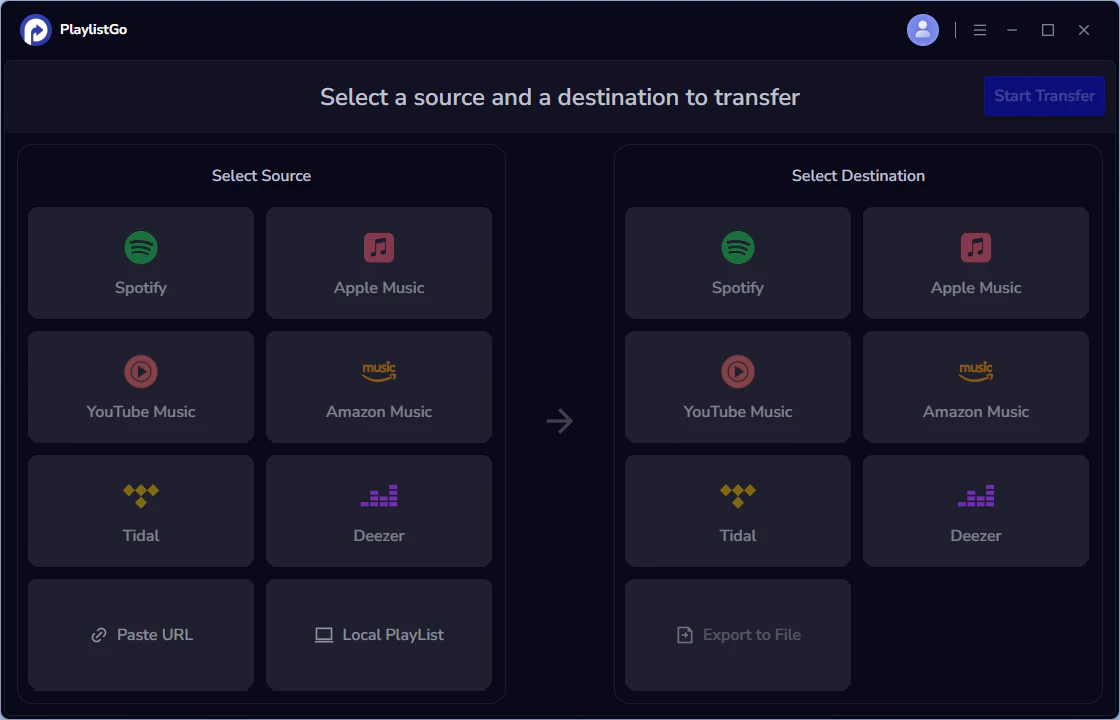
Select the Source Platform
Choose Apple Music as the source platform, then sign in to your Apple Music account. PlaylistGo will automatically load your entire Apple Music library, including your albums, songs, and all playlists. Select the content you want to transfer.
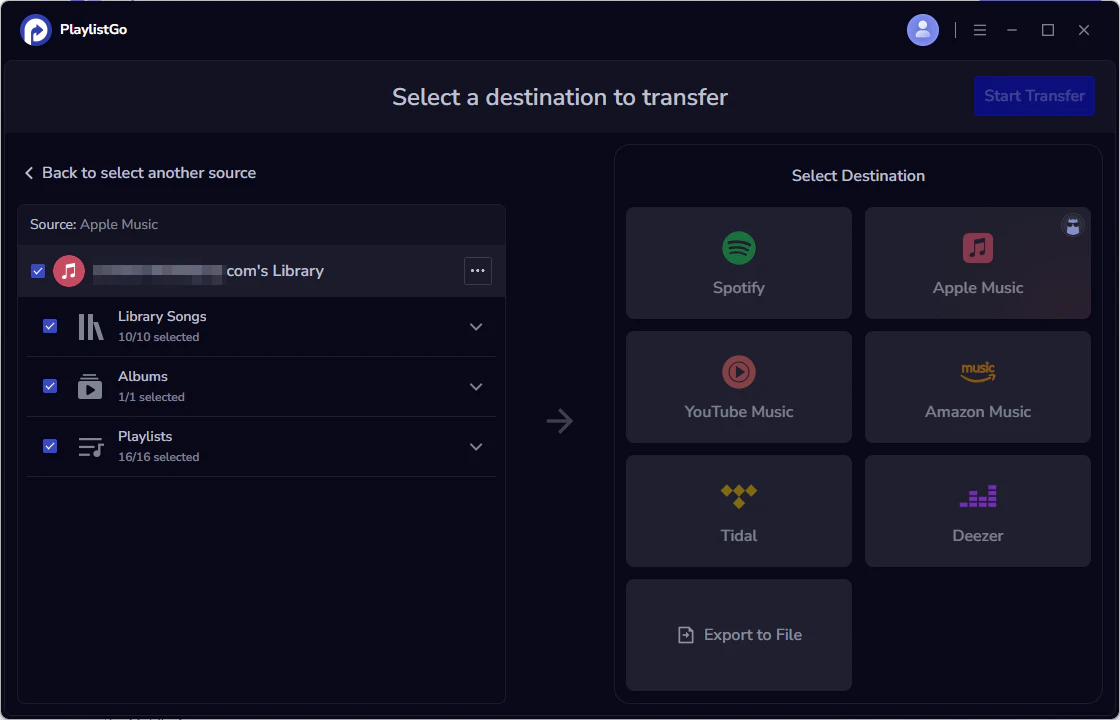
Select the Destination Platform
Choose Spotify as the destination platform, then log in to your Spotify account.
PlaylistGo also supports exporting music to YouTube Music, Amazon Music, Tidal, Deezer or local files in various format: M3U, M3U8, XSPF, XML, CSV, XLS, XLSX, JSON, TXT, PLS,
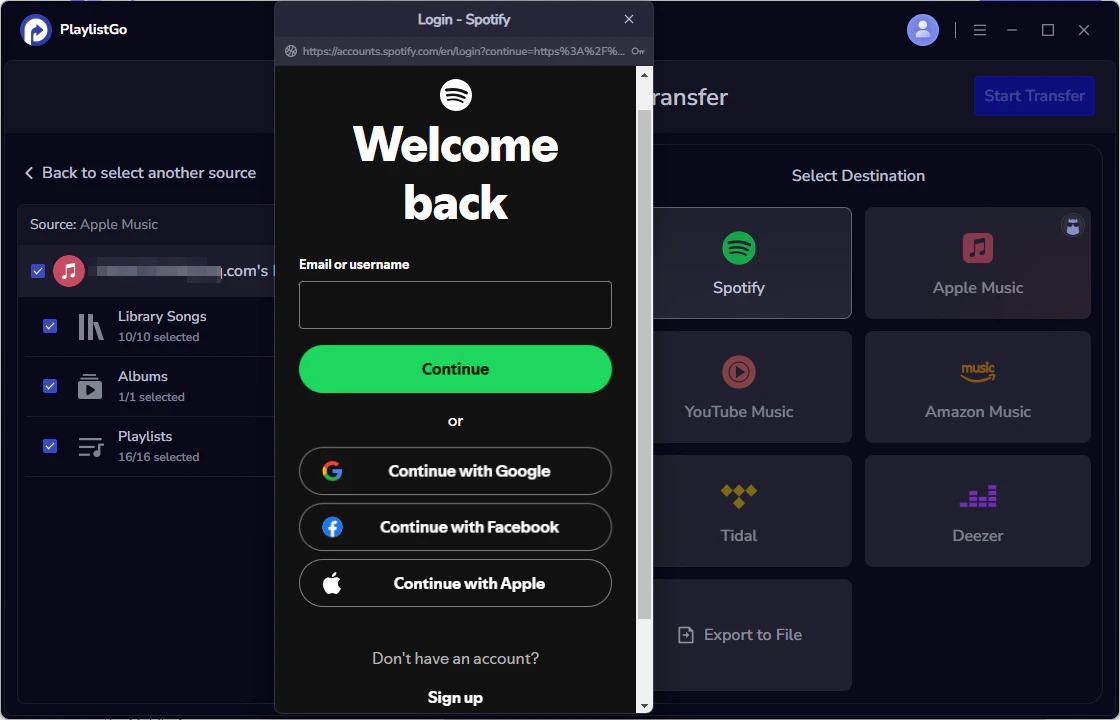
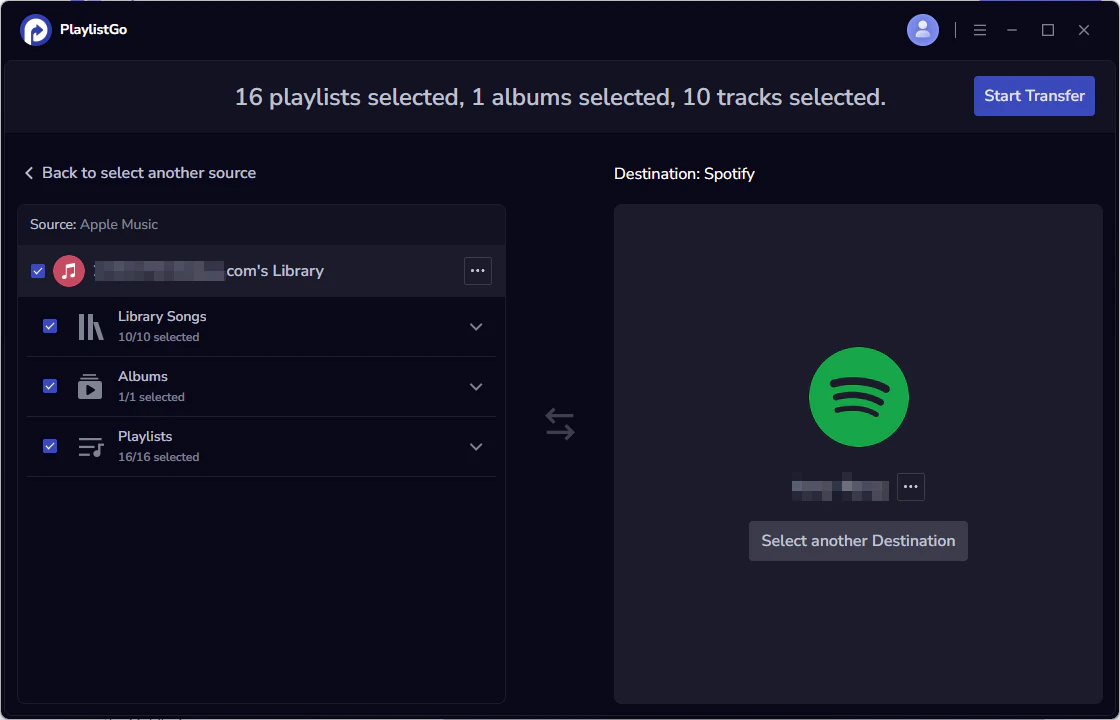
Start the Transfer Process
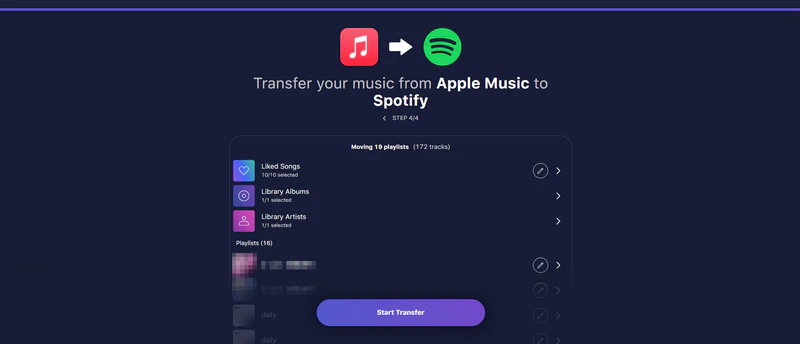
Click Start Transfer. PlaylistGo search for matches and display the number of songs found along with the matching progress.
Complete the Transfer
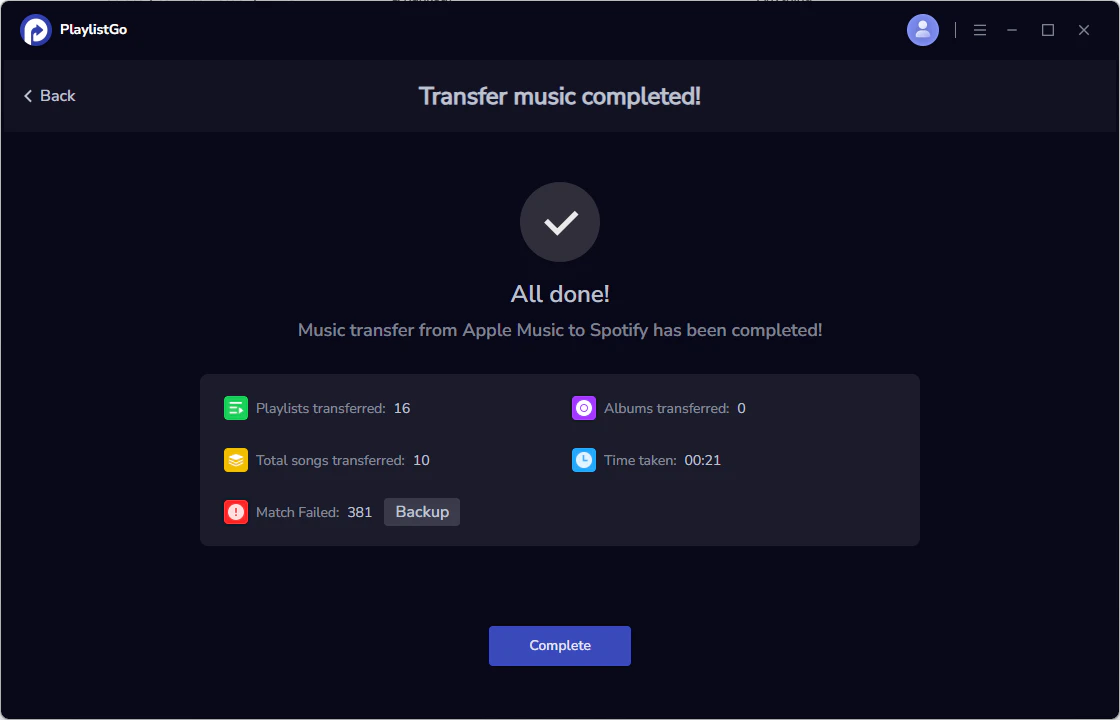
Once matching is finished, click Next. Your playlists will be transferred to Spotify within seconds. All done. Your Apple Music playlists have now been successfully moved to Spotify!
Part 3. Tested Ways to Transfer Apple Music Playlists to Spotify
Best Way to Transfer Music from Apple Music to Spotify in iPhone
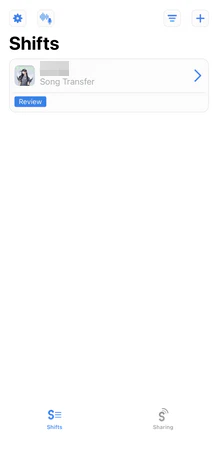
SongShift is a music transfer tool that only available on iOS devices, such as iPhone, iPad. It allows users to transfer albums, songs, and playlists from one music platforms to another. Songs in Apple Music can be easily transferred to Spotify, YouTube Music, Amazon Music and more. SongShift offers both free and paid version, with the free version having limitations on the number of playlists you can transfer and the speed of the migration.
How to Transfer Apple Music Playlists to Spotify in iPhone?
Free Download Songshift in the App Store
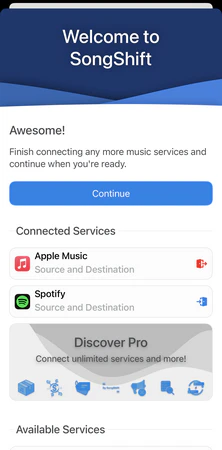
You can free download SongShift to your iPhone, iPad. Open Apple Music and Spotify and log into both your Apple Music and Spotify account.
Create a Shift
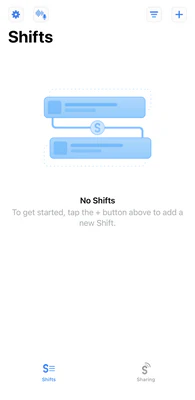
Tap the "+" button in the top-right corner, select Apple Music as the source, and choose the playlist you want to transfer.
Select What to Transfer
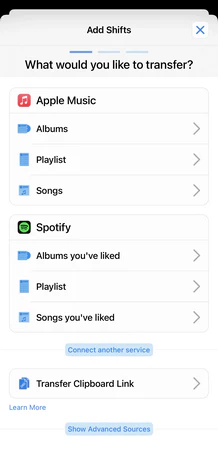
Select album, playlist or song in Apple Music that you want to transfer to Spotify. You can either create a new playlist or add the songs to an existing playlist.
Review and Confirm
SongShift will automatically match the songs. Review the matches, manually fix any unmatched tracks if needed, and then click Confirm to start the transfer.
Best Way to Transfer Apple Music Playlists to Spotify Online
TuneMyMusic is a web-based tool for music transfer and synchronization, meaning all data must be uploaded to the cloud and cannot be stored on the local computer. It supports to transfer playlist, liked song, album or music library between popular platforms such as Spotify, Apple Music, YouTube Music, Amazon Music, Deezer, and Tidal. TuneMyMusic offers both free and paid version while the free version offers a limited number of transfers, up to 500 songs.
How to Transfer Music from Apple Music to Spotify Online?
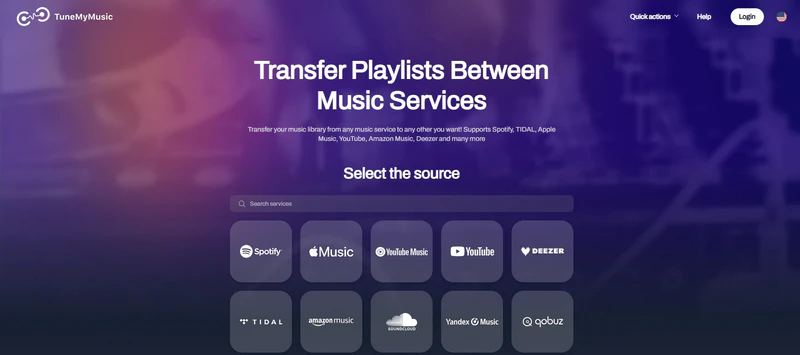
Open the TuneMyMusic website
Enter tunemymusic.com. And select Apple Music as the source platform
Log in Apple Music Account
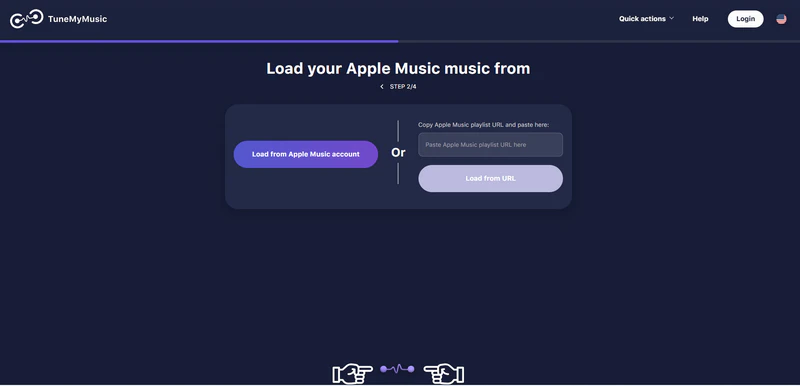
Log into your Apple Music account or paste Apple Music playlist URL. Load the content you want to transfer.
Select the Apple Music Content
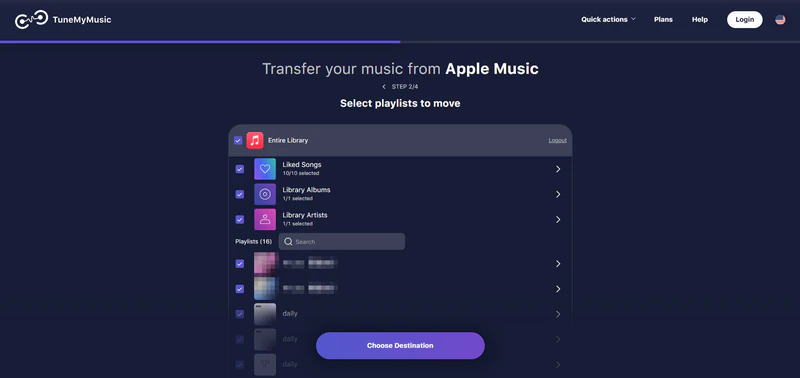
Choose the entire music library, albums, liked songs, or albums you want to transfer.
Choose the Destination Platform
Select Spotify as the target music service and authorize TuneMyMusic to access it.

Start the Music Transfer
Click "Start transfer" and relax while the transfer completes. Once the transfer is complete, you can enjoy your music on Spotify
Part 4. Can I Transfer My Apple Music to Spotify for Free?
Yes, you can transfer your Apple Music playlists to Spotify for free! There are several methods available, though free options come with certain limitations.
| Transfer Tool | Platform | Free Version Limits | Best For |
|---|---|---|---|
| PlaylistGo | Desktop (Windows / macOS) | Transfer up to 10 albums or playlists for free | Transferring large music libraries or multiple playlists at once |
| SongShift | Mobile (iOS) | Slower transfer speed in the free version | iPhone users transferring a few songs daily |
| TuneMyMusic | Web-based | Transfer up to 500 songs for free | Users with small music libraries |
Conclusion
It is always not complicated to transfer your Apple Music playlist to Spotify! With the right music transfer tool, you can move the entire music collection in one go. If you have a large music library with thousands of tracks or need to transfer multiple playlists at once, PlaylistGo is the best choice. It processes everything locally on your computer, ensuring fast speeds, high matching accuracy, and complete data privacy. For iPhone users who only need to move a few playlists, SongShift is a convenient mobile option.
No matter which method you choose, you no longer have to worry about losing your favorite music when switching platforms. Say goodbye to manual playlist recreation and hello to a seamless music transfer experience!

PlaylistGo – Best Desktop Transfer Tool
The fastest and most reliable way to move your entire Spotify library to Apple Music, YouTube Music, TIDAL, etc. 100% offline • One-time payment • 99.7% success rate