

PlaylistGo lets you export and back up playlists from major music streaming services to local files. PlaylistGo currently supports 10 export formats: M3U, M3U8, PLS, CSV, XLSX, XLS, JSON, XML, XSPF, and TXT. Follow the steps below to export your playlists to a local file.
Example: Spotify to CSV export. The same steps apply to any supported platform and file format.
Step 1: Download and Launch PlaylistGo
Download and install PlaylistGo on your Windows or Mac computer. Open the program to enter the main interface.
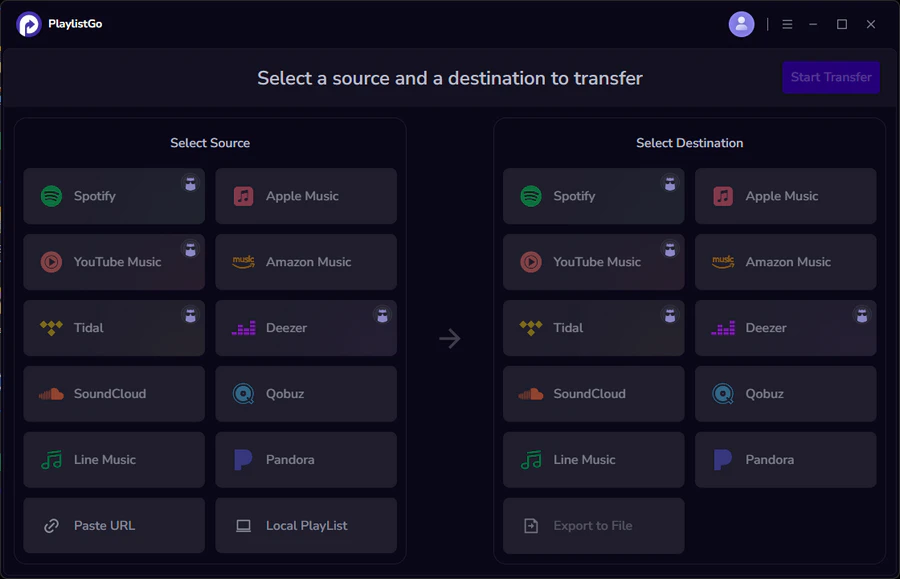
Step 2: Select Spotify as the Source Platform
Choose Spotify as the source platform and sign in to connect your account. PlaylistGo will load your Spotify library on the left panel.
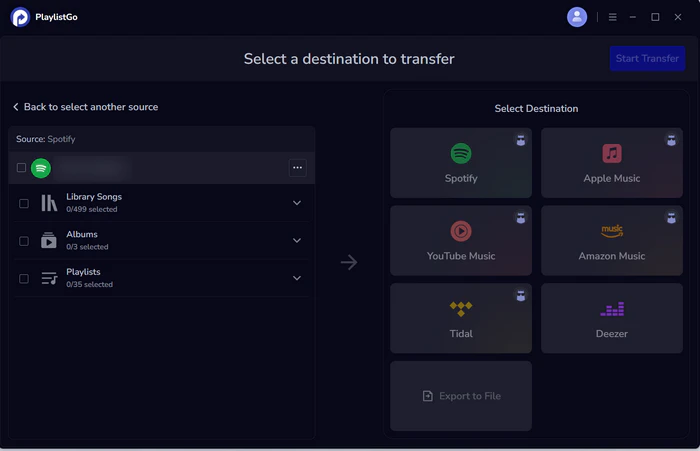
Step 3: Select Content and Set Export Options
Browse your Spotify library and select the songs, albums, or playlists you want to export. On the right side, choose Export to File, set the output format, edit the file name if needed, and select the destination folder.
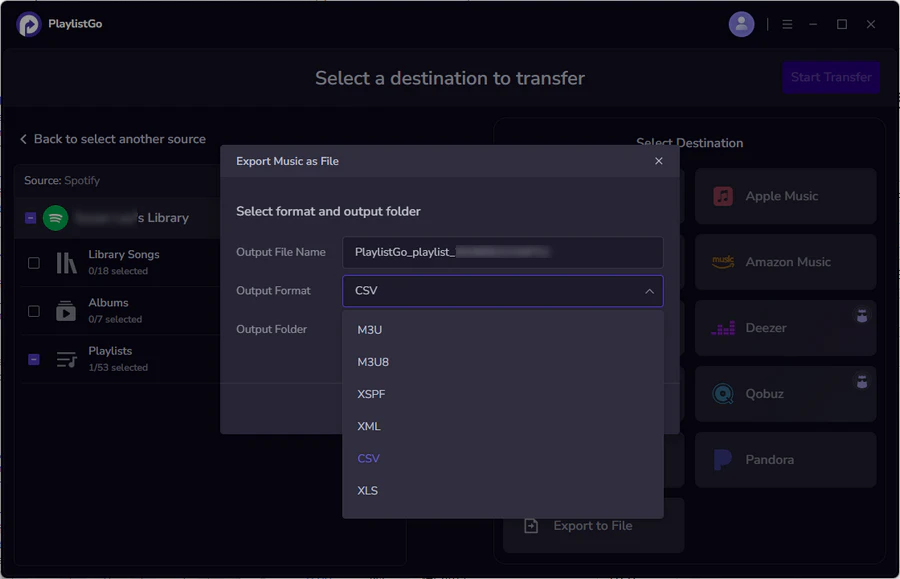
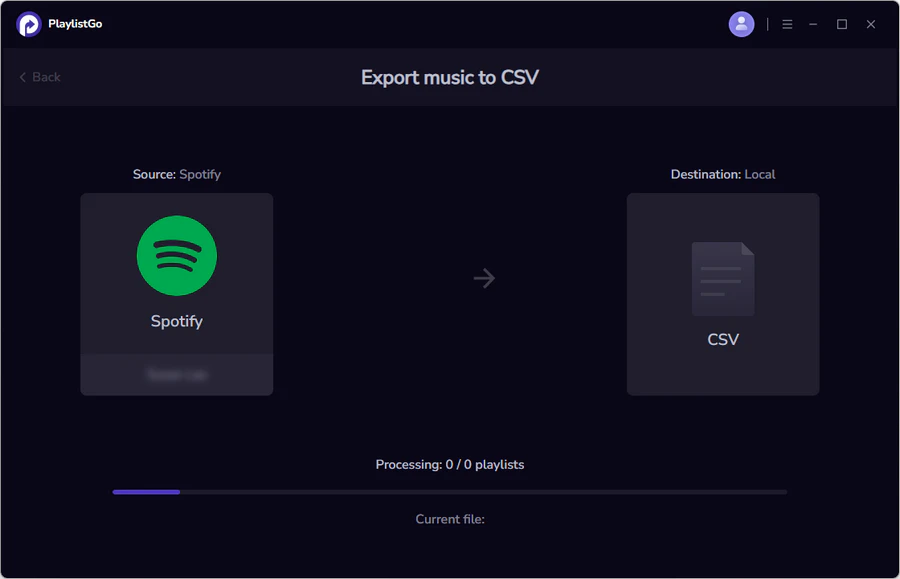
Step 4: Start Export and Confirm Results
Click Export to begin. PlaylistGo will process and save your selected playlists to the chosen local file format. Once complete, click Complete to finish.
💡 Note: Songs not found on the platform will be clearly marked. You can manually search for alternatives, skip them, or back them up as local files for safekeeping.


 Language ▴