

PlaylistGo lets you import local playlist files directly into major music streaming services with accurate song matching. PlaylistGo currently supports 10 file formats: M3U, M3U8, PLS, CSV, XLSX, XLS, JSON, XML, XSPF, and TXT. Follow the steps below to import your local playlist to a streaming platform.
Example: CSV to Apple Music import. The same steps apply to any supported file format and platform.
Step 1: Download and Launch PlaylistGo
Download and install PlaylistGo on your Windows or Mac computer. Open the program to enter the main interface.
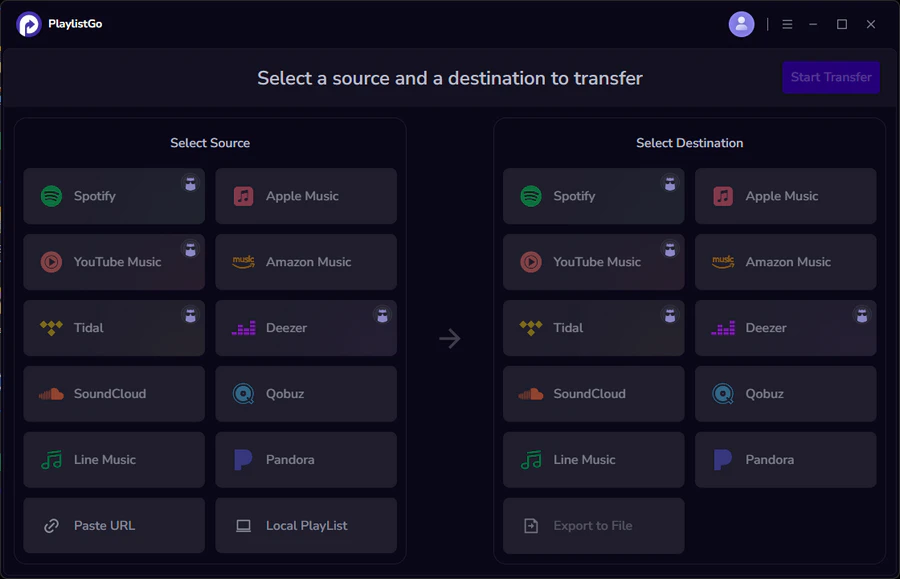
Step 2: Choose Local Playlist as Source and Add Your CSV File
On the main interface, select Local Playlist as the source. Click Add File and choose your CSV file, or drag and drop it directly into PlaylistGo. The track list will load automatically.
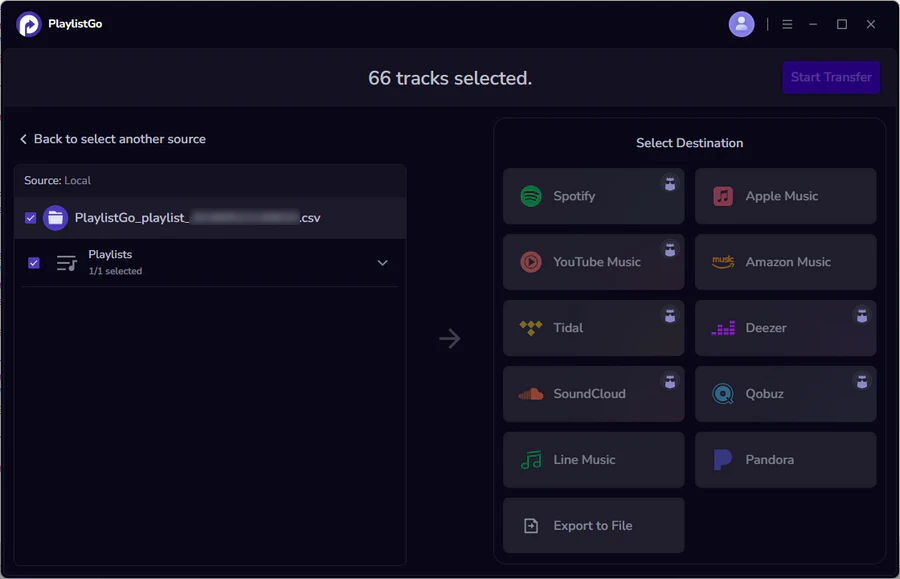
Step 3: Select Apple Music as the Target Platform
Choose Apple Music as the target platform and sign in to authorize access. PlaylistGo will set Apple Music as the destination for your import.
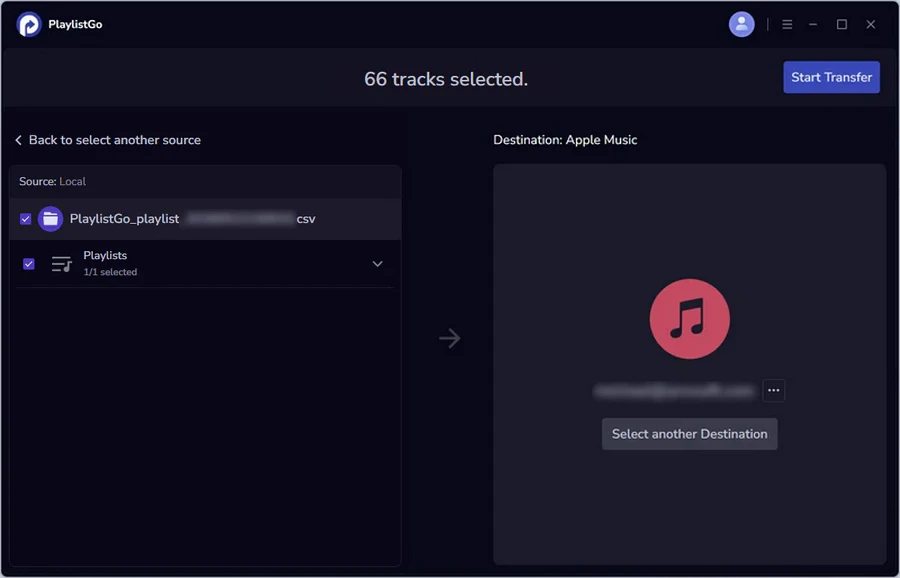
Step 4: Start Transfer and Confirm Results
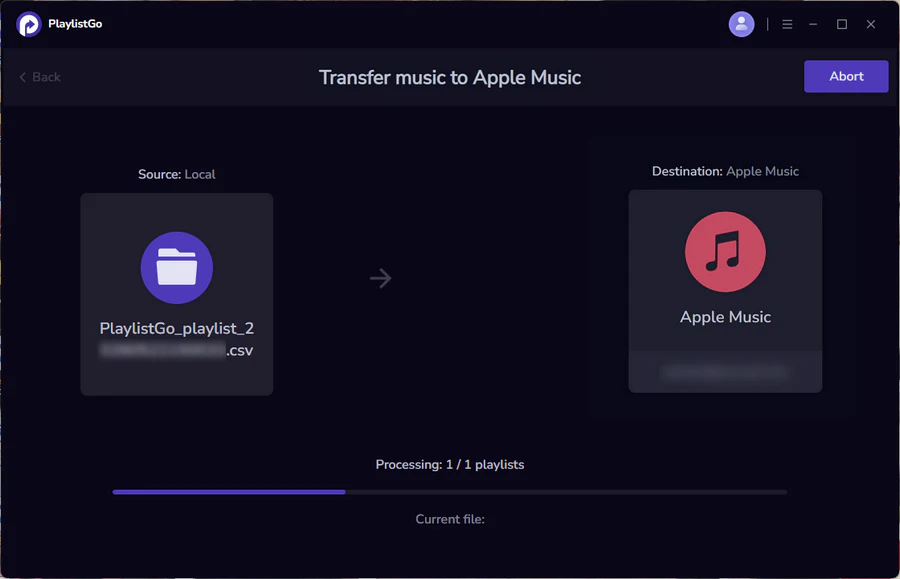
Click Start Transfer. PlaylistGo will automatically match your CSV tracks to Apple Music and begin the import. Once complete, the playlist will appear in your Apple Music library. If any tracks failed to match, click Backup to save the results for review.


 Language ▴