

For users looking to bulk import playlist data into their Apple Music library, importing CSV Playlists is a straightforward and practical solution. However, a key limitation exists: Apple Music offers no official support for direct CSV file imports. To bridge this gap and successfully sync CSV-based playlist data to Apple Music, users need to use reliable third-party tools or software. This article breaks down a comprehensive, step-by-step guide to help you efficiently migrate, organize, and manage your playlists — all while streamlining and enhancing your overall Apple Music library experience.
Part 1: What Is CSV? Why Import CSV Playlists to Apple Music?
CSV (Comma-Separated Values) is a simple, universal file format used to store structured data in plain text. In its most basic form, each line in a CSV file represents a single record (like a song), and each piece of information within that record (like the title, artist, or album) is separated by a comma. Virtually every spreadsheet program and text editor can open and edit CSV Playlists, making it the go-to format for exporting and transferring lists and databases between different applications and platforms.
Importing a CSV file is a critical workaround for bulk playlist management. Manually recreating a playlist of hundreds or thousands of songs by searching and adding each one individually in Apple Music is an impractical, time-consuming task. A CSV import automates this process. Importing CSV Playlists is not just about moving song titles; it's about transferring a personalized music library and saving dozens of hours of manual labor, effectively bridging the gap between the data users have and the service they want to use.
Part 2: How to Import CSV Playlists to Apple Music?
For those seeking a quick and straightforward way to import CSV Playlists into Apple Music, a trustworthy tool is necessary. Since Apple Music officially does not support CSV imports, a third-party solution like PlaylistGo is often a more practical choice for managing multiple playlists or fulfilling more complex import needs.
PlaylistGo enables seamless playlist transfers between popular music platforms like Apple Music, YouTube Music, Spotify, Tidal, Deezer, and Amazon Music. It even supports importing local playlists, breaking the limits of online-only transfers. The tool also offers flexible import and export in formats including M3U, M3U8, PLS, XSPF, XML, CSV, XLS, XLSX, JSON, and TXT, making offline backup and data management simple and efficient.
Download PlaylistGo 100% Free to start
Safely download entire playlists from Spotify, YouTube, Apple Music and 50+ platforms
Part 3: How to Import CSV Playlists to Apple Music with PlaylistGo?
Launch PlaylistGo
Download and launch PlaylistGo on your computer.

Import Local Playlist to PlaylistGo
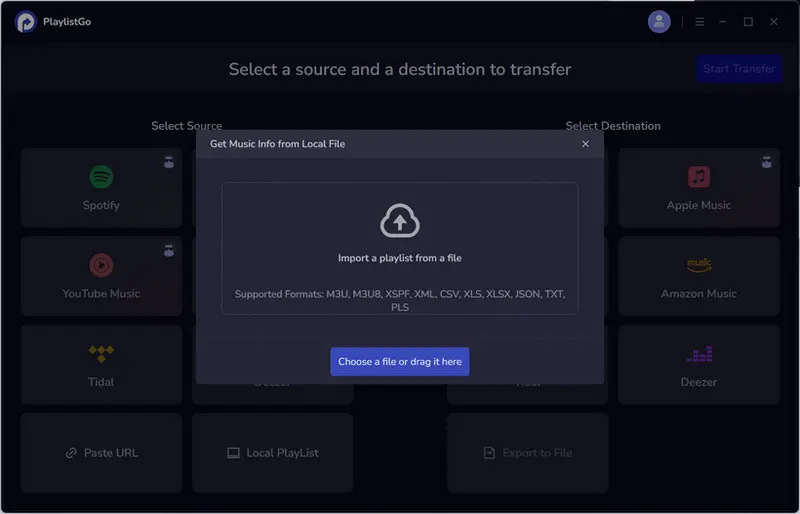
Select Local Playist as the source platform and choose your CSV Playlists. The program will load your files in seconds.
Select Your Destination Music Platform
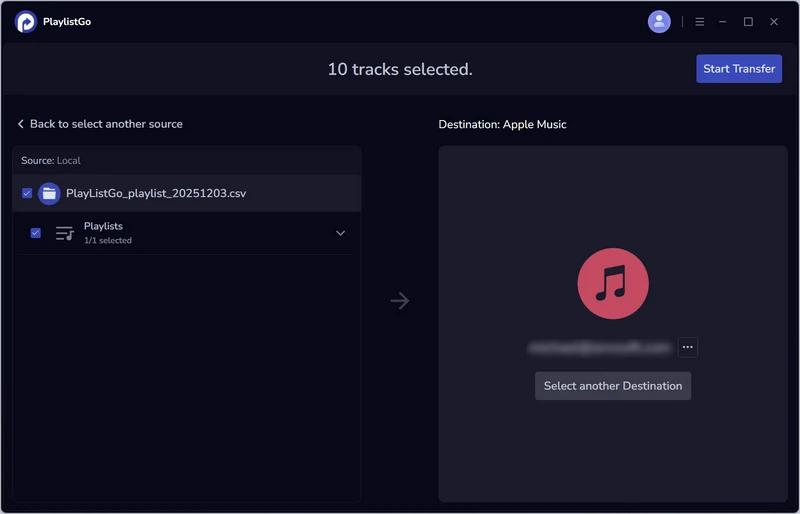
Select Apple Music in the destination platform options and log in to your Apple Music account.
Start Importing CSV Playlists to Apple Music
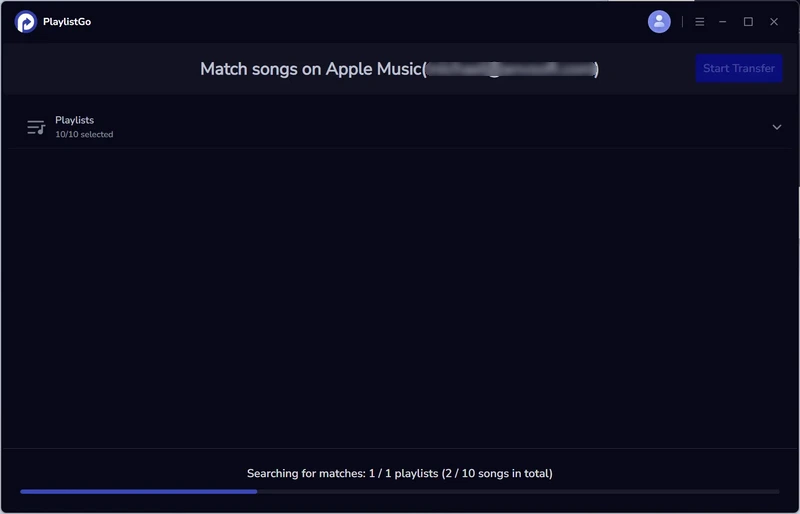
Click the Start Transfer button. This program will match your selected CSV Playlists with Apple Music. Then click the Start Transfer button again to begin the transfer. After the transfer is complete, log in to Apple Music and check your playlists to ensure all songs have been successfully imported.
By following the steps above, you've successfully imported your CSV Playlists to Apple Music. Now, you can enjoy your music anytime, anywhere without needing to reorganize anything.
FAQs about Importing CSV Playlists to Apple Music
Conclusion
Importing a CSV file to Apple Music is a straightforward process with PlaylistGo. Simply upload your CSV file, which should contain track and artist information, and securely connect your Apple Music account. PlaylistGo will then match the songs from your file with Apple Music's catalog and create a new playlist in your library, preserving your intended order. This method offers a seamless way to migrate your carefully curated playlists directly into Apple Music.

PlaylistGo – Best Desktop Transfer Tool
The fastest and most reliable way to move your entire Spotify library to Apple Music, YouTube Music, TIDAL, etc. 100% offline • One-time payment • 99.7% success rate


