

Tidal attracts numerous music lovers with its high-quality audio and rich collection of exclusive content, while Apple Music has won over a wide user base with its seamless integration with Apple devices and its vast music library. Because of Apple Music’s unique ecosystem and features, you may want to transfer your Tidal playlists to Apple Music to continue enjoying your favorite music.
This article will show you how to quickly and securely transfer your Tidal playlists to Apple Music on computer, online, and mobile phone, ensuring an uninterrupted music experience.
Part 1. Can You Transfer Tidal Playlists to Apple Music Directly?
You might be wondering: Is it possible to directly transfer playlists from Tidal to Apple Music? Currently, there's no official direct playlist transfer feature between the two platforms, so you can't directly import Tidal playlists into Apple Music.
However, this doesn't mean it's impossible. Using third-party tools like PlaylistGo or online tools, you can match song information from your Tidal playlists and quickly create identical playlists in Apple Music. This way, even if you switch platforms, you can still continue to enjoy your original music collection.
Part 2. Best Way to Transfer Tidal Playlists to Apple Music
If you want to quickly and stably transfer your Tidal playlists to Apple Music, the best way is to use a professional playlist transfer tool. PlaylistGo is a practical solution that helps you transfer playlists between different music platforms with one click.
PlaylistGo supports transferring playlists across multiple major streaming platforms, including Tidal, Apple Music, Spotify, YouTube Music, Amazon Music, and Deezer. Furthermore, PlaylistGo not only transfers playlists between streaming platforms but also supports importing local playlists to streaming platforms. It also provides playlist backup and export functions, supporting export of playlists to various formats such as M3U, M3U8, PLS, XSPF, XML, CSV, XLS, XLSX, JSON, and TXT for long-term storage.
Download PlaylistGo 100% Free to start
Directly Transfer Your Entire Music Library between All Major Streaming Platforms
How to Transfer Tidal Playlists to Apple Music? [Step-by-Step]
PlaylistGo is very easy to use, even beginners can get started quickly.
Run PlaylistGo on Your Computer
Install and open PlaylistGo on your Windows or Mac computer.
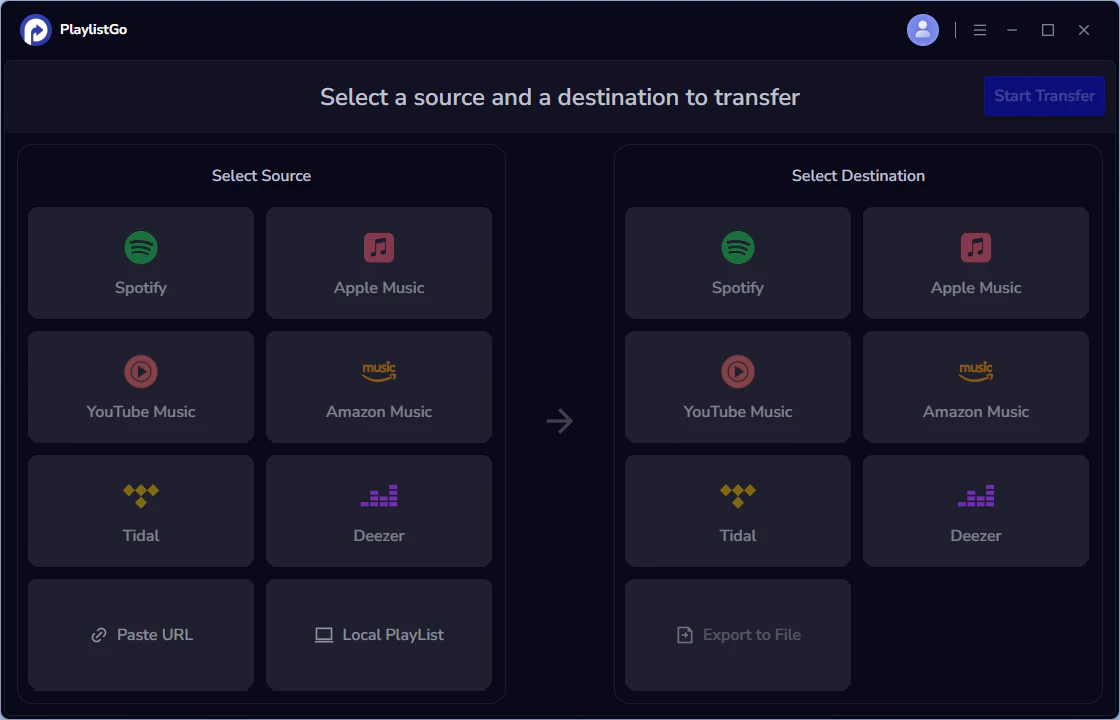
Select Tidal as the Source Music Platform
Choose Tidal as the source platform and log in to your Tidal account. Once logged in successfully, all your Tidal library will load automatically.
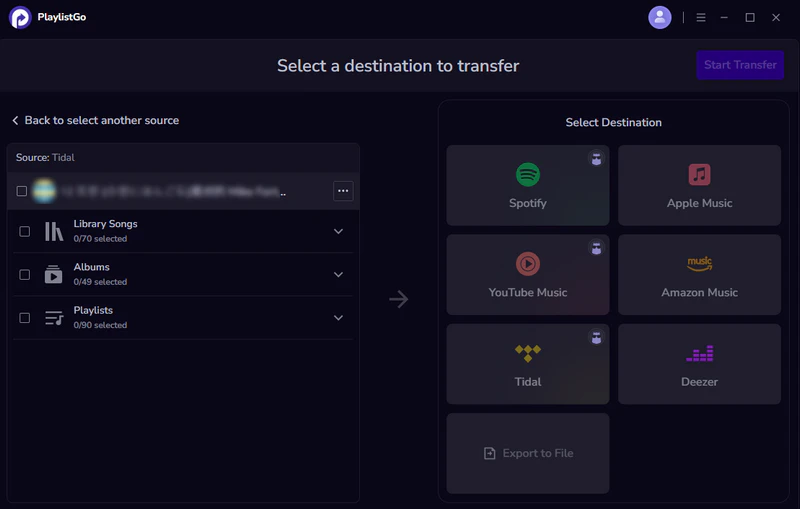
Select Apple Music as the Destination Music Platform
Choose Apple Music as the destination platform, then log in to your Apple Music account.
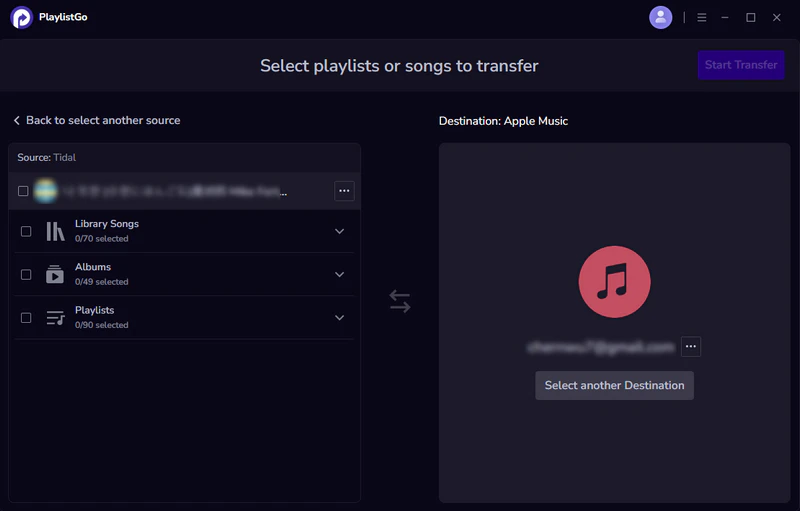
Start the Transfer Process
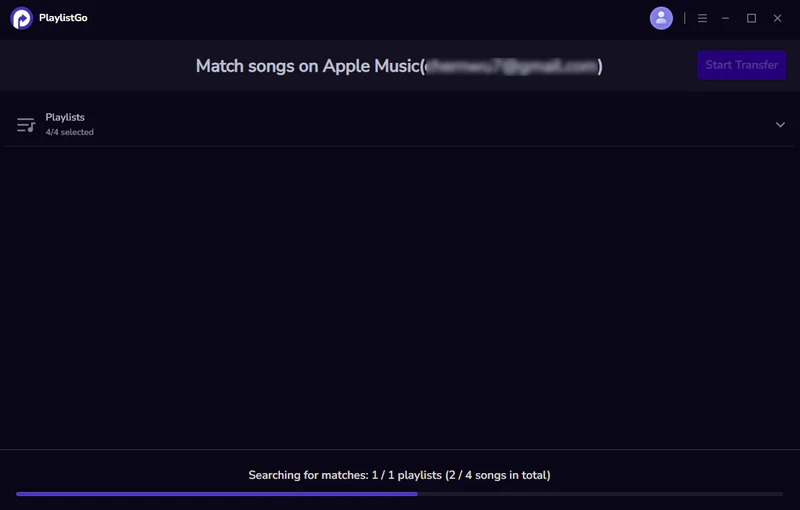
Select the playlists you want to transfer, click "Start Transfer", and PlaylistGo will match the songs on Apple Music.
Complete the Transfer
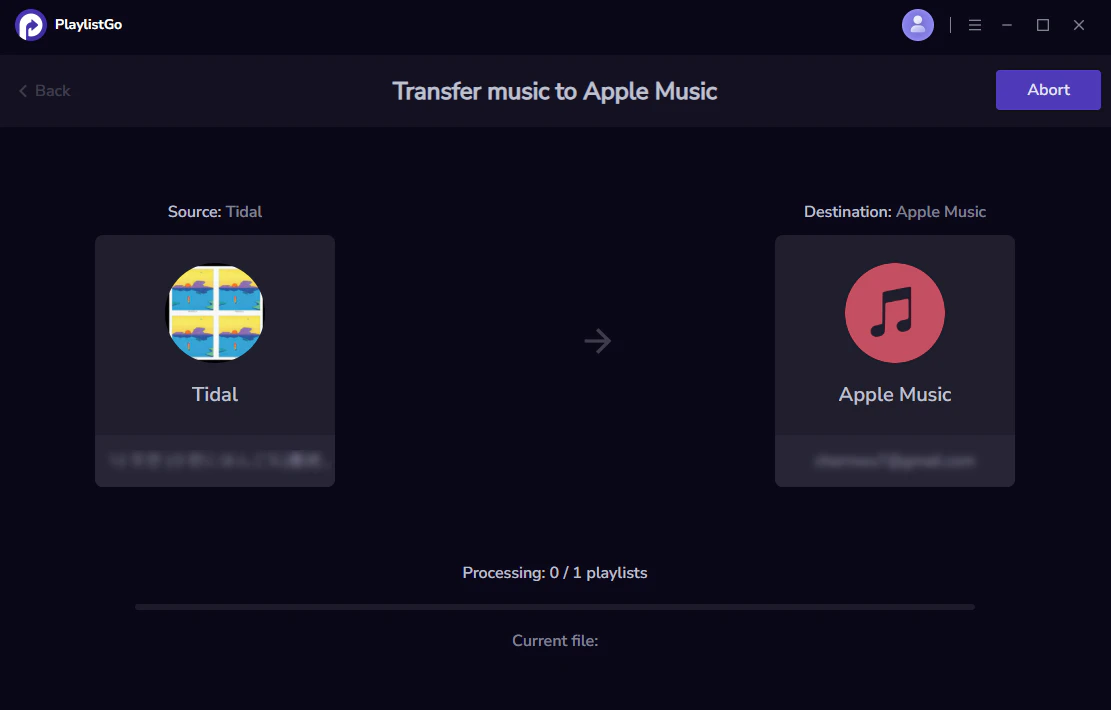
Once matching is finished, click the "Start Transfer" again. Your playlists will be transferred to Apple Music within seconds. Now you can continue enjoying all your familiar music on Apple Music.
Part 3. Transfer Tidal Playlist to Apple Music Online
TuneMyMusic
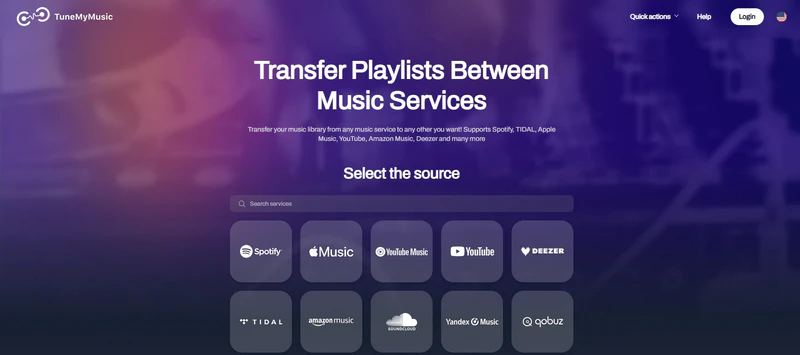
TuneMyMusic is an online playlist transfer tool that helps you quickly transfer playlists between different music platforms. It supports multiple major streaming platforms such as Tidal, Apple Music, and Spotify. TuneMyMusic is easy to use, requires no software download or installation, and is perfect for users who want to quickly transfer their Tidal playlists to Apple Music.
How to Transfer Playlists from Tidal to Apple Music with TuneMyMusic?
Open the TuneMyMusic official website
Visit https://www.tunemymusic.com/ in your browser.
Log in to your Tidal account
Select Tidal as the source platform and log in to your Tidal account.
Select Tidal Playlists
Select the Tidal song, album, or playlist you want to transfer.
Log in to your Apple Music account
Select Apple Music as the target platform and log in to your Apple Music account.
Start the transfer
Click "Start Transfer" and wait for the transfer to complete. Once the transfer is complete, open Apple Music to view your playlist.
Soundiiz
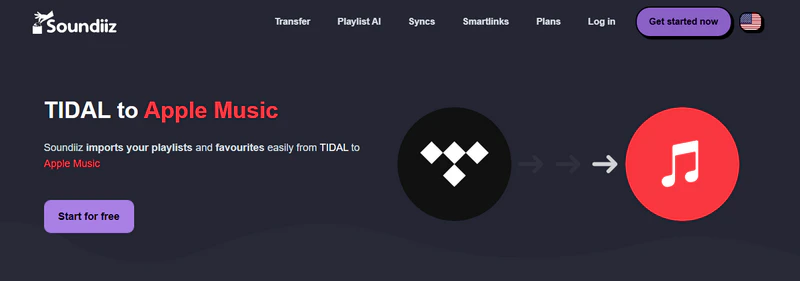
Soundiiz is a web-based music playlist management and transfer tool that helps you transfer playlists, songs, albums, or followed artists between different streaming platforms. It supports playlist synchronization, batch transfer, and multi-platform music library management, making it easier for you to organize and manage your music collections.
How to Transfer Playlists from Tidal to Apple Music with Soundiiz?
Open the Soundiiz website
Visit https://soundiiz.com/ in your browser. Click “Get Start now” or “Log in” in the upper right corner to register/log in to your Soundiiz account.
Connecting Tidal and Apple Music accounts
Connect to the source platform (Tidal) and the target platform (Apple Music) in sequence, and authorize access.
Select the playlists you want to transfer
The tool will load all your Tidal playlists. Select one or more playlists to transfer (the free version only supports one).
Start the Music Transfer
Click "Begin the transfer" and wait for the transfer to complete. Once the transfer is complete, you can listen to your Tidal playlists on Apple Music.
Part 4. Transfer Tidal Playlist to Apple Music on Android & iPhone
MusConv
If you're an Android user, you can use MusConv to transfer playlists. MusConv is a multi-platform music playlist transfer tool available on Android, iOS, Windows, Mac, and the web. It currently supports 125+ music services and can transfer playlists, albums, and favorite songs, helping you easily preserve your music library when switching music platforms.
How to Transfer Tidal Music to Apple Music on Android?
Open MusConv on your Android device
Download and open MusConv on your Android device, then log in to your account.
Select the source platform
Choose Tidal as your source platform and log in to your Tidal account.
Select Tidal Playlists
Select the playlist you want to transfer from your Tidal music library.
Select the target platform
Choose Apple Music as the target platform and log in to your Apple Music account.
Start the transfer
Click "Transfer" to start transferring the playlist.
SongShift
SongShift is a music playlist transfer app designed specifically for iOS devices, helping you easily transfer playlists between different streaming platforms. It supports multiple mainstream music services, such as Apple Music, Tidal, Spotify, and YouTube Music. It also supports playlist sharing and syncing. Simple to use, it's perfect for iPhone/iPad users to transfer their Tidal library to Apple Music quickly.
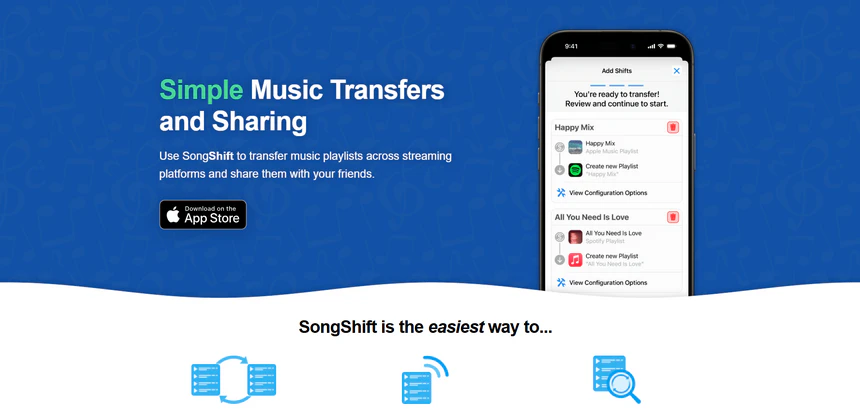
How to Transfer Tidal Music to Apple Music on iPhone/iPad?
Download and open SongShift
Download and run SongShift on your iOS device, and sign in with your Tidal and Apple Music accounts.
Create a Shift
Click the "+", select Tidal as the source platform and select the playlist you want to transfer.
Review matches
SongShift will automatically match the songs you select, and you can manually fix any unmatched tracks.
Start Shift
Click confirm to start transferring the playlist. Once completed, you can see the moved playlist in Apple Music.
FAQs About Transferring Tidal Playlists to Apple Music
Conclusion
This article introduces 5 methods—desktop, online, and mobile—to help you transfer Tidal playlists to Apple Music. If you want to transfer playlists safely and efficiently, PlaylistGo is the best choice. It not only supports fast batch transfer of playlists between Tidal and Apple Music but also allows importing local playlists and provides backup and export functions for playlists in various formats. Choose the appropriate method based on your device and needs to smoothly transfer your Tidal playlists to Apple Music and continue enjoying your favorite music.

PlaylistGo – Best Desktop Transfer Tool
The fastest and most reliable way to move your entire Spotify library to Apple Music, YouTube Music, TIDAL, etc. 100% offline • One-time payment • 99.7% success rate


