

Do you want to switch to YouTube Music but don't want to lose the playlists you've carefully curated on Apple Music? In this article, we will guide you step by step on how to easily transfer Apple Music playlists to YouTube Music, preserving all your favorite songs and allowing you to enjoy music freely anytime, anywhere, across any device.
Part 1: Why Transfer Playlists from Apple Music to YouTube Music?
Many users choose to transfer their playlists from Apple Music to YouTube Music for the following main reasons:
- Enjoy music across platforms
Whether you're on a phone, tablet, or computer, you can easily access the playlists you've created. - Save time
No need to repeatedly search for and add your favorite songs. One-click transfer will completely preserve your playlists, making listening to music more efficient. - Get personalized recommendations
YouTube Music will recommend more music in a similar style based on your playlists, helping you easily discover new music and expand your musical tastes.
In summary, transferring your Apple Music library to YouTube Music can help you easily manage your music collection and enjoy a more convenient cross-platform experience.
Part 2: The Tool You Need - PlaylistGo
If you want to quickly and easily transfer your Apple Music playlists to YouTube Music, a reliable tool is essential. While Apple Music offers the official transfer method, PlaylistGo is a more practical option for transferring multiple playlists or handling more complex transfer needs.
PlaylistGo supports transferring playlists between various popular music platforms, including Apple Music, YouTube Music, Spotify, Tidal, Deezer, and Amazon Music. Furthermore, it allows you to import your local playlists to the target platform, so that the transfer is no longer limited to online playlists.
In addition, PlaylistGo supports backing up and exporting playlists in M3U, M3U8, PLS, XSPF, XML, CSV, XLS, XLSX, JSON, and TXT formats, facilitating offline storage and data management.
In short, PlaylistGo not only makes cross-platform playlist transfer simple and efficient, but also provides flexible import and backup functions, helping you easily manage all your music collection.
Download PlaylistGo 100% Free to start
Safely download entire playlists from Spotify, YouTube, Apple Music and 50+ platforms
Part 3: How to Transfer Apple Music Playlists to YouTube Music with PlaylistGo
Transferring your playlists with PlaylistGo is very simple, and even first-time users can get started quickly. The entire process only takes 4 steps and can be completed in just a few minutes:
Launch PlaylistGo
Download and launch PlaylistGo on your computer.
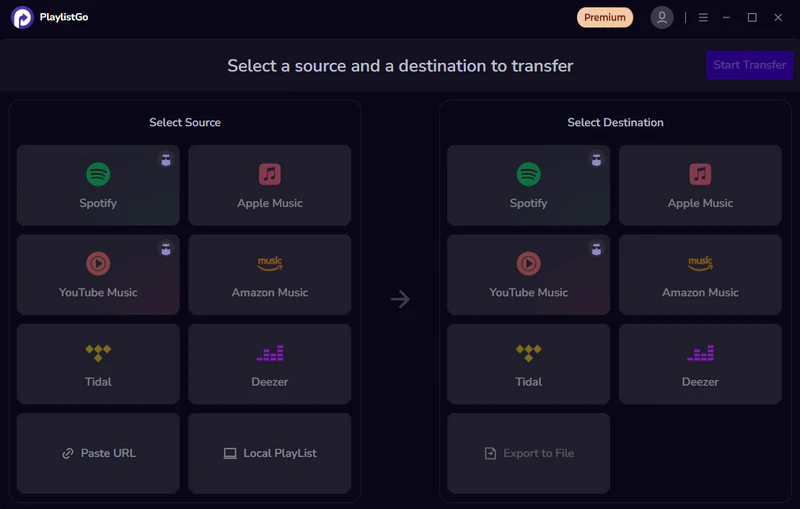
Select the Source Music Platform
Select Apple Music as the source platform and log in with your Apple ID. The program will load your Apple Music library and select the playlists you want to transfer.
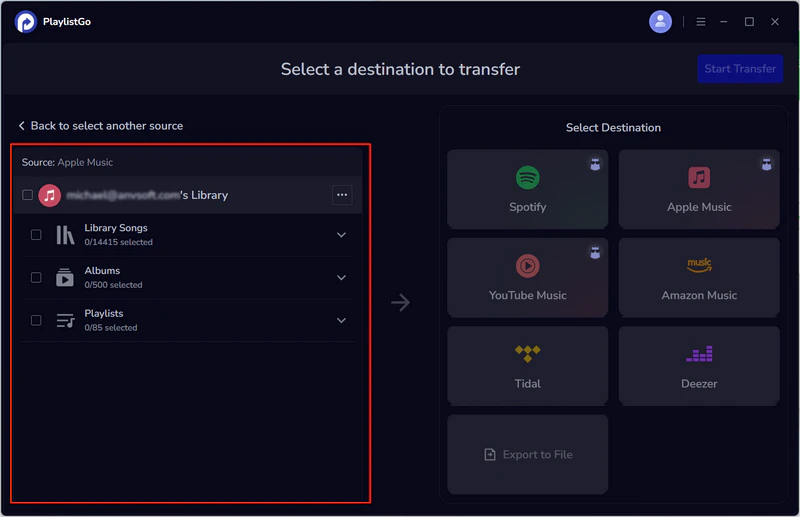
Select Your Destination Music Platform
Select YouTube Music in the destination platform options and log in to your YouTube account.
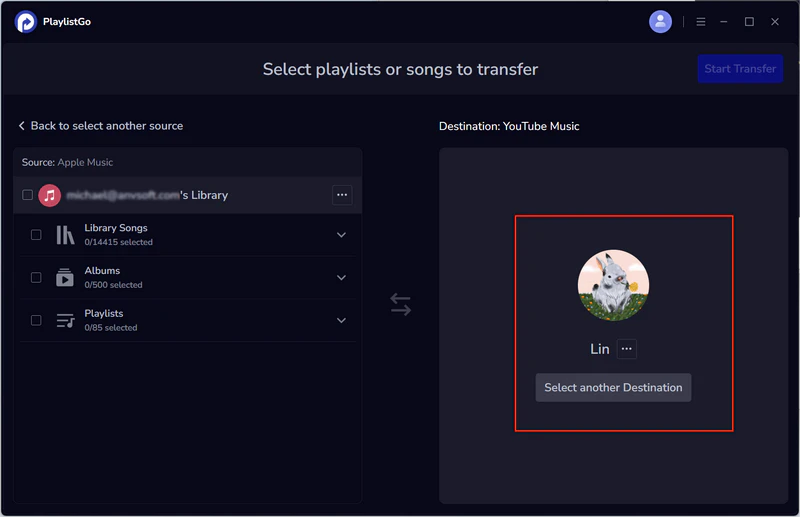
Start Transferring Apple Music Playlists to YouTube Music
Click the "Start Transfer" button. This program will match your selected playlist with YouTube Music. Then click the “Start Transfer” button again to begin the transfer. After the transfer is complete, log in to YouTube Music and check your playlists to ensure all songs have been successfully imported.
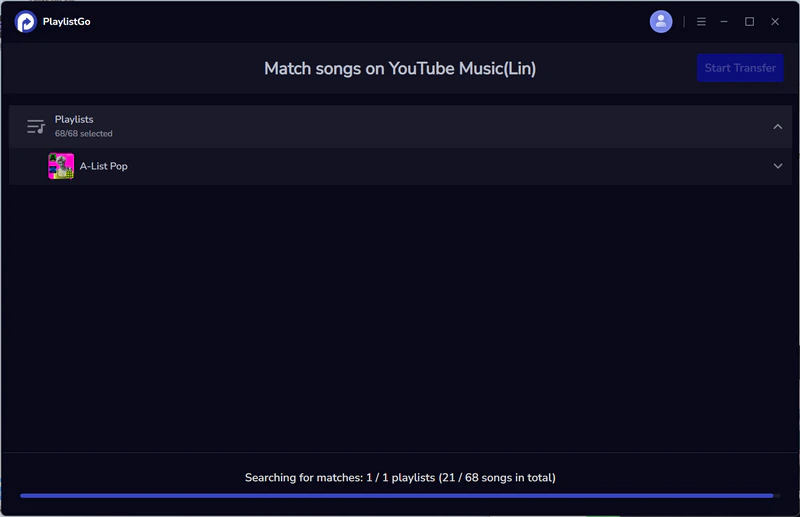
By following the steps above, you can easily transfer your Apple Music playlists to YouTube Music, preserving the original playback order, and enjoy your music anytime, anywhere without needing to reorganize anything.
FAQs about Transferring Apple Music to YouTube Music
Conclusion
With PlaylistGo, you can transfer your Apple Music playlists to YouTube Music in minutes, keeping all playlists and their original song order intact without any manual adjustments. It makes playlist transfer simple and efficient, letting you enjoy your music seamlessly across platforms.

PlaylistGo – Best Desktop Transfer Tool
The fastest and most reliable way to move your entire Spotify library to Apple Music, YouTube Music, TIDAL, etc. 100% offline • One-time payment • 99.7% success rate


