

As more users seek higher sound quality, Tidal HiFi has become a popular alternative for many Apple Music subscribers. However, a key question when switching platforms is: how to completely transfer existing playlists?
This guide will introduce you to the best way to transfer Apple Music playlists to Tidal, helping you quickly complete the entire transfer process and easily switch platforms without worrying about data loss.
Part 1. Why Switch from Apple Music to Tidal?
Tidal supports lossless and high-fidelity music playback, making it especially suitable for users who appreciate professional music listening. The table below compares Apple Music and Tidal in terms of sound quality, music library, and offline downloads, giving you a clear understanding of their respective features.
| Category | Apple Music | Tidal |
|---|---|---|
| Sound quality |
AAC (256 kbps) ALAC(16-bit/44.1 kHz, 24-bit/192 kHz) Dolby Atmos |
Low(320 kbps) FLAC (16-bit/44.1 kHz) HiRes FLAC(24-bit/192 kHz) Dolby Atmos |
| Music Library | 100M+ tracks | 100M+ tracks |
| Discover | Weekly recommendations | Daily recommendations |
| Pricing & Plan |
30 days Free trial Individual $10.99/month Family $16.99/month Student $5.99/month |
30 days Free trial Individual $10.99/month Family $16.99/month Student $5.49/month |
| Offline Download | Yes, with paid subscription | Yes, with paid subscription |
| Special Features |
Apple ecosystem integration iCloud Sync |
Hi-Res high-resolution sound quality Professional music experience Add-on DJ Extension |
Part 2. Best Way to Transfer Apple Music to Tidal
Apple Music doesn't offer a direct playlist transfer feature to Tidal, meaning you can't easily transfer playlists within the platform. However, you can use professional playlist transfer tools; PlaylistGo is one of the safest and most convenient solutions.
PlaylistGo is a professional playlist transfer tool that supports quick transfer of playlists between multiple music platforms, including Apple Music, Tidal, Spotify, YouTube, Deezer, and Amazon Music. It preserves song information, album art, and playback order. Furthermore, PlaylistGo supports backing up playlists in various formats, including M3U, M3U8, PLS, XSPF, XML, CSV, XLS, XLSX, JSON, and TXT. It can also directly transfer local playlists to streaming platforms, making it easy to manage and synchronize your music.
Download PlaylistGo 100% Free to start
Directly Transfer Your Entire Music Library between All Major Streaming Platforms
How to Transfer Apple Music Playlists to Tidal? (Step-by-Step)
PlaylistGo is very easy to use and transfers playlists in just a few minutes.
Open PlaylistGo on Your Computer
Install and open PlaylistGo on your Windows or Mac computer, and you will see the main page.
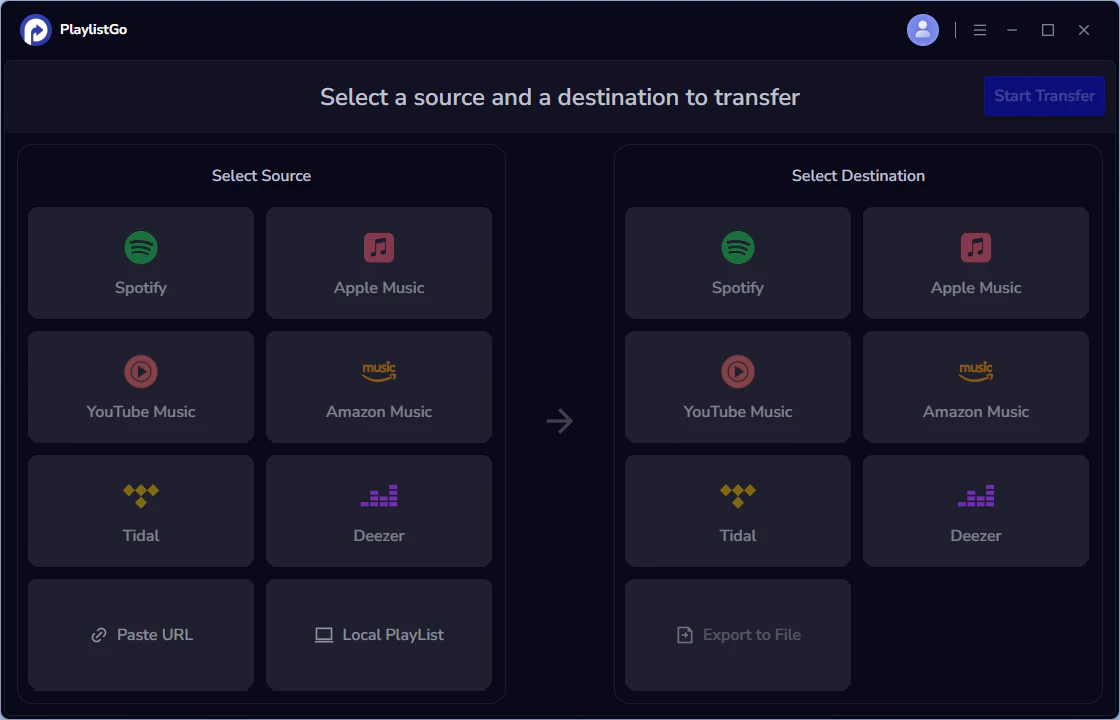
Select Apple Music as the Source Music Platform
Choose Apple Music as the source platform and log in to your Apple Music account. PlaylistGo will load all your Apple Music library.
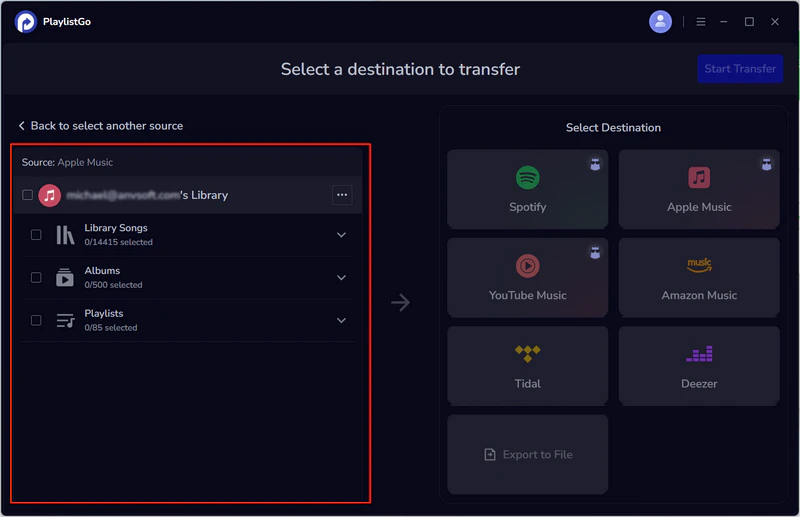
Select Tidal as the Destination Music Platform
Choose Tidal as the destination platform, then log in to your Tidal Music account.
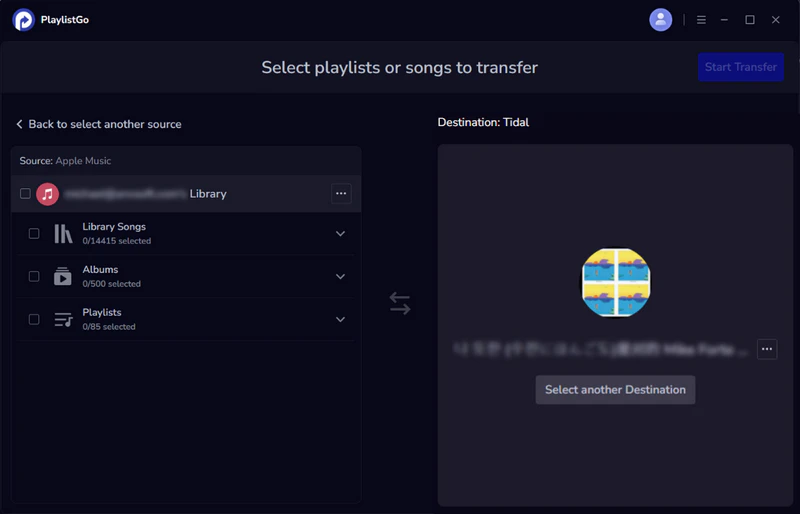
Start the Transfer Process
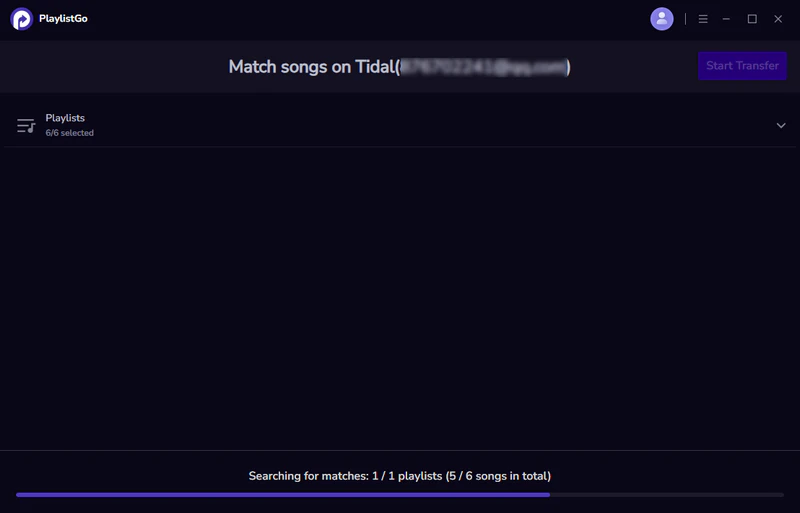
Select the songs, playlists, or even the entire Apple Music library, click "Start Transfer", and PlaylistGo will match songs on Tidal.
Complete the Transfer
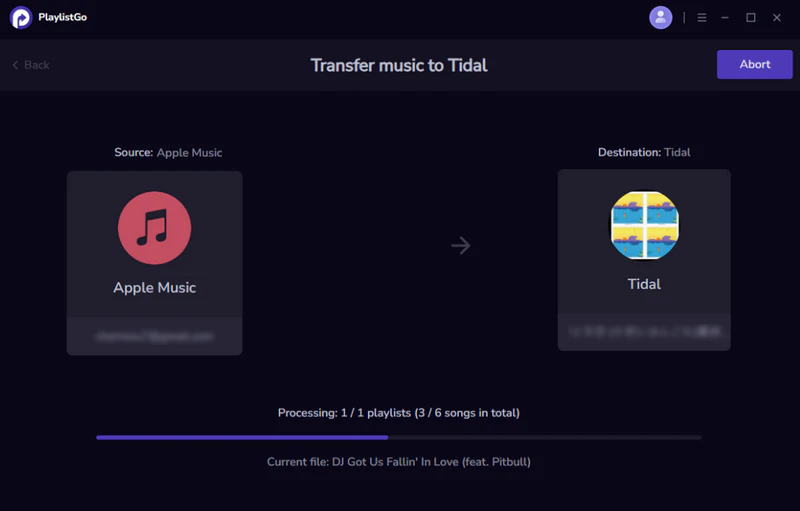
Once matching is finished, click the "Start Transfer" again. Your playlists will be transferred to Tidal within seconds. Log in to Tidal and check your transferred playlists to ensure all songs have moved correctly.
Part 3. Alternative Ways to Move Apple Music to Tidal
Method 1: TuneMyMusic
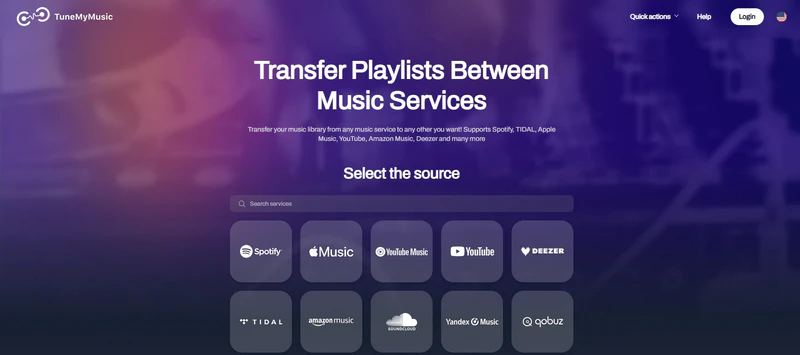
TuneMyMusic is a popular online playlist transfer tool that supports transferring playlists between multiple platforms, such as Apple Music and Tidal. You simply need to connect two accounts, select the playlist, and start the transfer process. TuneMyMusic is suitable for quickly completing basic transfers, but its matching accuracy may not be as good as more professional transfer tools.
How to Transfer Playlists from Apple Music to Tidal with TuneMyMusic?
Go to the TuneMyMusic website.
Visit TuneMyMusic's official website https://www.tunemymusic.com/ in your browser.
Log in to your Apple Music account
Select Apple Music as the source platform and log in.
Select Apple Music Playlists
Select the Apple Music songs, albums, or playlists you want to transfer.
Log in to your Tidal account
Select Tidal as the destination platform and connect your account.
Start the transfer
Click "Start Transfer" to begin. Once the transfer is complete, open Tidal Music to view your playlists.
Method 2: KeepMusic
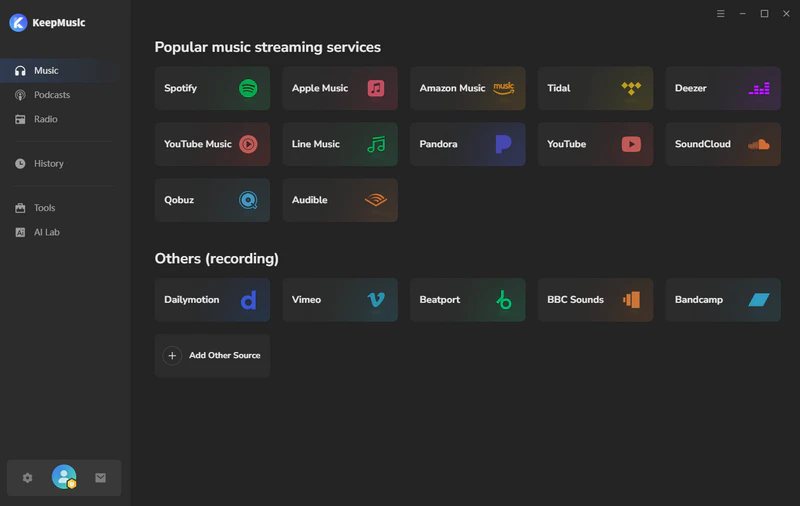
Another way to move Apple Music playlists to Tidal is to use KeepMusic. Since Apple Music songs are protected and cannot be directly exported, KeepMusic supports downloading and converting music from all major platforms, including Apple Music, Tidal, and Spotify, to open-source audio formats such as MP3, FLAC, ALAC, or WAV. Once converted, you can directly import all downloaded Apple Music files into Tidal. This method is ideal for users who want to retain local music files or need more flexible management of their music library.
How to use KeepMusic to Download Apple Music Playlists to Tidal?
Run KeepMusic
Download and open KeepMusic on your computer, then select Apple Music from the music list.
Add Playlists to KeepMusic
Sign in to your Apple Music account and select the playlist you want to download. Click the "+" button to add them to KeepMusic.
Select MP3 as the Output Format
Go to the music settings page and select MP3 as the output format.
Start Conversion
Click the "Convert" button to start downloading your Apple Music playlist to your local computer.
Import Playlists into Tidal
Open Tidal and import local music files to your music library.
FAQs About Transferring Apple Music to Tidal
Conclusion
Switching from Apple Music to Tidal HiFi is incredibly easy. With professional playlist transfer tools like PlaylistGo, you can transfer your Apple Music playlists, even your entire music library in one click, and retain all song information and playback order. Start your easy transfer now and enjoy Tidal's high-fidelity music experience.

PlaylistGo – Best Desktop Transfer Tool
The fastest and most reliable way to move your entire Apple Music library to Tidal, Spotify, Apple Music, YouTube Music, etc. 100% offline • One-time payment • 99.7% success rate


