

With PlaylistGo, you can transfer playlists, liked songs, and albums between major music streaming services in just a few clicks. It supports Spotify, Apple Music, YouTube Music, Amazon Music, Tidal, Deezer, and more. Follow the steps below to move your music library from one platform to another.
Example: Spotify to Apple Music playlist transfer. You can follow the same steps to move playlists between any supported platforms
Step 1: Launch PlaylistGo
Download and install PlaylistGo on your computer. Open the program to enter the main interface.
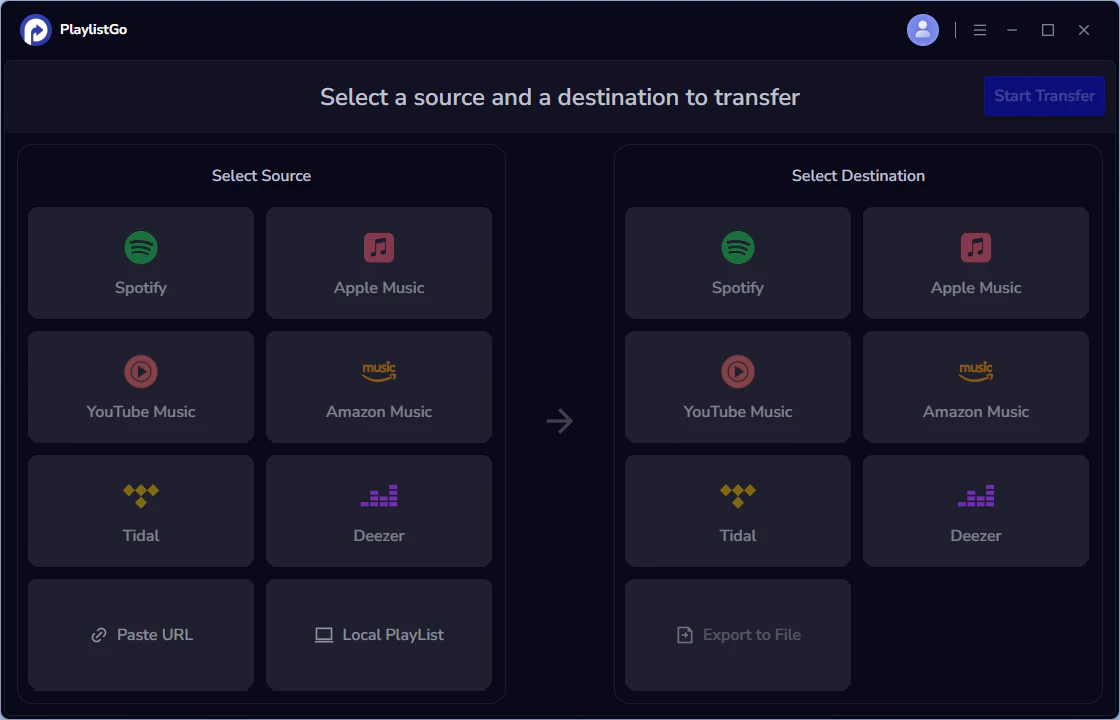
Step 2: Select Spotify as the Source Platform
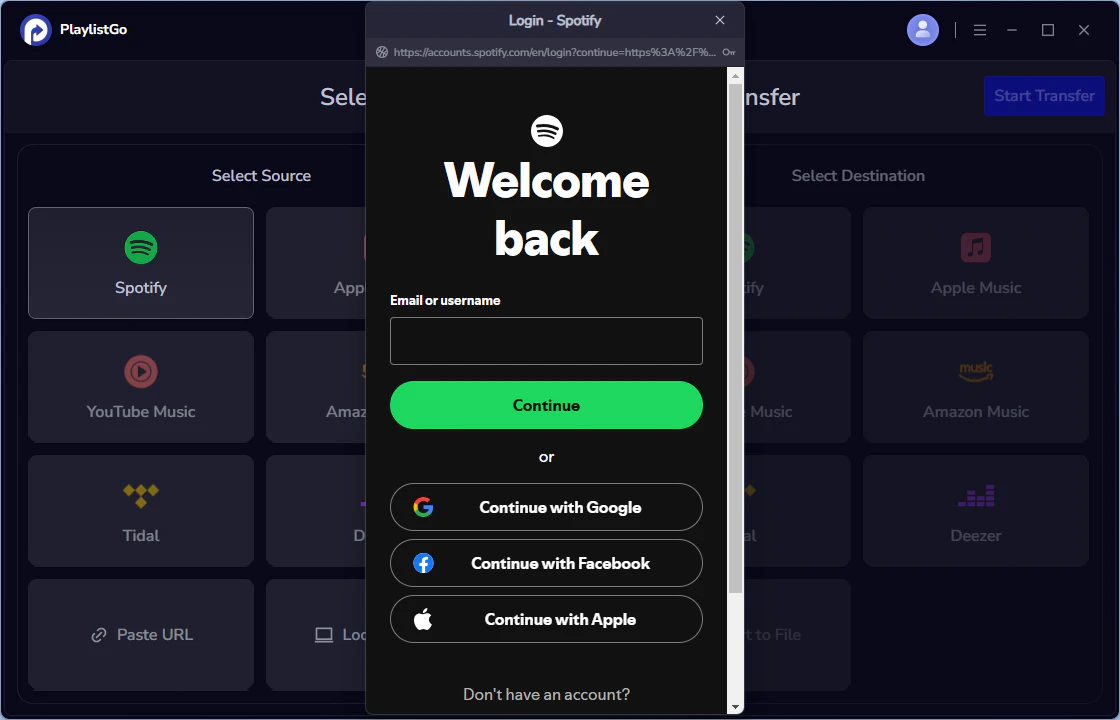
Choose Spotify as source platform, then sign in to your Spotify account. After connecting, PlaylistGo will load your Spotify library so you can select what to transfer.
💡 Transfer with playlist URL: You can also transfer Spotify playlist using link. Copy the playlist URL, paste it into the box, then click to load the playlist.
Step 3: Select Apple Music as the Target Platform
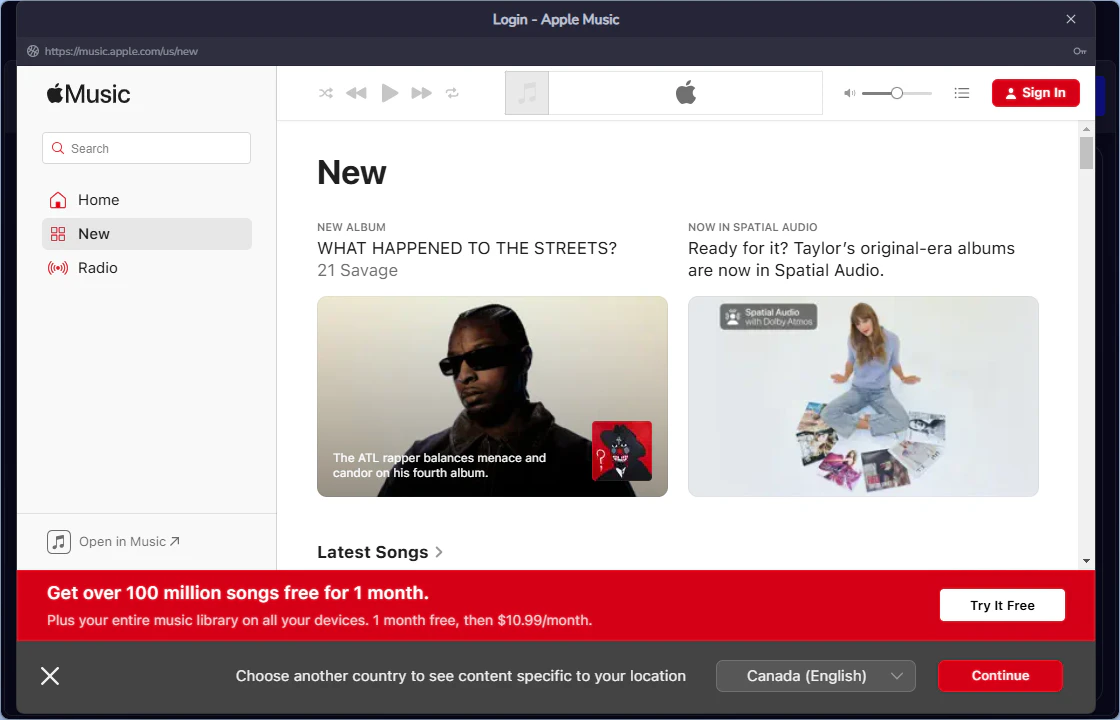
Choose Apple Music as your target platform, then sign in. PlaylistGo will set Apple Music as the destination for your transfer.
Step 4: Select Songs, Albums, or Playlists to Transfer
Select the songs, albums, or playlists you want to move from Spotify to Apple Music. Click Start Transfer to continue.

Step 5: Match Songs on Apple Music
PlaylistGo will automatically match Spotify tracks to Apple Music and display the results for review.

Step 6: Start the Transfer
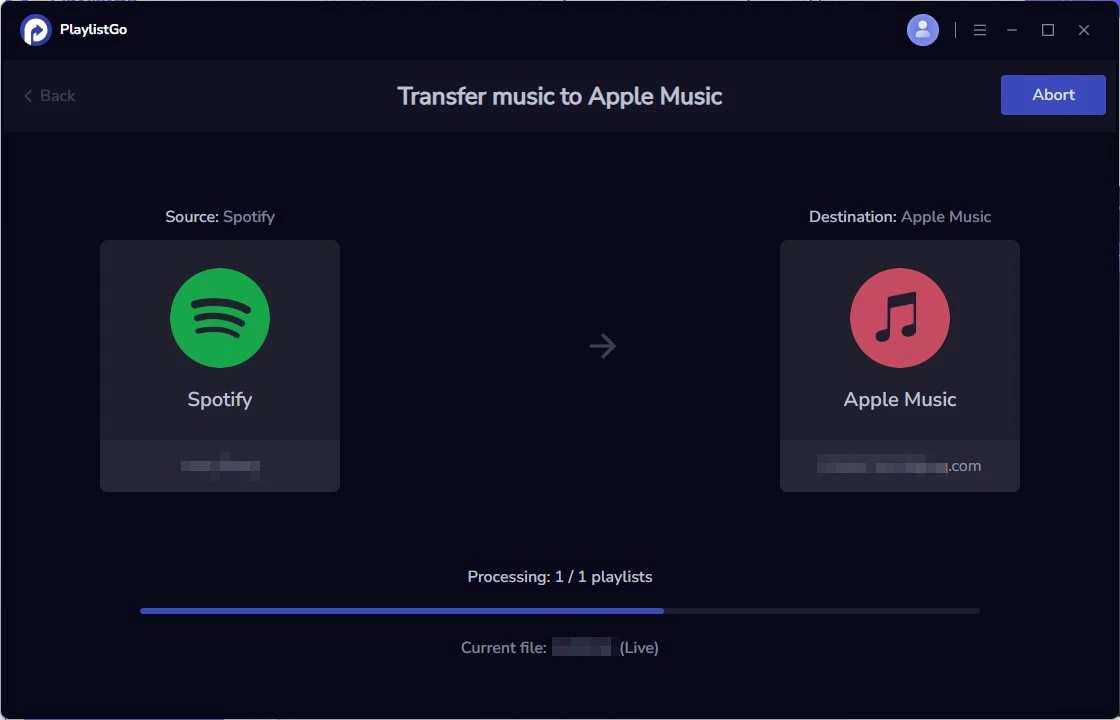
After confirming the matching results, click Start Transfer to begin transferring the selected content into Apple Music.
Step 7: Complete Transfer
Once the transfer is complete, open Apple Music to confirm your results. The transferred playlists and songs will appear in your Apple Music library.


