PlaylistGo helps you import local playlists to popular music streaming services in one go. Whether the playlist is saved as M3U, CSV, Excel, or JSON, you can upload it to Spotify, Apple Music, YouTube Music, and more with accurate song matching and clean results.
Supported formats include M3U, M3U8, PLS, CSV, XLSX, XLS, JSON, XML, XSPF, and TXT.
Step 1: Launch PlaylistGo
Download, install, and open PlaylistGo on your computer to enter the main interface.
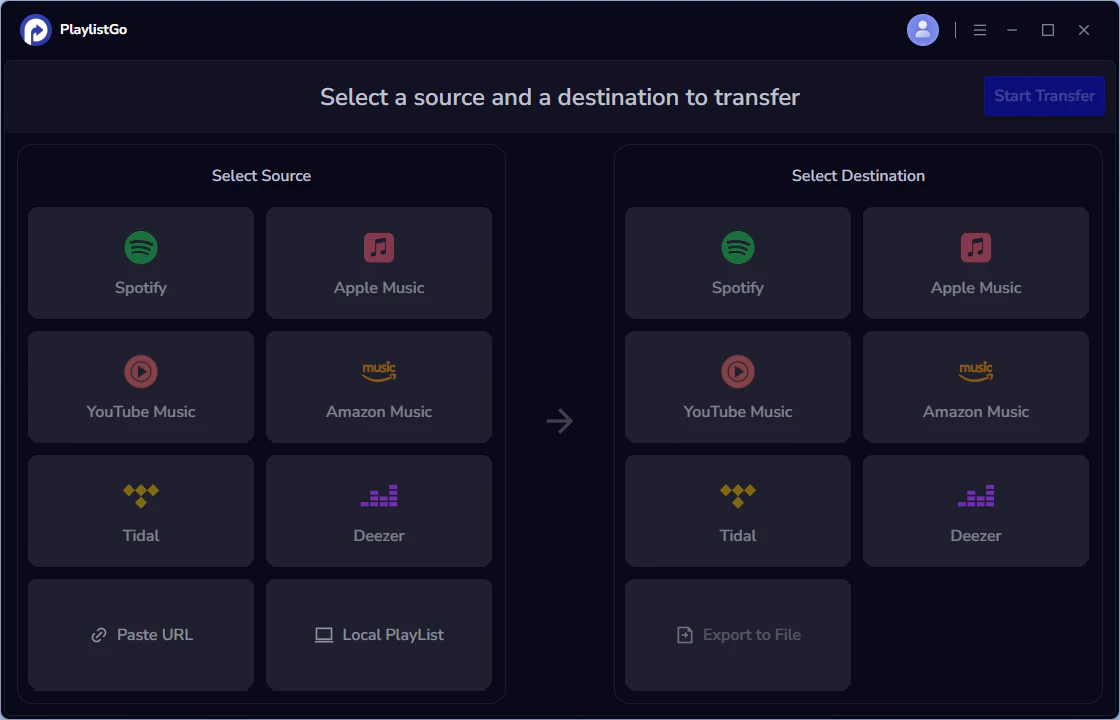
Step 2: Choose Local Playlist as the Source
On the main interface, select Local Playlist as the source. This option is designed for importing playlists stored on your local computer.
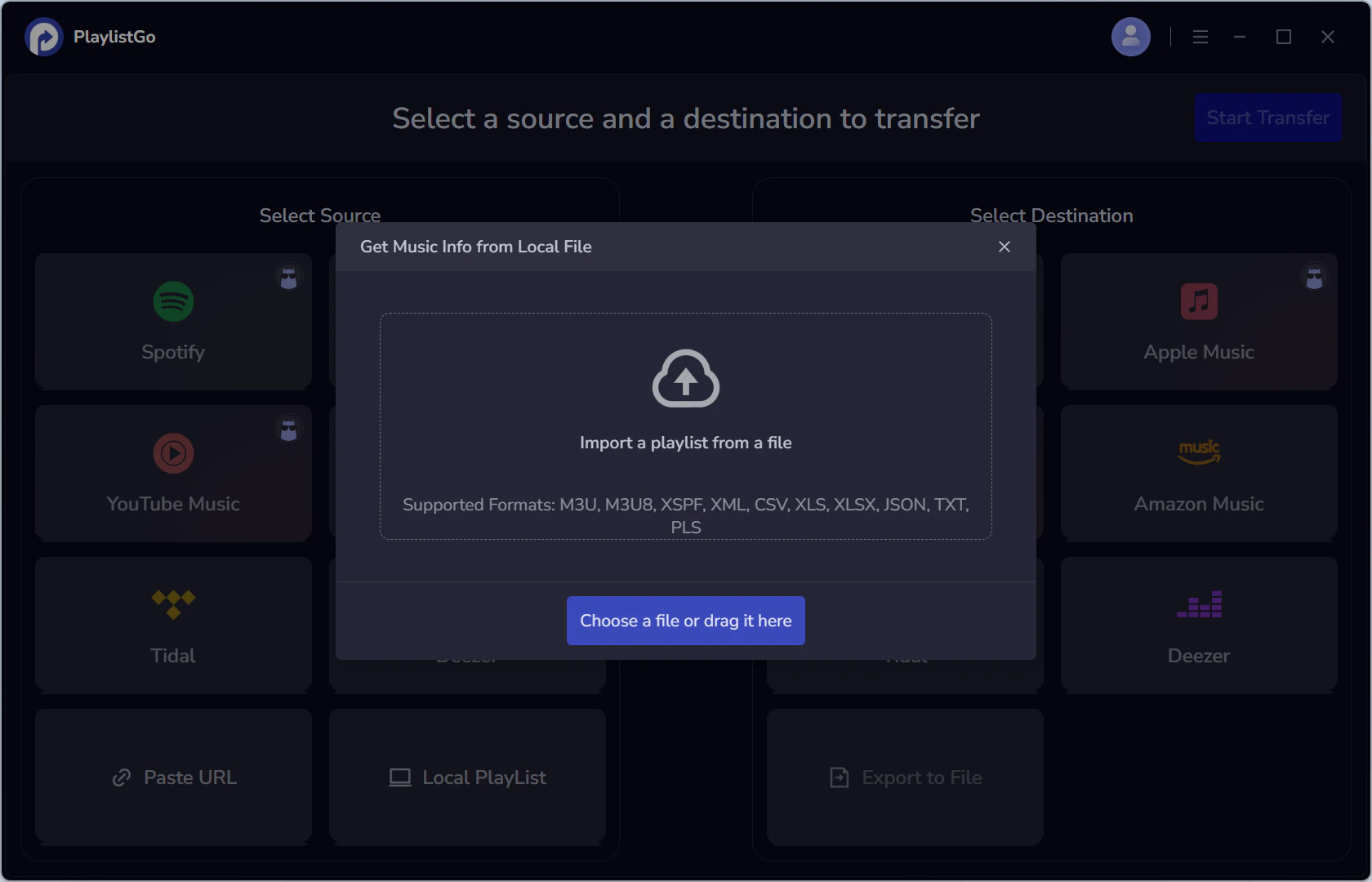
Step 3: Add Your Local Playlist File
Select the playlist file you want to import, or drag and drop it into PlaylistGo. Common formats include M3U, M3U8, CSV, XLSX, JSON, and XSPF.
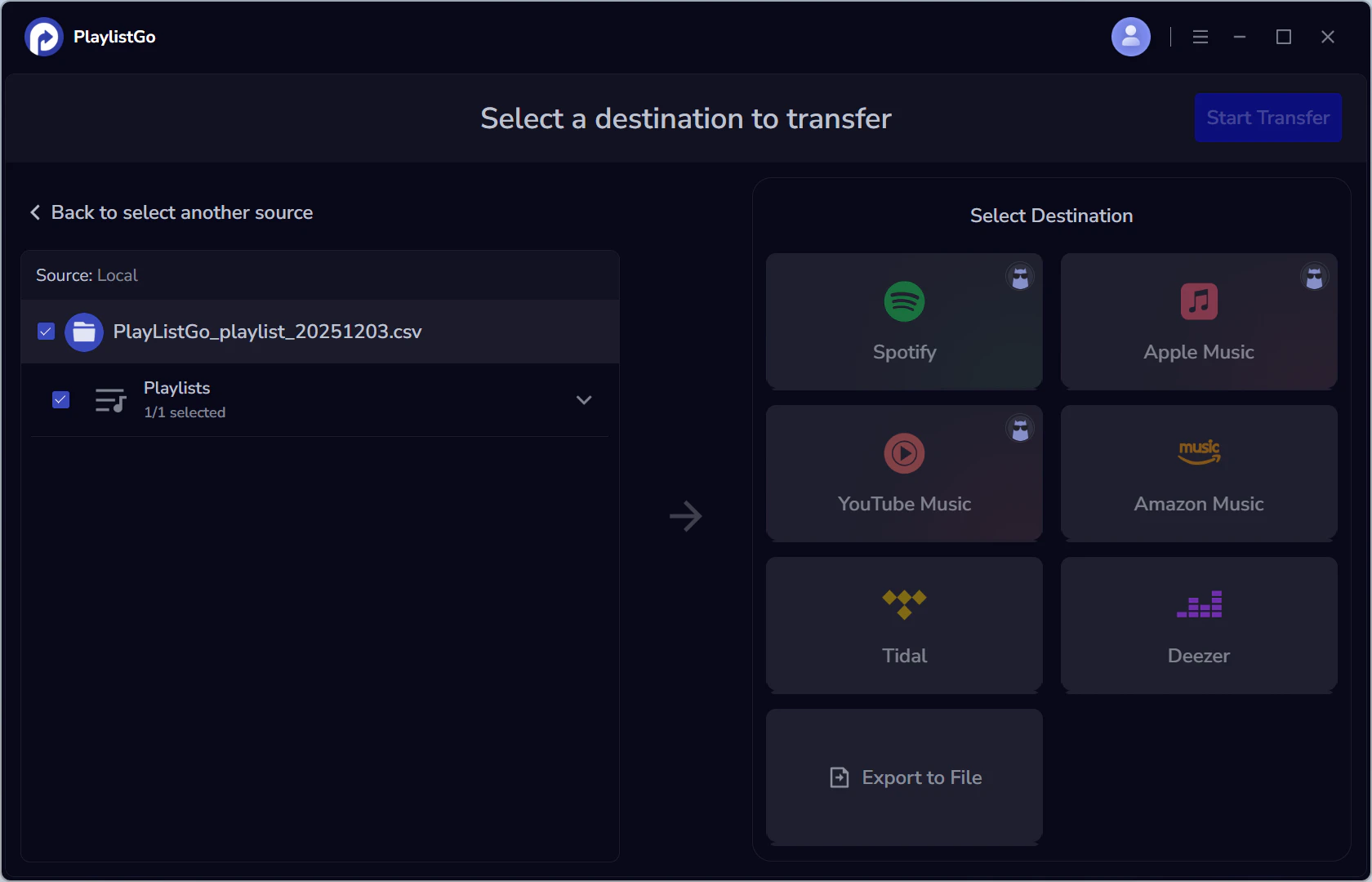
Step 4: Select the Target Streaming Platform
Choose the platform you want to import the playlist to, such as Spotify, Apple Music, or YouTube Music. Then sign in to connect the account and continue.
Step 5: Click Start Transfer to Begin Matching
Click Start Transfer in the top-right corner. PlaylistGo will enter the matching screen and start searching for matches on your destination platform.
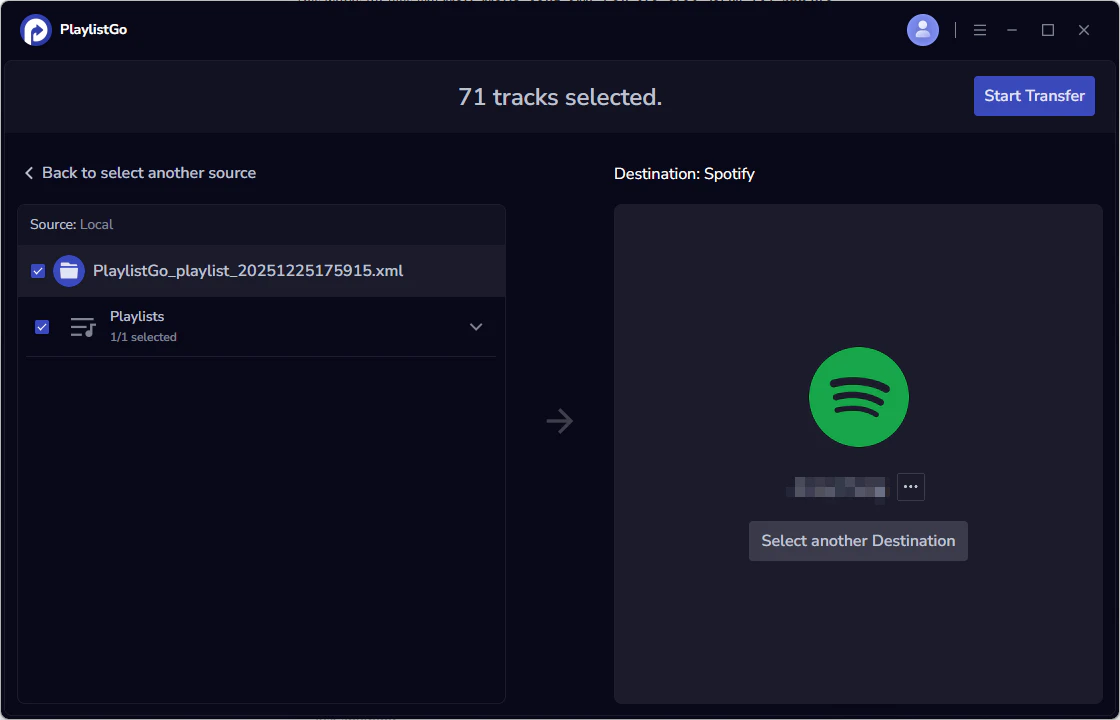
Step 6: Review Matched Results and Start the Transfer
PlaylistGo will automatically match songs from your local playlist to the target platform. Review the matching results and make adjustments if needed. When you’re ready, click Start Transfer again to proceed.
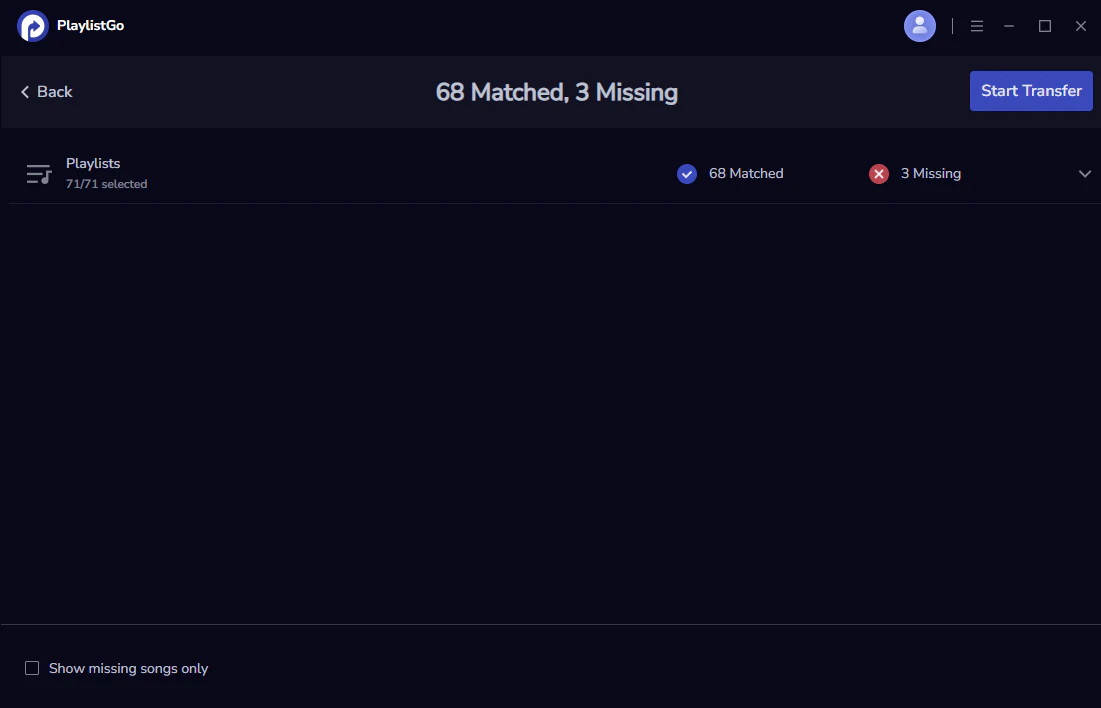
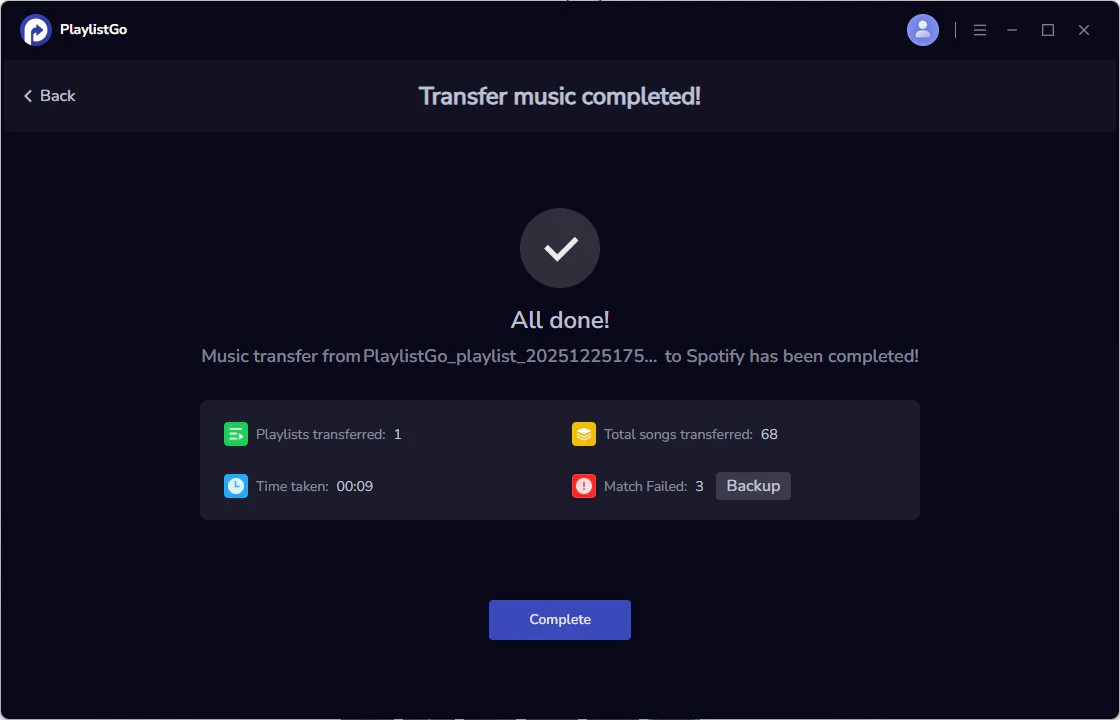
Step 7: Transfer Completed
When the process is finished, you will see Transfer music completed with a summary such as playlists transferred, total songs transferred, time taken, and match failed count. Click Complete to finish. If needed, click Backup to save the failed match result for later review.