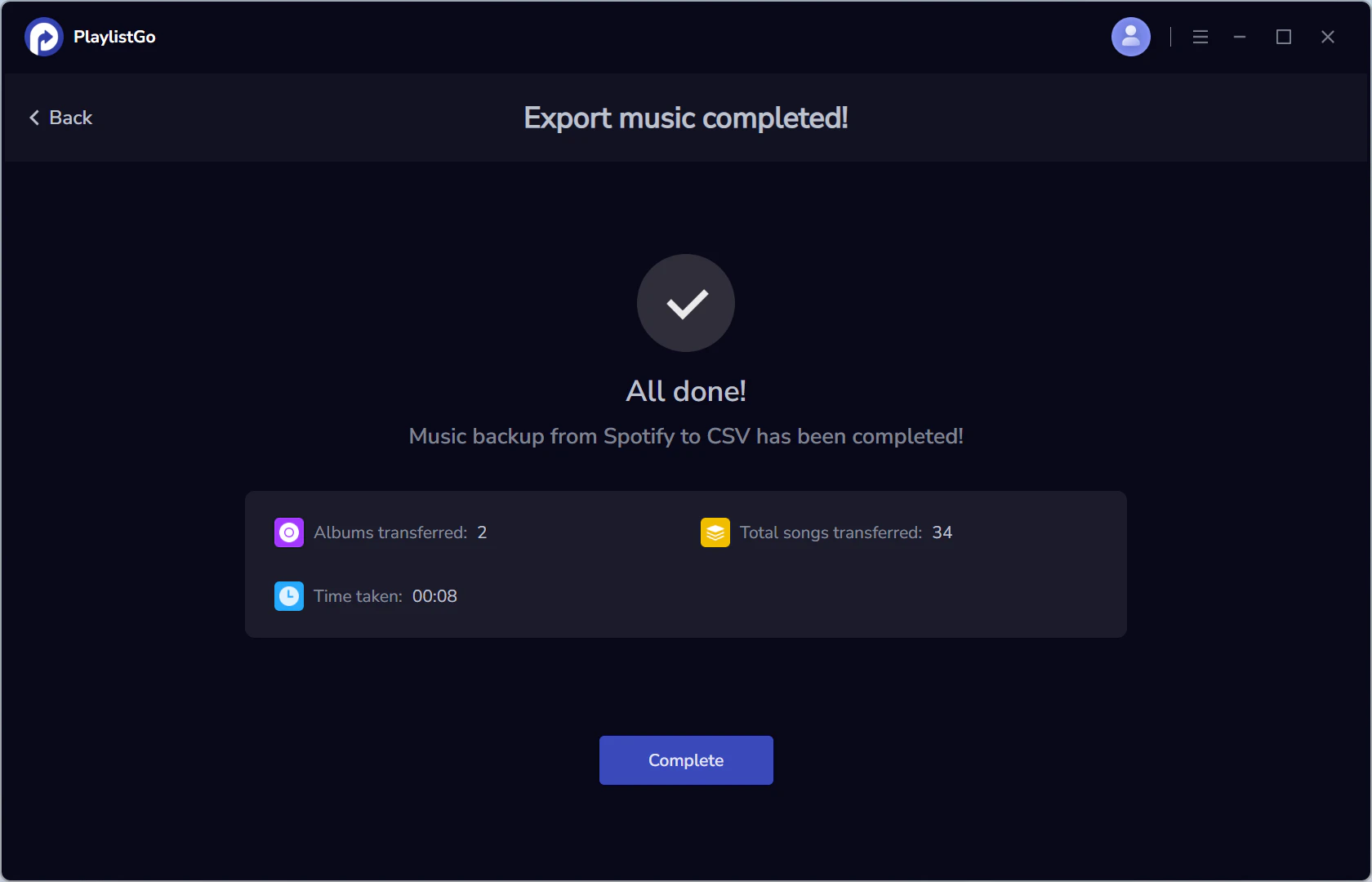
PlaylistGo helps you manage your music library across platforms and makes it easy to export playlists to local files for backup or migration. You can export playlists from Spotify, Apple Music, YouTube Music, Amazon Music, TIDAL, and Deezer, and save them in common formats such as CSV, M3U, M3U8, PLS, XLSX, JSON, XML, XSPF, and TXT.
Step 1: Select a Source Platform
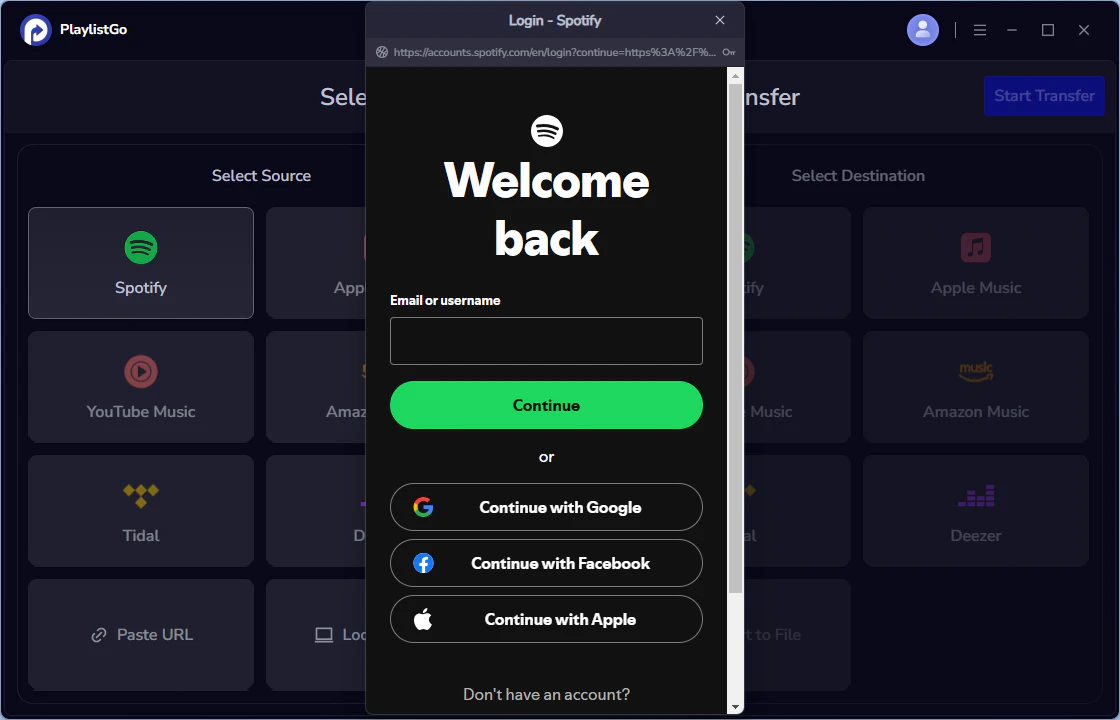
Launch PlaylistGo and stay on the main screen. Under Select Source on the left side, choose the streaming platform you want to export playlists from, such as Spotify. Log into you Spotify account to connect.
Step 2: Select Playlists from Your Library
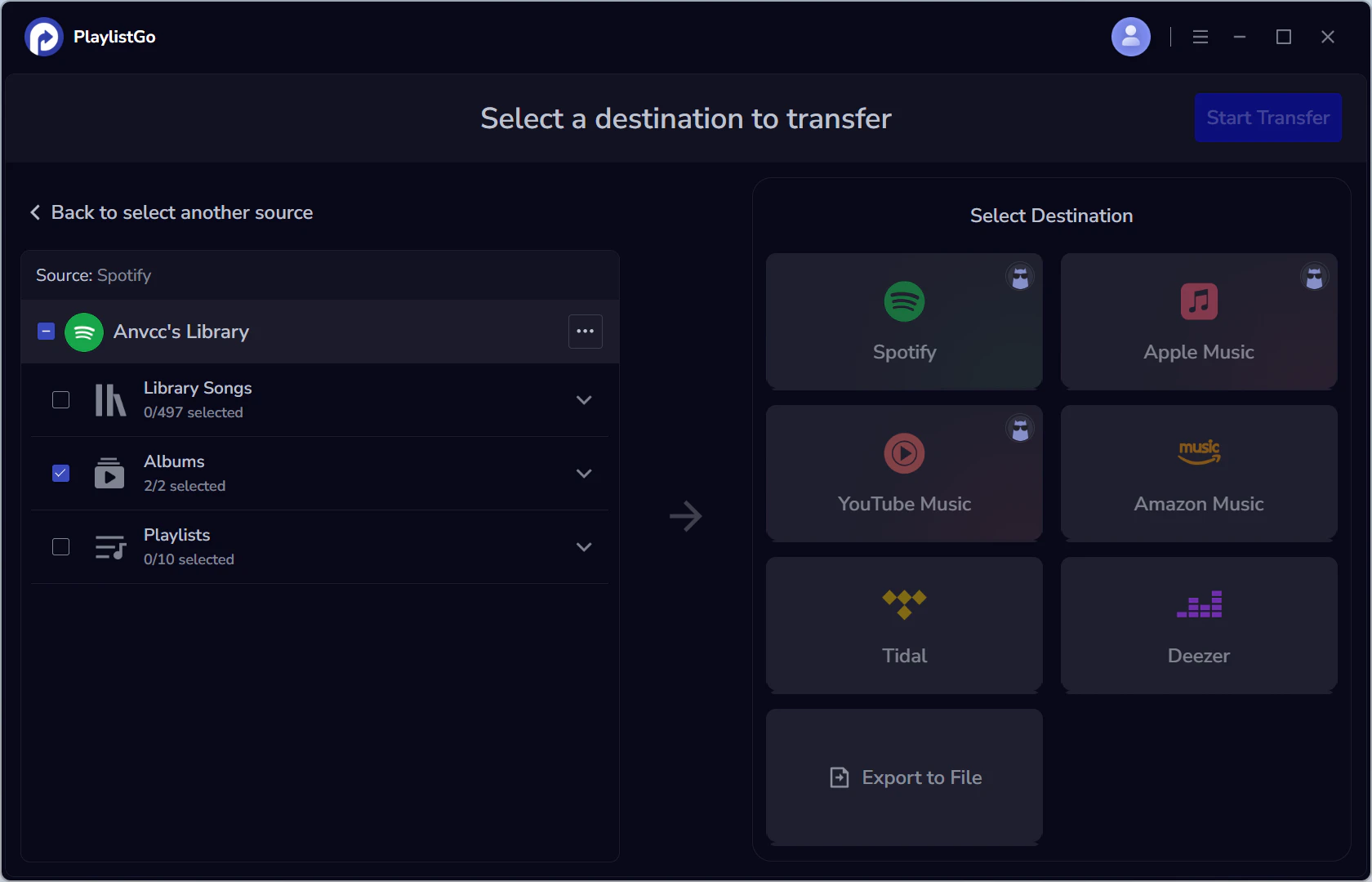
After entering the source platform, Spotify music library will load on the left panel. Browse your music library and select the songs, albums or playlists you want to export.
Step 3: Set Export Options and Start Export
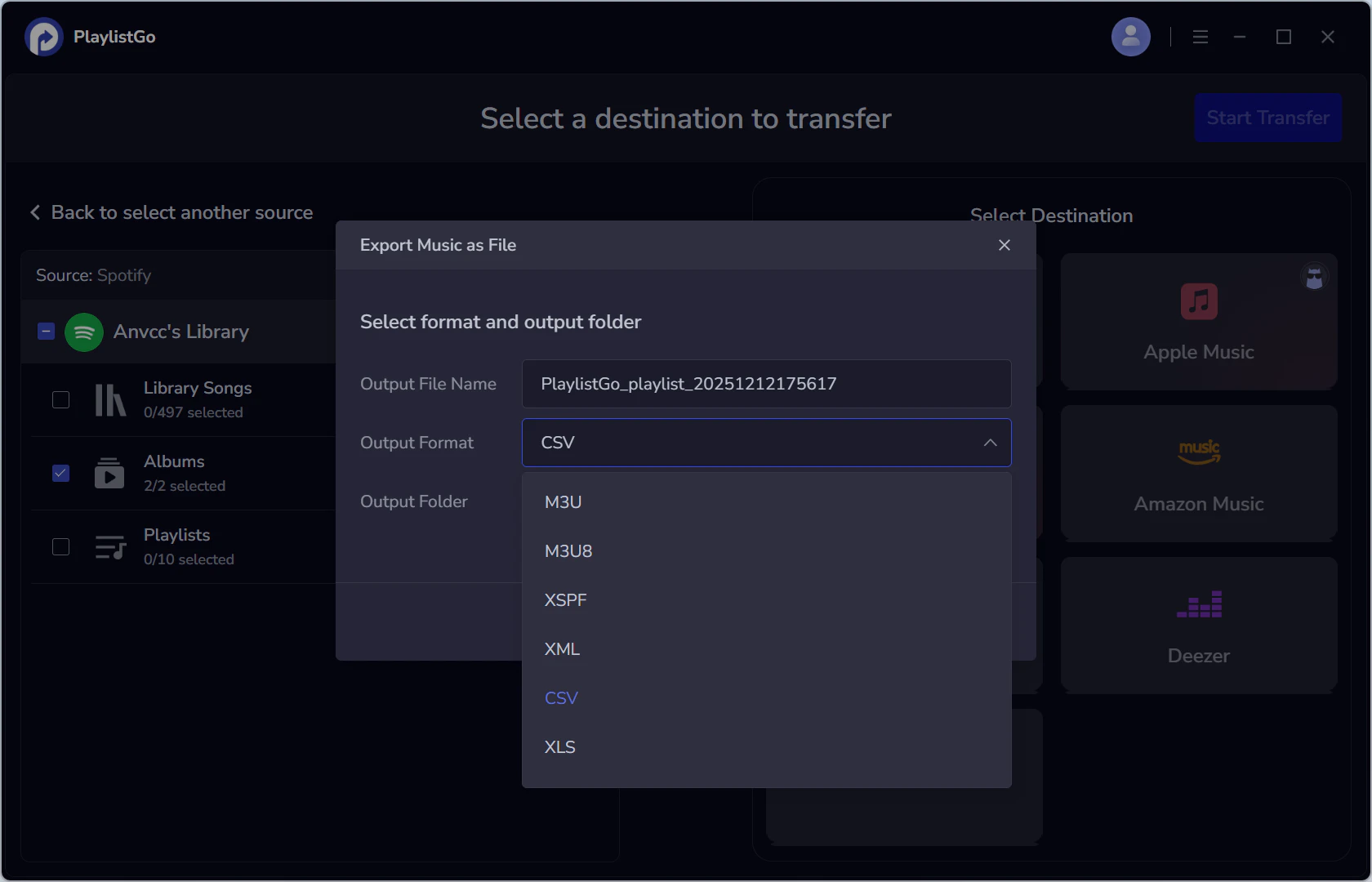
On the right side under Select Destination, choose Export to File. Then set the output format, edit the output file name if needed, select the folder where the file will be saved.
Step 4: Start Export Process
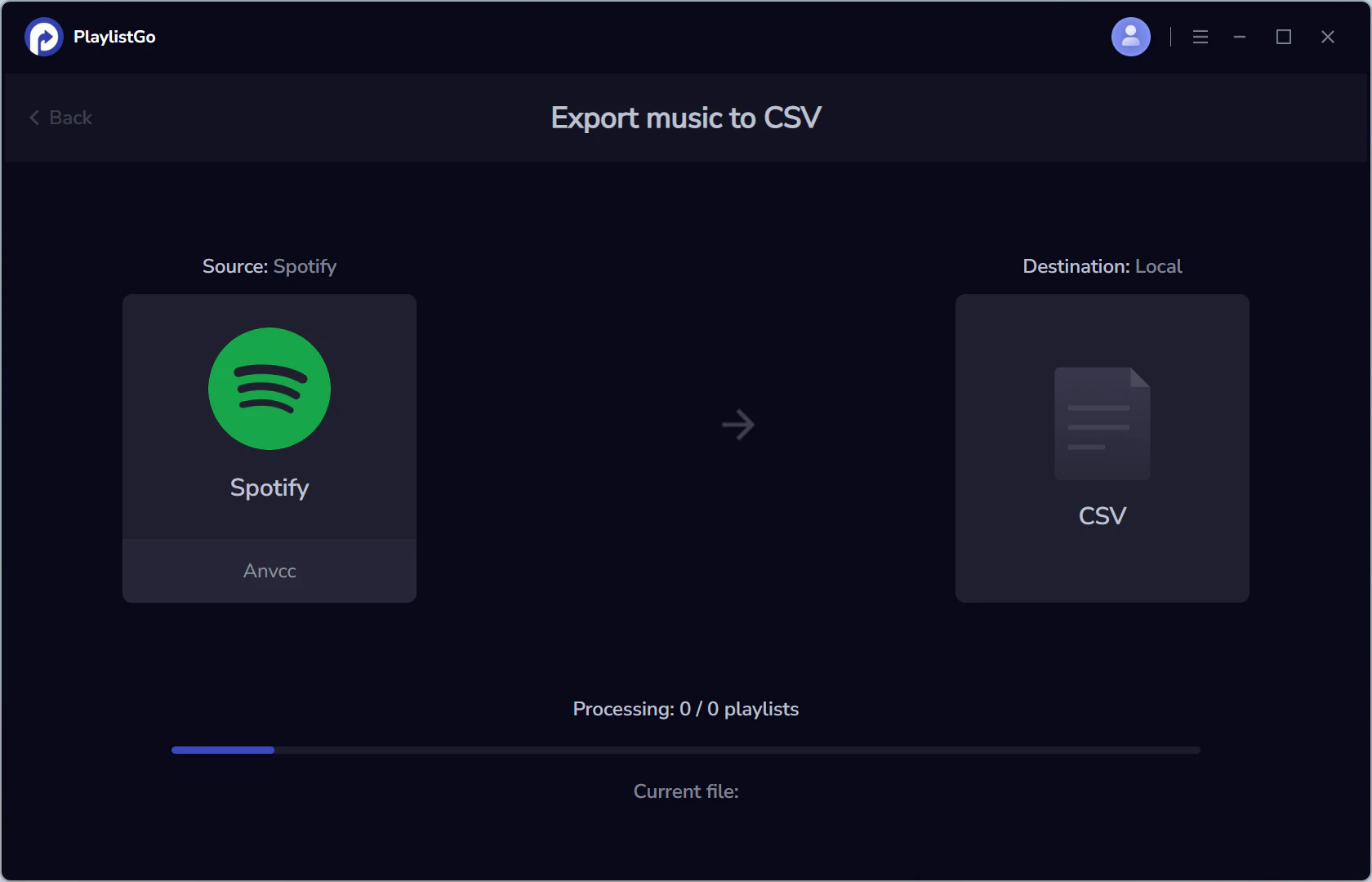
Click Export to begin exporting your Spotify playlist. PlaylistGo will display the export progress screen while processing the selected playlist.
Step 5: Export Completed
Once the export is completed, click Complete to finish. Your playlist file is now saved locally and can be used for backup, sharing, or future playlist transfers.
Note: Songs not found on the streaming platform will be clearly marked. You can manually search for alternatives, skip them, or back them up as local files for safekeeping.