Transferring your Spotify playlists to Apple Music can be tricky because there’s no official one-click import. The good news is that you can move playlists by matching songs across catalogs — and modern tools make it fast.
If you want the most reliable step-by-step method, jump to the recommended desktop tutorial here: Part 2 (Desktop). After that, we’ll compare 5 popular tools (desktop, online, and iPhone/iOS) with clear pros and cons so you can choose what fits your library size and workflow.

Choose the Best Transfer Method (30-Second Guide)
If you want the fastest way to pick the right method, use this:
Large library / thousands of tracks / many playlists: Choose a desktop tool like PlaylistGo for better stability and faster batch processing — jump to Part 2 (Desktop).
Small playlists / free-first: Choose an online converter like TuneMyMusic or Soundiiz — jump to Part 3 (Online).
Prefer managing transfers on iPhone/iPad only: Choose an iOS app like SongShift or Playlisty — jump to Part 4 (iPhone/iOS).
Transfer Playlist with Desktop Converter (Recommended)
If you have a large music library or want the most reliable transfer with higher matching accuracy, a desktop application is usually the best choice.
PlaylistGo - Secure Transfer Tool for Spotify to Apple Music
Best for: Users with multiple playlists or large music libraries who want a stable transfer and local processing on a professional desktop app.
PlaylistGo is a desktop music transfer tool that helps you move Spotify playlists, liked songs, and albums into Apple Music (and other major platforms). Because it runs on Windows and macOS, PlaylistGo can handle large transfers more smoothly than many browser-based tools.
In addition to cross-platform transfers, PlaylistGo supports importing playlists from local files or playlist URLs, and exporting streaming playlists to local files for backup and migration, with support for formats including M3U, M3U8, XSPF, XML, CSV, XLS, XLSX, JSON, and TXT.
PlaylistGo – Recommended Desktop Transfer Method (2026)
A desktop workflow built for bigger libraries: transfer playlists, liked songs, and albums with stable performance and local processing.
- Transfer to Apple Music, YouTube Music, TIDAL, Amazon Music, Deezer, and more
- Desktop-based transfer with local processing (no need to upload your library to a web tool)
- Keeps playlist structure, artwork, and track metadata where available
- One-time payment option with ongoing updates
How to Transfer Spotify Playlist to Apple Music with PlaylistGo
Choose Source Platform (Spotify)
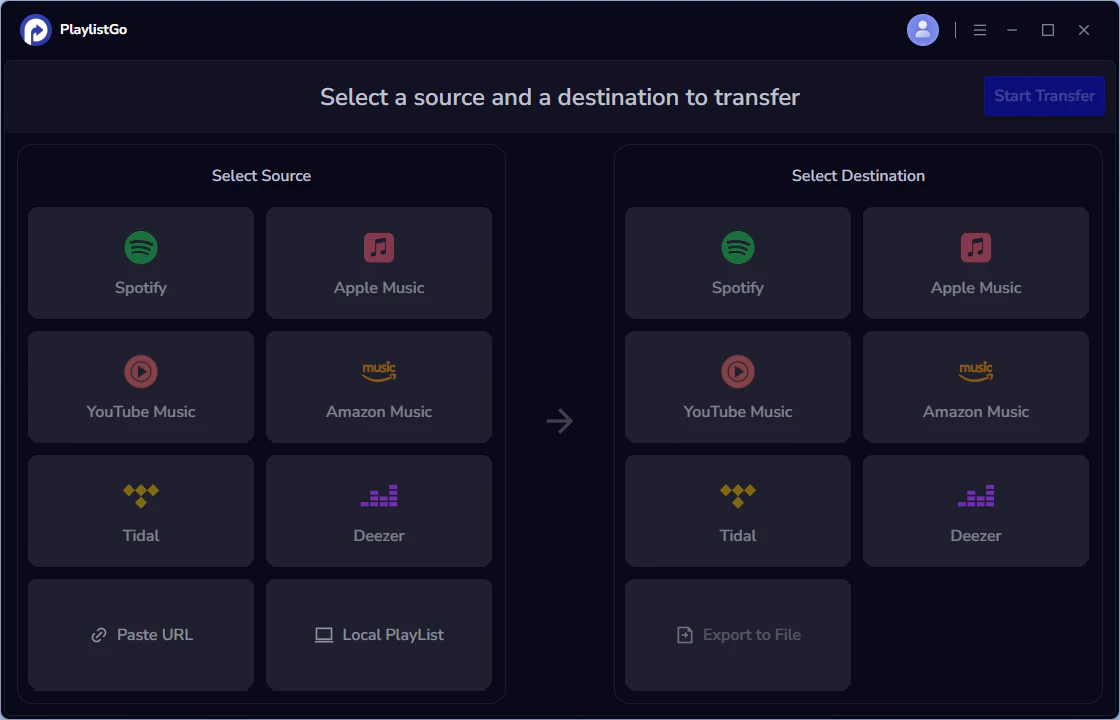
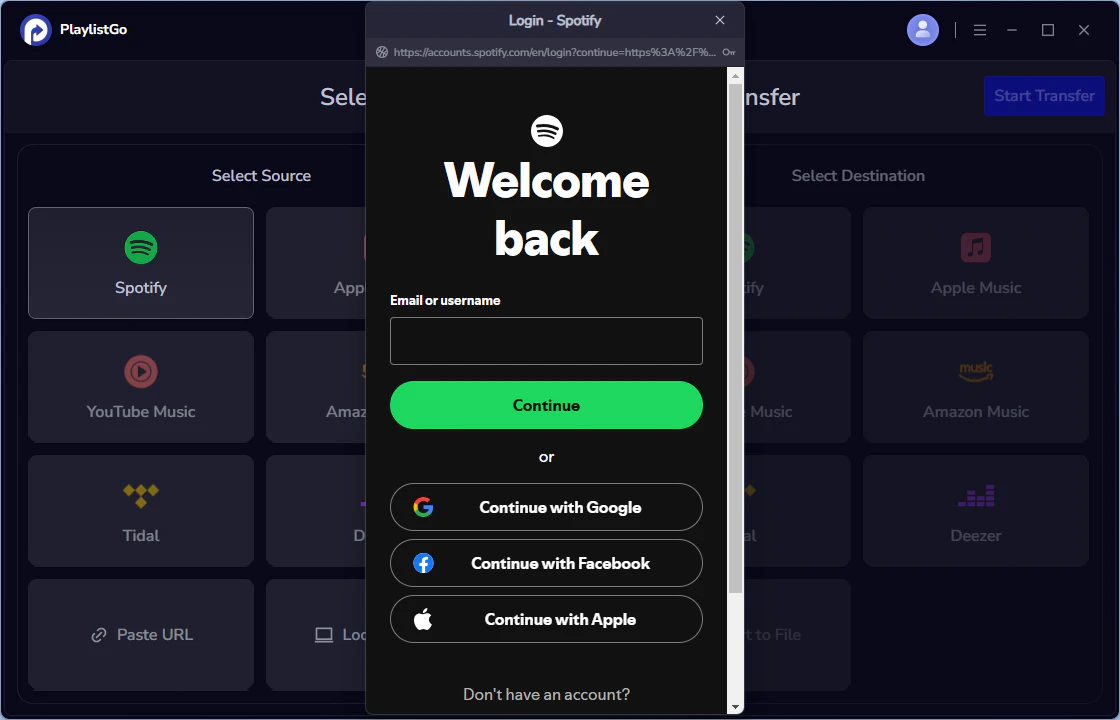
Download and launch PlaylistGo on your computer. On the main interface, select Spotify as your source platform and log in to your account. PlaylistGo will load your Spotify library (playlists, liked songs, and albums depending on permissions).
Choose Destination Platform (Apple Music)
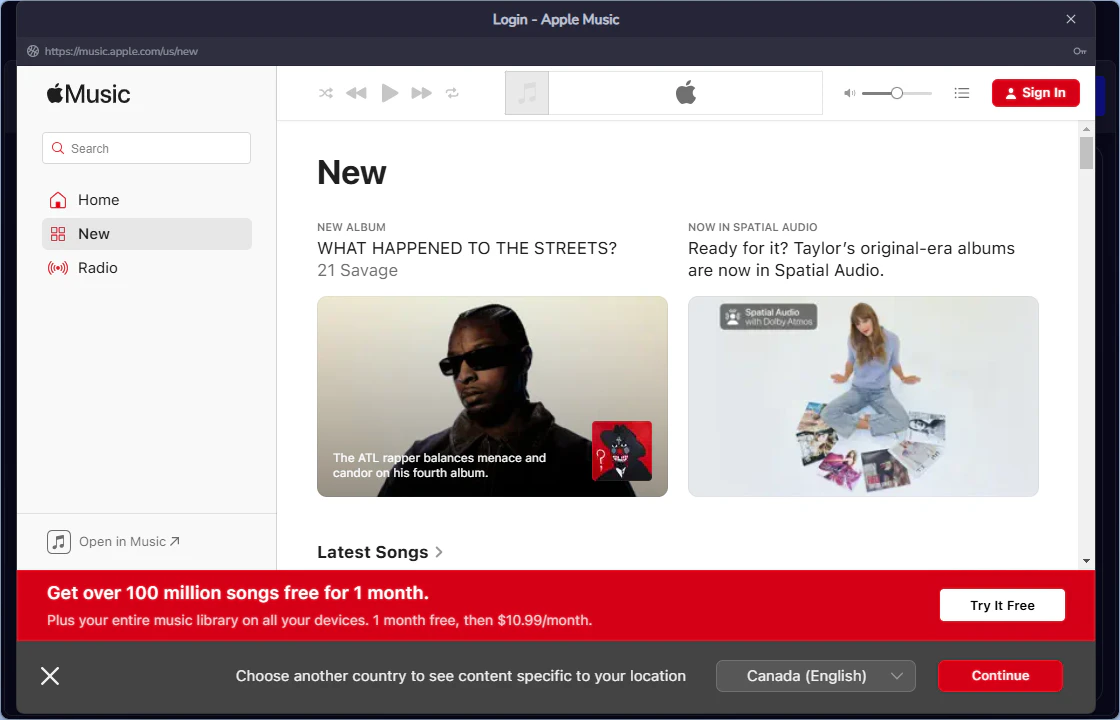
Select Apple Music as your destination platform and authorize the connection. PlaylistGo uses a standard authorization flow, so your password is not stored in the app.
Start the Transfer Process
Select the playlists or songs you want to transfer, then click “Start Transfer”. PlaylistGo will match tracks across catalogs and show progress in real time. Transfer time depends on library size, matching, and connectivity.

Complete the Transfer
All done. Your Spotify playlists should now be available in Apple Music. We recommend spot-checking a few tracks to confirm versions (explicit/clean, live/studio, remaster/original).

Transfer Playlist with Online Converter
Online tools like TuneMyMusic and Soundiiz are easy to use for smaller transfers. Because they run in a browser, performance can be less predictable for large libraries (for example, slower speed, timeouts, or mismatched tracks). For a few playlists, they can still be a convenient option.
TuneMyMusic
Best for: Users who want to transfer a small playlist quickly and don’t mind manually checking results.
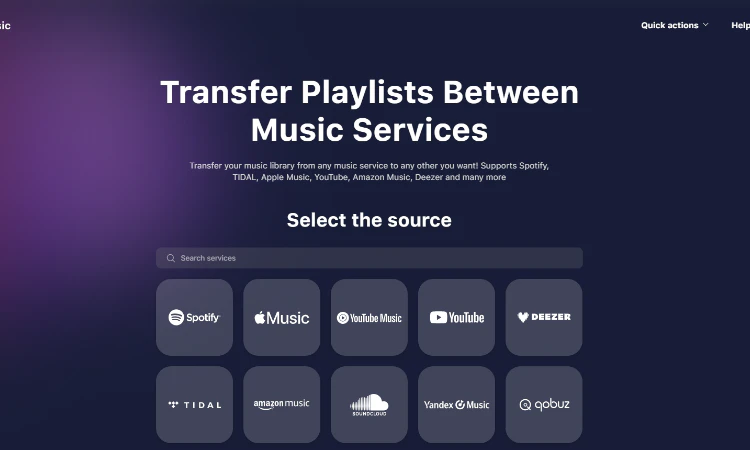
TuneMyMusic is an online tool for transferring playlists and songs between services. It supports Spotify, Apple Music, YouTube Music/YouTube, TIDAL, Amazon Music, Deezer, and more.
TuneMyMusic offers both a free version and a premium subscription. The free version allows transfers of up to 500 tracks, while the premium plan unlocks features like unlimited transfers and syncing. It does not offer a lifetime plan.
Pros
- Easy to use in the browser. No installation
- Auto-sync is available (paid)
- Supports many services
Cons
- Large transfers can be unstable or incomplete
- No lifetime or one-time payment plan
Soundiiz
Best for: Users who prefer a web-based tool and only need to transfer a few playlists.
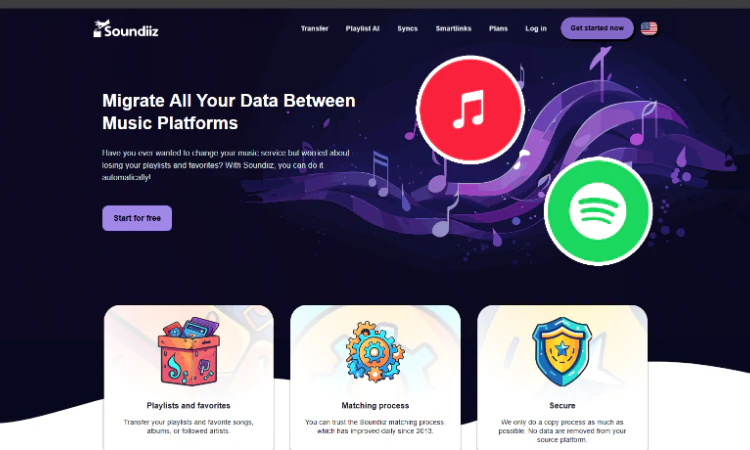
Soundiiz is a web-based transfer tool that supports 40+ platforms, including Spotify, Apple Music, YouTube Music, Tidal, Deezer, Amazon Music, and SoundCloud.
Soundiiz offers a free version with limitations (typically one playlist at a time). Premium unlocks larger transfers and syncing via subscription.
Pros
- Supports many music platforms
- User-friendly interface
Cons
- Free version has transfer limits
- Mismatched or missing tracks can happen
- Browser-based workflow may not be ideal for large libraries
Transfer Playlist with iPhone Converter (iOS Apps)
If you prefer to transfer playlists on your iPhone or iPad (without a computer), iOS apps can help. They are convenient for quick, on-the-go transfers, but may be slower or less stable for large libraries compared to desktop tools. Here are two popular options: SongShift and Playlisty.
Songshift (iOS)
Best for: iPhone/iPad users who transfer a few playlists and are OK with doing transfers one at a time.
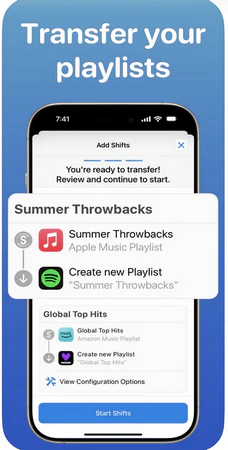
SongShift is designed for iOS devices. It can move playlists (and sometimes albums/songs depending on the service) between streaming platforms. The free version supports basic transfers, while Pro unlocks batch features and faster matching.
Pros
- Free tier available for small transfers
- Easy to use on iPhone/iPad
Cons
- Some playlist types may not transfer smoothly in some cases
- Large transfers may fail or require retries
Playlisty (iOS & Mac)
Best for: Apple ecosystem users who prefer a one-time purchase option and need import features (local files / links).
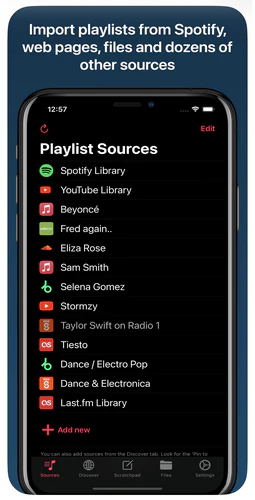
Playlisty supports iPhone, iPad, and Mac, but does not support Android or Windows. It can import playlists from Spotify (and other sources) into Apple Music, and it supports formats such as CSV, M3U, and iTunes XML. The free version limits each playlist, while Pro unlocks unlimited imports.
Pros
- One-time purchase option available
- Supports importing from some local file formats
Cons
- Primarily focused on importing into Apple Music (not two-way transfer)
- Apple-only ecosystem
2026 Best Playlist Transfer Tools: Which One Actually Works? (Tested)
| Feature | PlaylistGo | TuneMyMusic | Soundiiz | SongShift | Playlisty |
|---|---|---|---|---|---|
| Success Rate | 99% | ~85% | ~80% | ~82% | ~80% |
| Free Limit | 10 tracks (trial) |
500 tracks | 1 playlist | Basic (slow) | 20 tracks |
| Platform | Windows & macOS | Web | Web | iOS only | iOS only |
| Supported Services |
Spotify, Apple Music, Amazon, Tidal, Deezer, YouTube Music |
All major + more |
40+ services |
Spotify, Apple, YouTube + more |
Spotify, Apple, YouTube, Deezer |
| Local File Import | M3U, M3U8, XSPF, XML, CSV, XLS, XLSX, JSON, and TXT. | TXT, CSV, M3U, M3U8, PLS, WPL, XSPF and XML | M3U, CSV, XML, TXT | No | CSV, M3U, iTunes XML |
| Large Playlists (10k+ tracks) |
Very stable | Sometimes unstable |
Often crashes | May timeout | Unstable |
| Auto-Sync | No | Yes (paid) | Yes (paid) | Yes (Pro) | No |
| Best For | Large libraries One-time payment option |
Quick small transfers |
Most services | iPhone users | Apple ecosystem |
Tested December 2025 – Results based on transferring 500–15,000 song playlists across platforms. Success rate includes unmatched/skipped tracks. Success rate is influenced by region availability, catalog differences, and version matching (explicit/clean, live/studio, remaster/original).
FAQs about Transferring Spotify Playlist to Apple Music
Conclusion: The #1 Way to Transfer Spotify to Apple Music in 2026
If you only need to move one or two small playlists once in a while, the free tiers of TuneMyMusic or Soundiiz may be enough. But if you have a bigger library and want a more stable workflow, a desktop method is usually the most reliable.
- Fewer missing tracks due to timeouts
- Better handling for large batches
- Clearer control over what gets transferred
- Less dependence on browser limits
For most users switching a full Spotify library, PlaylistGo is the recommended method to try first in 2026.

PlaylistGo – Recommended Desktop Transfer Tool
A stable desktop workflow to move Spotify playlists to Apple Music (and other services) with local processing and clear progress tracking.