

Imagine spending hours crafting the perfect Spotify playlist for your run, road trip, or work—only to risk losing it if a track is removed or your account has issues. Playlists are personal soundtracks worth preserving, and exporting to CSV allows you to back up and share your data easily. However, Spotify doesn’t offer a direct export option. In this guide, we’ll clarify the export process and show you how to export Spotify to a CSV file using PlaylistGo - a skilled music playlist transfer tool.
🔥 Might Like: How to Import CSV Playlist to Apple Music? > > Explore

Part 1: Can You Export Spotify to CSV Files Directly?
Spotify does not provide a direct "export to CSV" feature in its desktop or mobile apps. This limitation arises from Spotify’s focus on streaming and maintaining users within its ecosystem, which means it does not support structured data exports like CSV. This issue is often discussed in user forums, where many express a need for a simple backup option to protect years of curated playlists from accidental loss or account problems.
Spotify’s official tools only let you perform basic playlist actions: sharing links, copying individual track URLs, or collaborating with other users. You won’t find an “Export to CSV” button in your playlist settings, and even advanced features like Spotify for Developers require coding knowledge to pull playlist data via APIs — a barrier for most everyday users.
The good news? Third-party tools fill this gap perfectly. PlaylistGo uses Spotify’s public Web API to securely access your playlist data (with your explicit permission) and format it into clean, usable CSV files. They operate entirely in your browser or via user-friendly apps, requiring no technical skills and ensuring your data stays private.
Part 2: How to Export Spotify Playlists to CSV Files with PlaylistGo?
While several tools can handle Spotify-to-CSV exports, PlaylistGo stands out for its simplicity, speed, and focus on user experience—making it ideal for both beginners and power users. Designed specifically for playlist management, PlaylistGo streamlines the export process into a few clicks, supports batch exports, and preserves all critical track metadata. Here’s a step-by-step tutorial to get your CSV file in minutes:
This solution allows for effortless playlist migration across major streaming services, including Apple Music, YouTube Music, Spotify, Tidal, Deezer, and Amazon Music. Furthermore, it provides extensive file format compatibility for import and export, supporting M3U, M3U8, PLS, XSPF, XML, CSV, XLS, XLSX, JSON, and TXT, ensuring versatile data portability and secure offline management.
Download PlaylistGo 100% Free to start
Safely download entire playlists from Spotify, YouTube, Apple Music and 50+ platforms
Step-by-step Tutorial
Launch PlaylistGo
Download and launch PlaylistGo on your computer.
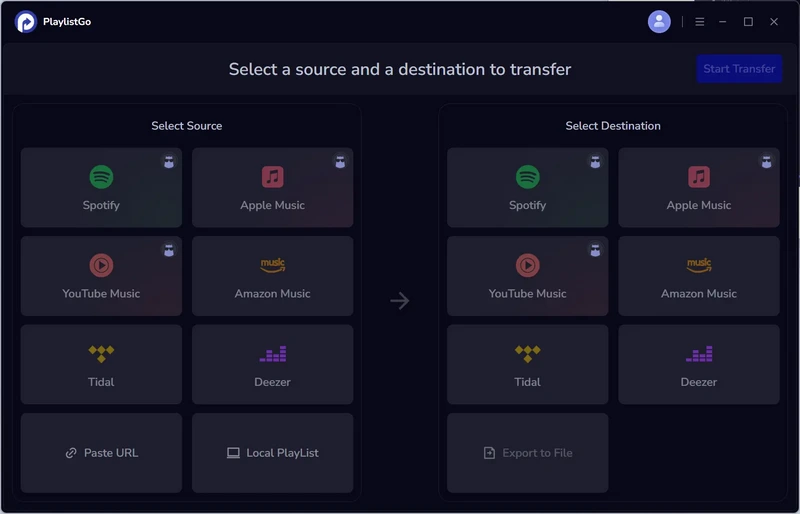
Choose Spotify as Source Platform
On the main interface, select Spotify as your source platform and log in to your account. PlaylistGo will automatically load your entire Spotify library — playlists, liked songs, and albums.
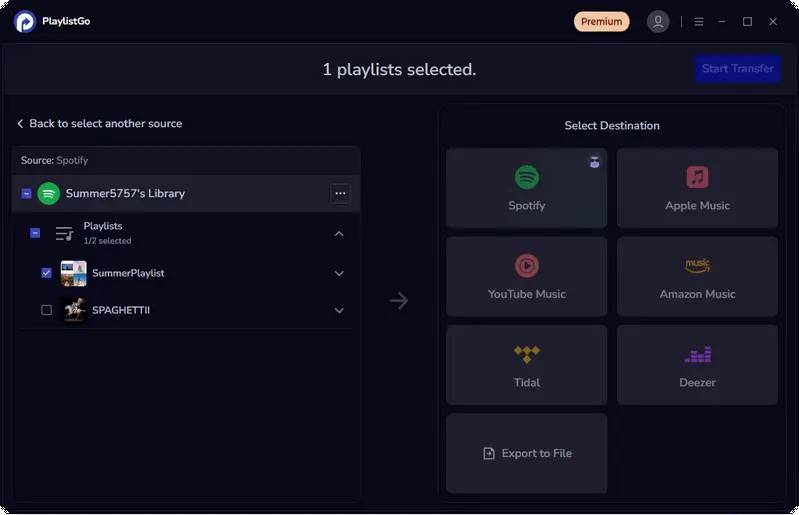
Select Your Destination: Export to File
In the destination area, select "Export to File", then choose "CSV" from the format options as the output file. Additionally, you have the flexibility to customize both the output name and the storage location.
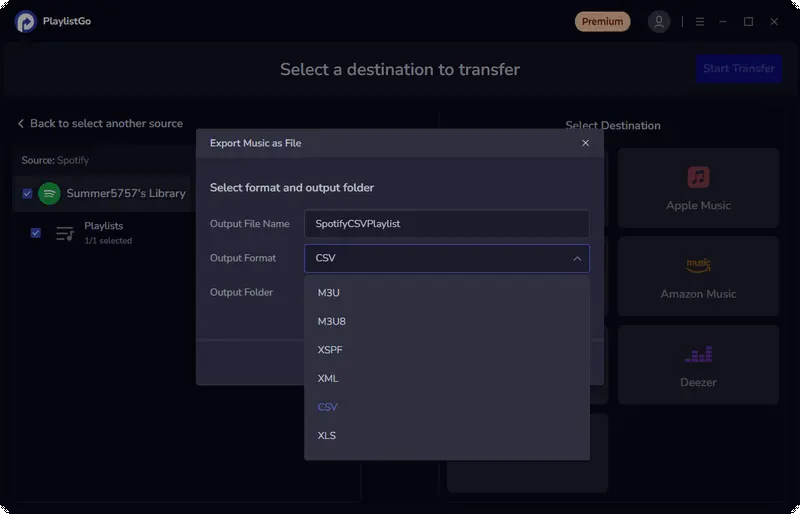
Start Exporting Spotify to CSV
Click the Start Transfer button. PlaylistGo will compile all track metadata into a structured CSV file and save it to your chosen location on your computer.
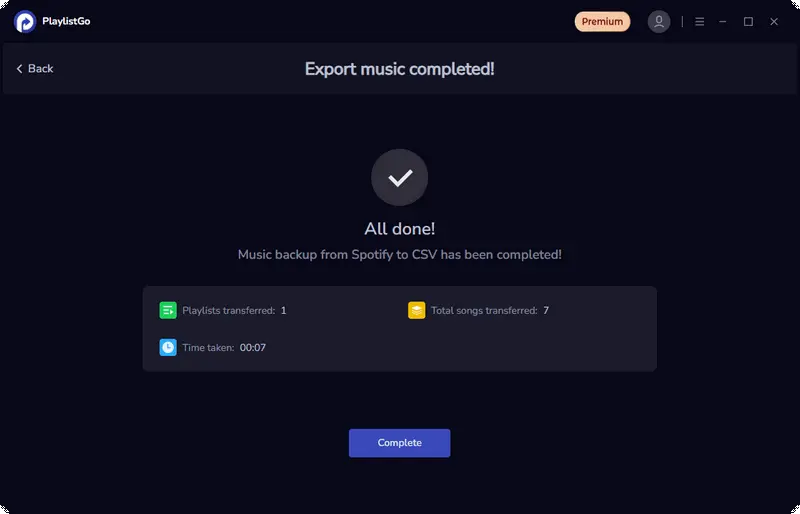
After completing the above steps, you can navigate to the previously selected location to find the exported Spotify CSV playlist. Here, you will have access to your playlist data, ready for further use or analysis.
Part 3: What Can You Do with Your Exported Spotify CSV Playlists?
A CSV file of your Spotify playlist is more versatile than you might think. It’s a plain-text file that opens in Excel, Google Sheets, Numbers, or even simple text editors—making it easy to manipulate, share, and repurpose your music data. Here are the most practical uses:
Backup Your Playlists
Spotify playlists can disappear due to account issues, deleted tracks, or accidental deletion. Your CSV file acts as a permanent backup: if your playlist vanishes, you can reimport the tracks by copying the “Spotify Track URI” column from the CSV and pasting it into a new Spotify playlist. Many users set a monthly reminder to export their playlists as a safety net.
Analyze Your Music Habits
Open the CSV in Excel or Google Sheets to uncover insights about your taste. Sort tracks by “Artist” to see who you listen to most, filter by “Duration” to create shorter mixes for commutes, or use pivot tables to count genres. Music marketers and DJs can take this further by analyzing “Popularity” scores to identify rising tracks for their audiences.
Edit and Organize Playlists Efficiently
Spotify’s built-in editor is clunky for large playlists. Use your CSV to rearrange tracks (drag rows in Excel), delete duplicates (use the “Remove Duplicates” tool), or add custom notes (create a “Notes” column for lyrics or occasion ideas, like “Perfect for summer barbecues”). Once edited, re-import the tracks back to Spotify.
Share Playlists with Non-Spotify Users
Not everyone uses Spotify—but almost everyone can open a CSV. Share your playlist with friends, family, or colleagues who prefer other platforms, and they’ll have all the track details (artist, album, song name) to find the music elsewhere. Teachers and fitness instructors often use this to share class playlists with students.
Part 4: Troubleshooting Common Spotify to CSV Export Issues
Why it happens: PlaylistGo may have cached old login data, or Spotify’s API is temporarily down.
Fix: Clear PlaylistGo's cache, then try reconnecting. If that fails, check Spotify's status page or Downdetector for any outages. If there is an outage, wait for service to be restored. If issues persist, it may require support from the PlaylistGo team.
Why it happens: The source platform failed to send complete data, or the export was interrupted, leaving blank fields in the CSV.
Fix: Try exporting the playlist to CSV again. If missing data persists, export to a different format like JSON or XLSX first, then convert it to CSV.
Why it happens: Excel sometimes misinterprets CSV encoding (especially if tracks have special characters like accents).
Fix: Instead of double-clicking the CSV, open Excel first, go to "Data" > "From Text/CSV", select your file, and choose "UTF-8" as the encoding. This ensures all track names and artists display correctly.
Why it happens: Spotify’s API limits the number of tracks you can pull at once (typically 1,000 per request).
Fix: Split large playlists into smaller chunks (e.g., 500 tracks each) in Spotify, then export them separately.
Conclusion
Tools like PlaylistGo make it simple to export your Spotify playlists to CSV—a feature Spotify itself doesn't offer. Whether you're backing up your music, analyzing your taste, or switching platforms, a CSV puts your playlist data in your hands. Follow the guide above to export in minutes and take control of your music library.

PlaylistGo – Best Desktop Transfer Tool
The fastest and most reliable way to move your entire Spotify library to Apple Music, YouTube Music, TIDAL, etc. 100% offline • One-time payment • 99.7% success rate


